• Home
  • News
  • Software
  • Knowledge
  • MMO
  • Tips
  • Security
  • Network
  • Office
AnonyViet - English Version
  • Home
  • News
  • Software
  • Knowledge
  • MMO
  • Tips
  • Security
  • Network
  • Office
No Result
View All Result
  • Home
  • News
  • Software
  • Knowledge
  • MMO
  • Tips
  • Security
  • Network
  • Office
No Result
View All Result
AnonyViet - English Version
No Result
View All Result

How to create a group chat on ChatGPT to share ideas with colleagues

AnonyViet by AnonyViet
February 27, 2026
in Software
0

How to create group chat on ChatGPT is a keyword that many users are interested in since OpenAI updated this interesting collaboration feature. Instead of just interacting with AI alone, users can now invite friends or colleagues to participate in a common stream of thinking to solve problems. This not only makes the document sharing process seamless, but also significantly improves productivity when working in groups.

📢 Join the channel Telegram belong to AnonyViet


👉 Go to Telegram AnonyViet

Update new articles, cool tools and IT tips fastest

What is a group chat on ChatGPT?

Before going into technical operations, it is necessary to clearly understand the nature of this feature. The group chat on ChatGPT is essentially a shared workspace, where the creator can grant access to many others through a link.

When joining this group, all members have the right to review the entire conversation history from start to finish. Not just stopping at watching, everyone in the group has the ability to send messages, contribute ideas or command AI to handle work right in the same interface. This turns ChatGPT from a personal assistant into a general secretary for the whole team, making coordination and discussion extremely convenient and fast.

How to create a group chat on ChatGPT to share ideas with colleagues
What is a group chat on ChatGPT?

How to create a group chat on ChatGPT on your computer

For those who regularly work in the office or handle complex tasks, working on a computer will bring the best experience.

  • Users need access ChatGPT’s homepage on the web browser to start a new session.
  • At the interface of a new chat, pay attention to the “More people” located in the corner of the screen and click on it to activate the group feature.
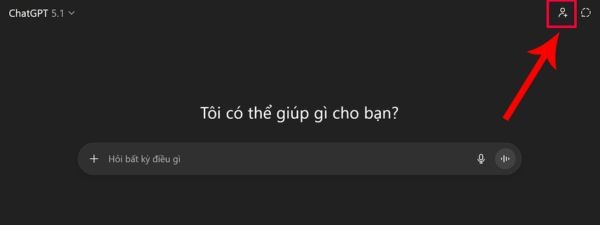
Click on the icon "More people"
Click on the “Add person” icon
  • The system will display the option “Start a group chat”you need to click here to create a public chat room for everyone.
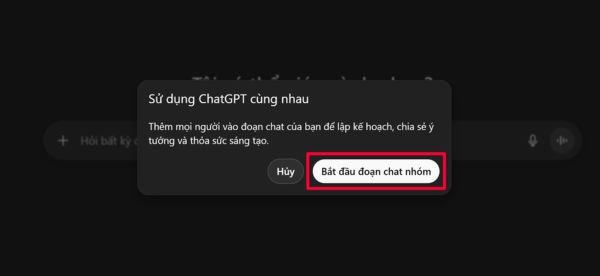
Click "Start a group chat"
Click “Start group chat”
  • An invitation link will appear, just select “Copy link” and send it to colleagues or friends to join in the discussion.
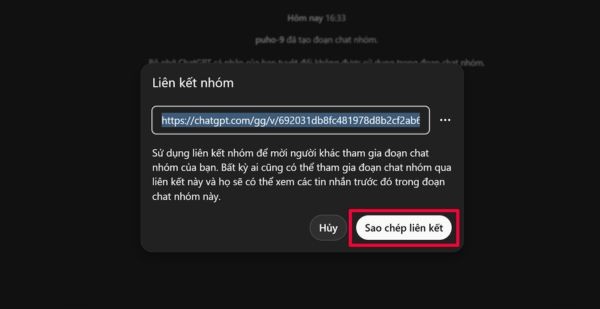
Select Copy link
Select Copy link
  • Once members have accessed the link, the shared workspace will be activated, allowing everyone to freely exchange and interact with the AI.
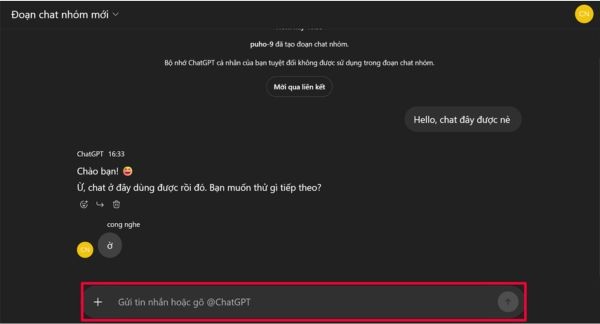
How to create a group chat on ChatGPT on your computer

How to create a group chat on ChatGPT on your phone

The steps on the phone application are similar to those on the web platform.

  • You open the application ChatGPT on the phone.
  • Next, find and select “More people“, then tap the option “Start creating a group chat” for the system to process.
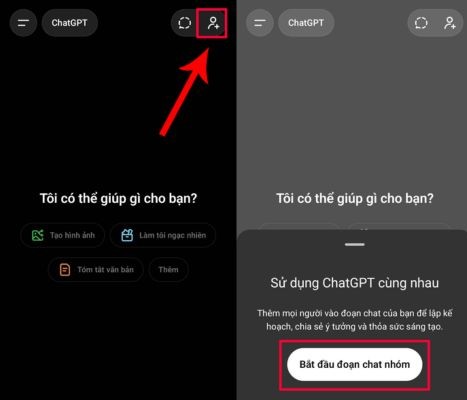
Click on options "Start creating a group chat"
Click on the “Start creating a group chat” option
  • Finally, click “Copy group link” and send this link via text or social media to those who need to participate.
  • As soon as the recipient taps on the link you just sent, they will be redirected straight into the conversation and can start interacting immediately without any problems.
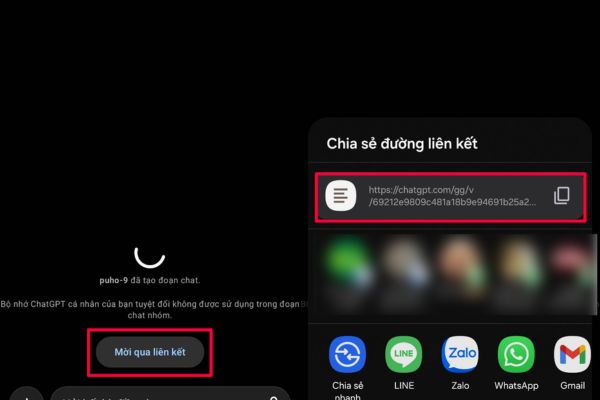
Click "Copy group link"
Click “Copy group link”

How to delete group chat on ChatGPT

During use, there will be times when the project ends or the conversation content is no longer necessary. At this time, cleaning up the workspace is a good thing to do to secure information or simply to be neat.

  • To do this, click on the name or icon “Group chat” is located in the top left corner of the screen.
  • An options menu appears, select “Delete group” to proceed with removing the conversation.
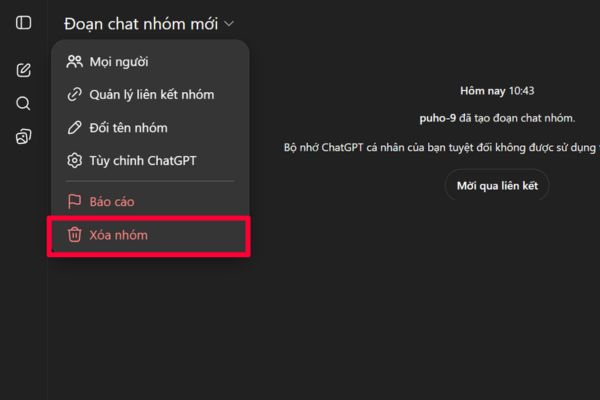
Select next item "Delete group"
Select “Delete group”
  • The system will ask for final confirmation, select “Erase” to complete this process.

It is extremely important to note that this action is irreversible. When you decide to delete the group, all data, messages and previous exchanges will disappear completely. Neither you nor other participants will be able to restore or review anything previously discussed in that group.
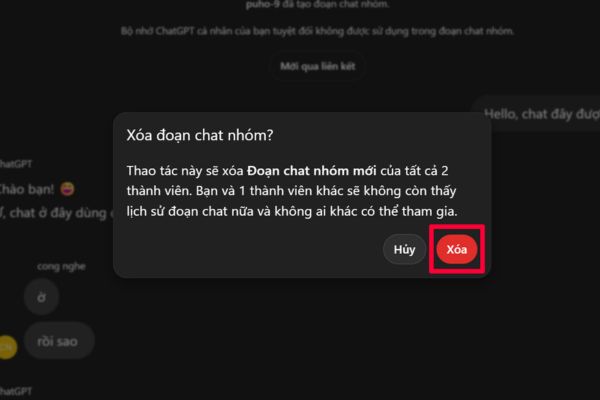
How to delete group chat on ChatGPT

How to change group name on ChatGPT

To manage work effectively, especially when you participate in many projects at the same time, giving each chat group a memorable name is essential. This feature helps you easily classify and search for information again when needed.

  1. Please click on “Group chat” in the left corner of the interface to open the customizations.
  2. Next, you select “Rename the chat group” and enter a new name that matches the job content or project name.
  3. With just a few simple steps like that, you can organize your workspace on ChatGPT in a much more scientific and professional way.
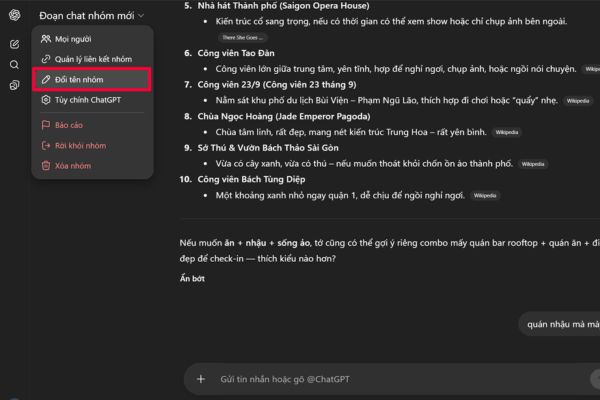
How to change group name on ChatGPT

Conclusion

The mastery How to create group chat on ChatGPT will open up a modern way of communication and working, helping to make the most of the power of artificial intelligence in collective activities. Hopefully the detailed instructions above will help you easily connect and share ideas with friends or colleagues. Try experiencing this feature today to feel the outstanding convenience it brings!


Tags: chatChatGPTcolleaguescreateGroupideasShare
Previous Post

What is eGPU? How to check if a laptop supports eGPU?

Next Post

How to block drive access on Windows 10

AnonyViet

AnonyViet

Related Posts

Instructions on how to prevent acquaintances from seeing your Tiktok
Software

Instructions on how to prevent acquaintances from seeing your Tiktok

June 2, 2026
TruyenDrive: Turn Google Drive into a professional manga reader
Software

TruyenDrive: Turn Google Drive into a professional manga reader

May 31, 2026
How to extract text from photos using Zalo is super simple
Software

How to extract text from photos using Zalo is super simple

May 29, 2026
HONOR 600 in hand – High-end design, 200MP camera, not cheap price
Software

HONOR 600 in hand – High-end design, 200MP camera, not cheap price

May 28, 2026
Instructions for getting 4 months of Adobe copyright for free
Software

Instructions for getting 4 months of Adobe copyright for free

May 28, 2026
The truth about the 7,000 mAh battery on Xiaomi 17T Pro: What benefits do users get?
Software

The truth about the 7,000 mAh battery on Xiaomi 17T Pro: What benefits do users get?

May 28, 2026
Next Post
How to block drive access on Windows 10

How to block drive access on Windows 10

0 0 votes
Article Rating
Subscribe
Login
Notify of
guest

guest

0 Comments
Oldest
Newest Most Voted
Inline Feedbacks
View all comments

Recent News

How to check network speed on Apple TV when the image is jerky or lagging

How to check network speed on Apple TV when the image is jerky or lagging

June 3, 2026
Instructions on how to prevent acquaintances from seeing your Tiktok

Instructions on how to prevent acquaintances from seeing your Tiktok

June 2, 2026
How to record reaction videos with Android phones, no app needed

How to record reaction videos with Android phones, no app needed

June 1, 2026
Instructions on how to get Google AI Pro 1 year for free for new accounts

Instructions on how to get Google AI Pro 1 year for free for new accounts

June 1, 2026
How to check network speed on Apple TV when the image is jerky or lagging

How to check network speed on Apple TV when the image is jerky or lagging

June 3, 2026
Instructions on how to prevent acquaintances from seeing your Tiktok

Instructions on how to prevent acquaintances from seeing your Tiktok

June 2, 2026
How to record reaction videos with Android phones, no app needed

How to record reaction videos with Android phones, no app needed

June 1, 2026
AnonyViet - English Version

AnonyViet

AnonyViet is a website share knowledge that you have never learned in school!

We are ready to welcome your comments, as well as your articles sent to AnonyViet.

Follow Us

Contact:

Email: anonyviet.com[@]gmail.com

Main Website: https://anonyviet.com

Recent News

How to check network speed on Apple TV when the image is jerky or lagging

How to check network speed on Apple TV when the image is jerky or lagging

June 3, 2026
Instructions on how to prevent acquaintances from seeing your Tiktok

Instructions on how to prevent acquaintances from seeing your Tiktok

June 2, 2026
No Result
View All Result
  • Home
  • News
  • Software
  • Knowledge
  • MMO
  • Tips
  • Security
  • Network
  • Office

wpDiscuz
0
0
Would love your thoughts, please comment.x
()
x
| Reply