By default, when you open File Explorer on the Windows 10 taskbar, it opens Quick Access. If you want it to open to “This PC” instead, you can easily change that in File Explorer settings.
📢 Join the channel Telegram belong to AnonyViet
Update new articles, cool tools and IT tips fastest
Quick Access is the shortest route to the files you’re working on and the folders you use often. These are your frequently accessed folders and recent files. Although Quick Access is very convenient, it is very annoying for those who do not often need to use this feature to access frequently used folders or files.
You can also use it Files on Windows Stores. Use the new design definition Fluent Design of Windows 10. Fluent Design can be said to inherit the good points of Material Design – Google, developing additional optimizations for virtual reality and new user experiences.
How to default to opening “This PC” instead of “Quick Access” in File Explorer
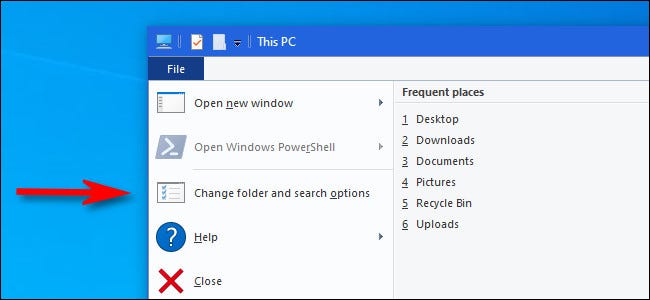
First, open any File Explorer window. In the menu, click File > Change folder and search options.
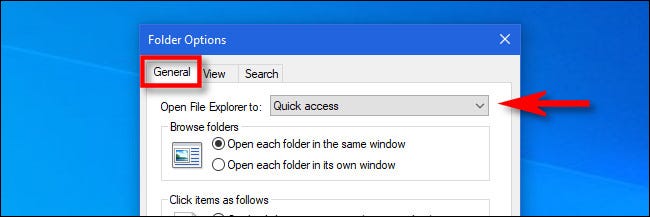
In “Folder Options,” click the “General” tab, then click the menu next to “Open File Explorer to.”
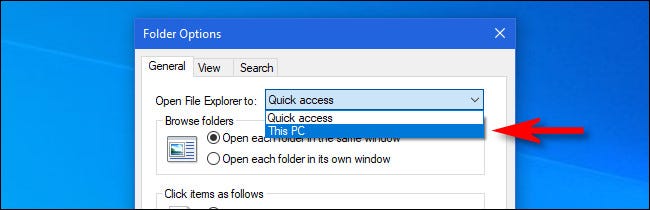
In the menu that appears, select “This PC”.
Here’s how to replace “Quick access” with “This PC” on Windows. “This PC” displays drives, external storage devices, Network and frequently used folders such as Download, Desktop and Documents folders.. on Windows
Click OK and “Folder Options” will close. The next time you open File Explorer, you will see “This PC” instead of “Quick access”.
If you don’t like Windows 10’s Quick Access, there are some other ways to turn off the Quick Access feature if you’re not familiar with it.
Frequently asked questions
Can I change the File Explorer opening default to “This PC”?
Maybe! Just open File Explorer, go to File > Change folder and search options, select the “General” tab, then change the “Open File Explorer to” option to “This PC”.
What is Quick Access and why would I want to change it?
Quick Access displays recently accessed files and folders. If you want to directly view your computer’s drives and folders when opening File Explorer, you should change to “This PC”.
After making changes, can I return to Quick Access?
Of course! Just repeat the above steps and select “Quick access” in the “Open File Explorer to” menu.