Both Chrome and Edge offer a guest mode that keeps your web browsing separate from your main browser profile. If you often let other people use your computer to browse the web, you can add a guest mode shortcut to the Desktop. This makes opening guest mode faster and does not save user information.
📢 Join the channel Telegram belong to AnonyViet
Update new articles, cool tools and IT tips fastest

What is guest mode in Chrome and Edge?
Guest mode in Google Chrome and Microsoft Edge essentially a separate user profile for your browsing sessions. When you use guest mode, the browser will not load other profile configurations (configurations such as your browsing history, browser personalization settings, etc.).

When you leave guest mode, all the browsing activity you did in it is deleted from your history. Your list of downloaded files is also deleted, even though those files still exist on your computer.
If you share a computer with others, you give them guest access so that their browsing history doesn’t affect yours.
Create guest mode shortcut on Google Chrome
Normally, you would click your profile icon on the Chrome toolbar and select “Guest” to enter guest mode in Chrome, but you can bypass the need to do so by creating a desktop shortcut to directly open guest mode in Chrome.
To add a shortcut, go to the Start Menu and search for “Google Chrome”. Right click on Chrome browser and select “Open file location”.
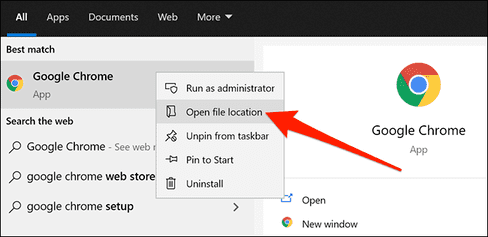
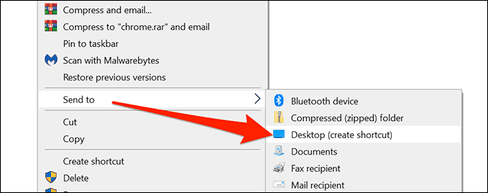
In File Explorer, right-click on the “Chrome” shortcut and select “Open file location”. Until you find the Chrome executable (chrome.exe). then right click on “chrome.exe” and select Send to > Desktop to create shortcuts on Desktop.
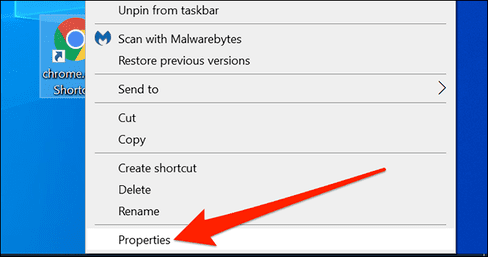
Right-click on the shortcut you just created and select “Properties.”
In Properties, click the “Shortcut” tab. In the “Target” section, enter this command:
--guest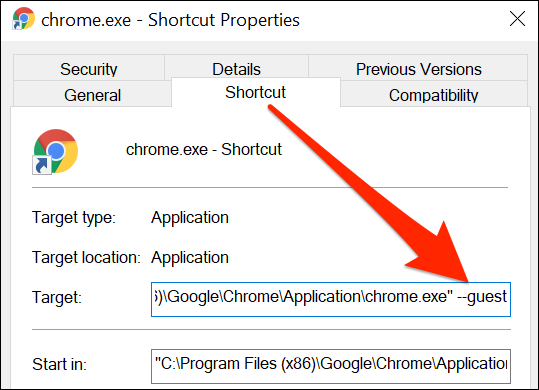
Click “Apply” and then select “OK” at the bottom to save your changes.
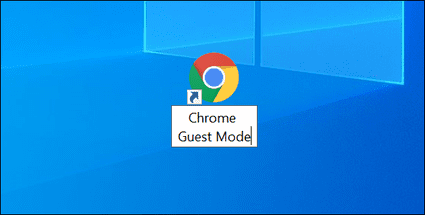
You should rename this shortcut to make it easier to identify. Right click on the shortcut and select “Rename”. Enter a meaningful name like “Chrome Guest Mode” and press “Enter”.
Create guest mode shortcut on Microsoft Edge
The process for creating guest mode shortcuts for Edge is quite similar to Chrome.
First, open the Start Menu and search for “Microsoft Edge”. Right click on Edge and select “Open file location”.
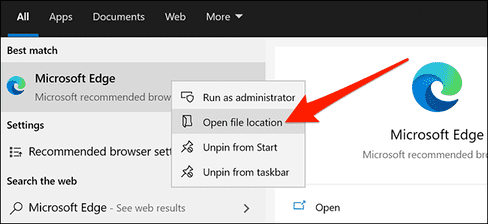
You will now see the Edge shortcut in File Explorer. Right click on this shortcut and select “Open file location”.
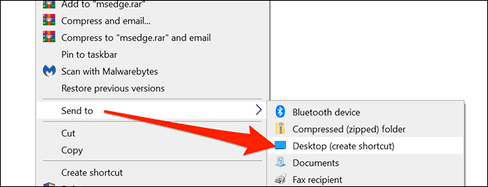
When you see “msedge.exe”, right click on it and select Send to > Desktop. This will add the Edge shortcut to your Desktop.
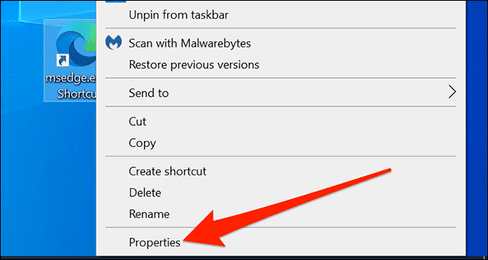
Right-click the new shortcut on the Desktop and select “Properties”.
Click the “Shortcut” tab in the Properties window. In the “Target” section, type the command below:
--guest
Click “Apply” and select “OK” to save your changes. That’s it.
So you can safely lend your computer to others to browse the Web without fear of them affecting the browser you are using. When turning off Guest mode – Other modes, the browser will return to its original state and will not save any data to the computer.
Frequently asked questions
Does guest mode delete all browsing data?
Guest mode clears browsing history, cookies, and temporary data when you exit mode. However, downloaded files are retained on the computer.
Can I create guest mode shortcuts for browsers other than Chrome and Edge?
The method of creating shortcuts in the article focuses on Chrome and Edge. For other browsers, you need to find out if the browser supports the “–guest” command line parameter or something similar.
If I get an error when creating a shortcut, what should I do?
Please check that you have entered the “–guest” parameter correctly in the “Target” section in the Properties section of the shortcut. If you still get the error, try restarting your computer and following the steps again.