In June 2021, Microsoft just released a new feature, the News and Weather widget (also known as News and Interests, but sometimes I will call it the widget window for short) on the Windows 10 taskbar. This new widget displays weather, sports scores, news and more. In this article, I will show you how to display, hide and use newly updated utilities on Windows 10.
📢 Join the channel Telegram belong to AnonyViet
Update new articles, cool tools and IT tips fastest
How to view the News and Interests utility window on Windows 10
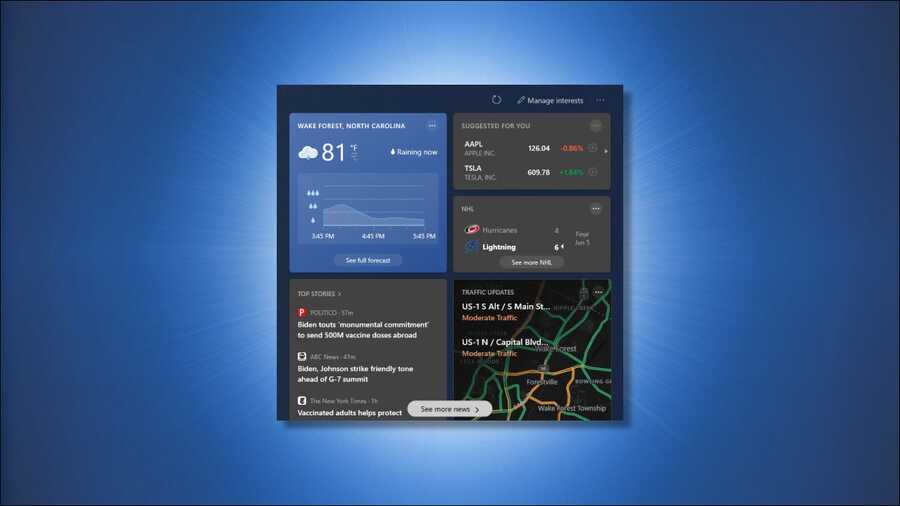
Utility window News and Interests was enabled on all fully updated Windows 10 PCs on June 9, 2021. It will automatically appear on your taskbar in the lower right corner of the screen near the date and time.
By default, the widget displays the current temperature in your location and a summary of the weather forecast in the taskbar. To fully open a widget, hover your mouse pointer or click on it.
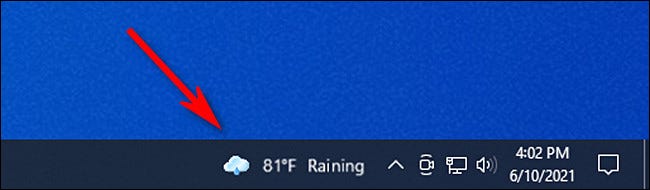
If you don’t see the widget on your taskbar, you need it Update Windows to the latest version.
Tip: If you previously disabled this extension, you can re-enable it by right-clicking on the taskbar, selecting “News and interests” -> “Show icon and text” or “Show icon”. If you don’t see the News and Interests option in the taskbar menu, you may be running an older version of Windows 10 that doesn’t have this feature.
How to turn off the News and Weather utility
If you do not want to use the feature News and interests, You can turn it off by right-clicking on the Taskbar and selecting it News and interests -> Turn Off.

In the same menu, you can also control widget-related options, including choosing a smaller size for the widget in the taskbar (“Show Icon Only”) and clicking to open the widget window (“Open on Hover”).
How to customize tags in widgets
The News and Interests widget has different information panels called “cards” that are enabled by default. These cards show your local sports scores, stock prices, weather or traffic forecasts. If you scroll down, you will also see news pulled automatically from different websites.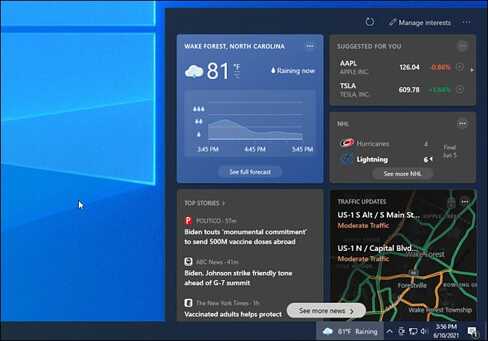
If you want to see more information about weather, stocks, or other tags, click the tag. You will be taken to the MSN.com page in the Edge browser. (Even the weather card opens on the MSN weather website instead of the built-in Windows 10 Weather app.)
If you want to change how your card works, such as changing the location in the weather card or adding an icon to your financial card, click the button menu in the upper right corner of the card. In the new menu you will see different options for configuring the card.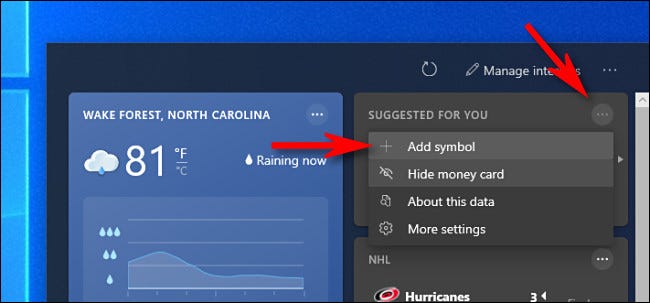
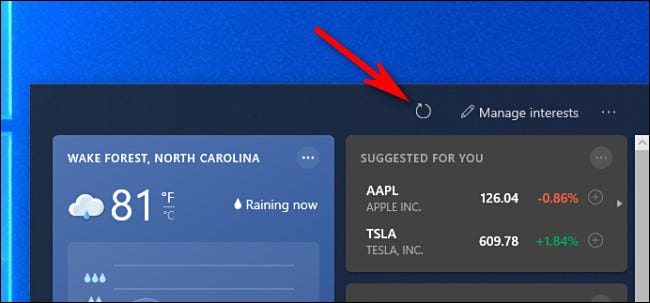
These widgets refresh themselves throughout the day, but if you want to manually refresh your card information, you can click the “Refresh” button (spinning arrow) at the top of the widget window.
How to turn off sports, finance, weather or traffic tags
If you don’t want to see a particular card, click the menu button (three dots in a circle) in the upper right corner of the card you want to hide. In the menu that appears, select “Hide Sports Card” (or any card).
You can also enable and disable different tags from a single menu. To do so, click the three-dot button in the upper right corner of the widget window and select “Language and Content”.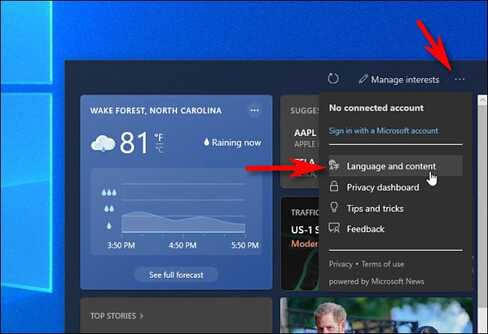
Edge browser will open the “Experience Settings” page on MSN.com to control the options of the utility window on Windows 10. In the “Information Cards” section, turn off the cards you want to hide. (You can also re-enable those tags from this menu)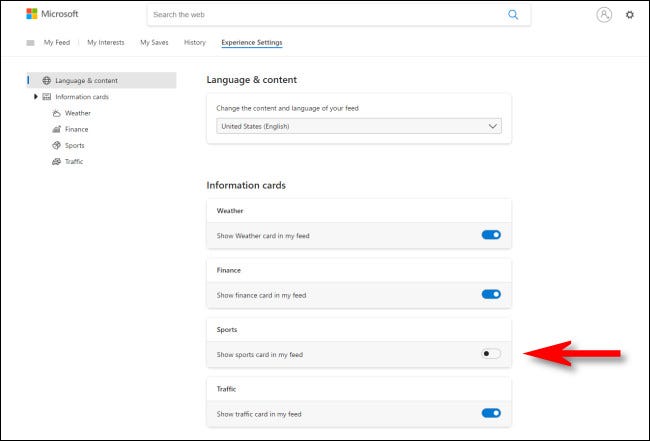
Once you’ve made your changes, open the widget window on the taskbar and reload the widgets by clicking the “Refresh” button at the top.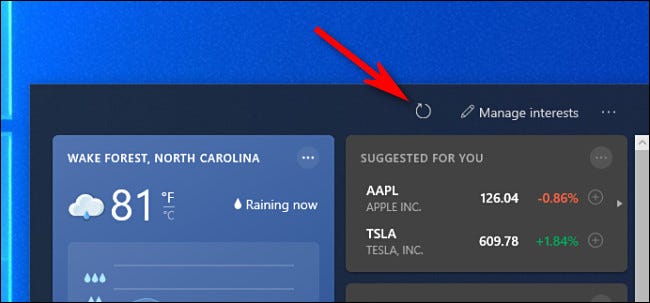
Tags you’ve hidden will disappear, and other tags you’ve re-enabled will show up again.
Note: The Microsoft account in your browser must match the Microsoft account in Windows 10, otherwise the settings on the MSN.com site will not work. In that case, you need to sign out of your Microsoft account in the browser, reload the MSN extension settings page, then make the changes again. Reload the extension for the changes to take effect.
Change the news feed for the widget
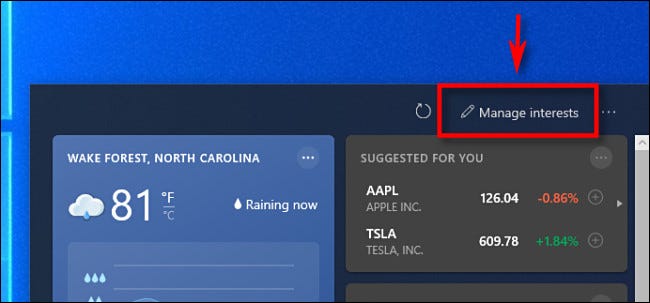
If you want to change the news feed for News and Interests widgets, open the widget window and select “Manage Interests” at the top of the widget window.
The browser will open the MSN.com website, allowing you to select or deselect thematic interests. Current interests include Science, Television, NBA,…
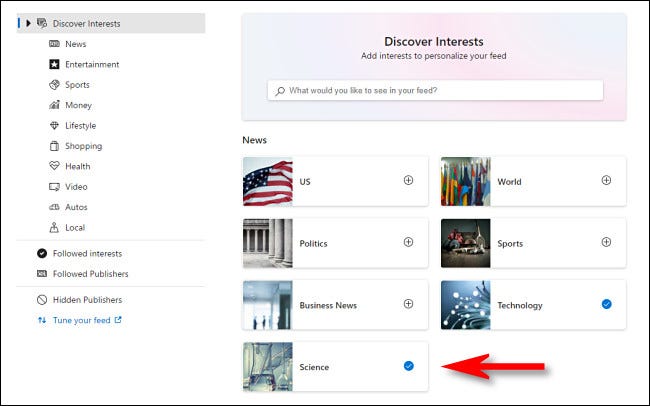
After choosing your preference, open the add-on window and click on the reload button. You will see more news related to the topics you have selected.
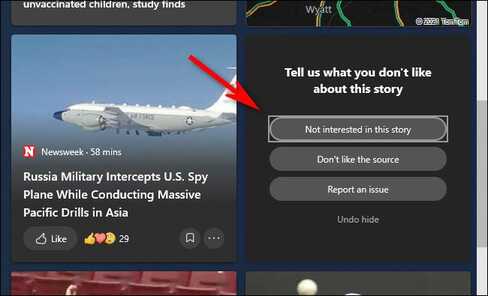
If you don’t like certain news in the news feed, you can hover over each news feed and click the “X” button in the upper right corner.
The widget will then give you the choice between “Not interested in this story,” “Don’t like the source,” or “Report an Issue” (where you can report offensive or misleading news content).
Alternatively, you can make the same changes by clicking the menu button (three dots in a circle) in the lower right corner of the news card. There, you can “like” or “dislike” and ask the utility to hide news from this source.
Frequently asked questions
I don’t see the News and Interests widget on the taskbar. What should I do?
Make sure you have updated Windows 10 to the latest version. If you have updated but still do not see it, right-click on the taskbar, select “News and interests” -> “Show icon and text” or “Show icon”.
How do I completely disable the News and Interests widget?
Right click on the taskbar, select “News and interests” -> “Turn Off”.
Can I customize what appears in the News and Interests widget?
Maybe! You can hide or show cards (like sports, finance, weather) by clicking the menu button (three dots) in the upper right corner of each card or under “Language and content”. You can also change the news source by selecting “Manage Interests” in the widget window.