
How to create a virtual Android phone with US IP This is a little tip I accidentally picked up while searching for a tool to raise a Facebook account. Normally, when I install heavy emulators on my computer, the pan blows up and the cooling fan sounds like a tractor. But since learning about this AI web-shopping game, my computer has become lighter and can still do the job. Let’s go together AnonyViet Learn the details of this super easy step-by-step process.
📢 Join the channel Telegram belong to AnonyViet
Update new articles, cool tools and IT tips fastest
What is the essence of how to create a virtual Android phone with US IP?
Many of you wonder how to get a virtual phone on the US network without spending money. The secret here is that we will borrow the emulator from a website specializing in AI programming. This website inherently allows programmers to test their applications.
Instead of testing the code, I took advantage of that virtual phone screen to surf the web. Thanks to that, you automatically have a computer running a genuine American network without needing to install any heavy emulation software on your computer. Everything happens entirely in your web browser. Too convenient, isn’t it!
Instructions on how to create a virtual Android phone with US IP
To make it easier for everyone to imagine, I will break this process down into specific steps. Just do it slowly and you’ll be successful no matter what.
Step 1: Create a virtual phone on the web
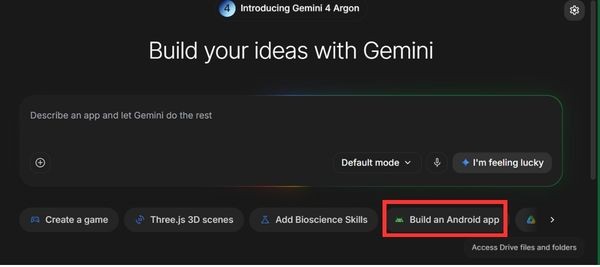
First, open your browser and visit the website AI Studio Apps. When the website has finished loading, select Build an Android App.
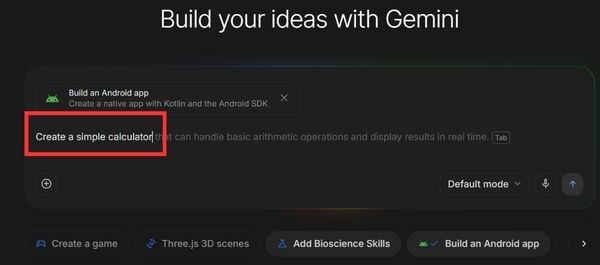
The system will now ask you to enter a command to create the application. Just randomly type in a simple English sentence. For example: Create a simple calculator. The purpose of typing this command is just to force the website to turn on the virtual phone screen for you to use.
After entering the command, you wait a moment for the system to process it. Depending on your home network, download times may be fast or slow. When it finished downloading, boom, a phone Android The virtual image appeared right in the middle of the screen.
Step 2: Connect to the network and check IP
Now on that virtual phone screen, you will see the computer application that the system just created is open. Look for the mark arrow back to close that application. Return to the main screen of the virtual phone.
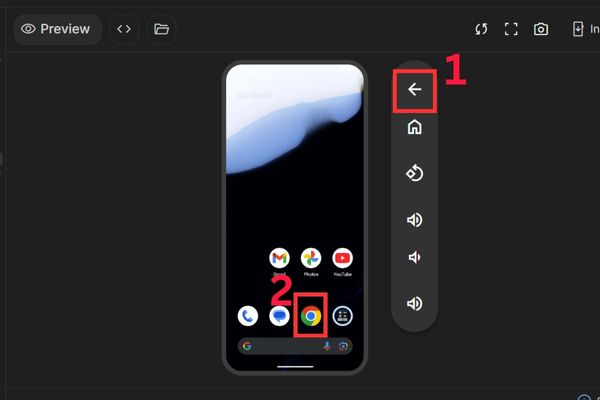
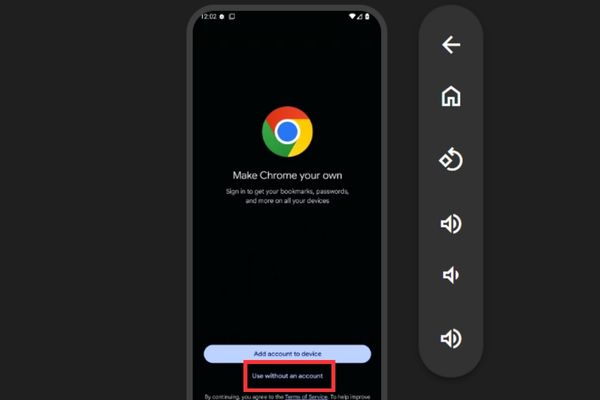
Next, find the Chrome browser icon and open it. The first time you open Chrome, it will ask if you want to sign in to your Google account. Please choose Use without account that is, use without an account. Therefore we will surf the web completely anonymously.
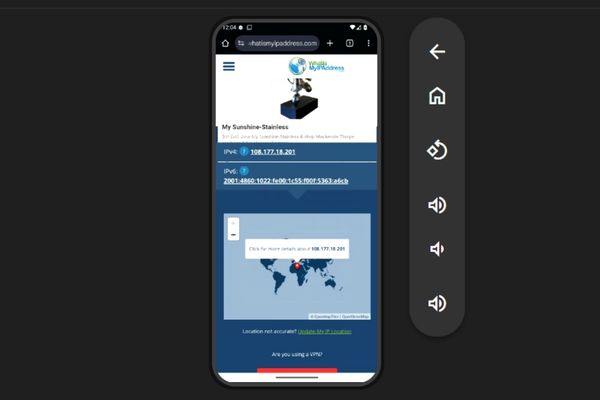
At this point, your virtual machine is officially connected to the network. And the best thing is that it carries 100% American IP. If you don’t believe it, just type whereismyipaddress Go to the Chrome address bar and select the first result to check. Applying the method of creating a virtual Android phone with US IP up to this step is considered to be a great success.
Step 3: Install Facebook and TikTok to use
Unfortunately, this virtual machine is very bare, there is no CH Play store available for you to download apps. Instead we have to install applications manually via APK files.
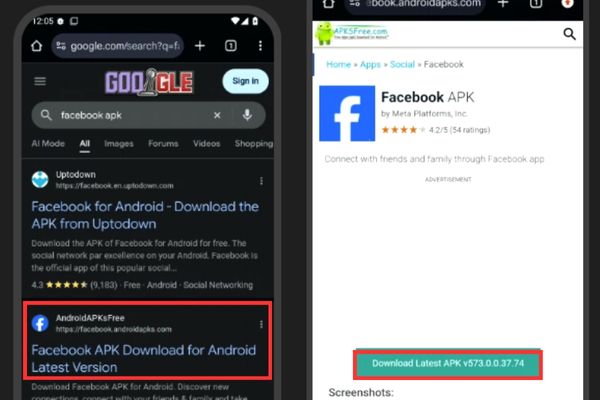
Open Chrome on the virtual machine and type in a search phrase Facebook APK or TikTok APK. Just click on the websites that appear on the search results. Then you find the button Download to download that APK file to the virtual machine. After downloading, the system will ask if you want to install, select Install okay.
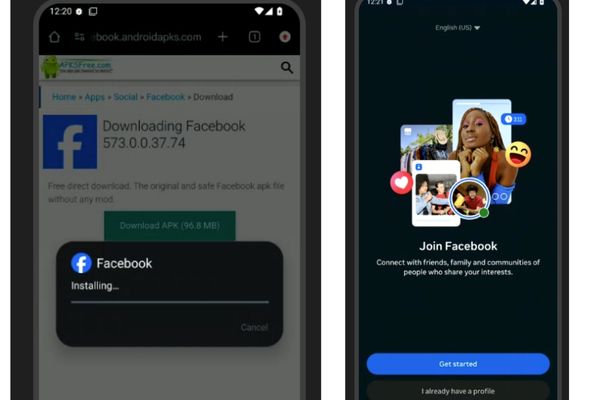
Once the installation is complete, click Open to open the application. Now, just create a new account or log in and surf Facebook and TikTok just like you’re using a real phone. All data is temporarily saved on this virtual phone.
Small notes when experiencing
Although this way of creating a virtual Android phone with US IP is very good, it also has a few disadvantages that you need to know. First is about speed. Because it runs entirely on the web platform, sometimes you will find it lags a bit compared to the real phone in your hand. This is easy to understand, the items are free.
Conclusion
In short How to create a virtual Android phone with US IP Still a great trick for those who like to dabble. It doesn’t cost money and has an American IP to use. Just try following the steps I guide you, I’m sure you’ll be addicted.
Frequently Asked Questions (Q&A)
1. Should I log in to my main account or banking app into this virtual machine?
My honest advice is absolutely not. This is just a free simulation environment, you should only use it to surf the web, watch TikTok or create a secondary account just to be safe.
2. Is the web surfing speed on a virtual machine smooth?
Because it runs on the web, it will lag a bit compared to a real phone. If you have a little patience, it will still work fine.
3. Do I need to log in to a Google account to use?
Absolutely no need. Just select Use without account mode on Chrome and you can surf the web freely.