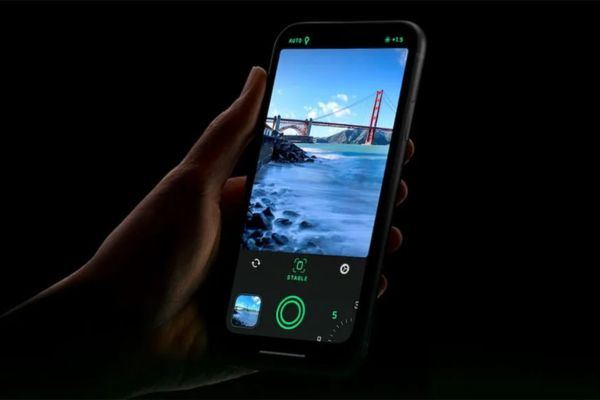

Cinematic mode 4K 60 fps on iPhone 18 Pro allows reselecting the focus point after recording. Regular video recording also adds this effect.
📢 Join the channel Telegram belong to AnonyViet
Update new articles, cool tools and IT tips fastest
Filming scenes of friends raising their glasses, many times when looking back, the camera focuses on the person standing behind. On iPhone 18 Pro and iPhone 18 Pro Max, Cinema mode can record 4K Dolby Vision at 60 fps, and the focus point can still be selected in the Photos app, so out-of-focus scenes may not have to be abandoned.
Apple also recorded 4K 60 fps for the above Cinema mode iPhone Duothe folding model, but the steps below are written according to instructions for iPhone 18 Pro models.
Enable 4K 60 fps Cinema mode on iPhone 18 Pro via Settings
The device defaults to Cinema video at 1080p 30 fps. To record 4K 60 fps, go to Settings > Camera > Cinema Video Recording and select this level. In addition, you can quickly change by touching the resolution and fps values in the corner of the Camera screen.
To record, open Camera, swipe left to select Cinema mode, then tap the Record button or press the volume button. While recording, touch the Camera Control button on the screen and select Depth or Exposure to immediately adjust.
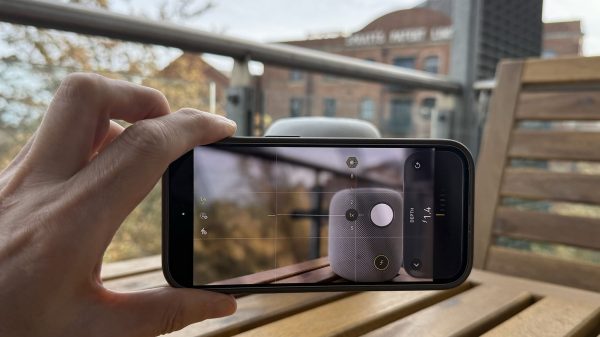
A yellow frame indicates the person is in focus, a gray frame indicates a person has been recognized but not yet in focus. You touch the gray frame to change focus, touch again to lock focus on that person. When there’s no one around, tap anywhere to set focus, or tap and hold to lock focus at a fixed distance.
Change focus point and adjust background blur right in the Photos app
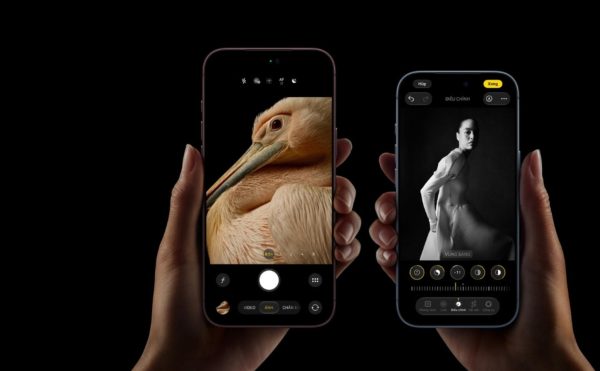
Open the Cinema video in the Photos app and tap the Edit button. You will see below the frame strip a white dot where the camera automatically changes focus while recording, and a yellow dot where the focus is changed manually. Drag the white vertical bar to the point where you need to change focus, then touch the subject with the yellow border to change focus. Tap twice to let the device automatically follow that subject; After editing, tap Done to save.
If you make a mistake, touch the yellow dot and then touch the Delete button. The font opacity can also be adjusted using the Depth Control button at the top of the Edit screen. Drag the slider left or right to increase or decrease the opacity. To return to the original, open the video and tap Restore.
Add Cinematic effects to regular videos and bring them to Mac for further editing
It’s okay to not switch to Cinema mode in time, because videos shot in Video mode with the Main camera on iPhone 18 Pro models can still add this effect later. The fastest way is to open the video in Photos, tap Cinema, then select Cinema mode enabled. Parameter table of iPhone Duo Series There is also a Cinema mode effect item from video.

To continue editing on Mac, open the video, tap the Share button, select Options, turn on All photo data, then send it via AirDrop so the video carries focus and depth data. Mac needs to be running macOS Ventura or later. If editing with Final Cut Pro or iMovie, before transferring, go to the Collection tab, select Cinema in Media Type and tap Process Now if this button appears.
Previous iPhone models stopped Cinema mode at 4K 30 fps, so anyone who wants to shoot Cinema at 60 fps can find genuine iPhone 18 Pro or 18 Pro Max at Mobile World. Customers who buy iPhone 18 Pro and iPhone 18 Pro Max can choose to pay 0% deferral, exchange old fees reduced by up to 2 million VND, receive a SIM data voucher worth 500,000 VND and an accessory voucher worth 150,000 VND for orders from 500,000 VND. In addition, when opening a VPBank MWG credit card, you can also receive a refund of up to 800,000 VND. iPhone Duo specifically starts accepting deposits from 7:00 p.m. on October 16 with a limited number of devices and is expected to be available from October 23. Conditions for each program may vary, buyers should check on thegioididong.com or at the store before ordering.
Frequently asked questions about Cinema mode on iPhone
What is Cinema mode on iPhone?
This is a video recording mode that removes the background: the subject remains in focus, the foreground and background are blurred, the camera automatically switches focus when a new subject appears. After recording, you can still change the focus and blur in the Photos app.
How to turn off the Cinema effect on recorded videos?
Open the video in the Photos app, tap Cinema, then select Cinema mode disabled. To turn it back on, tap Cinema and select Cinema mode enabled.
Source: Mobile World