If you don’t want someone to access your C: drive or any other drive on your computer. For fear of revealing study materials, in this article, I will show you how to block drive access on Windows 10 without using any 3rd party software.
📢 Join the channel Telegram belong to AnonyViet
Update new articles, cool tools and IT tips fastest

Ways to block drive access on Windows 10
Access restrictions
First, open the Run dialog box by pressing Windows + R and enter Gpedit.msc then press the Enter key.
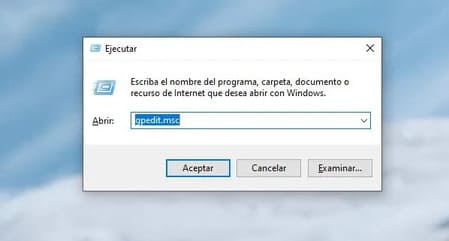
System Local Group Policy Editor is a tool that allows you to perform all kinds of procedures or access very useful tools on Windows 10. This tool may not be activated on some versions of Windows (if I remember correctly, it is not available on Windows 10 Home), but you can still activate Gpedit with 3rd party software such as Policy Plusan open source software on GitHub and allows you to add Gpedit.msc on any version of Windows 10.

You will have 2 options: Device Configuration and User Configuration.
- Open User Configuration
- Select Administrative templates
- Select next Windows Components
- Double-click “File Explorer”
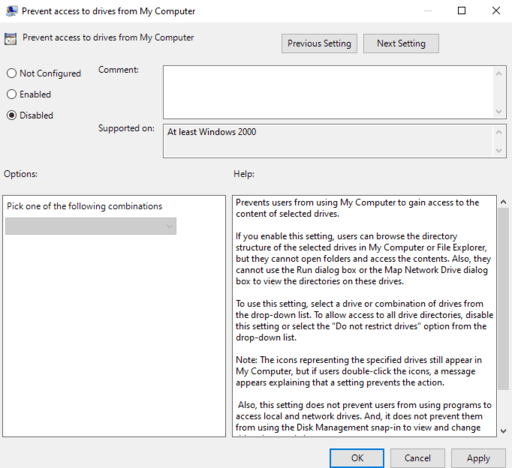
You will find all available functions and directives. What you have to do is go to the list and search for “Prevent access to drives from My Computer” and double-click on the item. The trick to search faster is to just press the letter “P” on the keyboard until the above item is found.
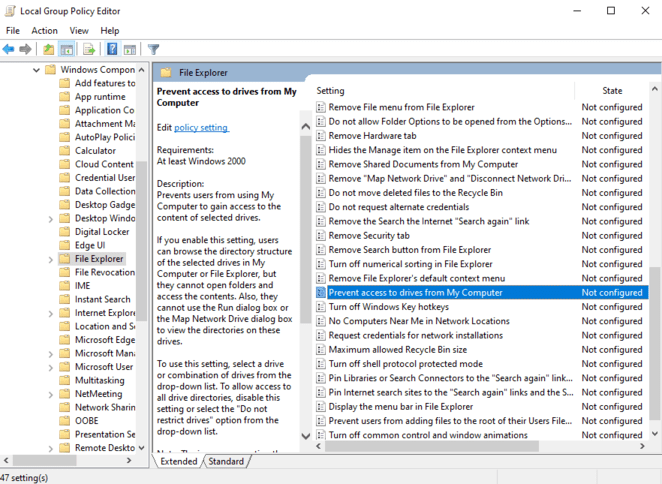
When you double-click on the item, you will see the message “Not configured” and you will have to select “Enabled”. When you do so, you can select groups or individual drives to which you want to restrict access:
- Restrict only drives A and B
- Restrict only drive C
- Restrict drive D only
- Restrict only drives A, B, and C
- Restrict only drives A, B, C, and D
- Restrict all drives
- Do not restrict units (do not restrict any drives)
You just need to choose the option you want, restrict C drive only or all drives on the computer. Windows explains these options as follows: “If you enable this option, users will be able to access the folder structure of the selected drives in My PC or File Explorer, but they will not be able to open the folders or access their contents.”
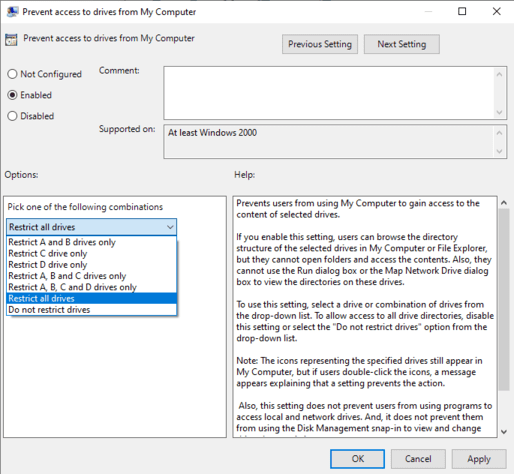
Once done, click the button Apply and then click OK to apply the changes. Now, you can try to access C drive or a drive to which you have blocked access. If everything went well, you will see that Windows displays a message stating that the operation was canceled due to the restrictions specified for this computer.
To go back to the beginning, simply use the same steps above and select “Do not restrict units” or simply select “Disabled”. If you don’t like restricting access because others can still see your study materials (though can’t view them), you can try hiding the drive below.
Hide drives
You can also hide a drive in Windows 10, not just “lock” it. What you do is not remove the drive, it just disappears so no one can access it.
- Open Start Menu and search for software “Disk Management”, choose the first one.
- Select the drive you want to hide.
- Then right-click and select “Change drive letter and paths”.
- Next press “Remove” to hide the drive.
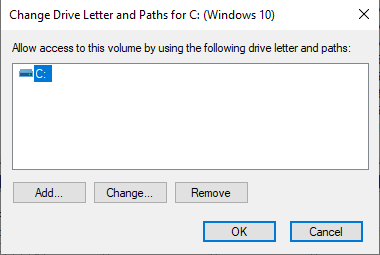
When you’re done, restart Windows to finish. When you restart your computer, you will no longer see the drive you just hidden. You don’t need to block access, but it will “disappear”.
If you want the drive to appear again, you just need to select it Add instead of Remove in step 4. Restart again for the process to complete and you will see that the drive will return to normal.
Parental control
Parental controls in Windows 10 give you the ability to control which games, apps, or websites your child accesses, or you can limit their child’s screen time. But you cannot restrict children from accessing the contents of computer folders. Fortunately, you can block them using the methods I have instructed above. Or you can also use child management software such as Norton Family.
Frequently asked questions
Can I block access to drives on Windows 10 Home?
The Local Group Policy Editor (Gpedit.msc) is not available on Windows 10 Home. However, you can use third-party software like Policy Plus to add this functionality, then follow the instructions in the article to block drive access.
How to hide a drive on Windows 10?
You can hide drives using the Disk Management tool. Right-click the drive you want to hide, select “Change drive letter and paths”, then click “Remove” to hide. Restart the computer for the changes to take effect. To show it again, follow the same steps but choose “Add” instead of “Remove”.
Can parental controls block access to specific folders?
No, Windows 10 parental controls do not allow blocking access to specific folders or drives. To achieve this, you need to use the methods described in the article, such as restricting drive access or hiding the drive.