• Home
  • News
  • Software
  • Knowledge
  • MMO
  • Tips
  • Security
  • Network
  • Office
AnonyViet - English Version
  • Home
  • News
  • Software
  • Knowledge
  • MMO
  • Tips
  • Security
  • Network
  • Office
No Result
View All Result
  • Home
  • News
  • Software
  • Knowledge
  • MMO
  • Tips
  • Security
  • Network
  • Office
No Result
View All Result
AnonyViet - English Version
No Result
View All Result

iPhone messages don’t appear on Mac: Causes and how to fix

AnonyViet by AnonyViet
March 1, 2026
in Knowledge
0

iPhone messages don’t appear on Mac is a problem that causes headaches for many iOS 26 and macOS Tahoe users. This causes you to miss many important notifications while working on the computer. Don’t worry, the tips below will help you reconnect in no time.

📢 Join the channel Telegram belong to AnonyViet


👉 Go to Telegram AnonyViet

Update new articles, cool tools and IT tips fastest

Fix iPhone messages not appearing on Mac

To solve this problem, users need to sequentially perform the basic to advanced checking steps below to ensure the synchronization system operates correctly.

1. Check your account and network connection

The first thing to do is verify whether the devices are “seeing” each other through the account and internet connection.

Step 1: Enter Settings on iOS 26 and System Settings on macOS Tahoe, make sure your iPhone, iPad, and Mac are signed in to the same Apple Account. If different, sign out and sign back in with the main account.

Step 2: Connect all devices to the Internet. Both Messages in iCloud and Text Message Forwarding require a stable network. If you’re using a VPN, try turning it off.

Step 3: Restart the entire device to remove temporary system errors and help messages sync from the beginning.

Step 4: Update the software to the latest version if you are running early builds of the operating system.

2. Make sure forwarding is enabled

Messages only appear on your Mac if you’ve given them permission. Note that Text Message Forwarding is already built into Messages in iCloud, so there’s no need to turn on both. However, if you don’t use iCloud for messages, you must turn on manual forwarding.

For Messages in iCloud:

Step 1: On iPhone/iPad, go to Settings > [Tên bạn] > iCloud > Messages and turn on Use on this iPhone. Press Sync Now If the data is old.
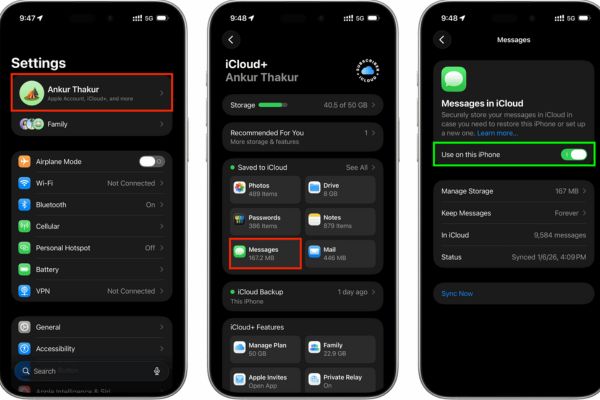
iPhone messages don’t appear on Mac: Causes and how to fix
Turn on Use on this iPhone

Step 2: On Mac, enter System Settings > [Tên bạn] > iCloud > Messages and turn on Use on this Mac. Press the button Sync Now if necessary.
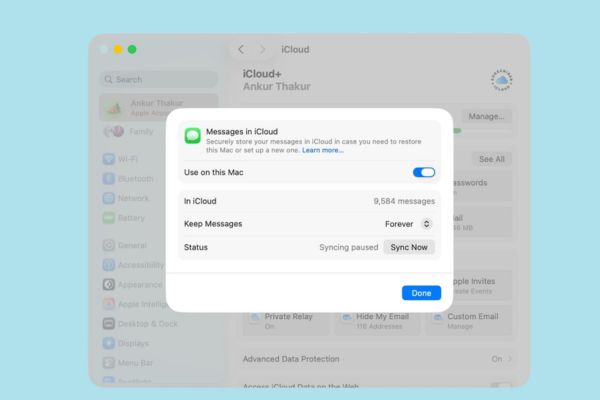
How to handle iPhone messages not appearing on Mac

For Text Message Forwarding (Manual):

Step 1: Open Settings on iPhone, select Apps at the bottom.

Step 2: Select Messages > Text Message Forwarding.

Step 3: Flip the switch ON for Mac or iPad want to receive news.

If device Mac does not appear in this list, please check the iMessage settings on that Mac to see if you are logged in to the correct account.
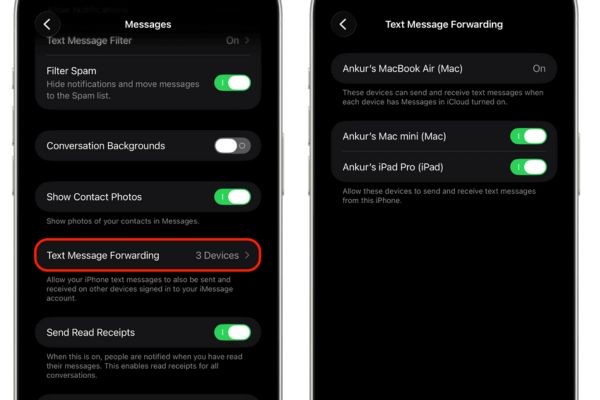
Go to Text Message Forwarding

3. Refresh iMessage connection

This is the most effective trick that has helped many users successfully fix errors when the above methods did not work. This procedure helps re-register the phone number with Apple servers.

Step 1: On iPhone, go to Settings > Apps > Messages > Send & Receive.
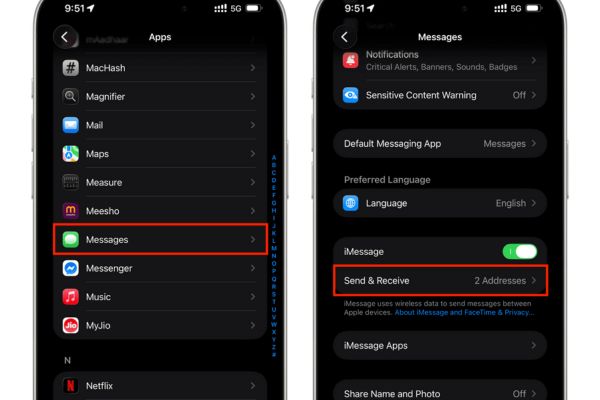
Go to Send & Receive

Step 2: Click on the currently selected phone number and select Remove to unsubscribe from iMessage. At the same time, uncheck the secondary emails, keeping only the main Apple Account email.
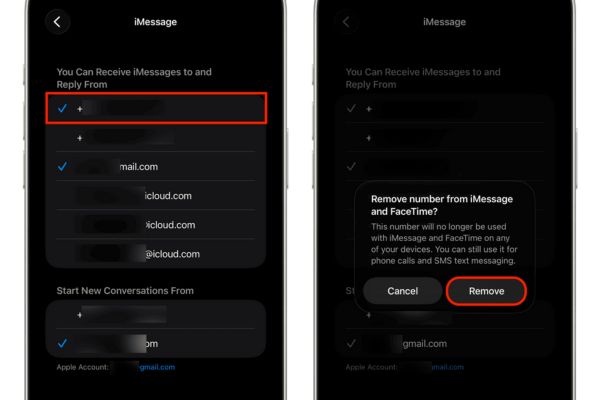
Select Remove to cancel registration

Step 3: Return to the previous screen, turn it off completely iMessage and wait about 30 seconds.
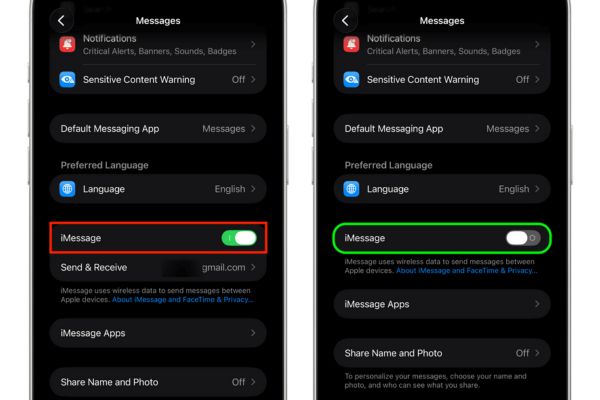
Turn off iMessage completely

At this time, the phone number will also automatically disappear from the Messages settings on Mac.
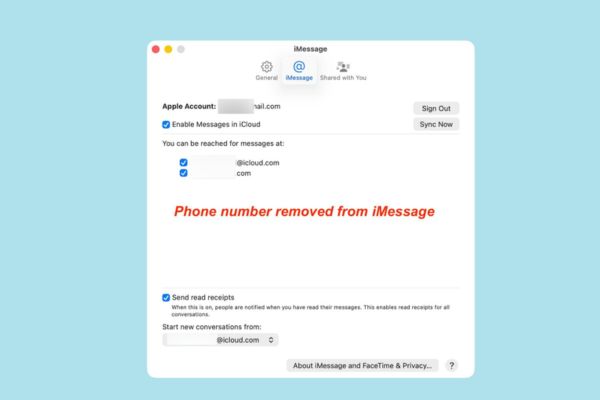
The phone number will also automatically disappear

Step 4: Turn it back on iMessage on iPhone. In the Send & Receive section, only email addresses are currently displayed.
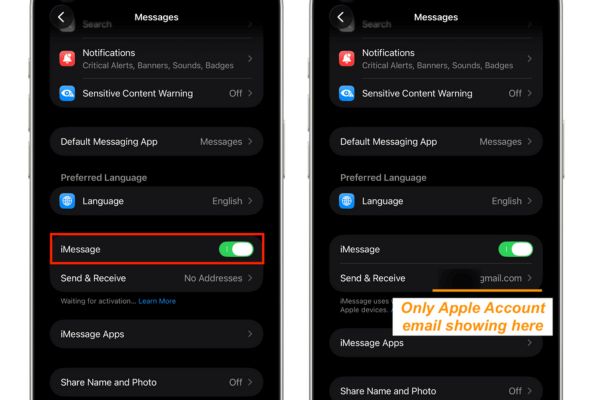
Turn iMessage back on

Step 5: Wait for notification”Device Added to Your Account” appears on Mac and iPad.

Notification "Device Added to Your Account" appear
The message “Device Added to Your Account” appears

Step 6: Go back to the section Send & Receive on iPhone, tap the phone number to re-register.
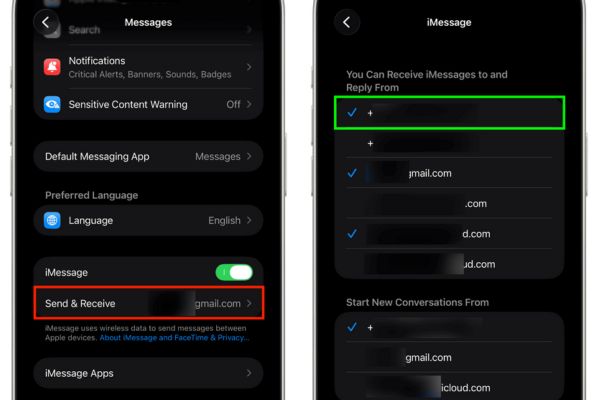
Go back to the Send & Receive section

Step 7: Check on Mac, make sure phone number and email are selected in the Settings section of the Messages app.

Once done, ask a loved one to try sending an SMS or RCS message. This message will appear simultaneously on both iPhone and Mac, allowing you to reply directly from your computer.
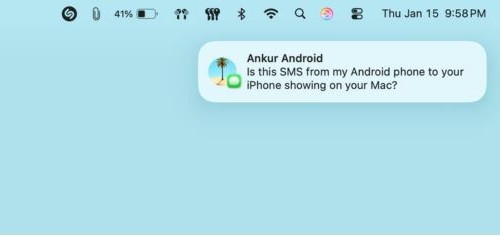
Ask a relative to try sending an SMS or RCS message.

4. Sign out of all devices

If all of the above steps still don’t solve the problem, try signing out of your Apple Account from all devices and signing in again. This resets the entire session and often fixes the most stubborn sync errors.

Conclusion

Thus, status iPhone messages don’t appear on Mac It can completely be fixed with a few simple installation steps. Don’t forget to check your network connection and Apple account regularly to avoid recurring errors. Wishing you success on iOS 26 and macOS Tahoe.


Tags: dontfixiPhoneMacmessages
Previous Post

How to block drive access on Windows 10

Next Post

Ứng dụng cầu nguyện của Iran bị hack, gửi thông điệp kêu gọi đầu hàng

AnonyViet

AnonyViet

Related Posts

Top 6 websites for 2026 high school graduation mock test, close to real questions, standard with Ministry of Education
Knowledge

Top 6 websites for 2026 high school graduation mock test, close to real questions, standard with Ministry of Education

May 16, 2026
How to block pop-up ads on Safari without installing an app
Knowledge

How to block pop-up ads on Safari without installing an app

May 6, 2026
How to use Clean Up on iPhone to remove excess objects extremely quickly
Knowledge

How to use Clean Up on iPhone to remove excess objects extremely quickly

May 4, 2026
Tips for pinning the step counter to the iPhone screen to monitor your health
Knowledge

Tips for pinning the step counter to the iPhone screen to monitor your health

April 28, 2026
How to turn off password suggestions on iPhone: Prevent Safari from auto-filling passwords
Knowledge

How to turn off password suggestions on iPhone: Prevent Safari from auto-filling passwords

April 27, 2026
Tips to completely turn off CAPTCHA codes on iPhone and Mac are super simple
Knowledge

Tips to completely turn off CAPTCHA codes on iPhone and Mac are super simple

April 25, 2026
Next Post
Ứng dụng cầu nguyện của Iran bị hack, gửi thông điệp kêu gọi đầu hàng

Ứng dụng cầu nguyện của Iran bị hack, gửi thông điệp kêu gọi đầu hàng

0 0 votes
Article Rating
Subscribe
Login
Notify of
guest

guest

0 Comments
Oldest
Newest Most Voted
Inline Feedbacks
View all comments

Recent News

Don’t rush to buy a new MacBook if you don’t know these differences

Don’t rush to buy a new MacBook if you don’t know these differences

May 20, 2026
Create images of guardian mascots using AI according to year of birth

Create images of guardian mascots using AI according to year of birth

May 20, 2026
Try the Shopee Profit Calculator now, avoid the risk of selling at a loss

Try the Shopee Profit Calculator now, avoid the risk of selling at a loss

May 19, 2026
LibreOffice: Office suite to replace Microsoft Office

LibreOffice: Office suite to replace Microsoft Office

May 18, 2026
Don’t rush to buy a new MacBook if you don’t know these differences

Don’t rush to buy a new MacBook if you don’t know these differences

May 20, 2026
Create images of guardian mascots using AI according to year of birth

Create images of guardian mascots using AI according to year of birth

May 20, 2026
Try the Shopee Profit Calculator now, avoid the risk of selling at a loss

Try the Shopee Profit Calculator now, avoid the risk of selling at a loss

May 19, 2026
AnonyViet - English Version

AnonyViet

AnonyViet is a website share knowledge that you have never learned in school!

We are ready to welcome your comments, as well as your articles sent to AnonyViet.

Follow Us

Contact:

Email: anonyviet.com[@]gmail.com

Main Website: https://anonyviet.com

Recent News

Don’t rush to buy a new MacBook if you don’t know these differences

Don’t rush to buy a new MacBook if you don’t know these differences

May 20, 2026
Create images of guardian mascots using AI according to year of birth

Create images of guardian mascots using AI according to year of birth

May 20, 2026
No Result
View All Result
  • Home
  • News
  • Software
  • Knowledge
  • MMO
  • Tips
  • Security
  • Network
  • Office

wpDiscuz
0
0
Would love your thoughts, please comment.x
()
x
| Reply