How to increase text size on Apple TV This is an extremely useful trick if you often have to squint when reading the menu on TV. Previously, we could only bold text, but the tvOS 27 update has completely changed that. Let’s go together AnonyViet Discover now!
📢 Join the channel Telegram belong to AnonyViet
Update new articles, cool tools and IT tips fastest
Why is it necessary to adjust the text size on tvOS 27?
In fact, the tvOS operating system has the ability to automatically adjust the size of text on the screen based on the size of your TV. However, that is not always enough to please everyone. There are times when you sit too far away, or your eyesight simply doesn’t allow you to read the tiny text on the app clearly. Apple Music or Netflix.
Before version tvOS 27 launch, if you can’t see the text on the screen clearly, your only option is to turn on the “Bold text” feature. This feature just makes the handwriting thicker and fatter so that people with weak eyesight can easily recognize it. Instead, it doesn’t make the text bigger at all.
Thanks to that, Apple has listened to users and officially added a long-awaited text resizing tool on tvOS 27, allowing you to freely adjust the size to a level that your eyes feel most comfortable with.
Instructions on how to increase text size on Apple TV
To do the above method of increasing the font size Apple TVyou don’t have to be a tech expert. Here are specific instructions for you:
Step 1: Update your Apple TV 4K device (supports 2nd or 3rd generation) to tvOS version 27 (currently in beta).
Step 2: Sit at the right distance from the TV as if you were watching movies or regular TV shows. This helps you align the font size most accurately with your actual vision.
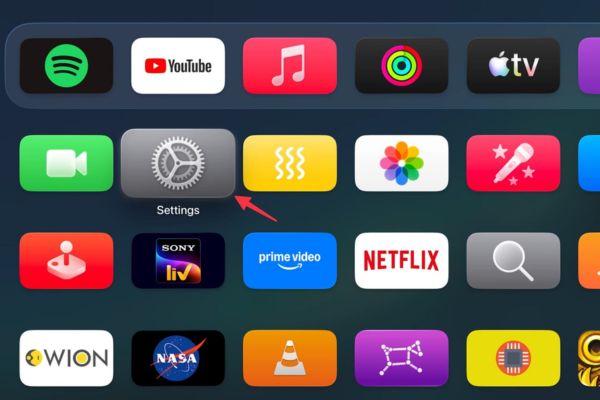
Step 3: Open the application Settings on the home screen.
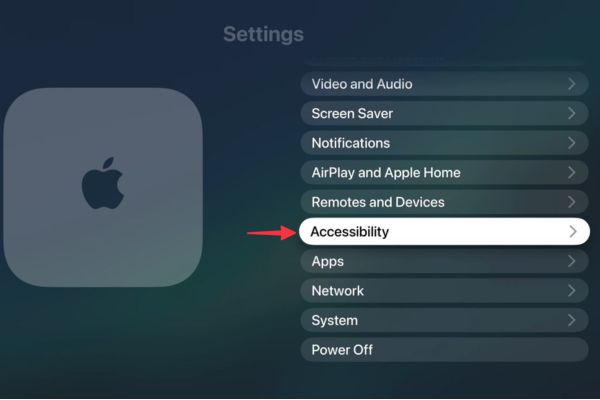
Step 4: Scroll down and select the item Accessibility.
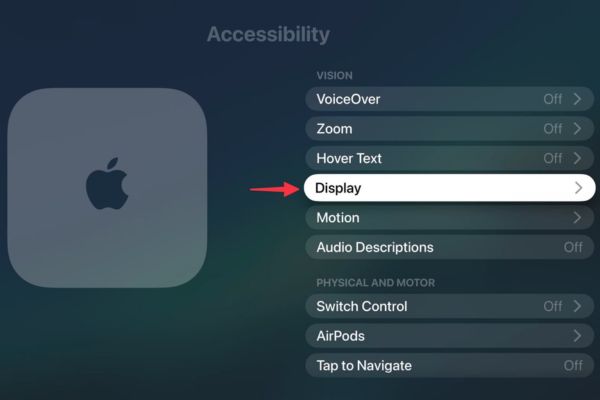
Step 5: Continue to section Display.
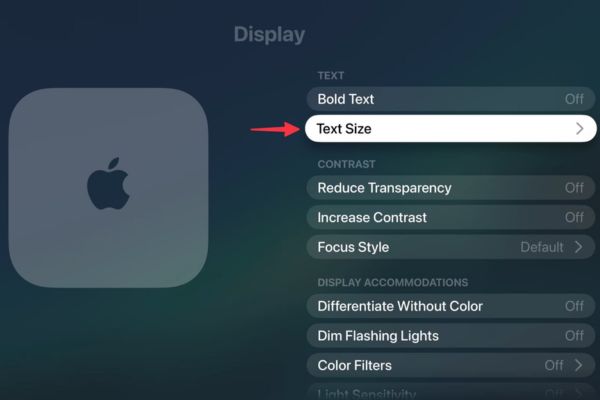
Step 6: Here, please choose Text Size newly added.
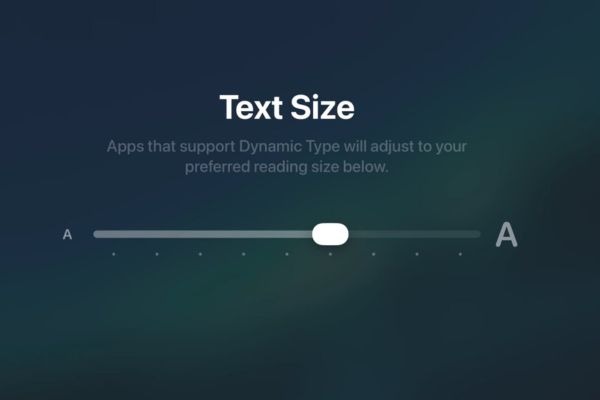
Step 7: Drag the slider to the right to start enlarging the text. You have a total 9 levels to choose.
The leftmost level is the initial default size, and the rightmost level is the maximum size.
As you drag, a preview of the new font size appears at the top of the screen. Thanks to that, you can easily decide which level is most suitable and comfortable for your eyes.
Step 8: When you’re satisfied, just press the back button on the remote or exit the Settings app completely.
Not just limited to TV, once you get used to how to increase the font size on Apple TV, you will also find these setup steps are quite similar if you want to apply it on iPhone or iPad.
Handling common errors
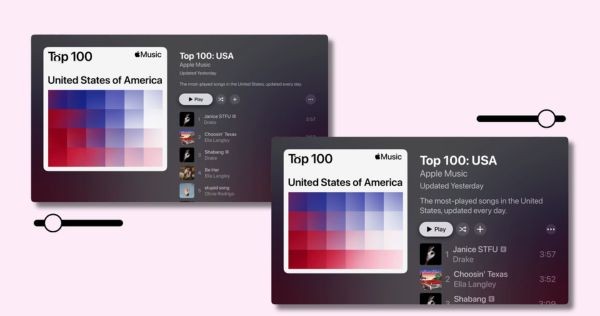
Now, try opening any application, such as Apple Music, you will immediately see the text lines have been significantly enlarged. Sometimes, after applying the method to increase the font size on Apple TV, you open the application but do not see the change immediately.
If you encounter a situation where the new font size has not been updated, exit the application completely and reopen it. Or more simply and thoroughly, you just need to restart your Apple TV by unplugging the wall switch and then plugging it back in.
Conclusion
In short, How to increase text size on Apple TV Truly brings maximum comfort to your eyes. Don’t forget to update your device to tvOS 27 to immediately experience this useful feature. Wishing you success and wonderful moments of entertainment!
Frequently Asked Questions (Q&A)
1. Which devices is this feature supported on?
This feature is supported on Apple TV 4K (2nd or 3rd generation) that has been updated to tvOS 27.
2. Why don’t the text in some applications get bigger?
Because some applications do not support Dynamic Type technology, or you need to completely exit the application and reopen it so that the system can promptly update the new interface.
3. How many text levels can I adjust?
You can choose from 9 different text size levels through the slider in the settings, from the default level to the largest level.