How to set up and use Wise Care 365 Correct standards will help your computer stay light and smooth. Many people who download and install leave it as default, so sometimes they have trouble with the C drive. Thanks to that, the tips below will be extremely useful for you. Let’s go together AnonyViet Find out details below.
📢 Join the channel Telegram belong to AnonyViet
Update new articles, cool tools and IT tips fastest
Instructions on how to set up and use Wise Care 365
This is a junk cleaning software that many people trust and use after reinstalling Windows or install other heavy software. However, not everyone knows how to set up and use it Wise Care 365 so that it is quiet and not disturbed. Many people just leave it at default after installing it, leading to the computer often displaying odd and annoying notifications. Therefore, please follow the tweaking steps below to make the software work as smoothly as possible.
Step 1: Immediately turn off annoying notification panels
Right after you have successfully installed the software, the system will usually automatically pop up a small notification panel located in the bottom right corner of the screen. These are usually welcome messages or feature hints. Instead of letting it display as an eyesore, turn it off immediately to make the screen neater.
Step 2: Convert language to Vietnamese for easy operation
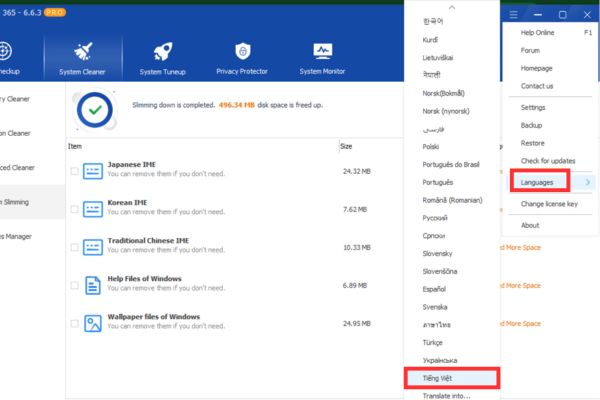
If you are not fluent in English, don’t worry because this software has full Vietnamese language support. You just need to open the main interface, look at the top right corner of the screen and find the item Menu. Then you find the section Language and select language Vietnamese. Thanks to that, the next steps will become extremely easy to understand and familiar.
Step 3: Refine the trash reporting capacity level
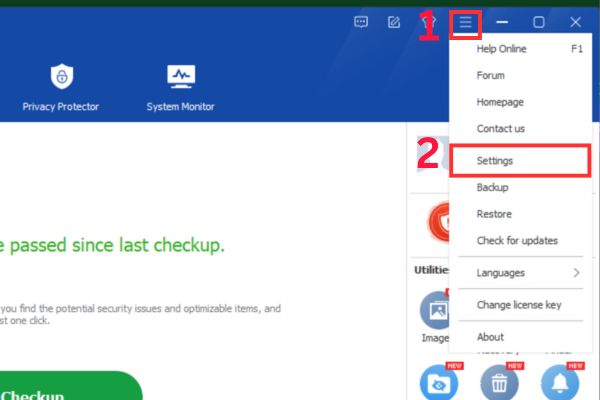
This is one of the most important steps in how to set up and use Wise Care 365 that you need to keep in mind. Go back to the Menu and select the item Setting.
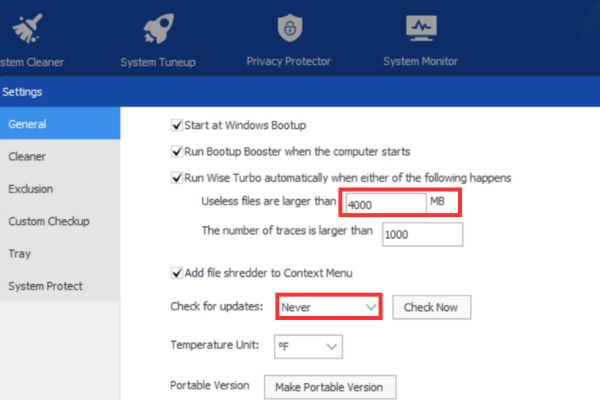
Here you find the line with the text Junk files exceed the number of MB. Sincere advice is that you should enter a very large number here, for example 4000MB.
What effect does this have? It will help the software understand that only when the junk in your computer accumulates up to 4GB will a notification appear reminding you to clean it up. Instead, if you set the number too small, the software will continuously call you to clean up the trash every day, causing an extremely annoying feeling while working or playing games.
Step 4: Turn off the automatic update to new versions feature
Many users complain that the software often automatically downloads new versions and weighs down the device. To completely fix this situation, please go to section Check for updates in the settings section. Here you just need to select the line Never then click Save to save.
Thanks to this small operation, you can safely use the software forever with the current version without the system ever arbitrarily upgrading or asking for anything more.
Step 5: Set up system cleanup to not fill up C drive
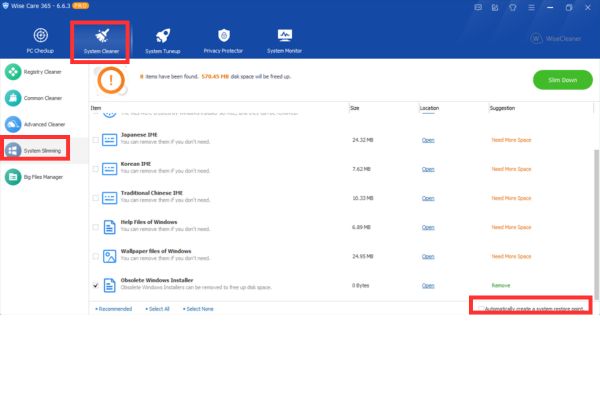
When you want to clean trash deeper, you will go to the section System Cleaner and choose next System Slimming. In this area, look down and remember to uncheck the line Create a system restore automatically. This is a feature that automatically creates a system restore point before scanning.
If you leave this check mark intact, each time the software scans, it will automatically create an extremely heavy backup. Therefore, your C drive not only does not have any more space, but also fills up quickly before the Scan process begins. This is a small tip in how to set up and use Wise Care 365 that very few people pay attention to.
A few small notes
Every time you turn on your computer, the software displays a small message saying boot time How many seconds does the machine have? Actually, this is just a fun reference number and not 100% accurate. However, you should also note that if the startup time is too large and a turtle image appears, you should reconsider your computer’s condition. It’s possible that the operating system is juggling too many software starting at the same time, causing the computer to start up too slowly.
To clearly see the power of this tool, try doing a small test. Before pressing the clean button, open My Computer and record the number of GB of free space on drive C. After the software finishes running and cleans everything up, check drive C again. Surely you will see a very clear difference, the storage space is significantly freed up, helping your computer breathe a sigh of relief.
Conclusion
Correct application How to set up and use Wise Care 365 will help you save a lot of time cleaning the system. Instead of having to do it manually, the software now takes care of everything smoothly. Thanks to that, you can work with peace of mind without worrying about your device lagging anymore.
Frequently Asked Questions (Q&A)
1. What is the turtle screen time when the computer starts up?
That’s when the software warns that your computer is starting up too slowly and needs to check background applications for more optimization.
2. How to keep the software from constantly reporting trash cleaning?
You just need to go to the settings and adjust the junk file level to a very large number of about 4000MB and you won’t be bothered anymore.
3. Does this software support Vietnamese?
Yes, you can completely change to Vietnamese in the language section in the menu bar for easier and more convenient operation.