
Tool retrieves transcript of entire YouTube channel helps you download subtitles in bulk without any barriers. Actually, since knowing this extension, I have saved a lot of time extracting information. Let’s go together AnonyViet Find out what’s special about it.
📢 Join the channel Telegram belong to AnonyViet
Update new articles, cool tools and IT tips fastest
The pain of manually copying subtitles
Surely anyone who studies online has experienced the situation of sitting and watching a series of long videos and then hastily pressing pause to copy the content. Or better yet, open the translation section of each video, highlight it, copy it and paste it into Word. Doing one or two is okay, but imagine you need to retain the knowledge of an entire course consisting of dozens of videos to watch, I’d say it’s extremely frustrating.
So this tool to get transcripts of entire YouTube channels appeared as a savior. Its core purpose is to help you save all the brain matter from any channel without any quantity limit. Instead of spending hours doing it manually, this utility automates everything. It scans, sorts, and outputs data to you seamlessly. Best of all, it’s completely free, with no tricks to upgrade your account or limit downloads hidden inside.
What does this extension do?
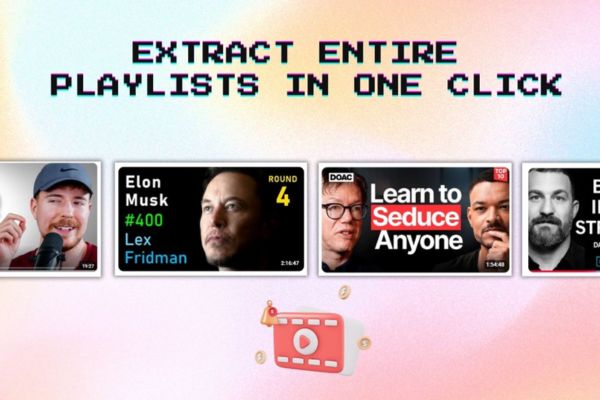
The most valuable point of the tool to get transcripts of the entire YouTube channel is the ability to download in bulk. You can download from a single video, multiple open tabs at the same time, or whip out a long playlist with just one click. Thanks to that, dozens of hours of video are converted into written text in the blink of an eye.
Furthermore, the structure of the output file is specially designed to load directly into hot AI tools like Google NotebookLM, ChatGPT or Claude. Just throw that summary file into AI and you will immediately have a huge store of knowledge to freely ask questions, create flashcards or summarize main ideas. The utility also allows you to choose to keep or delete timelines depending on your research needs. It also supports a dark background interface, looks very soothing to the eyes and synchronizes with the user interface YouTube.
In terms of security, you can rest assured. You don’t need to create an account or log in, just install it and use it. All data processing takes place right in your browser. Therefore, no one tracks your video viewing history or stores the content you download.
How to use this is easy, just follow the following steps and you will succeed.
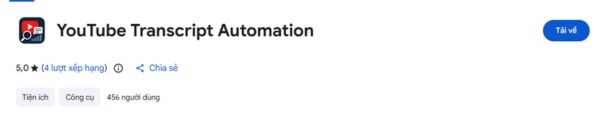
Step 1: Click the link to download the extension to Chrome browser HERE.
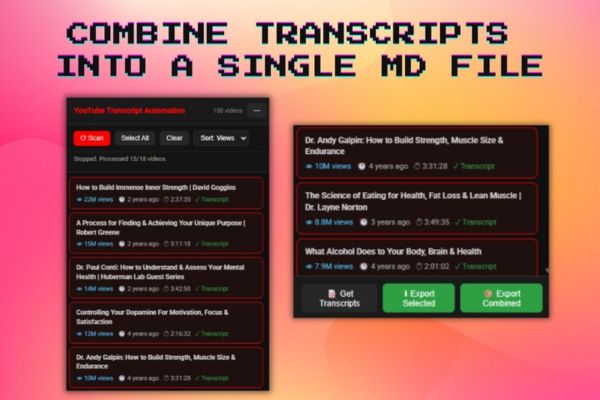
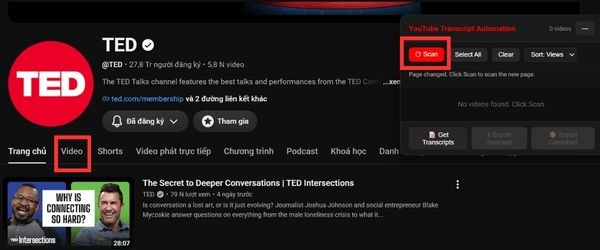
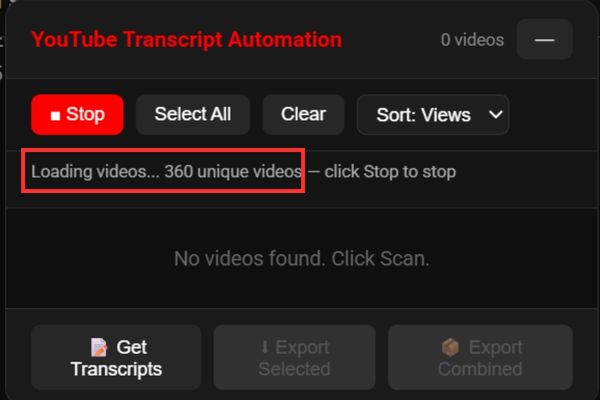
Step 2: When accessing YouTube, you will see a table in the corner of the screen, go to the tab Video on that YouTube channel, press the button Scan it will scan the videos in the channel.
For example, the TED channel I’m trying out after scanning 600 videos.
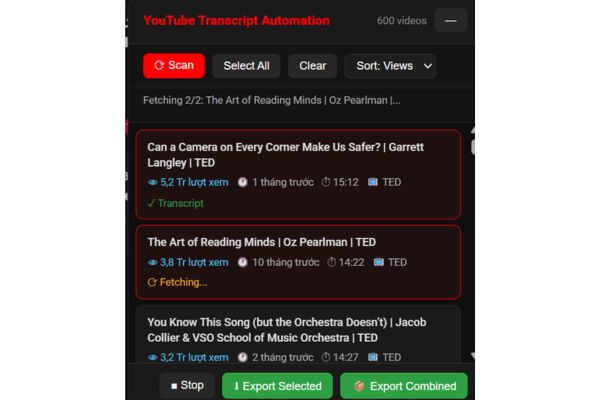
Step 3: Select the video you want to extract Transcript from, remember to press Ctrl + click if you want to select multiple videos at the same time, then click Get Transcripts.
Step 4: After getting the transcript, there will be a green check mark as shown, click Export Selected or Export Combined to gather together. The file exported to your computer will have the extension md.
Who should install this extension on their device?
In fact, anyone who knows a bit about technology will love the tool to get the transcript of the entire YouTube channel right away. But it is especially useful for students or researchers. You can collect all your school lectures or documentaries into a text document for quick reading. Citing sources is also good because the downloaded file already has metadata information.
Those of you who create content or write will also benefit equally. You can take content from long podcasts or webinars and rework it into blog posts or newsletters e-mail or new scenario. Finding an exact quote in a 3-hour video can now be found using a text search command. In addition, office workers or market analysts can use it to scan a series of product review videos and industry conferences to capture trends.
Reading a neatly compiled text file is definitely faster than sitting glued to the screen watching videos all day. If you encounter a foreign language video, just get the automatic translation and then throw it through AI translation tools to immediately understand the problem, overcoming the language barrier one by one.
Conclusion
Storing knowledge is now easy thanks to you Tool retrieves transcript of entire YouTube channel This support. Instead of laboriously copying each line, machines have done it all for us. Hope you have great experiences with this utility.
Frequently Asked Questions (Q&A)
1. How to download subtitles in bulk?
You open a playlist or multiple video tabs. Click on the utility icon, select the videos you want to download, then click Export Combined and it will automatically collect them all for you.
2. What type of output file is used for Google NotebookLM?
After exporting the MD file from the utility to your computer, open Google NotebookLM and create a new notebook. Next click Add Source and upload that MD file and AI will automatically read and understand the entire content.
3. Are there any fees or restrictions for this utility?
Not at all. This utility is completely free for bulk downloading and creating combined files, you can use it freely without worrying about being blocked or asking for money.