• Home
  • News
  • Software
  • Knowledge
  • MMO
  • Tips
  • Security
  • Network
  • Office
AnonyViet - English Version
  • Home
  • News
  • Software
  • Knowledge
  • MMO
  • Tips
  • Security
  • Network
  • Office
No Result
View All Result
  • Home
  • News
  • Software
  • Knowledge
  • MMO
  • Tips
  • Security
  • Network
  • Office
No Result
View All Result
AnonyViet - English Version
No Result
View All Result

How to add WiFi toggle button with just one touch on iOS 18

AnonyViet by AnonyViet
October 9, 2024
in Software
0

iOS 18 was released with many notable changes, however, some users felt confused when the familiar Wifi quick toggle button on the Control Center “disappeared”. Don't worry, reinstalling this button is extremely simple! This article will guide you step by step add WiFi toggle button on iOS 18 in the fastest and easiest way.

Join the channel Telegram belong to AnonyViet 👉 Link 👈

iOS 18 and the change to the WiFi button

iOS 18 brings with it a breath of fresh air with many notable changes and upgrades. However, besides excitement, some users also expressed confusion, even annoyance, at the adjustment in the Control Center area: The familiar Wifi quick toggle button has disappeared. lost!
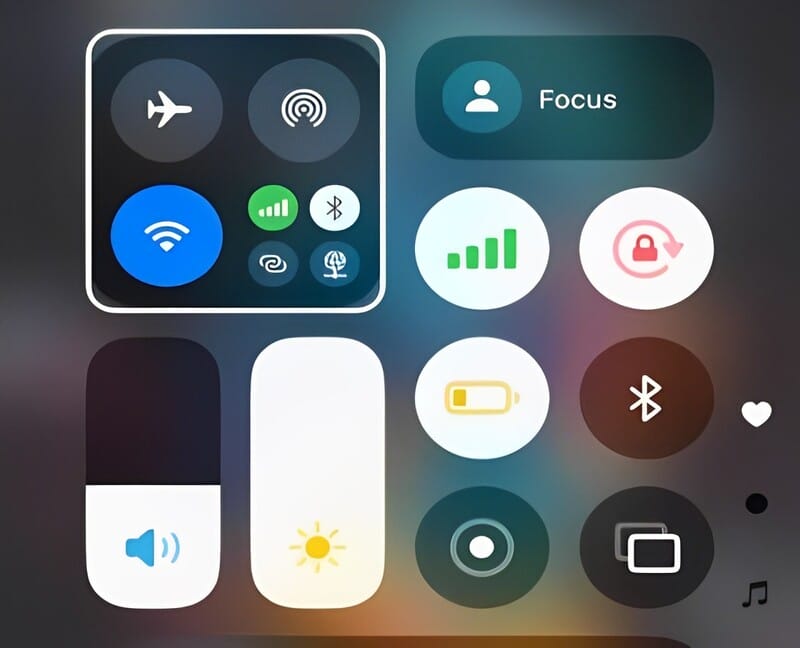
iOS 18 and the change to the WiFi button

Instead, Apple integrates Wifi with airplane mode, AirDrop, etc. in a single section. Operating with this button cluster only allows turning off the Wifi connection in use, but does not completely turn off the feature as before. This change caused many mixed opinions. Some users think it makes the interface cleaner, but most feel inconvenient because of the loss of agility when operating with Wifi – one of the most frequently used features.

So what is the solution to this problem? Is there a way to bring the Wifi quick toggle button back to the familiar interface? The answer is YES, and you will find detailed instructions right below.

See more: Control iPhone with your eyes with Eye Tracking on iOS 18

Instructions for adding a quick WiFi toggle button on iOS 18

Step 1: Download and open the new iPhone Shortcuts app.

Step 2: At the application interface, click the “+” icon to create a new shortcut.

Step 3: In the “Search for task” box, enter the keyword “Set Wifi” and select this task.
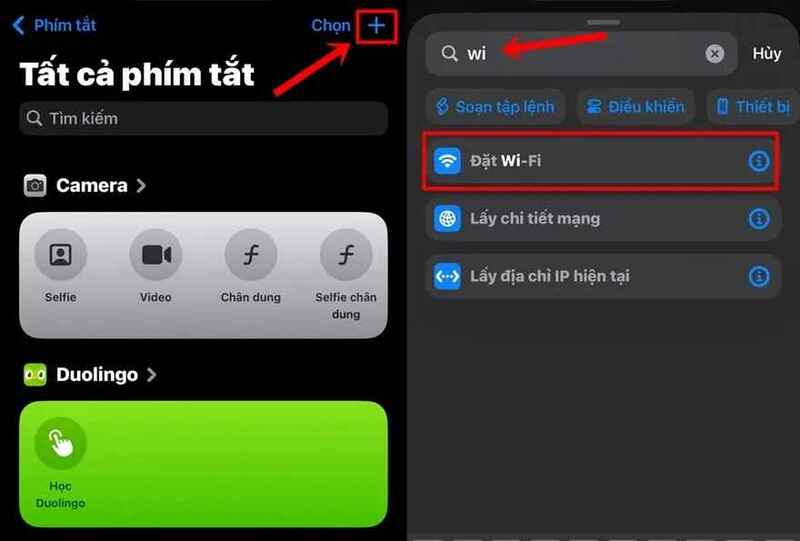
Enter keywords "Set Wifi"
Enter the keyword “Set Wifi”

Step 4: Click on the newly created task and select Toggle to set it up.

Step 5: Click “Done” to save the task. You can also customize the color and icon of the task by clicking the two square icon next to the word “Set Wifi”.

Step 6: Open Control Center (swipe down from the screen) and click the “+” sign in the top left corner.
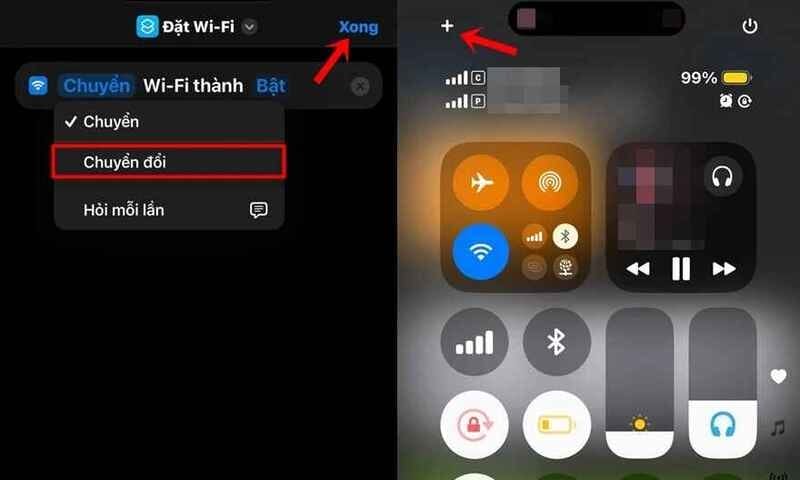
Click the mark "+" in the top corner
Click the “+” sign in the top corner

Step 7: Select “Add a new control”.

Step 8: Search for “Shortcuts” and select, then click “Select” to continue.

Step 9: Click on the “Set Wifi” action.
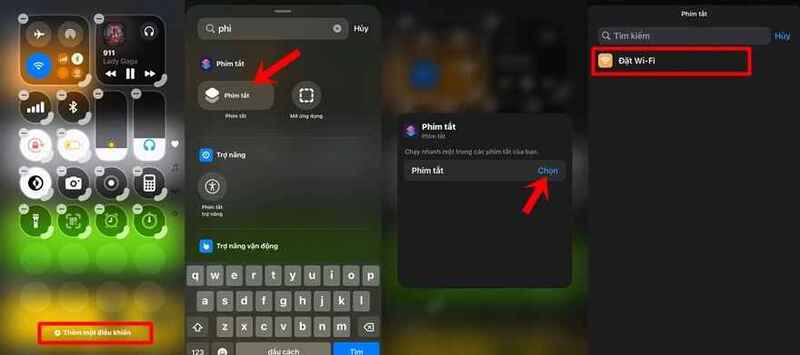
Click on the task "Set Wifi"
Click on the “Set Wifi” action

Once completed, the quick Wifi on/off task will appear independently in the Control Center, allowing you to easily operate as before updating to iOS 18. Besides, you can also create keys Turn it off at will via the iPhone's Shortcuts application with similar steps.

Additionally, there is a faster way that you can use the available keyboard shortcuts HERE
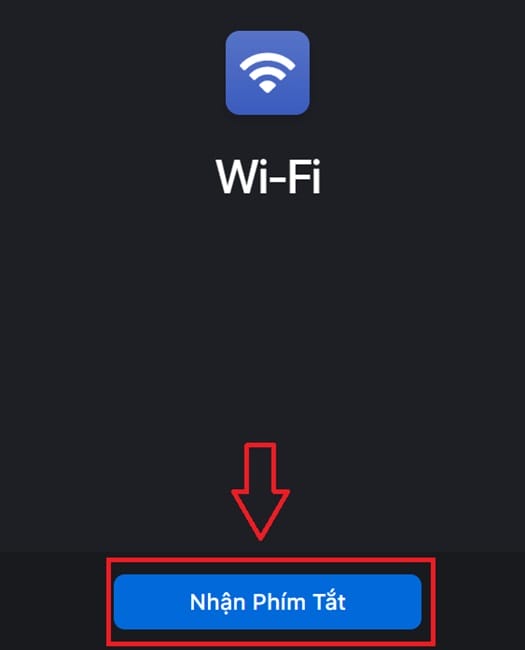
Use the available Wifi shortcut

See more: What is Game Mode on iOS 18? How to use?

Conclusion

In short, work add WiFi toggle button on iOS 18 with just a few simple steps, helping you easily manage Wifi connection and optimize your iPhone usage experience. Apply this little tip now and discover many other interesting features on the iOS 18 operating system!


Tags: AddbuttoniOStoggleTouchWiFi
Previous Post

How to turn on automatic charging mode on Android to effectively protect the battery

Next Post

How to always enable stickers on iPhone iOS 18

AnonyViet

AnonyViet

Related Posts

Share Key Active Visual Studio 2026
Software

Share Key Active Visual Studio 2026

November 15, 2025
Instructions for using the online number-to-word conversion tool for accountants and offices
Software

Instructions for using the online number-to-word conversion tool for accountants and offices

November 15, 2025
2 applications to monitor flooding situation in Ho Chi Minh City
Software

2 applications to monitor flooding situation in Ho Chi Minh City

November 14, 2025
How to get 2000 free Manus credits in just 3 steps
Software

How to get 2000 free Manus credits in just 3 steps

November 14, 2025
Detailed instructions on how to submit red books on VNeID right at home
Software

Detailed instructions on how to submit red books on VNeID right at home

November 13, 2025
How to install Anh Hai’s Pho Shop on MacBook is super easy
Software

How to install Anh Hai’s Pho Shop on MacBook is super easy

November 11, 2025
Next Post
How to always enable stickers on iPhone iOS 18

How to always enable stickers on iPhone iOS 18

0 0 votes
Article Rating
Subscribe
Login
Notify of
guest

guest

0 Comments
Oldest
Newest Most Voted
Inline Feedbacks
View all comments

Recent News

Instructions on how to edit Facebook scheduled posts

Instructions on how to edit Facebook scheduled posts

November 16, 2025
Suggested AI command to create a rustic and charming image of a Ban Lien girl

Suggested AI command to create a rustic and charming image of a Ban Lien girl

November 16, 2025
Windows 10 will have a new, simpler interface

Windows 10 will have a new, simpler interface

November 16, 2025
Share Key Active Visual Studio 2026

Share Key Active Visual Studio 2026

November 15, 2025
Instructions on how to edit Facebook scheduled posts

Instructions on how to edit Facebook scheduled posts

November 16, 2025
Suggested AI command to create a rustic and charming image of a Ban Lien girl

Suggested AI command to create a rustic and charming image of a Ban Lien girl

November 16, 2025
Windows 10 will have a new, simpler interface

Windows 10 will have a new, simpler interface

November 16, 2025
AnonyViet - English Version

AnonyViet

AnonyViet is a website share knowledge that you have never learned in school!

We are ready to welcome your comments, as well as your articles sent to AnonyViet.

Follow Us

Contact:

Email: anonyviet.com[@]gmail.com

Main Website: https://anonyviet.com

Recent News

Instructions on how to edit Facebook scheduled posts

Instructions on how to edit Facebook scheduled posts

November 16, 2025
Suggested AI command to create a rustic and charming image of a Ban Lien girl

Suggested AI command to create a rustic and charming image of a Ban Lien girl

November 16, 2025
  • Home
  • Home 2
  • Home 3
  • Home 4
  • Home 5
  • Home 6
  • Next Dest Page
  • Sample Page

new88 trang chủ shbet trang chủ f168 trang chủ qq88 nhà cái 78win

No Result
View All Result
  • Home
  • News
  • Software
  • Knowledge
  • MMO
  • Tips
  • Security
  • Network
  • Office

new88 trang chủ shbet trang chủ f168 trang chủ qq88 nhà cái 78win

wpDiscuz
0
0
Would love your thoughts, please comment.x
()
x
| Reply