• Home
  • News
  • Software
  • Knowledge
  • MMO
  • Tips
  • Security
  • Network
  • Office
AnonyViet - English Version
  • Home
  • News
  • Software
  • Knowledge
  • MMO
  • Tips
  • Security
  • Network
  • Office
No Result
View All Result
  • Home
  • News
  • Software
  • Knowledge
  • MMO
  • Tips
  • Security
  • Network
  • Office
No Result
View All Result
AnonyViet - English Version
No Result
View All Result

How to turn on automatic charging mode on Android to effectively protect the battery

AnonyViet by AnonyViet
October 9, 2024
in Software
0

Are you worried that charging your Android phone for too long can shorten its life? Do not worry! You don't need to be a tech expert to protect your smartphone's battery. In this article, AnnyViet will guide you how Turn on automatic charging mode on Android to help preserve batteries effectively and easily.

Join the channel Telegram belong to AnonyViet 👉 Link 👈

What is automatic charging mode on Android?

Auto-discharge mode is a smart feature on the Android operating system, designed to save energy and extend battery life. When the battery reaches a certain charge level, this feature will automatically stop receiving power from the charger.
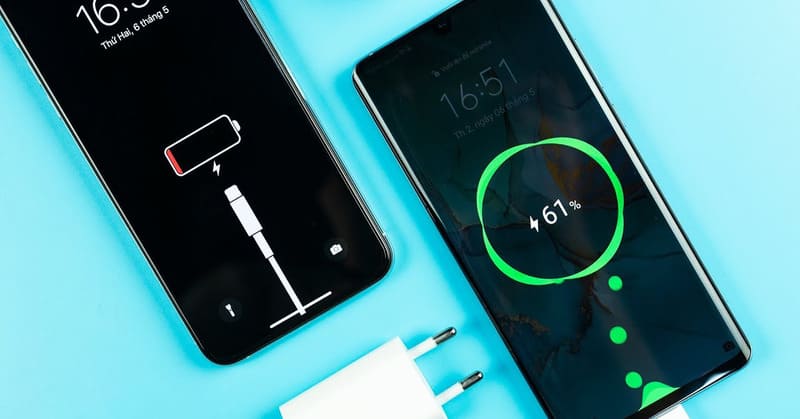
Auto charging mode on Android

Using this mode not only helps avoid overcharging, but also protects the battery from premature wear. Each battery charging cycle is usually calculated from 0% to 100%. With approximately 1000 to 2500 charging cycles per battery, charging it to 100% each time will shorten the battery's lifespan. Therefore, not charging it to 100% can make your battery last longer.

In particular, this feature is very useful for people who have a habit of charging their phone overnight, as it helps prevent overcharging.

See more: Feature settings Identify Google Pixel songs on other Android devices

Instructions for turning on automatic charging mode on Android

Step 1: Go to the 'Settings' app on your phone > Select 'Advanced features' and then tap 'Bixby Routines'.
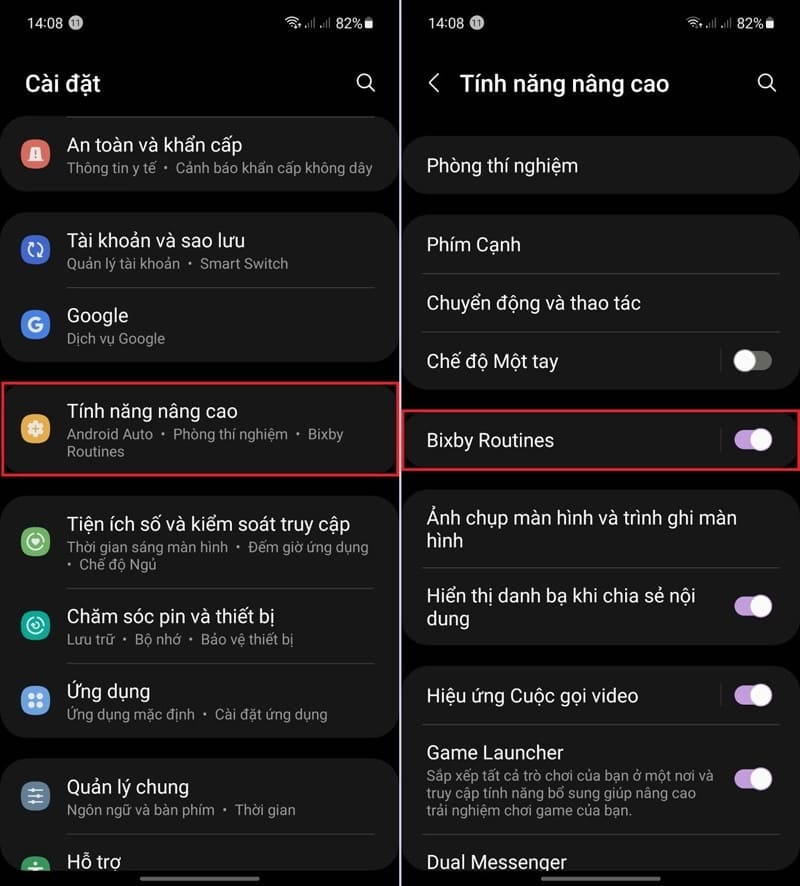
Tap Bixby Routines
Tap Bixby Routines

Step 2: Go to the 'Add schedule' tab > In the 'If' section, tap the '+' sign and select 'Battery level' > Enter the battery level you want to set to automatically cut off charging (e.g. 90%) and select ' Equal or above'.
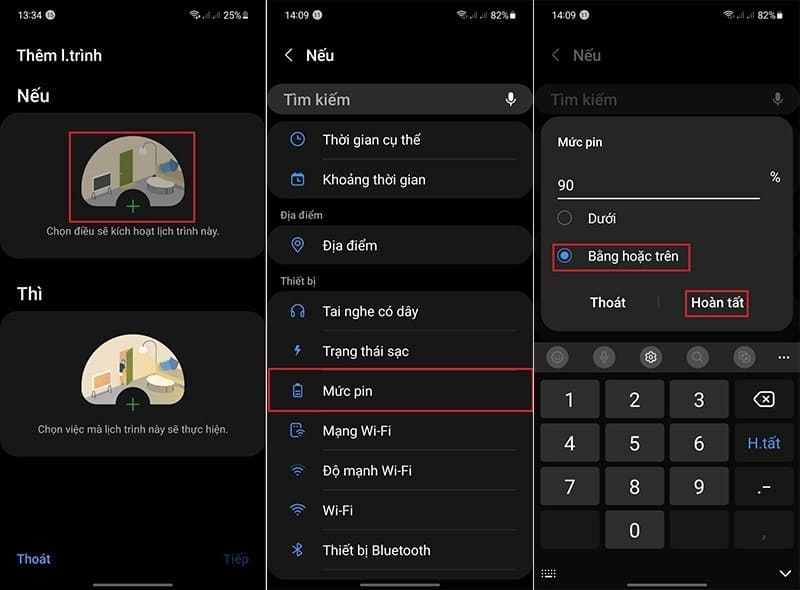
Enter the battery level you want to set

Step 3: In the 'Then' section, click on the '+' sign and select 'Pin'.
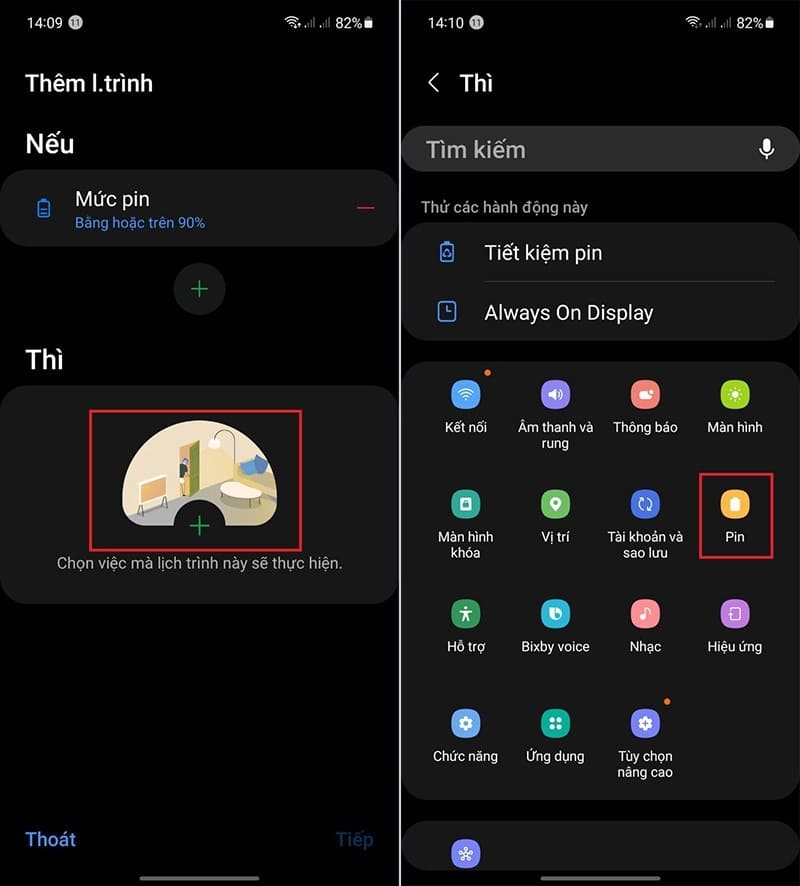
Tap the '+' sign and select 'Pin'
Tap the '+' sign and select 'Battery'

Step 4: Next, select the 'Battery Protection' feature and turn it on.
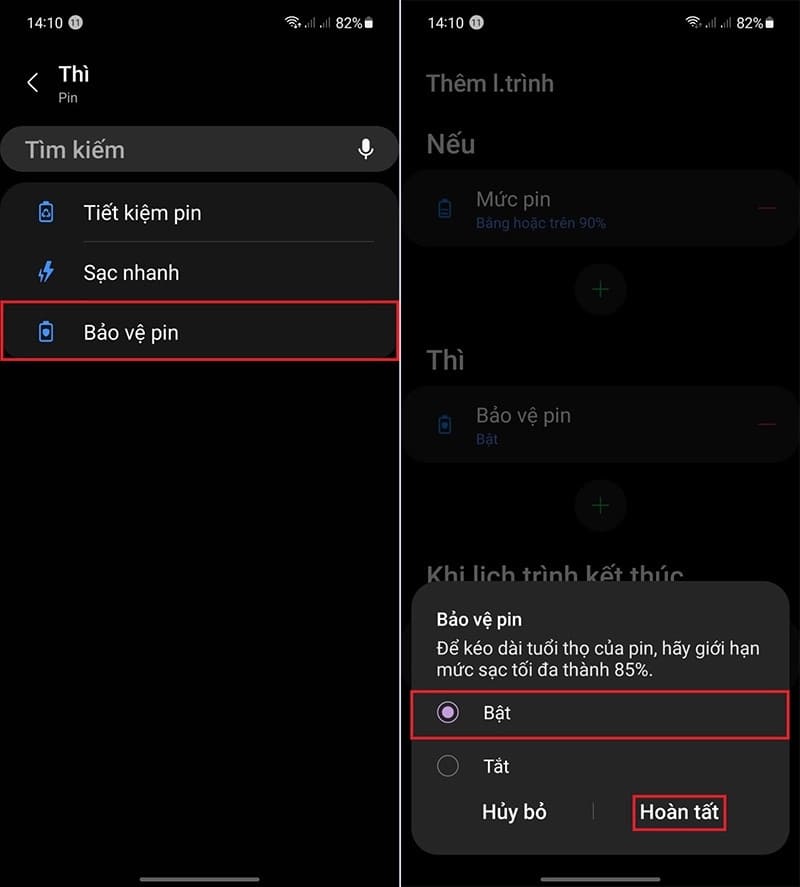
Enable 'Battery protection'

Step 5: Tap 'Next' and name your schedule > Tap 'Done' to save the settings.
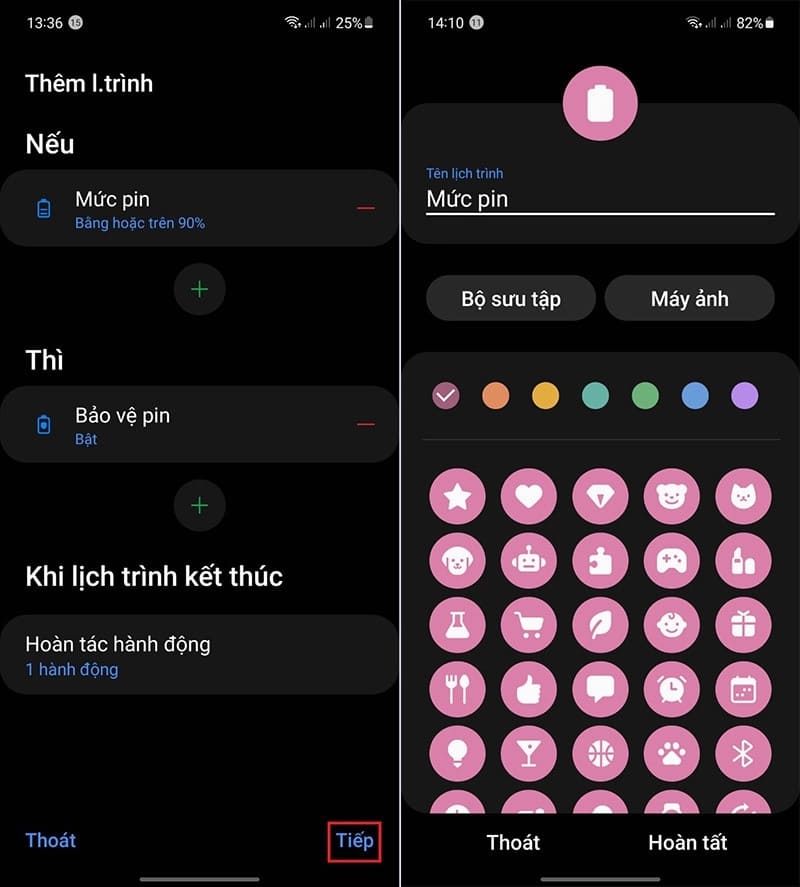
Name the schedule
Name the schedule

Things to note when charging Android phone batteries

Do not overcharge the battery

Current lithium ion batteries should not be continuously charged once they are 100% full. This can lead to reduced battery life, especially if you have a habit of charging overnight.
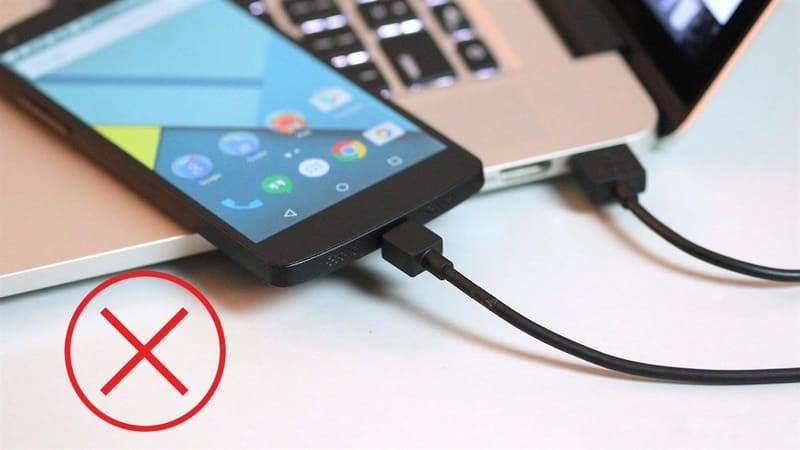
Do not overcharge the battery

Avoid charging while in use

Charging the battery while using your phone may increase the device's temperature, affecting its performance and safety.

Use genuine charger

Use genuine chargers or charging devices that meet the device's specifications to ensure stable power supply and prolong battery life.

Do not let the battery run out completely

For lithium ion batteries, you should plug in the charger when the battery is about 30% to 50%, instead of letting it completely dry before charging.

Avoid charging overnight

Although the Android operating system has an automatic charging shutdown feature, overnight charging should still be limited to keep the battery in the best condition. The ideal battery level is between 65% and 80%.

See more: Tips Install Edge extension on Android

Conclusion

In short, work Turn on automatic charging mode on Android is a simple but effective way to protect your phone's battery. Applying this feature not only helps extend battery life but also helps you avoid risks caused by overcharging. Try the steps that AnonyViet has instructed now to optimize your device's performance and enjoy a long-lasting smartphone usage experience!


Tags: AndroidAutomaticbatterychargingeffectivelyModeProtectturn
Previous Post

How to use ReRa1n to downgrade iOS Firmware on Windows and Linux

Next Post

How to add WiFi toggle button with just one touch on iOS 18

AnonyViet

AnonyViet

Related Posts

Instructions on how to create head-grabbing photos – New trend causing TikTok storm
Software

Instructions on how to create head-grabbing photos – New trend causing TikTok storm

January 18, 2026
Instructions for installing the application “Are you dead yet” – Demumu
Software

Instructions for installing the application “Are you dead yet” – Demumu

January 17, 2026
Top 7+ best AI storyboard creation tools, worth trying
Software

Top 7+ best AI storyboard creation tools, worth trying

January 11, 2026
Share IObit Uninstaller 15 PRO license key for free 2026
Software

Share IObit Uninstaller 15 PRO license key for free 2026

January 9, 2026
Instructions for receiving 400k Tet 2026 support money via VNeID
Software

Instructions for receiving 400k Tet 2026 support money via VNeID

January 4, 2026
How to create Korean-style Polaroid photo frames on Samsung
Software

How to create Korean-style Polaroid photo frames on Samsung

December 27, 2025
Next Post
How to add WiFi toggle button with just one touch on iOS 18

How to add WiFi toggle button with just one touch on iOS 18

0 0 votes
Article Rating
Subscribe
Login
Notify of
guest

guest

0 Comments
Oldest
Newest Most Voted
Inline Feedbacks
View all comments

Recent News

How to use automatic verification bot to register for ChatGPT K12, Spotify Student,…

How to use automatic verification bot to register for ChatGPT K12, Spotify Student,…

January 18, 2026
Instructions on how to create head-grabbing photos – New trend causing TikTok storm

Instructions on how to create head-grabbing photos – New trend causing TikTok storm

January 18, 2026
How to use CMD environment variables in Windows

How to use CMD environment variables in Windows

January 18, 2026
Instructions for installing the application “Are you dead yet” – Demumu

Instructions for installing the application “Are you dead yet” – Demumu

January 17, 2026
How to use automatic verification bot to register for ChatGPT K12, Spotify Student,…

How to use automatic verification bot to register for ChatGPT K12, Spotify Student,…

January 18, 2026
Instructions on how to create head-grabbing photos – New trend causing TikTok storm

Instructions on how to create head-grabbing photos – New trend causing TikTok storm

January 18, 2026
How to use CMD environment variables in Windows

How to use CMD environment variables in Windows

January 18, 2026
AnonyViet - English Version

AnonyViet

AnonyViet is a website share knowledge that you have never learned in school!

We are ready to welcome your comments, as well as your articles sent to AnonyViet.

Follow Us

Contact:

Email: anonyviet.com[@]gmail.com

Main Website: https://anonyviet.com

Recent News

How to use automatic verification bot to register for ChatGPT K12, Spotify Student,…

How to use automatic verification bot to register for ChatGPT K12, Spotify Student,…

January 18, 2026
Instructions on how to create head-grabbing photos – New trend causing TikTok storm

Instructions on how to create head-grabbing photos – New trend causing TikTok storm

January 18, 2026
  • Home
  • Home 2
  • Home 3
  • Home 4
  • Home 5
  • Home 6
  • Next Dest Page
  • Sample Page

https://sun52.network

No Result
View All Result
  • Home
  • News
  • Software
  • Knowledge
  • MMO
  • Tips
  • Security
  • Network
  • Office

https://sun52.network

wpDiscuz
0
0
Would love your thoughts, please comment.x
()
x
| Reply