• Home
  • News
  • Software
  • Knowledge
  • MMO
  • Tips
  • Security
  • Network
  • Office
AnonyViet - English Version
  • Home
  • News
  • Software
  • Knowledge
  • MMO
  • Tips
  • Security
  • Network
  • Office
No Result
View All Result
  • Home
  • News
  • Software
  • Knowledge
  • MMO
  • Tips
  • Security
  • Network
  • Office
No Result
View All Result
AnonyViet - English Version
No Result
View All Result

How to Add Google Drive to File Explorer on Windows 11

AnonyViet by AnonyViet
June 30, 2024
in Tips
0

Have you ever wanted to access Google Drive files quickly and easily without having to open a browser? Let's explore How to add Google Drive to File Explorer to make your workflow smoother than ever.

Join the channel Telegram belong to AnonyViet 👉 Link 👈

How to add Google Drive to File Explorer on Windows 11

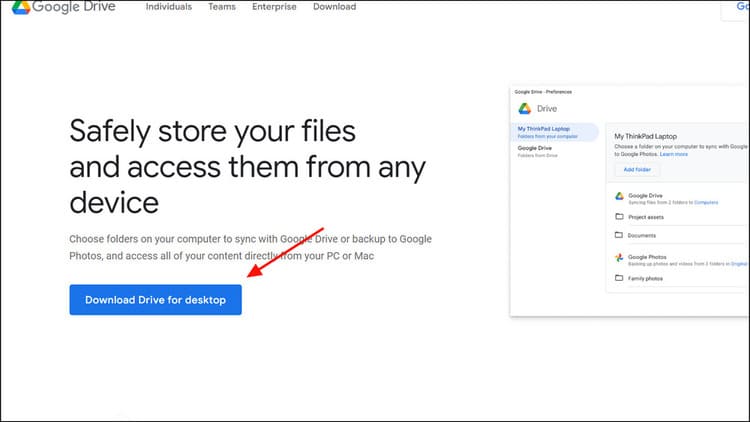
Step 1: To add Google Drive to File Explorer, you need to download the Google Drive Desktop app via the link HERE
How to add Google Drive to File Explorer
Download Google Drive app

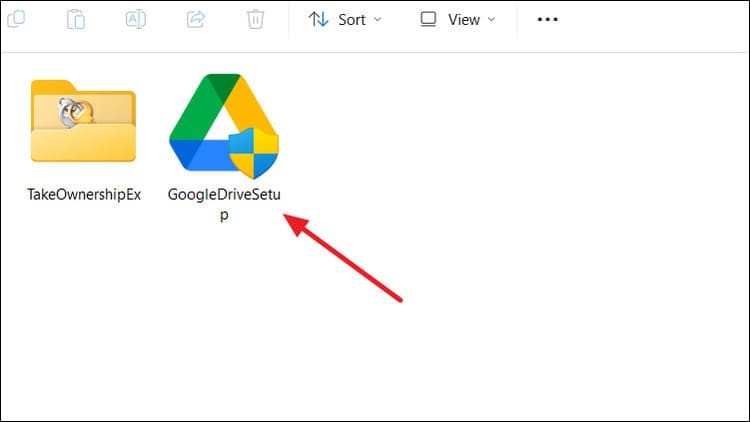
Step 2: Double click on the file to proceed with the installation
How to add Google Drive to File Explorer
Proceed with installation

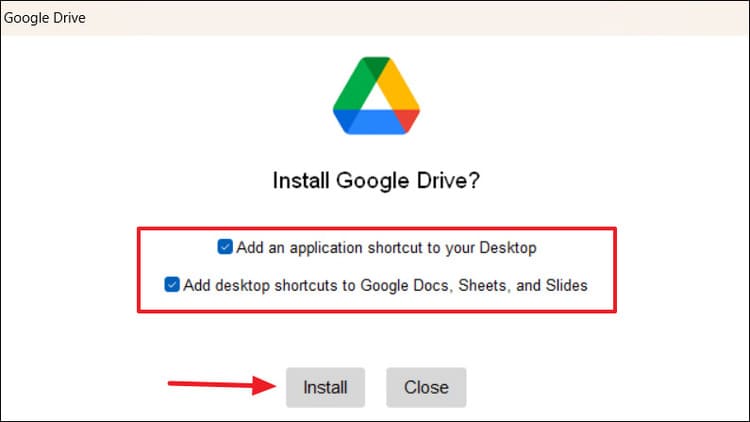
Step 3: There are a few options here, asking if you want to add desktop shortcuts to Google Drive and some other parts of the Google Office suite. Click 'Install' to continue.
How to add Google Drive to File Explorer
Click 'Install' to continue

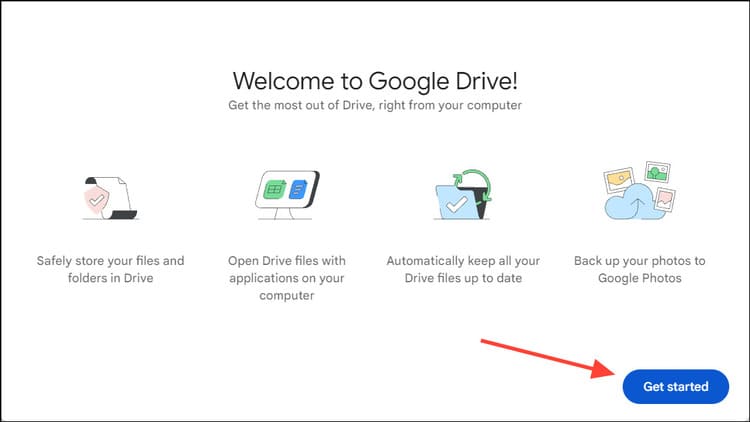
Step 4: After installation is complete, open the Google Drive application > Click 'Get Started'
How to add Google Drive to File Explorer
Click 'Get Started'

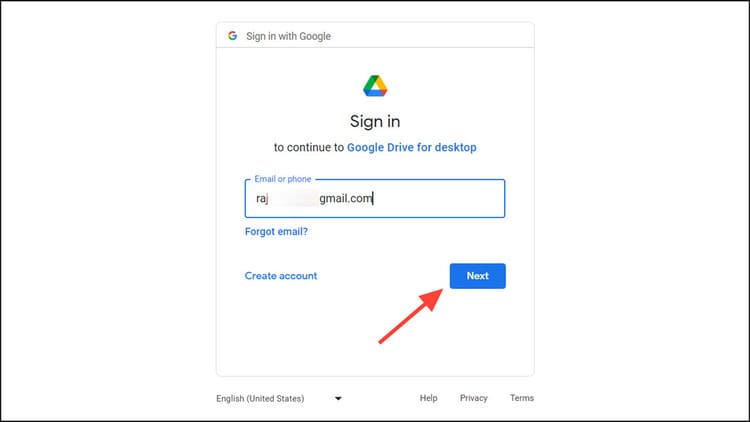
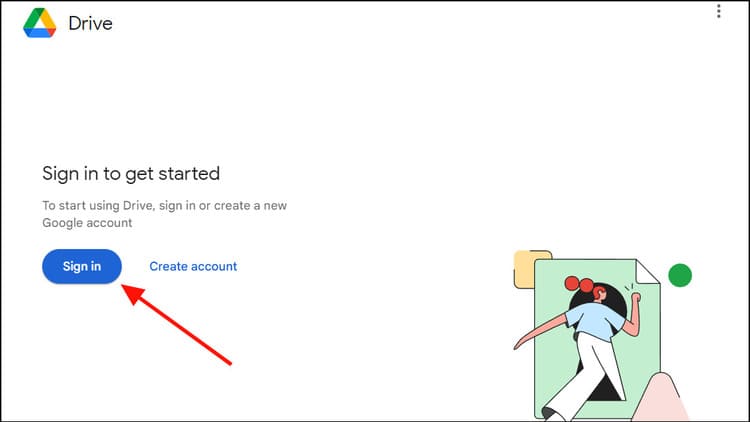
Step 5: Select 'Sign in' to log in to your account
How to add Google Drive to File Explorer
Select 'Sign in'
How to add Google Drive to File Explorer
Login account

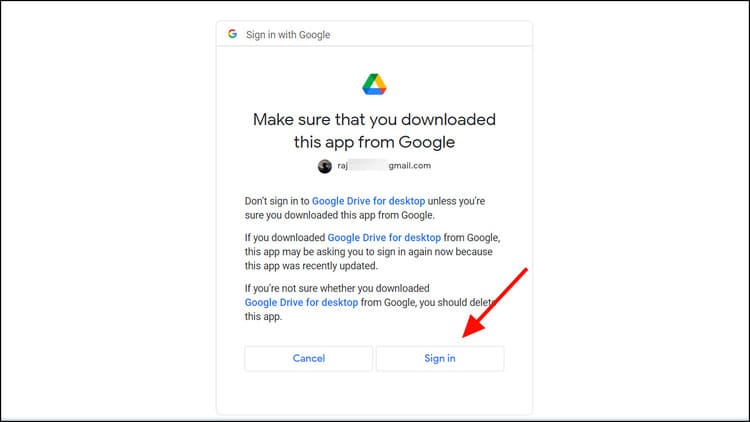
Step 6: Next, it will ask if you agree to allow the Drive app to access Drive files. Grant permission by clicking 'Sign in'.
How to add Google Drive to File Explorer
Click 'Sign in'

How to sync files on your computer with Google Drive

Once signed in, you can sync and manage your Google Drive files right in File Explorer by:

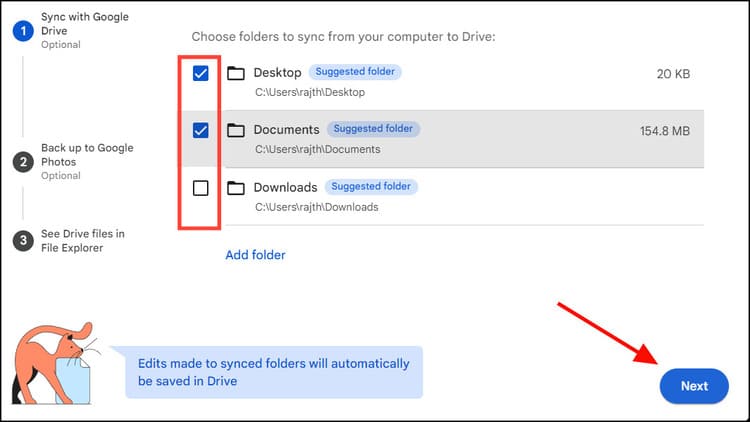
Step 1: Select the folders you want to sync from your computer to Google Drive and click 'Next'.
How to add Google Drive to File Explorer
Select the folders you want to sync

While folders (Documents, Downloads, Desktop, and other custom folders) sync to Google Drive, Photos and Videos folders back up to Google Photos. The two services operate separately. Google Drive can store all types of files, including photos and videos, but Google Photos can only store photos and videos.

Step 2: Any changes you make to files in the selected folder will automatically sync to Google Drive. However, Google Photos only backs up new files in the selected folders. The app will tell you the difference between Google Drive and Google Photos, click “Got it” in the message box to continue.
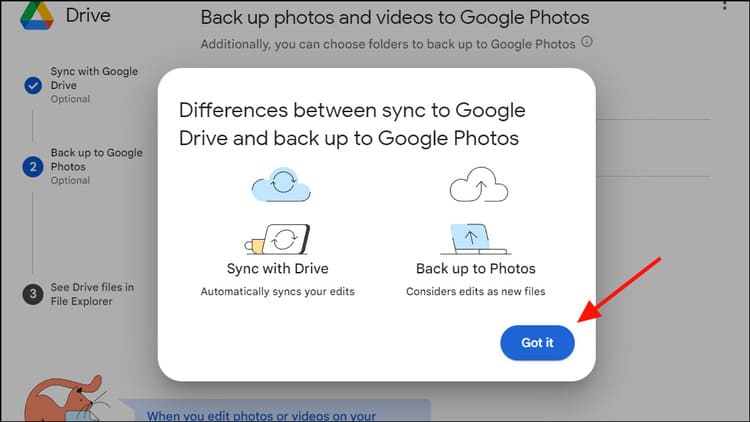
How to add Google Drive to File Explorer
Click 'Got it'

Step 3: Next, select the folders you want to back up to Google Photos and click 'Next'. You can skip this step by pressing 'Skip'.
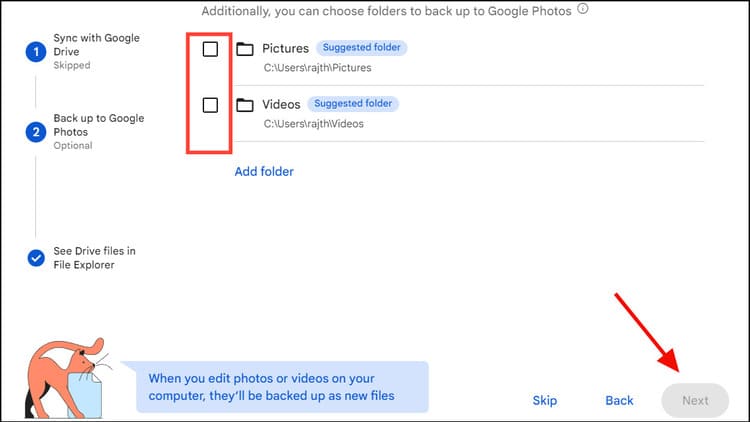
How to add Google Drive to File Explorer
Select the folders you want to back up to Google Photos

Step 4: Continue clicking Next > Next
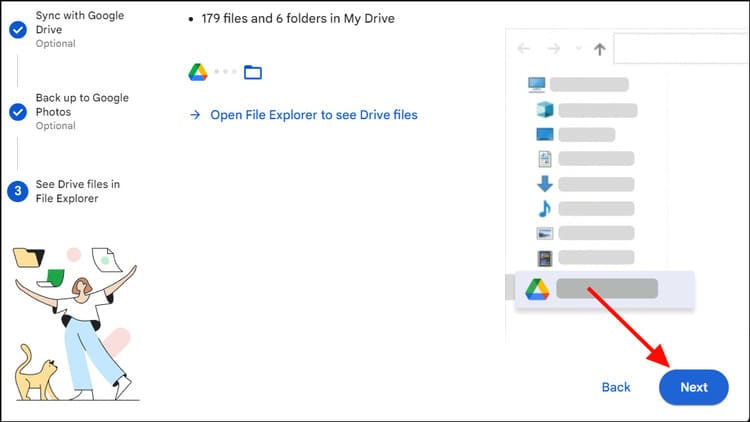
How to add Google Drive to File Explorer
Click Next

Step 5: Finally, click 'Open Drive' to open the Google Drive folder in File Explorer.
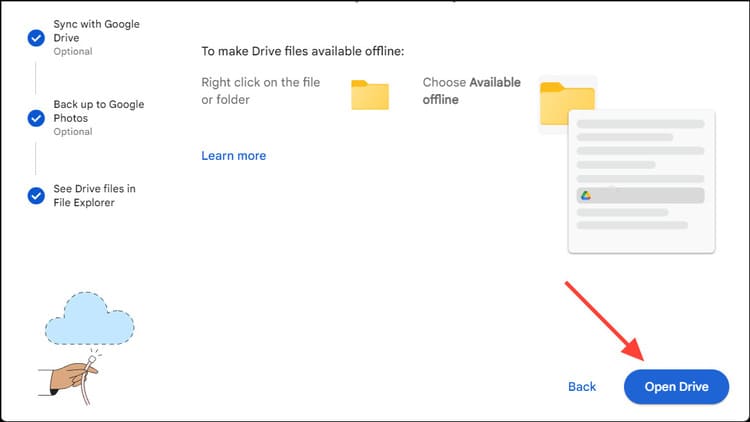
How to add Google Drive to File Explorer
Click 'Open Drive'

Now that Google Drive has been successfully added, you can easily access it from File Explorer. You will see a new drive named Google Drive in both the 'This PC' section and the left sidebar.
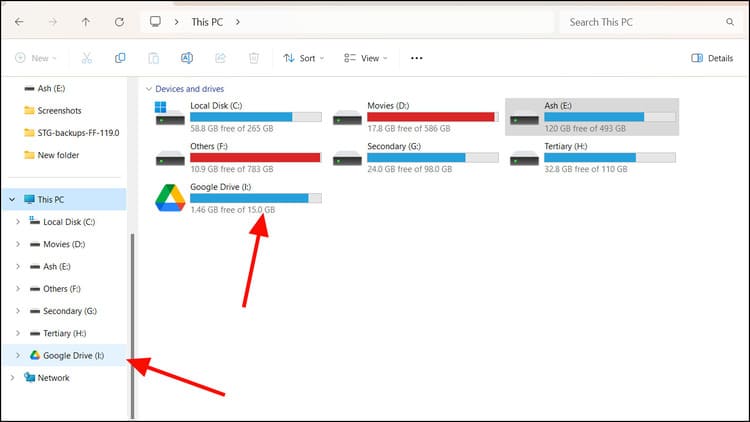
How to add Google Drive to File Explorer
Google Drive has been successfully added

Now, folders Google Drive Once your Drive files are available locally, you can do a lot to manage your Drive files right in File Explorer.

Epilogue

With the simple steps above, you can know How to add Google Drive to File Explorer to quickly access cloud files from Windows and manage it like any other drive right on your computer. Good luck!


Tags: AdddriveExplorerfileGoogleWindows
Previous Post

How to view logged in Facebook Password in PlainText format

Next Post

Instructions for turning on/off the lock to protect your Facebook personal page

AnonyViet

AnonyViet

Related Posts

How to add sliders to Facebook Stories to easily rewind videos
Tips

How to add sliders to Facebook Stories to easily rewind videos

April 21, 2026
How to change the default font on Windows 10
Tips

How to change the default font on Windows 10

April 13, 2026
5 tips for using a Browser to replace an App (helps save RAM, time and money)
Tips

5 tips for using a Browser to replace an App (helps save RAM, time and money)

April 13, 2026
How to make funny MeMe photos without Photoshop within 10 seconds
Tips

How to make funny MeMe photos without Photoshop within 10 seconds

April 11, 2026
How to quickly design your own Logo without Photoshop
Tips

How to quickly design your own Logo without Photoshop

April 10, 2026
How to convert Website into App on Windows
Tips

How to convert Website into App on Windows

April 9, 2026
Next Post
Instructions for turning on/off the lock to protect your Facebook personal page

Instructions for turning on/off the lock to protect your Facebook personal page

0 0 votes
Article Rating
Subscribe
Login
Notify of
guest

guest

0 Comments
Oldest
Newest Most Voted
Inline Feedbacks
View all comments

Recent News

How to create a Face Sticker Collection using ChatGPT

How to create a Face Sticker Collection using ChatGPT

April 29, 2026
How to install the cute Bongo Cat mouse pointer for Windows

How to install the cute Bongo Cat mouse pointer for Windows

April 29, 2026
Tips for pinning the step counter to the iPhone screen to monitor your health

Tips for pinning the step counter to the iPhone screen to monitor your health

April 28, 2026
How to turn off password suggestions on iPhone: Prevent Safari from auto-filling passwords

How to turn off password suggestions on iPhone: Prevent Safari from auto-filling passwords

April 27, 2026
How to create a Face Sticker Collection using ChatGPT

How to create a Face Sticker Collection using ChatGPT

April 29, 2026
How to install the cute Bongo Cat mouse pointer for Windows

How to install the cute Bongo Cat mouse pointer for Windows

April 29, 2026
Tips for pinning the step counter to the iPhone screen to monitor your health

Tips for pinning the step counter to the iPhone screen to monitor your health

April 28, 2026
AnonyViet - English Version

AnonyViet

AnonyViet is a website share knowledge that you have never learned in school!

We are ready to welcome your comments, as well as your articles sent to AnonyViet.

Follow Us

Contact:

Email: anonyviet.com[@]gmail.com

Main Website: https://anonyviet.com

Recent News

How to create a Face Sticker Collection using ChatGPT

How to create a Face Sticker Collection using ChatGPT

April 29, 2026
How to install the cute Bongo Cat mouse pointer for Windows

How to install the cute Bongo Cat mouse pointer for Windows

April 29, 2026
No Result
View All Result
  • Home
  • News
  • Software
  • Knowledge
  • MMO
  • Tips
  • Security
  • Network
  • Office

wpDiscuz
0
0
Would love your thoughts, please comment.x
()
x
| Reply