If you frequently visit certain websites, you can convert Websites into Apps on Windows 10. This allows you to use websites as if they were normal applications. You can use Google Chrome or Microsoft Edge to create these apps.
📢 Join the channel Telegram belong to AnonyViet
Update new articles, cool tools and IT tips fastest

How web applications work
The website works exactly the same in the app as it does in your web browser. The only difference you’ll see is that there won’t be any browser elements in your application window, such as bookmarks, address bar, and other toolbars.
If you use Chrome, the web app will use the Chrome platform. If you use Edge, the app uses Microsoft Edge. However, common browser elements are removed so you get the most realistic app-like experience. These web applications have their own windows, taskbar icons, and keyboard shortcuts.
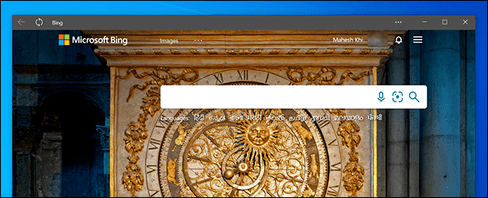
Convert Website into App with Google Chrome
You can use Chrome’s main menu to turn any website into a Windows app.
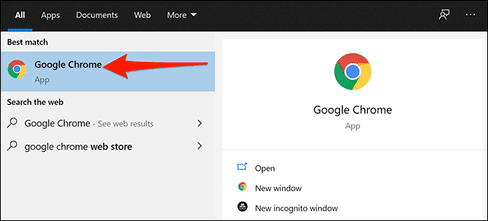
To start creating your web app, open the Start menu, search for “Google Chrome,” and click the first result.
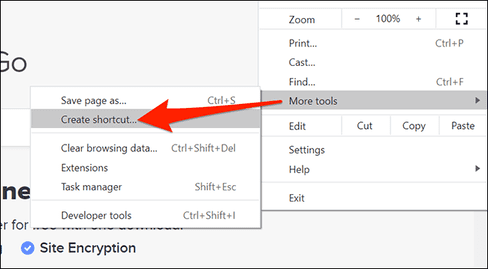
First, open any website that you want to turn into an app. Once the website has loaded, click the menu button (three dots) in the top right corner and select More Tools > Create Shortcut.
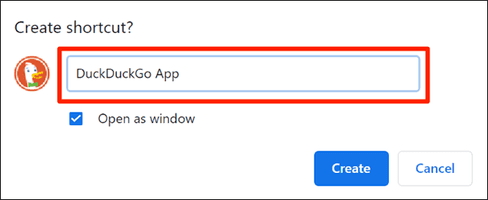
A prompt will appear asking to name your new app. After entering the name, enable the “Open as window” checkbox and click “Create”.
Chrome will create an app for your site and add it Start Menu. You can now search and run your apps using the Start Menu.
Create web apps using Microsoft Edge
You can also use Microsoft Edge to turn a website into an app. It’s similar to what Chrome does. After all, Microsoft Edge and Chrome are both based on Chromium.
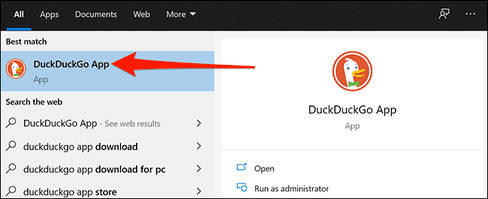
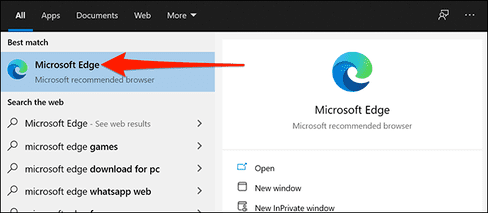
To create an app in this browser, open Microsoft Edge using the Start Menu.
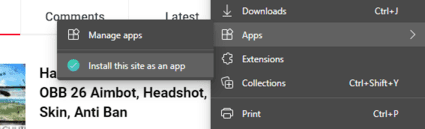
Open the website you want to turn into an application. Then click on the 3 dots button on the top right and select Apps > Install this site as an app.
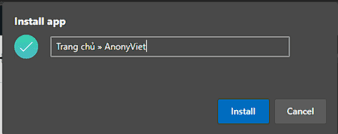
Enter a new name for the application and click “Install”.
Now, you can open the Anonyviet Website from the Start menu.
Create Shortcuts for applications
Your web applications will have their own shortcuts in the Start Menu. You can also create Desktop Shortcuts for your applications to open them quickly if you want.
If you use Chrome to create web apps, Shortcuts are already created on your Desktop. But if you use Microsoft Edge, you will need to add Shortcuts to your Desktop manually.
To do that, open the Start Menu, search for your app’s name, right-click on the app and select “Pin to Start”.
You need to do this because Windows does not allow you to directly create Shortcuts for this type of application.
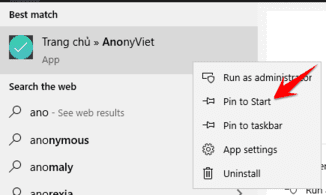
Open the Start Menu again, you will see your application on the right hand side. Drag it to the Desktop to create a new Shortcut.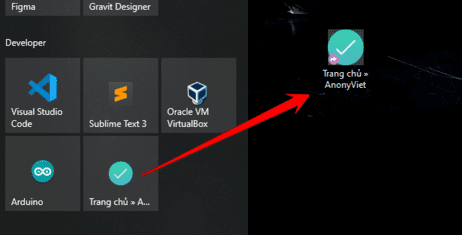
How to create Shortcut on Taskbar
You can also create taskbar shortcuts for your website applications.
First, you need to open the Start Menu, find the application name, right-click on the application and select “Pin to Taskbar”.
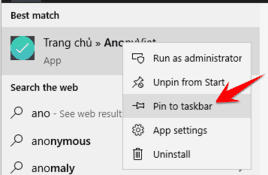
How to change the icon for the application
By default, Windows uses the website favicon as the icon for the application. But you can also change this icon if you want.
To change the icon for an application, you need to right-click on that application Shortcut and select “Properties”.
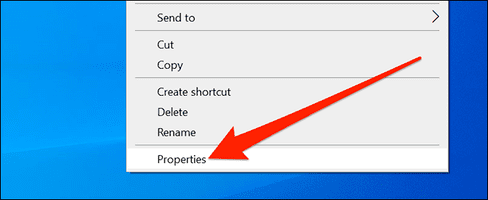
In the Properties window, select “Shortcut” and click the “Change icon” button.
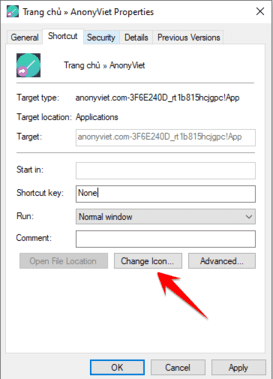
Click “Browse” in the new window and select the icon you want to use for your app.
If you want to use one of the available Windows 10 icons, go to the C:\Windows\System32 folder and double-click the “imageres.dll” file in this folder.
You will see a list of Windows 10 built-in icons. Select the one you want to use and click “OK”.
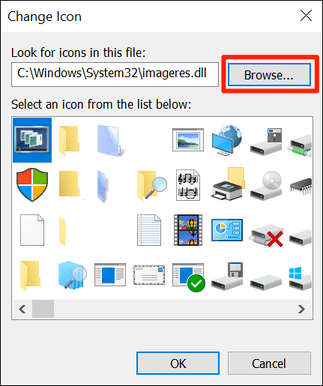
To save the new settings, simply press “Apple” and select “OK”.
How to uninstall apps
Just like with other regular apps, you can uninstall a web app if you no longer use it. This will not affect your account with the site and you will be able to continue using the site from your web browser.
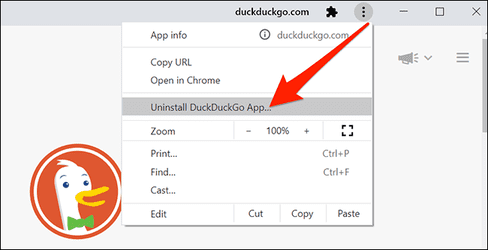
To uninstall an app, you must first open it.
Click on the three dots button on the top right and select “Uninstall“.
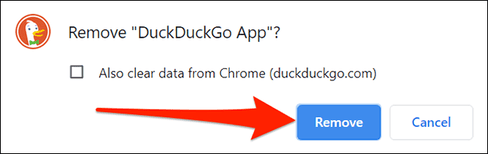
Click “Remove” to delete the application.
So that’s it. This article has shown you how to convert a Website into an App. You can create as many applications as you like on Windows.
Frequently asked questions
Which browser can I use to convert a website into an app?
You can use Google Chrome or Microsoft Edge to convert your website into an application on Windows.
How does a web application work compared to a regular website?
Web apps work exactly like websites in the browser, but without browser elements like the address bar and toolbar. It has its own window, taskbar icon, and keyboard shortcuts.
How do I uninstall a web application?
Open the web app, tap the three-dot button in the top right corner and select “Uninstall”.