• Home
  • News
  • Software
  • Knowledge
  • MMO
  • Tips
  • Security
  • Network
  • Office
AnonyViet - English Version
  • Home
  • News
  • Software
  • Knowledge
  • MMO
  • Tips
  • Security
  • Network
  • Office
No Result
View All Result
  • Home
  • News
  • Software
  • Knowledge
  • MMO
  • Tips
  • Security
  • Network
  • Office
No Result
View All Result
AnonyViet - English Version
No Result
View All Result

Tips for pinning the step counter to the iPhone screen to monitor your health

AnonyViet by AnonyViet
April 28, 2026
in Knowledge
0

Pin the step counter to the screen iPhone is an essential need for users interested in jogging or walking every day. Although Apple’s default Health app captures data very well, it lacks a visual display feature. This article will give you a perfect and easy-to-implement alternative solution.

📢 Join the channel Telegram belong to AnonyViet


👉 Go to Telegram AnonyViet

Update new articles, cool tools and IT tips fastest

How to pin step counter to iPhone screen

To put health parameters on the main screen, we need to go through two main stages: setting up the application and installing widgets. Below are the detailed steps.

Install and set up Pedometer++

Before taking the widget out, the app needs to be granted access to the phone’s movement data to function properly.

Step 1: Users access the App Store to download Pedometer++ application about your iPhone device.

Tips for pinning the step counter to the iPhone screen to monitor your health
How to pin step counter to iPhone screen

Step 2: After opening the app for the first time, the system will request permission to access the “Movement & Fitness” activity, tap “Allow” to enable step counting.
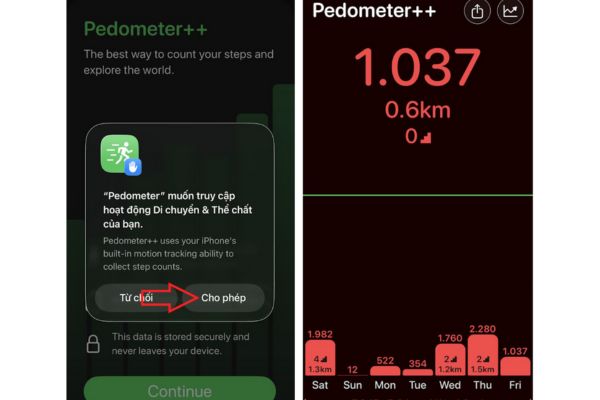
Select "Allow"
Select “Allow”

Step 3: At the main interface of the application, click on the item Settings (Settings) to set a daily step goal or change the measurement unit as desired.

Click on Settings
Click on Settings

Bring the step counter widget to the home screen

After the application is operational, you can customize it to display the number of steps right on the main screen interface through the iOS Widget feature.

Step 1: On the home screen, press and hold any empty space or press and hold the Pedometer++ application icon and select “Edit home screen“.
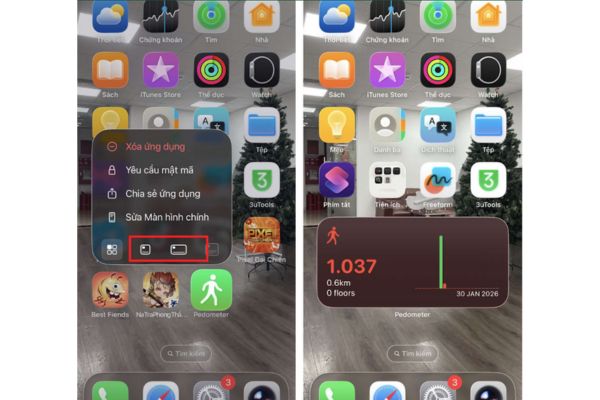
Select "Edit home screen"
Select “Edit home screen”

Step 2: Click the plus sign (+) in the upper corner of the screen or select “Add amenities” from the edit menu to open the widget gallery.
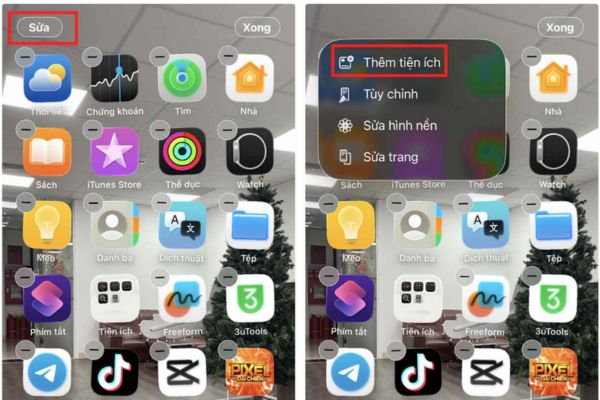
Select "Add amenities"
Select “Add add-on”

Step 3: Search for the application name Pedometer in the list and swipe to select the widget size (small, medium, large) that suits your screen layout.
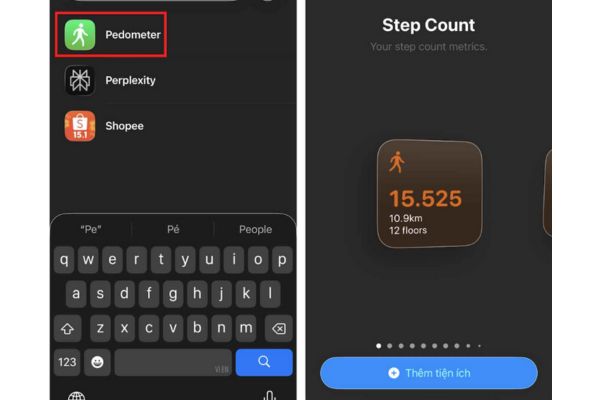
Search for Pedometer app name

Step 4: Press the button “Add amenities” to complete, the step count will now be displayed visually right on the iPhone screen without needing to open the application.
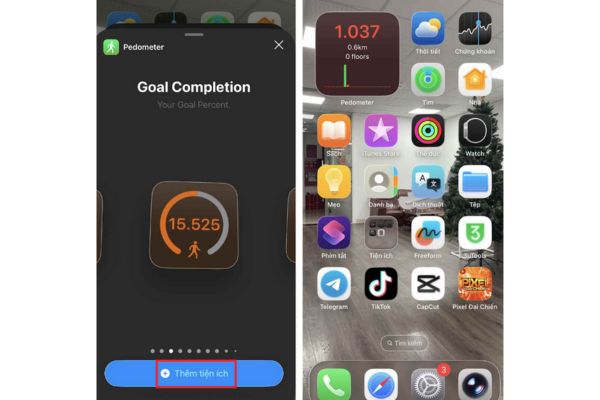
Press the button "Add amenities"
Click the “Add Utilities” button

Using widgets not only makes the phone interface more lively, but also serves as a constant reminder of your activity status during the day.

Conclusion

Hope the above instructions have helped you understand the process pin the step counter to the iPhone screen most quickly. This is a small but extremely useful trick for those who love an active lifestyle. Don’t forget to share this great tip with your friends and relatives!


Tags: counterhealthiPhoneMonitorpinningscreensteptips
Previous Post

How to turn off password suggestions on iPhone: Prevent Safari from auto-filling passwords

AnonyViet

AnonyViet

Related Posts

How to turn off password suggestions on iPhone: Prevent Safari from auto-filling passwords
Knowledge

How to turn off password suggestions on iPhone: Prevent Safari from auto-filling passwords

April 27, 2026
Tips to completely turn off CAPTCHA codes on iPhone and Mac are super simple
Knowledge

Tips to completely turn off CAPTCHA codes on iPhone and Mac are super simple

April 25, 2026
How to compress online videos for free without losing quality
Knowledge

How to compress online videos for free without losing quality

April 24, 2026
Common errors when using Bosch products and how to fix them
Knowledge

Common errors when using Bosch products and how to fix them

April 22, 2026
How to avoid Adblock detection on Youtube with 4 good tips
Knowledge

How to avoid Adblock detection on Youtube with 4 good tips

April 17, 2026
How to transfer ChatGPT data to Claude is extremely simple
Knowledge

How to transfer ChatGPT data to Claude is extremely simple

April 16, 2026
0 0 votes
Article Rating
Subscribe
Login
Notify of
guest

guest

0 Comments
Oldest
Newest Most Voted
Inline Feedbacks
View all comments

Recent News

Tips for pinning the step counter to the iPhone screen to monitor your health

Tips for pinning the step counter to the iPhone screen to monitor your health

April 28, 2026
How to turn off password suggestions on iPhone: Prevent Safari from auto-filling passwords

How to turn off password suggestions on iPhone: Prevent Safari from auto-filling passwords

April 27, 2026
Instructions for looking up prescriptions on VNeID instead of paper medical books

Instructions for looking up prescriptions on VNeID instead of paper medical books

April 26, 2026
Tips to completely turn off CAPTCHA codes on iPhone and Mac are super simple

Tips to completely turn off CAPTCHA codes on iPhone and Mac are super simple

April 25, 2026
Tips for pinning the step counter to the iPhone screen to monitor your health

Tips for pinning the step counter to the iPhone screen to monitor your health

April 28, 2026
How to turn off password suggestions on iPhone: Prevent Safari from auto-filling passwords

How to turn off password suggestions on iPhone: Prevent Safari from auto-filling passwords

April 27, 2026
Instructions for looking up prescriptions on VNeID instead of paper medical books

Instructions for looking up prescriptions on VNeID instead of paper medical books

April 26, 2026
AnonyViet - English Version

AnonyViet

AnonyViet is a website share knowledge that you have never learned in school!

We are ready to welcome your comments, as well as your articles sent to AnonyViet.

Follow Us

Contact:

Email: anonyviet.com[@]gmail.com

Main Website: https://anonyviet.com

Recent News

Tips for pinning the step counter to the iPhone screen to monitor your health

Tips for pinning the step counter to the iPhone screen to monitor your health

April 28, 2026
How to turn off password suggestions on iPhone: Prevent Safari from auto-filling passwords

How to turn off password suggestions on iPhone: Prevent Safari from auto-filling passwords

April 27, 2026
No Result
View All Result
  • Home
  • News
  • Software
  • Knowledge
  • MMO
  • Tips
  • Security
  • Network
  • Office

wpDiscuz
0
0
Would love your thoughts, please comment.x
()
x
| Reply