• Home
  • News
  • Software
  • Knowledge
  • MMO
  • Tips
  • Security
  • Network
  • Office
AnonyViet - English Version
  • Home
  • News
  • Software
  • Knowledge
  • MMO
  • Tips
  • Security
  • Network
  • Office
No Result
View All Result
  • Home
  • News
  • Software
  • Knowledge
  • MMO
  • Tips
  • Security
  • Network
  • Office
No Result
View All Result
AnonyViet - English Version
No Result
View All Result

How to turn off password suggestions on iPhone: Prevent Safari from auto-filling passwords

AnonyViet by AnonyViet
April 27, 2026
in Knowledge
0

How to turn off password hints on iPhone is an essential trick if you are using professional password management applications like 1Password. Apple’s constant recommendation of strong passwords sometimes causes overlap and inconvenience during the new account registration process. This article will help you completely remove those notifications on both iOS and macOS operating systems.

📢 Join the channel Telegram belong to AnonyViet


👉 Go to Telegram AnonyViet

Update new articles, cool tools and IT tips fastest

How to turn off password hints on iPhone and MacBook

Note that these settings do not sync across iCloudso you need to do this on each device for which you want to disable this feature.
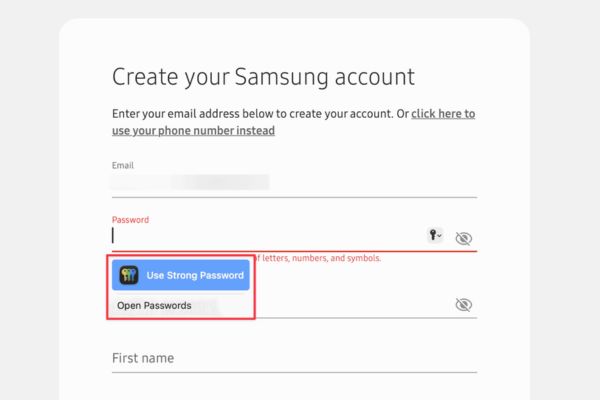
How to turn off password suggestions on iPhone: Prevent Safari from auto-filling passwords
How to turn off password hints on iPhone and MacBook

Turn off the suggestion feature on macOS

On Mac computers, this process includes turning off suggestions for creating new passwords, turning off asking to save passwords, and blocking notifications about Passkeys.

1. Disable strong password hints

Step 1: Open the app Apple Passwords on your Mac.

Step 2: Click Passwords on the menu bar, select Settings and authenticate with Touch ID or a computer password.
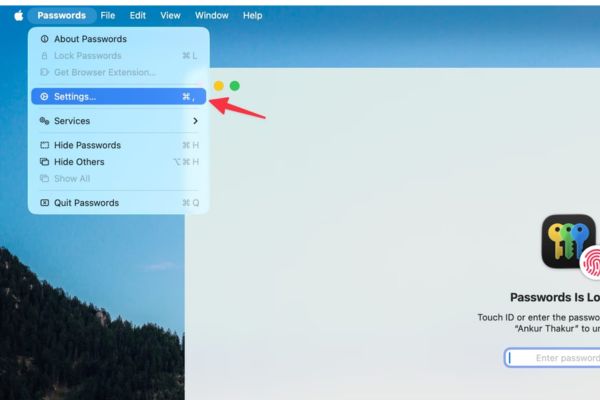
Select Settings
Select Settings

Step 3: Uncheck the box Suggest Strong Password (Strong password hint).
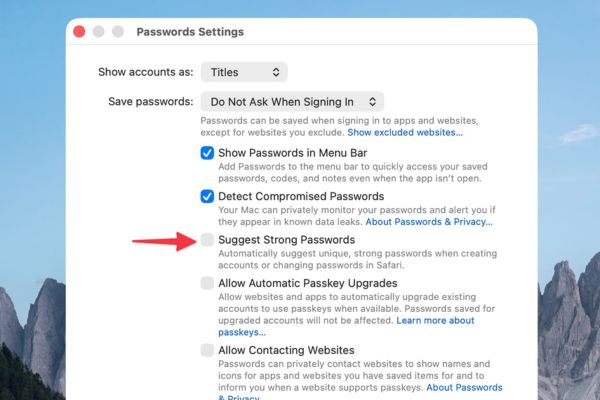
Uncheck the Suggest Strong Password box

At this time, Safari will no longer automatically suggest creating a new password. However, a small key icon may still appear.
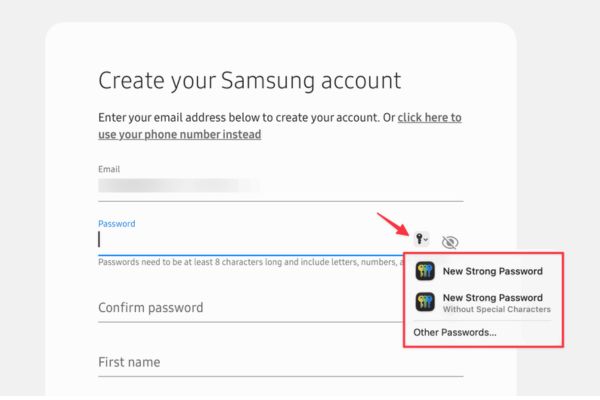
The small key icon may still appear

If you want to completely disable this icon:

Step 1: Open Safari browser, go to section Settings (Setting).

Step 2: Select tabs AutoFill (Autofill).

Step 3: Uncheck the item User names and passwords (Username and password).
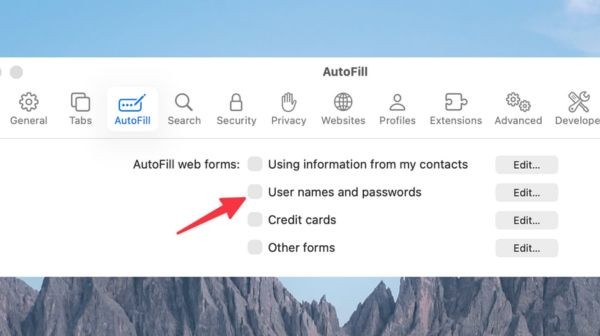
Uncheck User names and passwords

2. Prevent asking to save passwords and Passkeys

To avoid applications constantly asking to save passwords after logging in or sites like Amazon asking to upgrade to Passkeys:

Step 1: Back to section Settings of the Apple Passwords app.

Step 2: In the ‘Save passwords’ section, select Do Not Ask When Signing In (Not asked when logging in).

Step 3: Uncheck two items Allow Automatic Passkey Upgrades (Allow automatic Passkey upgrade) and Allow Contacting Websites (Allow site contact).

Operations on iOS devices (iPhone/iPad)

For iPhone and iPad, the steps will be in the General Settings section of the system.

1. Turn off strong password suggestions in Safari

Step 1: Open the app Settings on the device.

Step 2: Select item General.

Step 3: Click AutoFill & Passwords (Autofill & Password).

Step 4: Turn off the switch at the line Suggest Strong Passwords (Strong password hint).
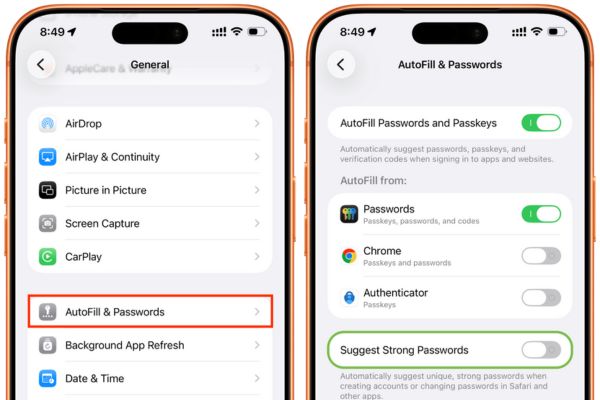
Turn off strong password suggestions in Safari

2. Turn off Passkeys and contact the website feature

To prevent sites from asking to generate Passkeys or automatically upgrading security:

Step 1: Enter Settings (Settings) and scroll down to find the item Apps (Application).

Step 2: Select Passwords (Password).

Step 3: Turn off two options Allow Automatic Passkey Upgrades and Allow Contacting Websites.

Once you complete the steps above, your device will no longer show automatic suggestions, leaving you free to use your preferred password management method.
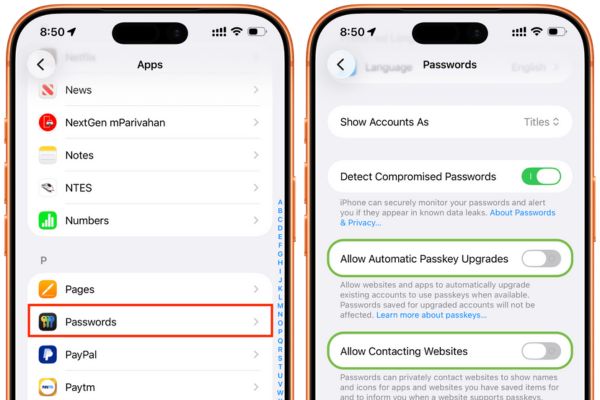
How to turn off password hints on iPhone

Conclusion

Application How to turn off password hints on iPhone and Mac makes the Safari interface significantly more spacious. You will no longer be bothered by automatic notifications or unwanted requests to upgrade Passkeys. Hopefully this guide helps you manage your security to your personal liking.


Tags: autofillingiPhonePasswordPasswordspreventSafarisuggestionsturn
Previous Post

Instructions for looking up prescriptions on VNeID instead of paper medical books

AnonyViet

AnonyViet

Related Posts

Tips to completely turn off CAPTCHA codes on iPhone and Mac are super simple
Knowledge

Tips to completely turn off CAPTCHA codes on iPhone and Mac are super simple

April 25, 2026
How to compress online videos for free without losing quality
Knowledge

How to compress online videos for free without losing quality

April 24, 2026
Common errors when using Bosch products and how to fix them
Knowledge

Common errors when using Bosch products and how to fix them

April 22, 2026
How to avoid Adblock detection on Youtube with 4 good tips
Knowledge

How to avoid Adblock detection on Youtube with 4 good tips

April 17, 2026
How to transfer ChatGPT data to Claude is extremely simple
Knowledge

How to transfer ChatGPT data to Claude is extremely simple

April 16, 2026
Speak Cells: Excel tool to read spreadsheets by voice very well
Knowledge

Speak Cells: Excel tool to read spreadsheets by voice very well

April 15, 2026
0 0 votes
Article Rating
Subscribe
Login
Notify of
guest

guest

0 Comments
Oldest
Newest Most Voted
Inline Feedbacks
View all comments

Recent News

How to turn off password suggestions on iPhone: Prevent Safari from auto-filling passwords

How to turn off password suggestions on iPhone: Prevent Safari from auto-filling passwords

April 27, 2026
Instructions for looking up prescriptions on VNeID instead of paper medical books

Instructions for looking up prescriptions on VNeID instead of paper medical books

April 26, 2026
Tips to completely turn off CAPTCHA codes on iPhone and Mac are super simple

Tips to completely turn off CAPTCHA codes on iPhone and Mac are super simple

April 25, 2026
Compare Poco X8 Pro and Poco X7 Pro: A new step for the “king” of mid-range performance

Compare Poco X8 Pro and Poco X7 Pro: A new step for the “king” of mid-range performance

April 24, 2026
How to turn off password suggestions on iPhone: Prevent Safari from auto-filling passwords

How to turn off password suggestions on iPhone: Prevent Safari from auto-filling passwords

April 27, 2026
Instructions for looking up prescriptions on VNeID instead of paper medical books

Instructions for looking up prescriptions on VNeID instead of paper medical books

April 26, 2026
Tips to completely turn off CAPTCHA codes on iPhone and Mac are super simple

Tips to completely turn off CAPTCHA codes on iPhone and Mac are super simple

April 25, 2026
AnonyViet - English Version

AnonyViet

AnonyViet is a website share knowledge that you have never learned in school!

We are ready to welcome your comments, as well as your articles sent to AnonyViet.

Follow Us

Contact:

Email: anonyviet.com[@]gmail.com

Main Website: https://anonyviet.com

Recent News

How to turn off password suggestions on iPhone: Prevent Safari from auto-filling passwords

How to turn off password suggestions on iPhone: Prevent Safari from auto-filling passwords

April 27, 2026
Instructions for looking up prescriptions on VNeID instead of paper medical books

Instructions for looking up prescriptions on VNeID instead of paper medical books

April 26, 2026
No Result
View All Result
  • Home
  • News
  • Software
  • Knowledge
  • MMO
  • Tips
  • Security
  • Network
  • Office

wpDiscuz
0
0
Would love your thoughts, please comment.x
()
x
| Reply