• Home
  • News
  • Software
  • Knowledge
  • MMO
  • Tips
  • Security
  • Network
  • Office
AnonyViet - English Version
  • Home
  • News
  • Software
  • Knowledge
  • MMO
  • Tips
  • Security
  • Network
  • Office
No Result
View All Result
  • Home
  • News
  • Software
  • Knowledge
  • MMO
  • Tips
  • Security
  • Network
  • Office
No Result
View All Result
AnonyViet - English Version
No Result
View All Result

How to tweak the Facebook navigation bar to get new features

AnonyViet by AnonyViet
July 22, 2023
in Tips
0

How to adjust the Facebook navigation bar is one of the issues that many users are concerned about. The Facebook navigation bar is a toolbar at the bottom of the screen that gives you quick access to features like Home, Marketplace, Notifications, Menus, and Watch. However, did you know that you can customize them to your liking? AnonyViet will guide you how to do it simply and effectively.

Join the channel Telegram belong to AnonyViet ???? Link ????

What is the Facebook navigation bar?

Navigation bar Facebook is a bar containing icons such as Home, Messenger, Notification, Menu and Watch, located at the bottom of the screen on iPhone or above the screen on Android. You can customize this bar to quickly access the functions you use often.
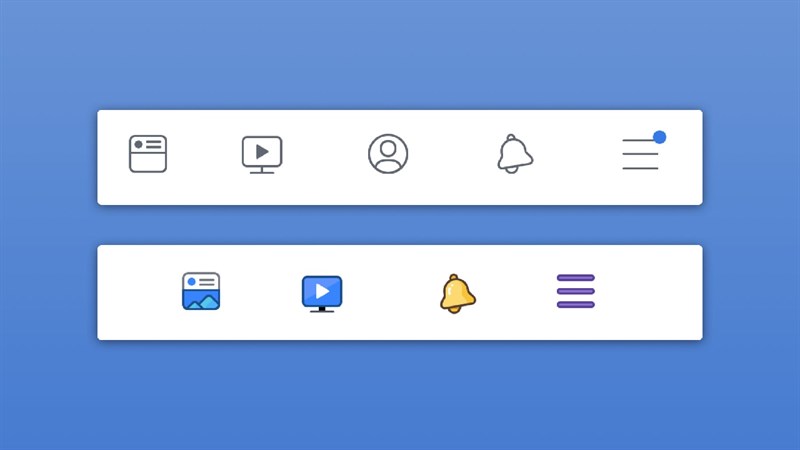
How to adjust the Facebook navigation bar
Facebook navigation bar

The easiest way to adjust the Facebook navigation bar

To customize the Facebook navigation bar to your liking, you need to follow these steps:

Step 1: Go to the 3 tile menu with your avatar in the upper right corner of the screen. Then, scroll down and select “Settings & privacy” > Select “Settings”.
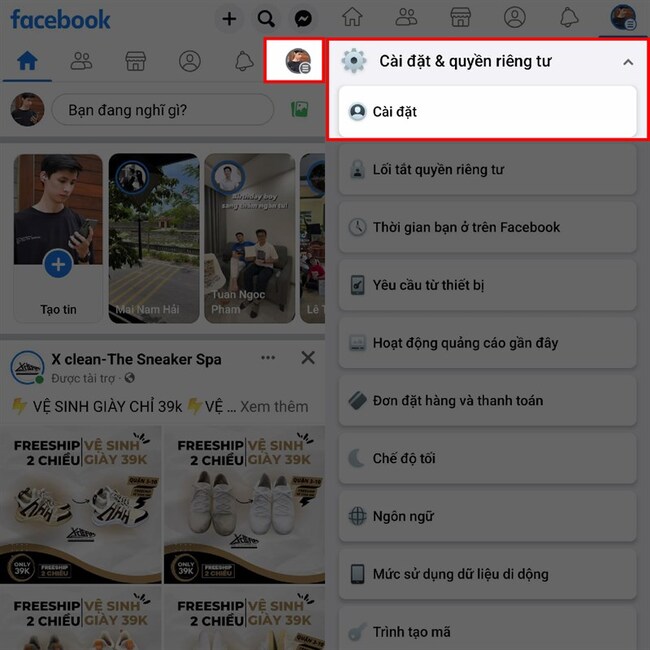
How to adjust the Facebook navigation bar
Select “Settings & privacy” > Next select “Settings”.

Step 2: You find and select the item “Navigation bar” in the list of settings.
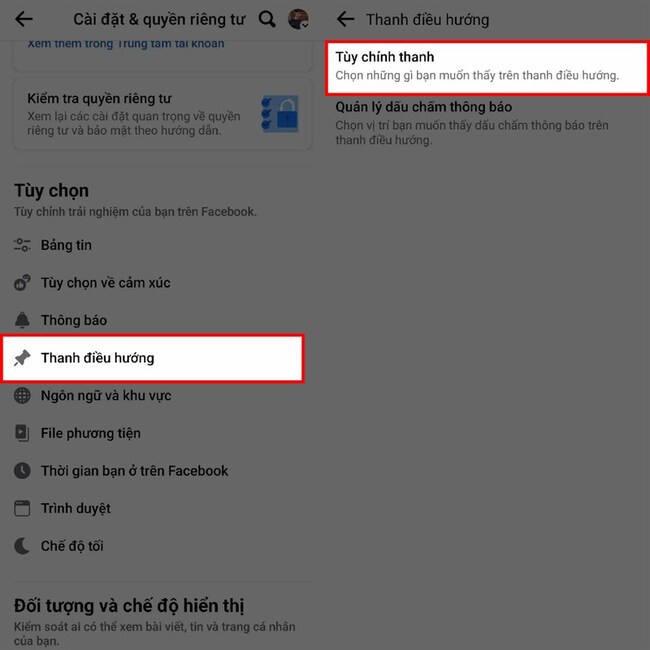
How to adjust the Facebook navigation bar
Select “Navigation bar” > Customize bar

You will see an item “Customize the bar” at the top, you select it to adjust the features on the navigation bar.

Step 3: You will see the available features in the navigation bar. You can select the “Auto” button next to each feature to set the visibility to Pin (always show) or Hide (always off) depending on your needs.
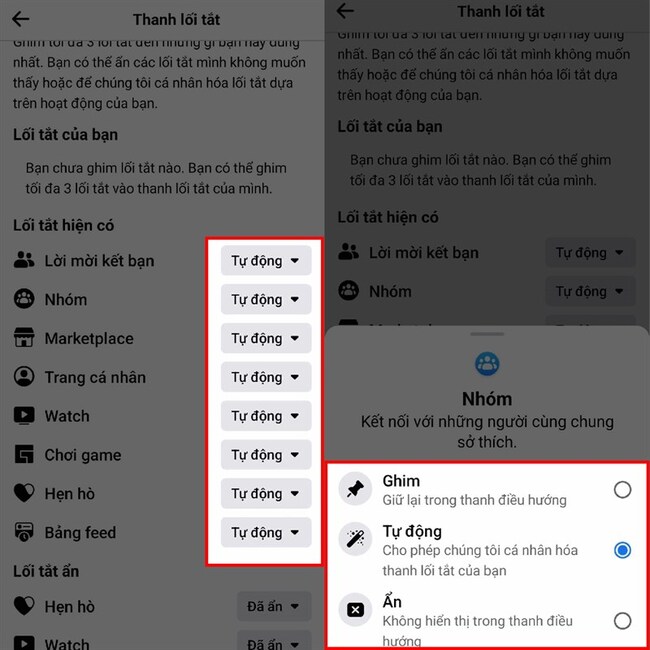
How to adjust the Facebook navigation bar
Set the display mode

Epilogue

You just finished how to adjust the Facebook navigation bar to get the features you really need. Now, you can comfortably use Facebook without being bothered by unnecessary features. Hope you are succesful.


Rate this post

Tags: barFacebookfeaturesnavigationtweak
Previous Post

How to Sign Up for Helurl.Com’s 50TB of Cloud Storage

Next Post

How to use auto-reply messages on Zalo

AnonyViet

AnonyViet

Related Posts

How to add sliders to Facebook Stories to easily rewind videos
Tips

How to add sliders to Facebook Stories to easily rewind videos

April 21, 2026
How to change the default font on Windows 10
Tips

How to change the default font on Windows 10

April 13, 2026
5 tips for using a Browser to replace an App (helps save RAM, time and money)
Tips

5 tips for using a Browser to replace an App (helps save RAM, time and money)

April 13, 2026
How to make funny MeMe photos without Photoshop within 10 seconds
Tips

How to make funny MeMe photos without Photoshop within 10 seconds

April 11, 2026
How to quickly design your own Logo without Photoshop
Tips

How to quickly design your own Logo without Photoshop

April 10, 2026
How to convert Website into App on Windows
Tips

How to convert Website into App on Windows

April 9, 2026
Next Post
How to use auto-reply messages on Zalo

How to use auto-reply messages on Zalo

0 0 votes
Article Rating
Subscribe
Login
Notify of
guest

guest

0 Comments
Oldest
Newest Most Voted
Inline Feedbacks
View all comments

Recent News

Tips for pinning the step counter to the iPhone screen to monitor your health

Tips for pinning the step counter to the iPhone screen to monitor your health

April 28, 2026
How to turn off password suggestions on iPhone: Prevent Safari from auto-filling passwords

How to turn off password suggestions on iPhone: Prevent Safari from auto-filling passwords

April 27, 2026
Instructions for looking up prescriptions on VNeID instead of paper medical books

Instructions for looking up prescriptions on VNeID instead of paper medical books

April 26, 2026
Tips to completely turn off CAPTCHA codes on iPhone and Mac are super simple

Tips to completely turn off CAPTCHA codes on iPhone and Mac are super simple

April 25, 2026
Tips for pinning the step counter to the iPhone screen to monitor your health

Tips for pinning the step counter to the iPhone screen to monitor your health

April 28, 2026
How to turn off password suggestions on iPhone: Prevent Safari from auto-filling passwords

How to turn off password suggestions on iPhone: Prevent Safari from auto-filling passwords

April 27, 2026
Instructions for looking up prescriptions on VNeID instead of paper medical books

Instructions for looking up prescriptions on VNeID instead of paper medical books

April 26, 2026
AnonyViet - English Version

AnonyViet

AnonyViet is a website share knowledge that you have never learned in school!

We are ready to welcome your comments, as well as your articles sent to AnonyViet.

Follow Us

Contact:

Email: anonyviet.com[@]gmail.com

Main Website: https://anonyviet.com

Recent News

Tips for pinning the step counter to the iPhone screen to monitor your health

Tips for pinning the step counter to the iPhone screen to monitor your health

April 28, 2026
How to turn off password suggestions on iPhone: Prevent Safari from auto-filling passwords

How to turn off password suggestions on iPhone: Prevent Safari from auto-filling passwords

April 27, 2026
No Result
View All Result
  • Home
  • News
  • Software
  • Knowledge
  • MMO
  • Tips
  • Security
  • Network
  • Office

wpDiscuz
0
0
Would love your thoughts, please comment.x
()
x
| Reply