

CleanYourTV is an open source project that helps tidy up the home screen of Smart TVs running Android TV or Google TV, limiting some advertising applications, suggested content and unnecessary background services. The project also installs a new Apple TV-style launcher.
📢 Join the channel Telegram belong to AnonyViet
Update new articles, cool tools and IT tips fastest
Safety note: The project does not require rooting the TV, does not reinstall firmware and has a mechanism to restore disabled applications. However, turning off the wrong system component may cause the TV to lose functionality or experience startup errors. Please back up, confirm the correct model and check the application list before proceeding.
Prepare before implementation
You need to prepare:
- The TV runs Android TV or Google TV.
- Windows computer connected to the same Wi-Fi network as the TV.
- The programming assistant can run terminal commands, such as Claude Code, Codex or Gemini CLI.
- Python 3, Git, JDK 17 and Android SDK Platform 34 with Build Tools 34.0.0.
- Stable network connection and approximately 15–30 minutes to implement, test, and restore if necessary.
Incompatible with the way to install the launcher in the article: Samsung runs Tizen and LG runs webOS. Fire TV has its own limitations, the instructions for installing the Android launcher do not apply.
Turn on developer mode on the TV
CleanYourTV needs to connect to the TV via ADB (Android Debug Bridge). Menu names may vary depending on the brand.
Step 1: Open the Introduction section
On the TV, go to Settings → System or Device Preferences → About.

Step 2: Open developer options
Find the Build or build number, then use the remote to press OK 7 times continuously until the TV announces that developer mode is enabled.
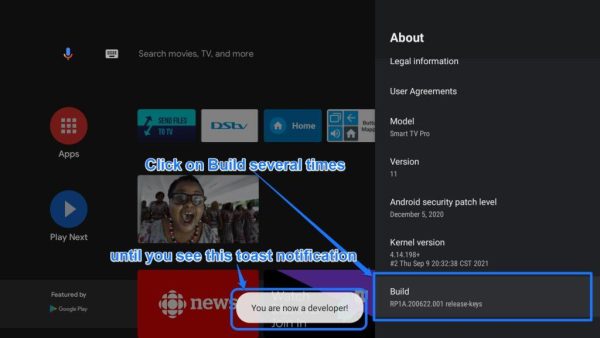
Step 3: Turn on debugging
Go back to settings, open Developer options, turn on USB debugging. If Network debugging, ADB debugging, or Wireless debugging is available, check the instructions for that method.
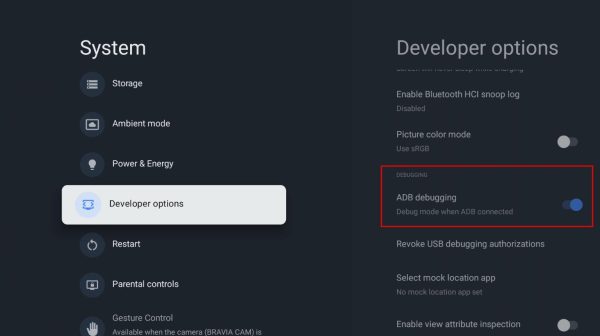
USB debugging here is software debugging mode; can still connect via Wi-Fi without plugging in a USB cable. Keep the TV turned on throughout the configuration process.
Prepare your Windows computer
Step 1: Install necessary tools
Download the tool from the official site:
Python: https://www.python.org/downloads/windows/
Git for Windows: https://git-scm.com/download/win
JDK 17: https://adoptium.net/temurin/releases/?version=17
Android Studio: https://developer.android.com/studio
When installing Python, check Add Python to PATH. In Android Studio, open SDK Manager to install Android SDK Platform 34 and Android SDK Build-Tools 34.0.0.
Step 2: Download CleanYourTV source code
git clone https://github.com/Gathin23/cleanyourtv.git
cd cleanyourtv
If you don’t use Git, open the CleanYourTV repository on GitHub, select Code → Download ZIP, extract and then open the terminal in the extracted folder.
Step 3: Install the project’s Python library
python -m venv tools\venv
tools\venv\Scripts\python.exe -m pip install -r tools\requirements.txt
The above commands create a separate Python environment for the CleanYourTV tool and install the necessary libraries. If python is not found, check that Python is installed and in the PATH.
Connect your computer to your TV via Wi-Fi
Step 1: Find the TV’s IP address
On the TV, open Settings → Network & Internet → Connecting Wi-Fi. Note down the IP, for example 192.168.1.50. This is just an illustrative address, please replace it with the actual IP.
Step 2: Allow the computer to connect
When connecting for the first time, the TV may ask “Allow USB debugging?”. Select Allow or Always allow from this computer if this is a trusted personal computer.
Some TVs only provide Wireless debugging with a pairing code. Follow the ADB instructions for that device; By default, all TVs use port 5555.
Use PROMPT.md as an assistant to support operations
In the cleanyourtv folder, open the PROMPT.md file: https://github.com/Gathin23/cleanyourtv/blob/main/PROMPT.md
Copy file contents to Claude Code, Codex or Gemini CLI with permission to run terminal commands. Replace
Prompt is designed to help you connect your TV, test apps, backup, ask about user choices, and verify operations. Please follow each step and do not accept the application shutdown if the function is unclear.
Backup and clean advertising applications
Step 1: Backup the original state
Ask the assistant to save a list of installed packages, a list of currently disabled packages, model/firmware information, related settings, and recovery scenarios. The project has recovery records saved in ~/.cleanyourtv/. However, tools/disable.sh does not create a full backup of all applications and settings.
Step 2: Check the application list
| Application group | Processing direction |
|---|---|
| Manufacturer’s advertising/recommendation service | Consider turning it off after testing functionality. |
| Data collection/analysis services | Consider by model and function. |
| Pre-installed applications are not used | Test the ability to turn off before deciding. |
| Google Play Services, System UI, package installer, system settings | Keep it the same. |
| HDMI, remote, Bluetooth, keyboard services | Keep it the same. |
| Chromecast, voice assistant, system updates | Ask users before making changes. |
Step 3: Apply the proven list
The project has tools/disable.sh for Linux/macOS and tools/disable.ps1 for Windows. Example calling a PowerShell script (check the current syntax before running):
powershell -ExecutionPolicy Bypass -File tools\disable.ps1 -TvHost 192.168.1.50 examples\\debloat.txt
Replace IP and path with correct information. Only use debloat.txt that has been confirmed to match the model and firmware. Do not copy other TV’s listings mechanically.
After doing this in small groups, check the network connection, movie viewing application, sound, HDMI, remote and ability to start the TV.
Build and install the CleanYourTV launcher
Step 1: Check the build environment
Launcher requires JDK 17, Android SDK Platform 34 and Android SDK Build-Tools 34.0.0.
Step 2: Run the installation script
powershell -ExecutionPolicy Bypass -File launcher\build-and-install.ps1 -TvHost 192.168.1.50
Replace IP with TV address. The PowerShell script will build the launcher, install it, and perform the home screen transitions. Please read the script, keep ADB connected and do not turn off the TV power during operation.
Step 3: Check after installation
- Press the Home button on the remote to test the new launcher.
- Open YouTube and commonly used streaming applications.
- Check HDMI, Settings, Wi-Fi, Bluetooth and remote buttons.
- Restart the TV and confirm the launcher continues to work.
You can customize the dock, application order, number of columns, theme and background image according to the documentation in the repository.
Restore the TV to its original state
Step 1: Restore application packages
powershell -ExecutionPolicy Bypass -File tools\restore.ps1 -TvHost 192.168.1.50 examples\\debloat.txt
Check the syntax tools\restore.ps1 and use the correct applied list file. Keep this file and recovery log.
Step 2: Switch back to the original launcher
Go to Android’s default home screen settings and select the stock launcher. If the original launcher has been disabled, enable it again first. Some TVs do not have a launcher selection screen so recovery via ADB may be required.
If you cannot connect to the computer, try going to Settings → Applications on TV to re-enable the application if the system interface is still accessible.
Step 3: Turn off ADB once completed
Turn off USB debugging and Network/ADB debugging, revoke the computer’s debugging permissions if necessary, and then restart the TV. ADB over the network may allow other devices to access the TV if the firmware has a weak security configuration.
Plan to use Android phone
The project links to a community-developed Android app at https://cleanyour.tv/app. The application allows you to connect, analyze and clean your TV over Wi-Fi without the need for a laptop or programming assistant. This is a community app; Please review the access permissions and change list carefully before agreeing.
Summary
CleanYourTV is suitable if you want to replace the content-heavy Android TV/Google TV interface with a minimalist launcher and reduce some unnecessary pre-installed apps. The safest way is to determine the correct model, back up the state, check each application package and prepare a recovery plan before changing the home screen.
Official documents
CleanYourTV Repository: https://github.com/Gathin23/cleanyourtv
README in Vietnamese: https://github.com/Gathin23/cleanyourtv/blob/main/README.vi.md
PROMPT.md: https://github.com/Gathin23/cleanyourtv/blob/main/PROMPT.md
TV model list: https://github.com/Gathin23/cleanyourtv/tree/main/examples






