In this article, I will show you how to increase internet speed using cmd. These customizations involve DNS cache, and using the ‘netsh int tcp’ command along with other commands to speed up internet access.
📢 Join the channel Telegram belong to AnonyViet
Update new articles, cool tools and IT tips fastest

How to increase internet speed using CMD
CMD is quite useful in many cases. In particular, CMD can do things that are not available on the interface, If you want to Hack Windows CMD. But in this article we will speed up the Internet on your computer with a simple CMD, anyone can do it.
1. Check internet speed using the ping command
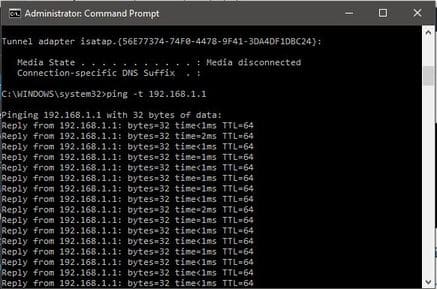
You can test your internet connection speed by using the ping command to send packets to the default gateway.
To know your default gateway you can use command ipconfig /all. Once you get the default gateway’s IP address, repeatedly ping that gateway using the command ping -t. You will see the time the packets were sent and the response returned.
Time low is a sign that your network is fast. However, running the ping command will consume network bandwidth as well as your default gateway resources. Although ping data packets are very small in size and you may not observe any change in internet speed, it does consume bandwidth.
2. Refresh and change to another IP
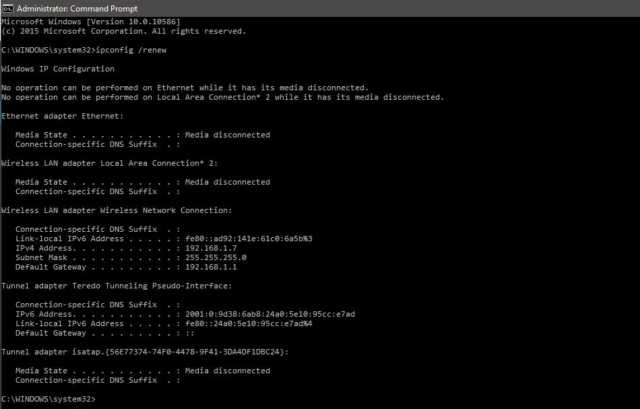
If you are using WiFi, refreshing or changing your IP will temporarily increase internet speed, depending on the strength of the WiFi signal. However, in the case of LAN, this method is completely useless.
You use the command:
ipconfig /release // This command is used to delete the device’s current IP
ipconfig /renew //This command requests a new IP from the Router
3. Use the Flushdns command
Your computer will store data of the websites you visit the most in its cache DNS resolver. Sometimes, this data will no longer be available after a few months or weeks. So when you clear the DNS resolver cache, you also delete outdated data and free up the DNS resolver cache.
You use the command: ipconfig /flushdns
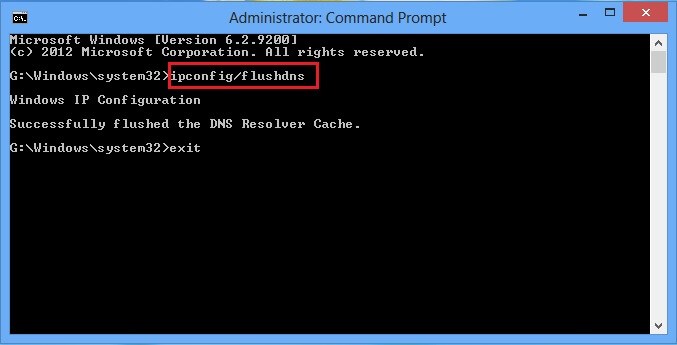
When using this command, the connection speed will be slower at first because it requires the computer to request new DNS for everything. However, you will soon see web pages load faster in the browser.
4. Use the command “Netsh int tcp” to increase internet speed
Enter this command in cmd: netsh interface tcp show global.
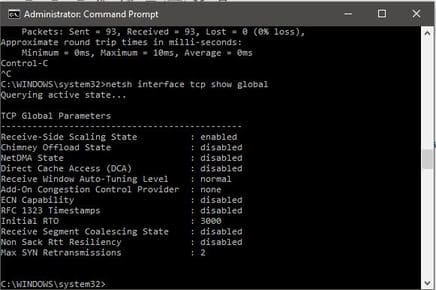
If you don’t see the line Receive Window Autotuning in the “Normal” state as shown above, run the following command:
netsh int tcp set global autotuninglevel = normal
This command will set your TCP to Normal from disabled or restricted state. TCP is one of the important factors that affect download speed. Therefore, setting TCP to ‘Normal’ will definitely help you increase your internet speed.
After this command, check another Windows parameter related to slow internet connection called ‘Windows scaling heuristics’. To check this parameter, enter:
netsh interface tcp show heuristics
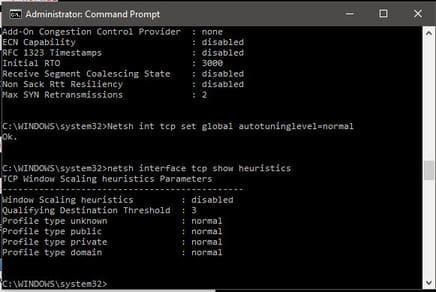
In the above case, this feature has been disabled. However, in some cases, you can turn it on. Microsoft is trying to limit your internet connection for some reason. So, to access the internet faster, just enter the command below:
netsh interface tcp set heuristics disabled
After pressing enter, you will get an “ok” message and now your internet speed is definitely faster.
Once you have completed the above steps, you can repeat step one to measure response time and check if your internet speed has increased.
Frequently asked questions
How to check current internet speed using CMD?
Use command ping -t [địa chỉ IP cổng mặc định]. Low response time indicates a fast network. Find the default gateway IP address using the command ipconfig /all.
Command netsh int tcp What effect does it have in speeding up the internet?
This command adjusts TCP/IP settings, helping to optimize network connections. Specifically, command netsh int tcp set global autotuninglevel=normal and netsh interface tcp set heuristics disabled can help improve speed.
Do I need to restart my computer after executing these CMD commands?
Unnecessary. Changes will be applied immediately after you execute the commands.