• Home
  • News
  • Software
  • Knowledge
  • MMO
  • Tips
  • Security
  • Network
  • Office
AnonyViet - English Version
  • Home
  • News
  • Software
  • Knowledge
  • MMO
  • Tips
  • Security
  • Network
  • Office
No Result
View All Result
  • Home
  • News
  • Software
  • Knowledge
  • MMO
  • Tips
  • Security
  • Network
  • Office
No Result
View All Result
AnonyViet - English Version
No Result
View All Result

Music Search – Find song names right on your computer browser

AnonyViet by AnonyViet
October 15, 2023
in Software
0

Are you looking for a song you just heard on some website, but you don’t know the song name, artist or lyrics? Want to know more about that song and listen to it again on music streaming platforms? Do you want a smart and convenient song search tool, just one click away? If you are using the Microsoft Edge browser, then you already have your answer: Music Search.

Join the channel Telegram belong to AnonyViet 👉 Link 👈

Introducing Music Search

Music Search is an extension for the Microsoft Edge browser that allows users to search for names songartists, lyrics and streaming links of songs on any website with audio.

You can imagine Music Search as the Shazam app built into your browser, but much smarter and more convenient.

How does Music Search work?

Music Search uses ACRCloud’s music recognition technology, which can detect and identify songs just by listening to the rhythm, no microphone required.

You just need to open any website with audio playing, such as YouTube, Facebook, TikTok, SoundCloud… and click on the Music Search icon to activate the search engine. Music Search will automatically listen and identify the song within seconds.

What’s special about Music Search?

This is a search engine that not only helps users know the song name but also provides other information such as artist, album, genre, release year, lyrics and links to listen to the song again on popular music streaming platforms.

How to use Music Search on Microsoft Edge

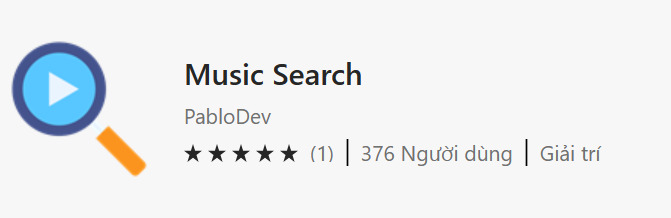
Step 1: You click This to download the Music Search utility
Music Search
Download the Music Search utility

Step 2: Click “Add extension”

You will see the Music Search icon appear in the right corner of your browser’s address bar.

Step 3: Open any website with audio playing, for example YouTube, Facebook, TikTok, SoundCloud…

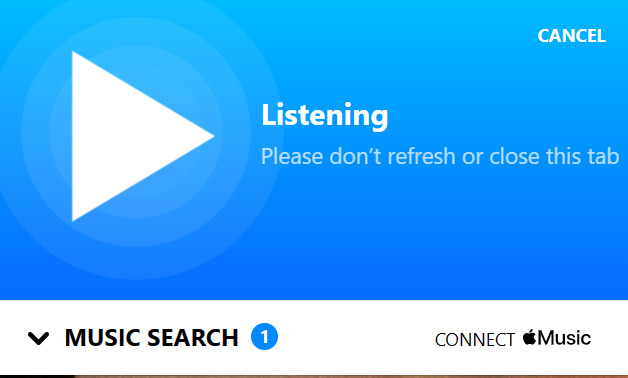
Step 4: Click the Music Search icon to activate the search engine. Music Search will automatically listen and identify songs within seconds.
Music Search
Music Search will automatically listen and identify songs

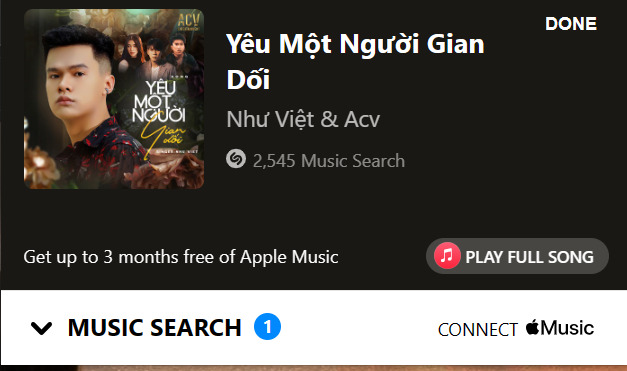
Step 5: After identifying the song, Music Search will display information about the song such as name, artist, album, genre, and release year. You can also tap the links to listen to the song again on music streaming platforms like Apple Music
Music Search
Music Search will display information about the song

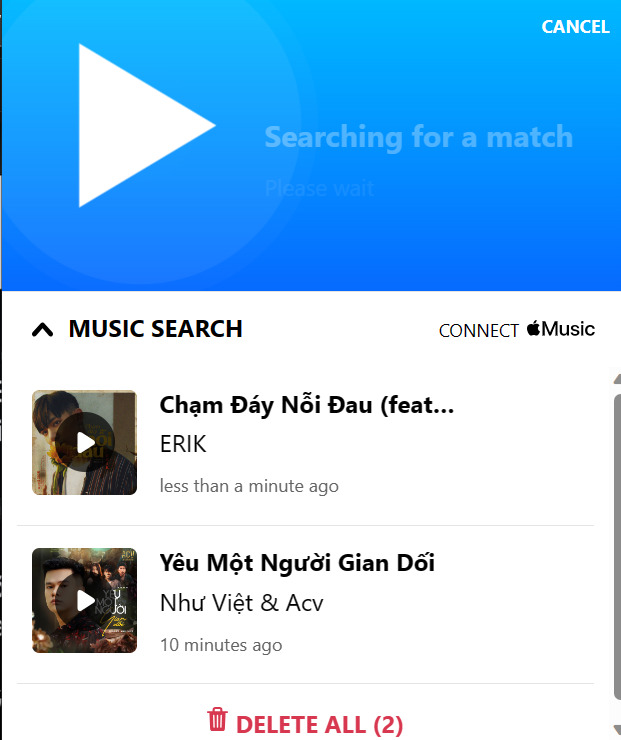
You can review the songs that Music Search has found in the menu and delete them easily.
Music Search
You can review the songs that Music Search has found

Benefits of Music Search

Music Search brings many benefits to users when using Microsoft Edge browser, such as:

  • Helps users know the names and information of songs they hear on different websites quickly and accurately.
  • No need to type in keywords or rummage through playlists to find a song you heard before. Just click on the links provided by Music Search to listen to the song again on the music streaming platforms you like.
  • No need to switch back and forth between tabs or applications to search for songs.

Epilogue

With Music Search, you will never miss a great song again. Install Music Search today and explore the colorful world of music with Microsoft Edge. Wish you have fun and interesting moments listening to music!


Rate this post

Tags: browsercomputerFindmusicnamessearchSONG
Previous Post

AI boyfriend – A solution to help fill lonely souls

Next Post

Hot! Get free Godlike Burger game on Epic Games Store

AnonyViet

AnonyViet

Related Posts

How to authenticate the owner’s SIM on VNeID from April 15
Software

How to authenticate the owner’s SIM on VNeID from April 15

April 15, 2026
Review of Galaxy A57 and A37: Some are eight ounces, some are half a pound
Software

Review of Galaxy A57 and A37: Some are eight ounces, some are half a pound

April 14, 2026
JOPDF: Versatile PDF editing software for Windows and Mac
Software

JOPDF: Versatile PDF editing software for Windows and Mac

April 10, 2026
MyVehicle: Convenient and secure motorcycle maintenance reminder app
Software

MyVehicle: Convenient and secure motorcycle maintenance reminder app

April 10, 2026
How to turn off AI on Gmail to absolutely protect personal data
Software

How to turn off AI on Gmail to absolutely protect personal data

April 8, 2026
How to add Settings to Control Center using Shortcuts
Software

How to add Settings to Control Center using Shortcuts

April 7, 2026
Next Post
Hot!  Get free Godlike Burger game on Epic Games Store

Hot! Get free Godlike Burger game on Epic Games Store

0 0 votes
Article Rating
Subscribe
Login
Notify of
guest

guest

0 Comments
Oldest
Newest Most Voted
Inline Feedbacks
View all comments

Recent News

How to add Watermark to Google Docs to protect copyright

How to add Watermark to Google Docs to protect copyright

April 19, 2026
How to intercept traffic using Burp Suite to analyze HTTP/HTTPS

How to intercept traffic using Burp Suite to analyze HTTP/HTTPS

April 18, 2026
How to avoid Adblock detection on Youtube with 4 good tips

How to avoid Adblock detection on Youtube with 4 good tips

April 17, 2026
How to transfer ChatGPT data to Claude is extremely simple

How to transfer ChatGPT data to Claude is extremely simple

April 16, 2026
How to add Watermark to Google Docs to protect copyright

How to add Watermark to Google Docs to protect copyright

April 19, 2026
How to intercept traffic using Burp Suite to analyze HTTP/HTTPS

How to intercept traffic using Burp Suite to analyze HTTP/HTTPS

April 18, 2026
How to avoid Adblock detection on Youtube with 4 good tips

How to avoid Adblock detection on Youtube with 4 good tips

April 17, 2026
AnonyViet - English Version

AnonyViet

AnonyViet is a website share knowledge that you have never learned in school!

We are ready to welcome your comments, as well as your articles sent to AnonyViet.

Follow Us

Contact:

Email: anonyviet.com[@]gmail.com

Main Website: https://anonyviet.com

Recent News

How to add Watermark to Google Docs to protect copyright

How to add Watermark to Google Docs to protect copyright

April 19, 2026
How to intercept traffic using Burp Suite to analyze HTTP/HTTPS

How to intercept traffic using Burp Suite to analyze HTTP/HTTPS

April 18, 2026
No Result
View All Result
  • Home
  • News
  • Software
  • Knowledge
  • MMO
  • Tips
  • Security
  • Network
  • Office

wpDiscuz
0
0
Would love your thoughts, please comment.x
()
x
| Reply