JOPDF brings a new breeze to the office software market with the criteria of free, fast and safe. This tool helps you easily edit text, add annotations, and rearrange pages in PDF files. Let’s explore with AnonyViet the power behind this compact software.
📢 Join the channel Telegram belong to AnonyViet
Update new articles, cool tools and IT tips fastest
What is JOPDF and why is it the top choice?
JOPDF is a free, computer-independent PDF editing software designed to give users full control over their documents. Unlike many online tools that require uploading files to a server, JOPDF works right on your device, ensuring privacy and security.
Reasons why you should consider using JOPDF:
- You can access all the features without any cost.
- Download, install and use immediately without creating an account or providing personal information.
- Works smoothly on all WindowsmacOS and Linux.
- From editing text and images, adding captions, organizing pages, to encrypting and protecting files.
- Intuitive design, easy to get used to and use even for beginners.
Instructions for installing and using JOPDF to edit PDF files
The process of installing and using this software is extremely simple. Below are the detailed steps.
1. Install the software
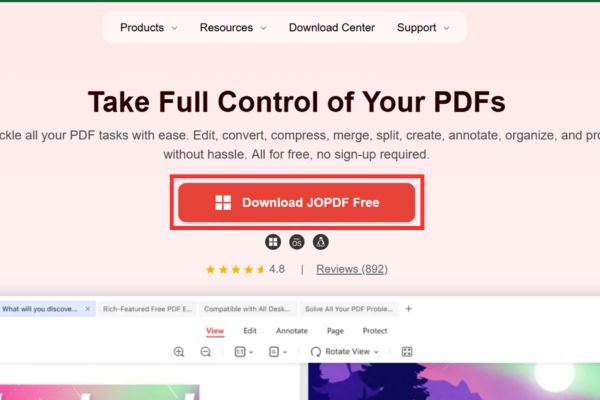
Step 1: Visit the JOPDF homepage at https://www.jopdf.com/
Step 2: Click the Download JOPDF Free button to download the installation file to your computer. The file is quite light in size, only about 1.27MB.
Step 3: Open the downloaded file and proceed with the installation. For macOS, you just need to drag and drop the application icon into the folder Applications.
2. How to set as default PDF reader
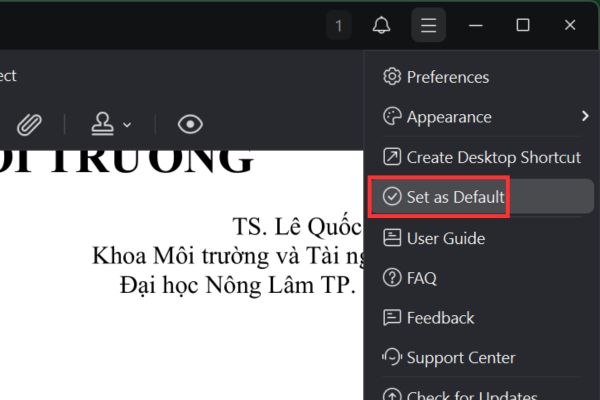
- On Windows: Open JOPDF, click the fourth icon in the upper right corner, select “Set as Default”.
- On macOS: Open JOPDF, go to menu JOPDF > Preferences. In the new window, check the box “Set JOPDF as default PDF reader” and press “Apply“.
3. How to search text
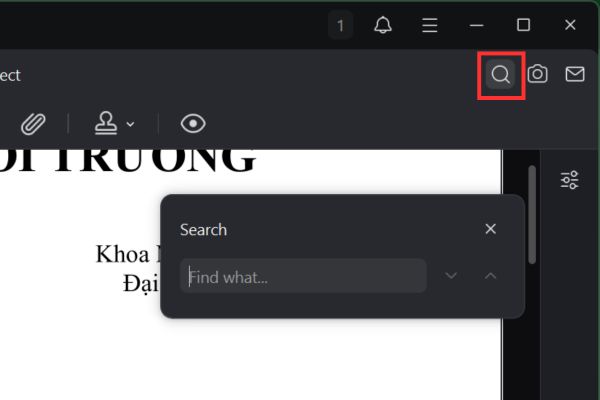
Step 1: Open the PDF file, click the icon magnifying glass in the upper right corner or press a key combination Ctrl+F.
Step 2: Type the keyword you want to find in the search box. Use the Up/Down arrows to browse through the results.
4. Flexible view customization
JOPDF provides many ways for you to have the best reading experience, such as:
Zoom in/Zoom out: Use the mouse wheel or select the zoom ratio on the toolbar.
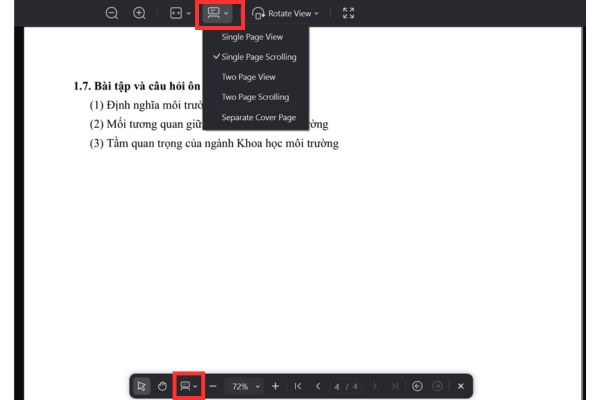
You can change the layout using the top/bottom toolbar, or right-click on page > Page Display.
- Single Page View: View each page one by one.
- Single Page Scrolling: Continuous vertical scrolling through pages.
- Two Page View: View two pages side by side.
- Two Page Scrolling: View two pages side by side and scroll continuously.
Full screen mode (Full Screen): Press the F11 key or click the “Full Screen Reading Mode” icon on the toolbar.
5. How to edit text
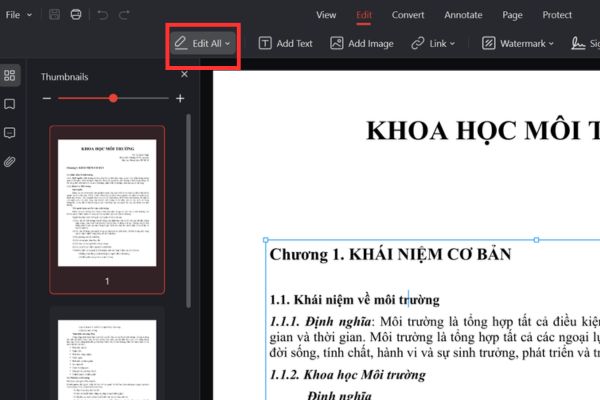
Step 1: Go to the Edit tab and select Edit All or Edit Text.
Step 2: Click the block of text you want to edit. You can delete, replace or add new text.
Step 3: Highlight the text and use the Properties bar next to it to adjust the font, size, color, etc.
6. How to edit images
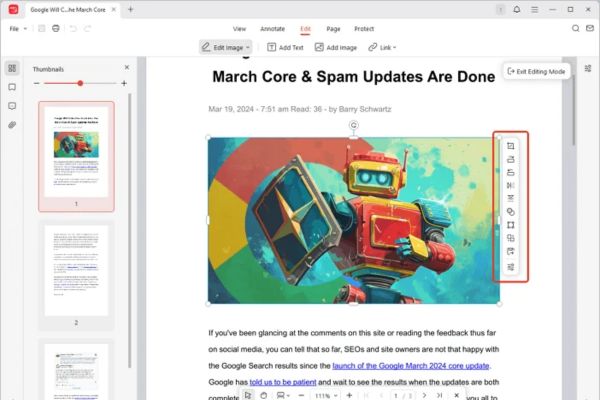
Step 1: Go to tab Edit and choose Edit All or Edit Image.
Step 2: Click on the image to edit. A toolkit will appear that allows you to:
- Crop: Crop the image.
- Rotate: Rotate the image left or right.
- Flip: Flip the image horizontally or vertically.
- Opacity: Adjust the transparency of the image.
- Resize: Change image size.
- Replace Image: Replace with another image but keep the same position and size.
7. Edit the link
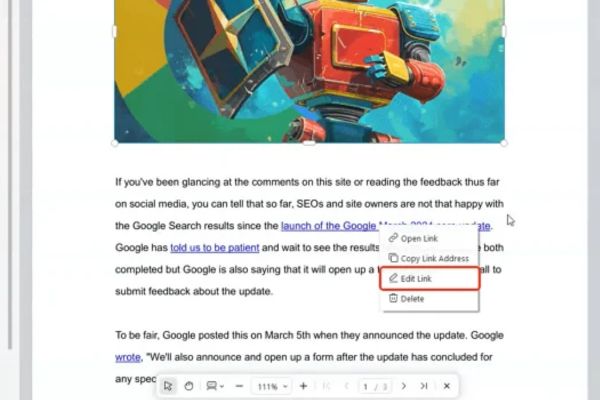
Step 1: Right-click on the text and select Edit Link.
Step 2: In the pop-up window, you can adjust the appearance and add a link destination.
8. Add new elements to PDF
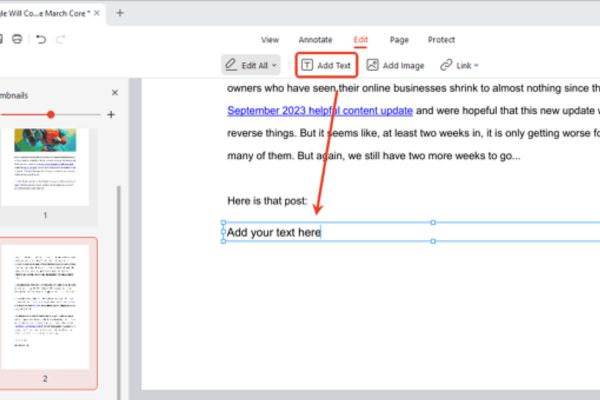
- Add Text (Add Text): Go to Edit > Add Text, click on the location you want to add and type the content.
- Add Image: Go to Edit > Add Image, drag the mouse to determine the image frame size, then select the image from your computer.
- Add hyperlink (Add Hyperlink): Go to Edit > Link > Add Link, draw a box around the area where you want to attach the link and set the destination (website, other file,…).
9. How to exit edit mode
You can exit in one of three ways:
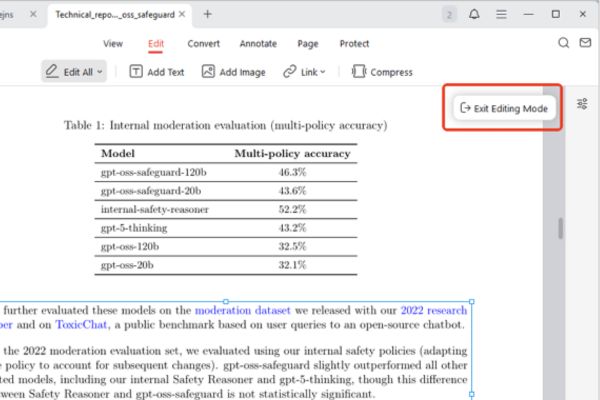
- Click the button Exit Editing Mode in the upper right corner.
- Press the key Esc on the keyboard.
- In the Edit tab, click again Edit All to deselect.
10. Add annotations and notes
Switch tabs Annotate. Here, you have tools to highlight, underline, strikethrough text, or draw shapes to draw attention to a specific area. This is an extremely useful feature for document review.
- Add sticky notes (Sticky Note): Select Sticky Note, click on the location to add and type your comment.
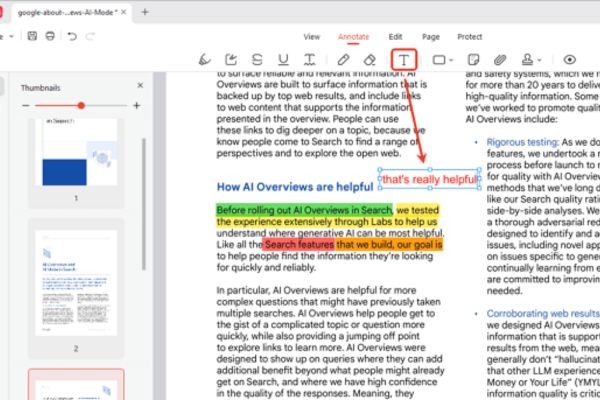
- Type text directly (Typewriter): Select the Typewriter tool (T icon), click anywhere on the page and type your text.
11. How to compress PDF files to reduce size
This feature helps you reduce file size without losing too much quality, supporting batch compression.
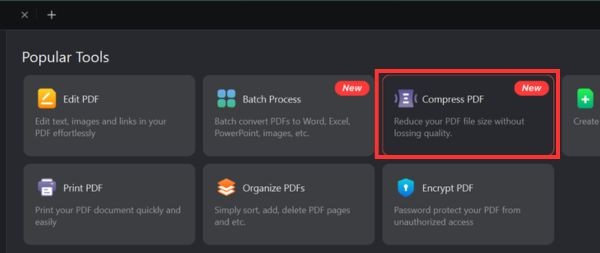
Step 1: Open JOPDF, select Compress PDF from the home screen.
Step 2: Drag and drop the PDF files you want to compress into the window, or click the button Add Files to choose.
Step 3: Select:
- High: Maximum compression, lower quality.
- Medium: Balance between size and quality (recommended).
- Low: Low compression, highest quality.
Select the compression level, set the save folder and click Start.
Conclusion
With powerful features and completely free, JOPDF deserves to be the top choice for PDF document processing. This software meets most users’ basic to advanced needs. Download and experience today to make your work more effective.
Frequently Asked Questions (Q&A)
1. Is JOPDF really free?
Yes, JOPDF is completely free for all features. You do not need to pay any fees to download and use the software.
2. Is using JOPDF safe for computers?
JOPDF is clean software, does not come with adware or viruses. Because it works offline on your computer, your data is always safe and private.
3. Can I use JOPDF on MacBook?
Sure. JOPDF is designed to be perfectly compatible with all three of today’s most popular operating systems: Windows, macOS and Linux.