• Home
  • News
  • Software
  • Knowledge
  • MMO
  • Tips
  • Security
  • Network
  • Office
AnonyViet - English Version
  • Home
  • News
  • Software
  • Knowledge
  • MMO
  • Tips
  • Security
  • Network
  • Office
No Result
View All Result
  • Home
  • News
  • Software
  • Knowledge
  • MMO
  • Tips
  • Security
  • Network
  • Office
No Result
View All Result
AnonyViet - English Version
No Result
View All Result

Instructions to add VISA/MasterCard to Google Wallet

AnonyViet by AnonyViet
January 12, 2023
in Tips
0

Google Wallet (Google Pay) is an NFC chip-based contactless payment application on Android phones. Now you can add VISA/MasterCard to Google Wallet to pay by phone. And the good news is that Google Wallet has support in Vietnam for some banks.

Join the channel Telegram of the AnonyViet 👉 Link 👈

Google Wallet acts as a virtual wallet, allowing users to make payments and transfer money directly from smartphones. Google Wallet is completely free and can store credit card information (debit card), debit (credit card), gift (gift card) and loyalty card. Available to anyone with a newer Android or Apple smartphone, Google Wallet offers users another quick way to make payments at e-commerce stores that accept it.

Instructions to add VISA/MasterCard to Google Wallet

Note: on Android the app is called Google Wallet but when the installation is done, the phone screen will show Google Pay. On iOS, the app is called Google Pay.

First you need to download the Google Wallet App from CHPlay or iOS Then proceed to add VISA/MasterCard to the application by following these steps:

Open the app Google Pay (after setting Google Wallet to change its name to Google Pay) on the phone screen:

Step 1: Choose more payment method
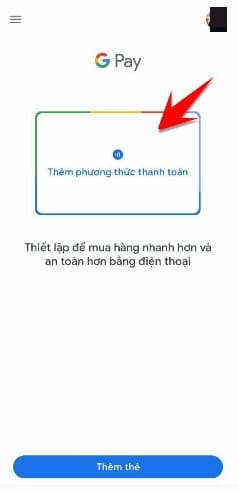
Google wallet payment method

Step 2: Select the type of card you want to Add to Google Pay/Google Wallet.

choose the type you want to add to google pay

Step 3: If your Google account already has a card before Add, just select that card and provide the CVV number again.

If the account does not have a card, prepare a VISA card of the Bank supported by Google Pay (list below), enter enough information about the card number, expiration date, CVV and home address.
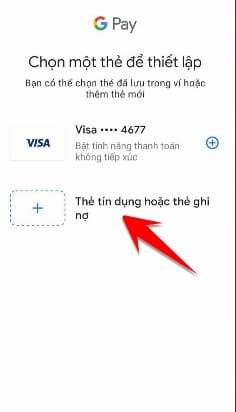
Instructions for adding VISA/MasterCard to Google Wallet 4

Step 4: Depending on the bank, there will be different terms, you click the More content button until the end of the page to move to the next step of adding VISA/MasterCard to Google Wallet.
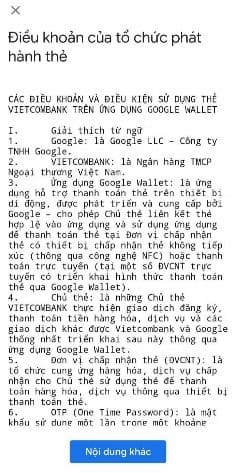
Instructions to add VISA/MasterCard to Google Wallet 5

Step 5: To ensure the safety of the card you just added to Google Wallet, you need to do 2-step verification via your phone number, select Enter text message and press continue (Phone number will be the number registered with Google Wallet)

Instructions to add VISA/MasterCard to Google Wallet 6

Once done, you will see an image of your Visa card added to the Google Pay app.

how to use google pay google wallet Banks that support Google Pay/Google Wallet in Vietnam

In case you do not have a physical card, you can still open a virtual VISA card for each Internet Banking application, then Add it to Google Wallet simply.

Bank Supported Cards
Asia Commercial Joint Stock Bank (ACB) Visa Credit and Debit
Saigon Thuong Tin Commercial Joint Stock Bank (Sacombank) Visa Credit, Debit and Prepaid
Shinhan Bank Vietnam Limited Visa Credit and Debit
Tien Phong Commercial Joint Stock Bank (TPBank) Visa Credit and Debit
Vietcombank Visa Credit and Debit
Vietnam Prosperity Joint Stock Commercial Bank (VPBank) Visa Credit and Debit
Vietnam Technological and Commercial Joint Stock Bank (Techcombank) Visa Credit

In case you do not have a physical card, you can create a virtual VISA card on Vietcombank application. Also you can create a beautiful digital account Vietcombank free of charge.
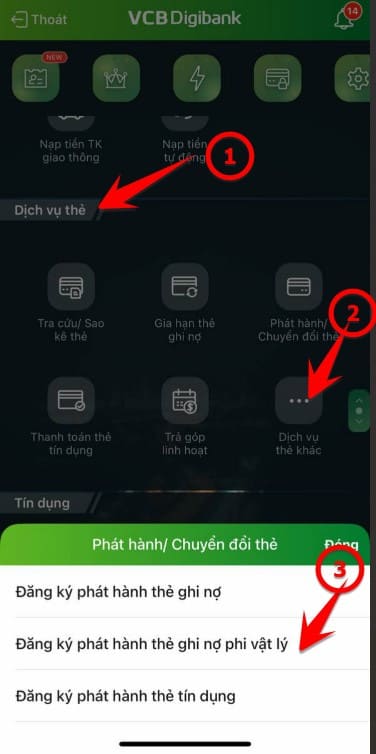
under visa ao vcb

Google Pay payments on your phone

When you pay a bill at a supermarket or a store, you only need to unlock phone and Bring your phone close to the card reader. The NFC signal will exchange with the card reader and pay the bill with the card added in Google Pay. After the payment is done, you will see the sign Check mark complete.
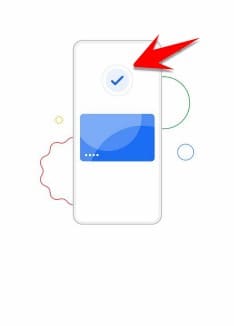
how to pay with google wallet google pay

So you don’t have to waste time carrying a bunch of cards that take up the space of your real wallet.


The article achieved: 5/5 – (101 votes)

Tags: AddGoogleInstructionsVISAMasterCardWallet
Previous Post

How to Install Linux Mint on WSL for Windows 10 and 11

Next Post

How to convert PowerPoint to Google Slides

AnonyViet

AnonyViet

Related Posts

How to add sliders to Facebook Stories to easily rewind videos
Tips

How to add sliders to Facebook Stories to easily rewind videos

April 21, 2026
How to change the default font on Windows 10
Tips

How to change the default font on Windows 10

April 13, 2026
5 tips for using a Browser to replace an App (helps save RAM, time and money)
Tips

5 tips for using a Browser to replace an App (helps save RAM, time and money)

April 13, 2026
How to make funny MeMe photos without Photoshop within 10 seconds
Tips

How to make funny MeMe photos without Photoshop within 10 seconds

April 11, 2026
How to quickly design your own Logo without Photoshop
Tips

How to quickly design your own Logo without Photoshop

April 10, 2026
How to convert Website into App on Windows
Tips

How to convert Website into App on Windows

April 9, 2026
Next Post
How to convert PowerPoint to Google Slides

How to convert PowerPoint to Google Slides

0 0 votes
Article Rating
Subscribe
Login
Notify of
guest

guest

0 Comments
Oldest
Newest Most Voted
Inline Feedbacks
View all comments

Recent News

How to create a Face Sticker Collection using ChatGPT

How to create a Face Sticker Collection using ChatGPT

April 29, 2026
How to install the cute Bongo Cat mouse pointer for Windows

How to install the cute Bongo Cat mouse pointer for Windows

April 29, 2026
Tips for pinning the step counter to the iPhone screen to monitor your health

Tips for pinning the step counter to the iPhone screen to monitor your health

April 28, 2026
How to turn off password suggestions on iPhone: Prevent Safari from auto-filling passwords

How to turn off password suggestions on iPhone: Prevent Safari from auto-filling passwords

April 27, 2026
How to create a Face Sticker Collection using ChatGPT

How to create a Face Sticker Collection using ChatGPT

April 29, 2026
How to install the cute Bongo Cat mouse pointer for Windows

How to install the cute Bongo Cat mouse pointer for Windows

April 29, 2026
Tips for pinning the step counter to the iPhone screen to monitor your health

Tips for pinning the step counter to the iPhone screen to monitor your health

April 28, 2026
AnonyViet - English Version

AnonyViet

AnonyViet is a website share knowledge that you have never learned in school!

We are ready to welcome your comments, as well as your articles sent to AnonyViet.

Follow Us

Contact:

Email: anonyviet.com[@]gmail.com

Main Website: https://anonyviet.com

Recent News

How to create a Face Sticker Collection using ChatGPT

How to create a Face Sticker Collection using ChatGPT

April 29, 2026
How to install the cute Bongo Cat mouse pointer for Windows

How to install the cute Bongo Cat mouse pointer for Windows

April 29, 2026
No Result
View All Result
  • Home
  • News
  • Software
  • Knowledge
  • MMO
  • Tips
  • Security
  • Network
  • Office

wpDiscuz
0
0
Would love your thoughts, please comment.x
()
x
| Reply