Windows Subsystem for Linux (WSL) is an extremely powerful tool for both Windows 10 and Windows 11 with a wide range of distributions that can be easily installed in the Microsoft Store. But you’re not limited to just what’s available in the Store. You can completely install other distributions using the built-in WSL tools as long as you have the right files.
| Join the channel Telegram of the AnonyViet 👉 Link 👈 |
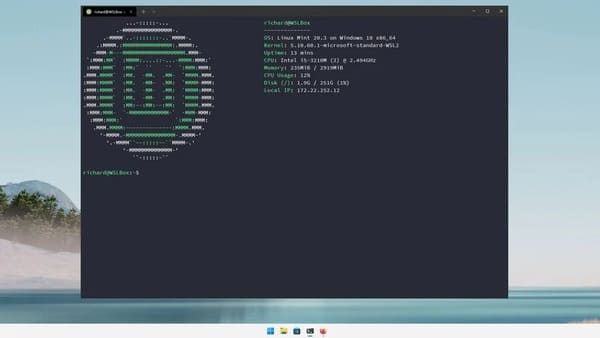
In some cases, such as Ubuntu, you can install the latest release with the official image. But you can also look to the WSL community for support, and that’s exactly the case for anyone who wants to install Linux Mint right now.
Thanks to a project on GitHub, it will now be very easy to install Linux Mint into WSL and moreover, it already supports the latest version, Linux Mint 20.3.
How to Install Linux Mint on WSL
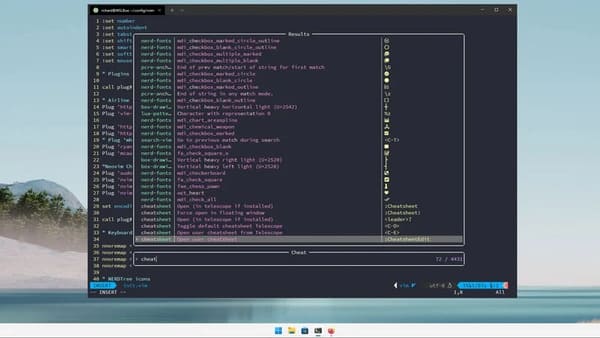
Linux Mint is an Ubuntu-based Linux distribution and is undoubtedly one of the most popular choices today, often hailed as the perfect place to start moving to Linux. Of course, using Linux in WSL is a bit different than just uploading it to a PC.
So if you want to use it on WSL you will need to use a community project called LinuxmintWSL. It is stored at GitHub. It’s also only built for WSL 2, so if you don’t have WSL 2 installed then maybe read this post. However, it supports both Intel/AMD and ARM machines, so Windows users on ARM won’t be left out.
On the GitHub repository, go to the release page and download the latest package. Once downloaded, extract the zip file to the directory where you want to run it, then simply run Mint.exe. Unlike installing the latest releases of Ubuntu from one of the official images, it has been bundled up to be more similar to the distributions you would download from the Microsoft Store.
It will take a few seconds (or longer depending on your hardware) for the installation to complete, but the installer does not require any interaction from you. It will open a command line window and when done you will be asked to press Enter. Then the command line window will close.
If you use Windows Terminal, Mint will now show up in a drop-down menu to launch the next time you load it. Otherwise, you can launch it through PowerShell like any other Linux distro with this command:
wsl -d MintBy default, you’ll only have root access, so you’ll need to do some basic setup before you get started.
How to Setup Linux Mint on WSL
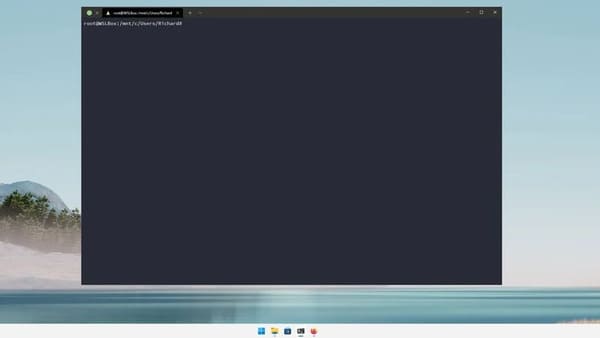
Enter Mint into the terminal using one of the methods above. You should see a basic prompt starting with root@. As with any other Linux distribution on WSL, you will need to add a user to Mint with the appropriate permissions before doing anything. You also don’t have a password, so you’ll need to add one before you begin.
In the terminal, type:
passwdFollow the prompts to set the root password. Next, we will add a user with the command:
useradd -m <username>And create a password for the new user:
passwd <username>Again, follow the prompts to add your password.
The next step is to add the right permissions for your user to be able to use the sudo command, otherwise you will get an error. We can do this by typing:
usermod -aG sudo <yourusername>Then you can switch to your user with the command:
su <username>The next thing to do is to make sure that when you launch Mint if you want to be a user and not a root (recommended) you have to configure it so that you don’t have to do it manually every time you open Mint. There are two ways to do this, the first is with the wsl.conf file and the second is by configuring the Windows Terminal.
You won’t have the wsl.conf file when you first set up Linux Mint, so we’ll need to create it and enter the appropriate settings. In the terminal, type:
nano /etc/wsl.conf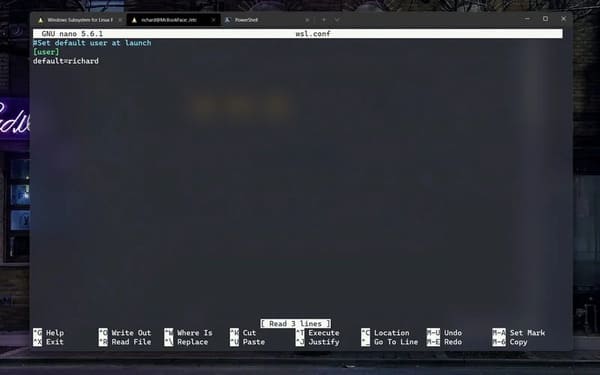
Nano text editor will now open a new blank file. Enter this command in the file:
# Set the user when launching a distribution with WSL.
[user]
default=YourUserName
Press Ctrl + X, then Y, then Enter to save and exit. Close your Linux Mint instance, wait a few seconds, then on relaunch you are logged in as the user.
Alternatively, if you’re using Windows Terminal, open Settingsfind your Linux Mint installation, then in the box command line make sure this command is cached:
wsl.exe -d <distroname> -u <yourusername>This command should have the same effect after closing and rebooting. However, setting up the wsl.conf file is better, as it ensures you are always logged in as the user. If you use the Windows Terminal settings and open Linux Mint via PowerShell, you will be root.
Linux Mint is now set up on WSL for you to use just like any other distro you install through the Microsoft Store. You can see some GUI applications have also appeared in the Start Menu that comes with the standard installation of Linux Mint, but all those applications can be removed if you do not want.
Additionally, you can run multiple instances of Linux Mint on WSL. For each subsequent installation, simply change the name of the Mint.exe file from the beginning of this tutorial to something else, then run it again. The new version will be set up with the changed filename.