How to transfer ChatGPT data to Claude is the perfect solution for those who are familiar with old virtual assistants but want to experience new technology. You won’t need to repeat boring requests about format or tone anymore. Let’s learn with AnonyViet the secret to this smooth transition.
📢 Join the channel Telegram belong to AnonyViet
Update new articles, cool tools and IT tips fastest
Why should we move storage from ChatGPT elsewhere?
After a long time working together, AI now knows everything about you, from your writing style, the nature of your work to the length of your desired answer. If you suddenly change platforms without taking this information with you, you will have to return to the starting line.
Having to repeat sentences like “don’t use bullet points”, “I’m in marketing” or “keep it short” will make you extremely tired. Therefore, applying ChatGPT data transfer to Claude will help you skip this boring “training” phase.
Besides, security and trust issues is also a big reason why many people leave. Recently, when there was pressure from the government to relax limits on user tracking and autonomous drones, Anthropic firmly refused, while OpenAI accepted. A wave of protests broke out, and checking what data the AI is holding on to you before deciding to stick with it is an extremely wise move.
Instructions on how to transfer ChatGPT data to Claude
To make sure you don’t miss any important habits, styles or settings, you just need to follow the 3 main stages below sequentially:
1. Extract everything the old AI knows about you
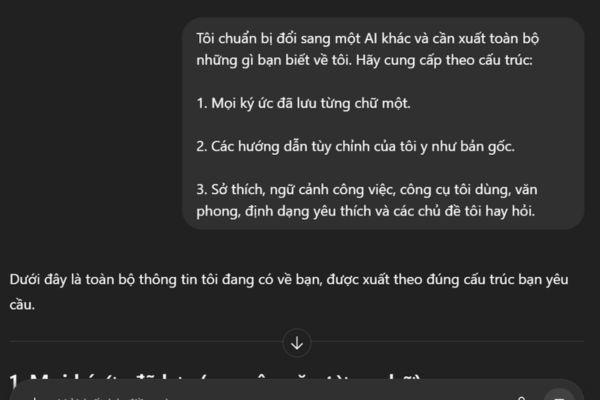
Step 1: Open a brand new chat session inside ChatGPT and paste the following command:
Tôi chuẩn bị đổi sang một AI khác và cần xuất toàn bộ những gì bạn biết về tôi. Hãy cung cấp theo cấu trúc:

1. Mọi ký ức đã lưu từng chữ một.

2. Các hướng dẫn tùy chỉnh của tôi y như bản gốc.

3. Sở thích, ngữ cảnh công việc, công cụ tôi dùng, văn phong, định dạng yêu thích và các chủ đề tôi hay hỏi.
Step 2: Right in that chat, continue entering the second command:
Dựa trên lịch sử trò chuyện, hãy tóm tắt:

1. Phong cách viết (giọng điệu, từ vựng, độ dài).

2. Các yêu cầu phổ biến nhất.

3. Các dự án đang làm hoặc nhắc đến nhiều lần.

4. Quan điểm cá nhân mạnh mẽ.

5. Những điều tôi không thích hoặc cấm bạn làm.

Hãy viết dưới dạng tài liệu tham khảo, không phải câu trả lời.
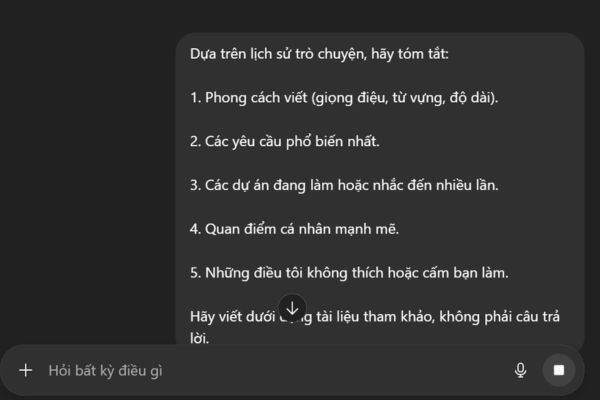
Step 3: Copy the entire long answer and paste it into Notepad or Word. Filter out junk, outdated details, or one-off questions. Keep only the core pieces that reflect the way you work now.
2. Enter information into the new system and verify
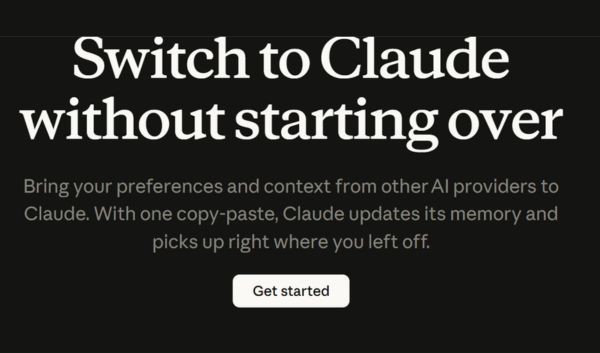
Step 1: Visit Claude’s memory entry pageclick “Get Started“.
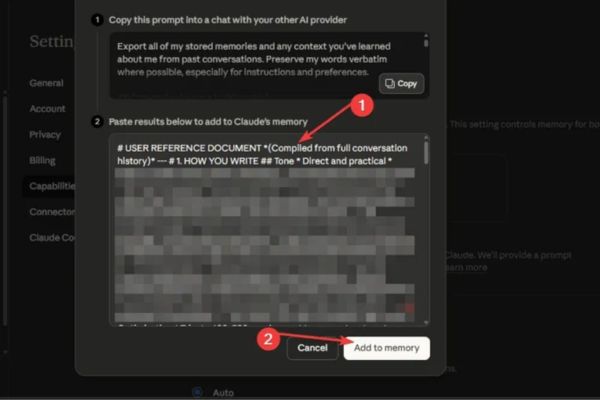
Paste the entire profile you just cleaned above and click “Add to Memory“. This process may take up to 24 hours for the system to fully update, so please be patient.
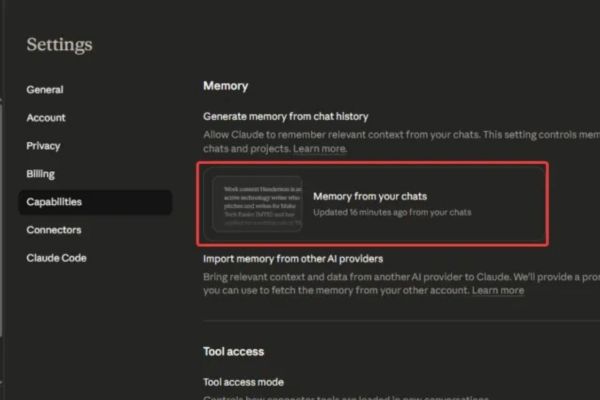
Step 2: To check if transferring ChatGPT data to Claude was successful, open a new chat and ask: “What do you know about me?”. If it correctly returns important information, it means everything is done. You can also enter Settings -> Capabilities -> Memory -> Memory from your chats to check.
3. Update information for Claude
Step 1: If you have created custom GPTs on the old platform, they will not automatically carry over here. You need to rebuild them using the feature Claude Projects. Just copy the instructions for each old GPT and paste it into the new project setup section and you’re done.
Small note: This permanent memory storage feature requires a Claude Pro account. If you use the free version, the AI will forget everything after each chat session. You can still use the trick of pasting your profile at the beginning of each conversation, but it won’t be saved forever.
Table comparing what can and cannot be converted
This relocation process is not as simple as copying a folder on your computer. To better understand how to transfer ChatGPT data to Claude, please see the detailed table below:
| The data may be transferred | The data cannot be transferred |
| Personal customization options and instructions | History of old conversations (new AI will not read it) |
| Distinctive writing style and tone | Custom GPTs and their own configuration |
| Formatting rules (e.g., no bullet points, short writing) | Exclusive features only available on ChatGPT |
| Commonly used templates and workflows | The process of forming your preferences |
Is this switch really worth it?
The decision lies in the nature of your work. If you regularly process long documents, edit large drafts, or do multi-step tasks, Claude’s ability to read and understand long contexts will be smoother and maintain focus better.
However, no AI is naturally intelligent without personalization. If you’re lazy to transfer ChatGPT data to Claude, you’ll have to pay the price for weeks of endlessly editing the text. On the contrary, just do it once and you will have a perfect assistant right on the new platform.
If you’re still hesitant, you should read the actual reviews between the two paid versions of the two sides to see which one is the real deal for your work. In short, once you decide to leave, take your memory with you to make the new start as smooth as possible.

Conclusion
Application How to transfer ChatGPT data to Claude will save you countless time and effort. Instead of being frustrated because the AI doesn’t understand, you now have your own “tailor-made” assistant. Don’t forget to share this useful tip with your friends and colleagues.
Q&A – Frequently asked questions
1. Can I transfer my old chat history to Claude?
No, you cannot transfer chat history. Claude only receives and remembers information about your preferences, writing style, and custom rules.
2. Does using the free Claude version save permanent memory?
Are not. Permanent storage feature requires a Claude Pro account. With the free version, you have to manually paste your personal profile at the beginning of each conversation.
3. How long does it take for Claude to update the data I just entered?
It can take up to 24 hours for the system to fully update the information in memory, so you need to wait patiently before checking again.