• Home
  • News
  • Software
  • Knowledge
  • MMO
  • Tips
  • Security
  • Network
  • Office
AnonyViet - English Version
  • Home
  • News
  • Software
  • Knowledge
  • MMO
  • Tips
  • Security
  • Network
  • Office
No Result
View All Result
  • Home
  • News
  • Software
  • Knowledge
  • MMO
  • Tips
  • Security
  • Network
  • Office
No Result
View All Result
AnonyViet - English Version
No Result
View All Result

How to see how much RAM Chrome uses for each tab

AnonyViet by AnonyViet
March 10, 2024
in Tips
0

How to see how much RAM Chrome uses for each tab is one of the newest features of Google Chrome, developed to solve the problem of Chrome consuming too much RAM when opening many tabs at the same time. This feature allows you to see how much RAM each tab is using, and can turn off or disable unnecessary tabs to free up RAM and speed up your computer.

Join the channel Telegram belong to AnonyViet 👉 Link 👈

Introducing the Memory Saver feature

Chrome is one of the most popular web browsers today, but also one of the browsers that “eats” the most RAM memory. This can affect your computer's performance, especially when you have multiple tabs open at the same time.

Therefore, Google is testing a new feature on Chrome, called Memory Saver. This feature allows you to see how much RAM each tab uses, as well as customize how Chrome manages memory. You can turn this feature on or off, or choose to keep it active for specific websites.

This is a feature that helps Chrome put unused tabs to sleep to save memory, and will wake them up when you click on them.

Google claims that Memory Saver can help save up to 40% of memory, helping Chrome use up to “10GB” less memory. However, this is the maximum number, not the average savings that users can expect.

How to see how much RAM Chrome uses for each tab

The Memory Saver feature is available on Chrome Canary and will be widely deployed in 2024. Chrome allows stable version users to also enable this feature. To enable the Memory Saver feature, do the following:

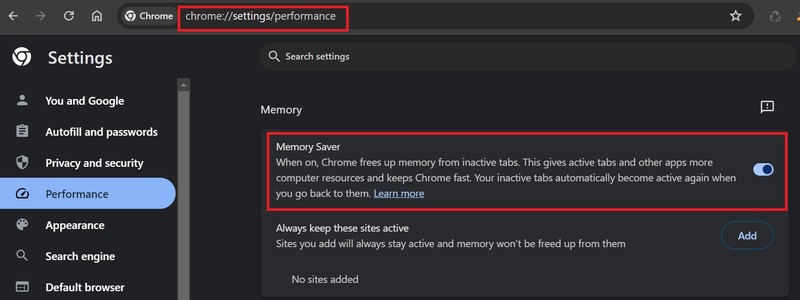
Step 1: Access the following link or Menu > Settings > Performance.

chrome://settings/performance

You can turn Memory Saver on or off here, and you can also set certain websites to always be active.
How to see how much RAM Chrome uses
Enable or disable Memory Saver

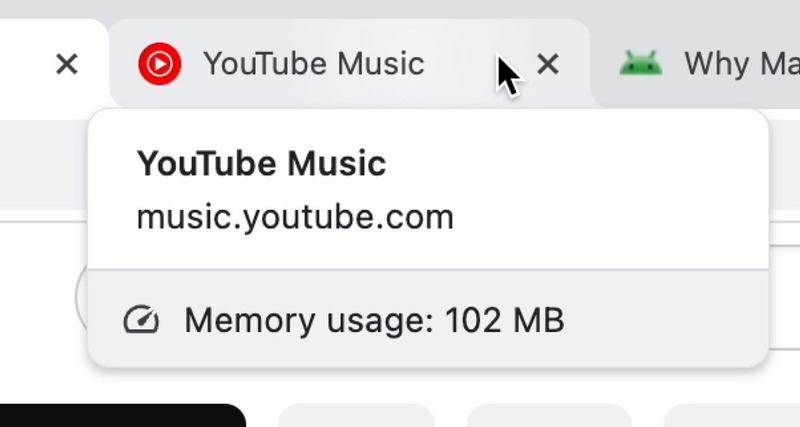
Step 2: After turning on the Memory Saver feature, you can view the memory usage of each tab by moving the mouse cursor over that tab, Chrome will tell you the amount of RAM each tab is taking up, including inactive tabs. Dynamically to save memory, and tabs have sounds.
How to see how much RAM Chrome uses

This is Google's new hover cards-based feature in Chrome. When you see Chrome running slowly, move your mouse over the tabs to see which tab is using a lot of RAM. To enable the memory display feature of tabs, do the following:

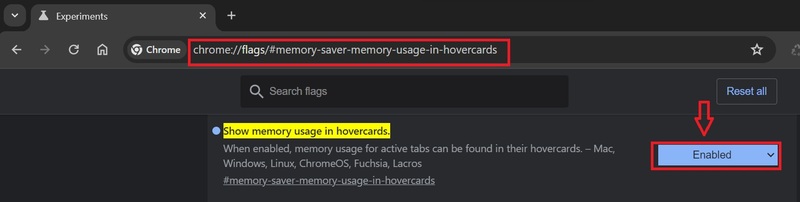
Step 1: Go to this link:

chrome://flags/#memory-saver-memory-usage-in-hovercards

Step 2: Select Enabled and restart Chrome.

Once completed, Chrome will report the memory usage of each open tab, including internal pages.
How to see how much RAM Chrome uses
Enable memory display of tabs

Epilogue

With Memory Saver and How to see how much RAM Chrome uses tab-by-tab, you can manage Chrome's performance more effectively. You can close unnecessary tabs, or keep certain websites active if you want. Good luck!


The article scored: 5/5 – (100 votes)

Tags: ChromeRAMTab
Previous Post

How to set music from YouTube as a ringtone extremely quickly, without software

Next Post

Galaxy S24 price drops sharply after 2 months: Should I buy or wait for further reduction?

AnonyViet

AnonyViet

Related Posts

Instructions to receive Claude Fable 5 for free for 30 days
Tips

Instructions to receive Claude Fable 5 for free for 30 days

June 15, 2026
Delete all Event Logs on Windows to remove traces of activity
Tips

Delete all Event Logs on Windows to remove traces of activity

June 15, 2026
Instructions for creating Minecraft-style food photos
Tips

Instructions for creating Minecraft-style food photos

June 9, 2026
Get free Cambridge courses to prepare for IELTS, Starters, Movers
Tips

Get free Cambridge courses to prepare for IELTS, Starters, Movers

June 4, 2026
How to record reaction videos with Android phones, no app needed
Tips

How to record reaction videos with Android phones, no app needed

June 1, 2026
Instructions on how to get Google AI Pro 1 year for free for new accounts
Tips

Instructions on how to get Google AI Pro 1 year for free for new accounts

June 1, 2026
Next Post
Galaxy S24 price drops sharply after 2 months: Should I buy or wait for further reduction?

Galaxy S24 price drops sharply after 2 months: Should I buy or wait for further reduction?

0 0 votes
Article Rating
Subscribe
Login
Notify of
guest

guest

0 Comments
Oldest
Newest Most Voted
Inline Feedbacks
View all comments

Recent News

Hướng dẫn cài đặt iOS 27 Developer Beta

Hướng dẫn cài đặt iOS 27 Developer Beta

June 17, 2026
How to handle locked SIMs due to lack of standardization

How to handle locked SIMs due to lack of standardization

June 17, 2026
Instructions to receive Claude Fable 5 for free for 30 days

Instructions to receive Claude Fable 5 for free for 30 days

June 15, 2026
Instructions on how to activate the new Siri on iOS 27

Instructions on how to activate the new Siri on iOS 27

June 15, 2026
Hướng dẫn cài đặt iOS 27 Developer Beta

Hướng dẫn cài đặt iOS 27 Developer Beta

June 17, 2026
How to handle locked SIMs due to lack of standardization

How to handle locked SIMs due to lack of standardization

June 17, 2026
Instructions to receive Claude Fable 5 for free for 30 days

Instructions to receive Claude Fable 5 for free for 30 days

June 15, 2026
AnonyViet - English Version

AnonyViet

AnonyViet is a website share knowledge that you have never learned in school!

We are ready to welcome your comments, as well as your articles sent to AnonyViet.

Follow Us

Contact:

Email: anonyviet.com[@]gmail.com

Main Website: https://anonyviet.com

Recent News

Hướng dẫn cài đặt iOS 27 Developer Beta

Hướng dẫn cài đặt iOS 27 Developer Beta

June 17, 2026
How to handle locked SIMs due to lack of standardization

How to handle locked SIMs due to lack of standardization

June 17, 2026
  • Home
  • Home 2
  • Home 3
  • Home 4
  • Home 5
  • Home 6
  • Next Dest Page
  • Sample Page

6789 kv999

No Result
View All Result
  • Home
  • News
  • Software
  • Knowledge
  • MMO
  • Tips
  • Security
  • Network
  • Office

6789 kv999

wpDiscuz
0
0
Would love your thoughts, please comment.x
()
x
| Reply