• Home
  • News
  • Software
  • Knowledge
  • MMO
  • Tips
  • Security
  • Network
  • Office
AnonyViet - English Version
  • Home
  • News
  • Software
  • Knowledge
  • MMO
  • Tips
  • Security
  • Network
  • Office
No Result
View All Result
  • Home
  • News
  • Software
  • Knowledge
  • MMO
  • Tips
  • Security
  • Network
  • Office
No Result
View All Result
AnonyViet - English Version
No Result
View All Result

How to remotely lock your computer with an Android phone

AnonyViet by AnonyViet
February 26, 2026
in Software
0

Features Lock your computer with your Android phone remote is an exciting new update on Windows 11, helping you protect your device with just a few simple steps. Have you ever stepped away from your desk and suddenly realized you forgot to lock your computer? With the combination of Phone Link and Link to Windows, that worry will completely disappear. Let’s learn how to set up and use this useful feature right below.

📢 Join the channel Telegram belong to AnonyViet


👉 Go to Telegram AnonyViet

Update new articles, cool tools and IT tips fastest

Necessary conditions to remotely lock a computer

Before you get started, you need to make sure your system meets a few basic requirements for this feature to work smoothly.

  • About application version: You need to install the application Phone Link on Windows 11 from version 1.25062.83.0 or later and Link to Windows app (beta) on Android phones from version 1.25071.155 or later.
  • About the operating system: This feature is designed to work between Windows 11 computers and Android smartphones.
  • About account: Both of your devices need to be signed in to the same Microsoft account to be able to sync and link with each other.

Note: This feature is being implemented by Microsoft through the program Windows Insider.
How to remotely lock your computer with an Android phone
Necessary conditions to remotely lock a computer

How to enable remote computer control feature

To be able to lock your PC from your phone, you first need to grant remote control permissions on your Windows 11 computer.

  • First, open it Settings on Windows 11 computers.
  • Next, you click on the item Bluetooth & devices in the left menu bar.
  • Then you choose the item Mobile devices (Mobile devices).
  • Here, you need to turn on the switch at item Phone Link and follow the onscreen instructions to link your phone to your computer if you haven’t done so before.
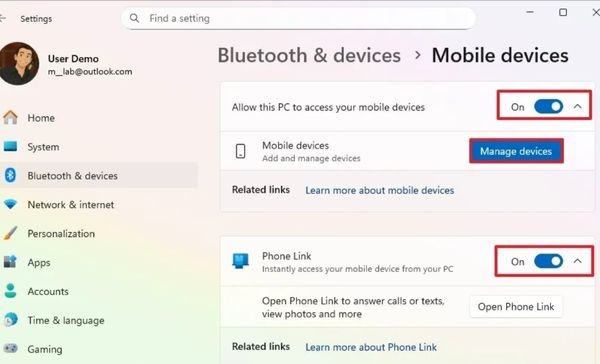
Turn on the switch in the Phone Link section
  • Turn on “Allow this PC to access your mobile devices“
  • After the connection is successful, click the button Manage devices.
  • Turn on the switch in “Remote PC controls” to enable the feature.
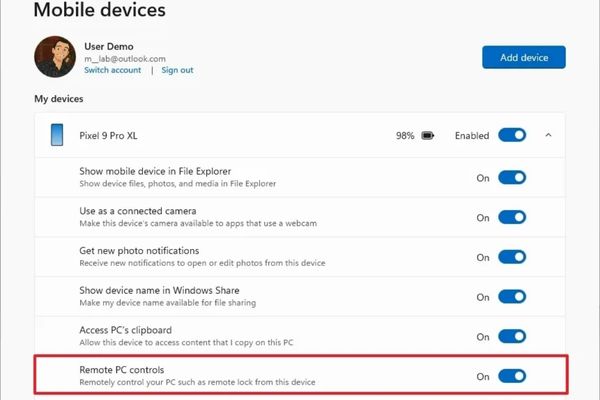
Turn on the switch in section "Remote PC controls"
Turn on the switch in the “Remote PC controls” section.

After completing the above steps, your computer is ready to be controlled remotely.

Steps to lock computer with Android phone

Once set up, locking your computer remotely becomes extremely simple and fast.

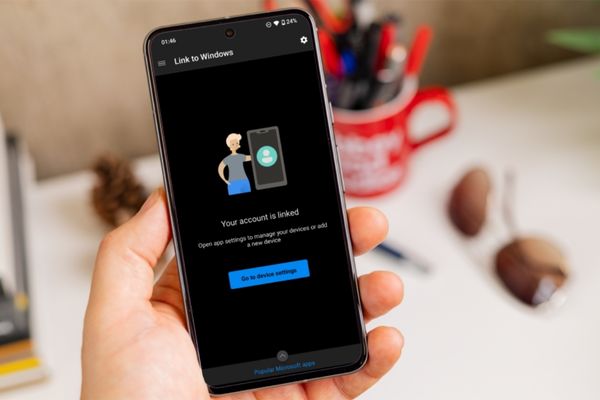
  1. Unlock your Android phone and launch the application Link to Windows.
  2. If you have multiple computers linked, tap the profile menu and select the correct computer you want to lock. On the main interface of the application, you will see a button called Lock PCtap it.
  3. A confirmation dialog will appear, just click the button Lock again to complete.
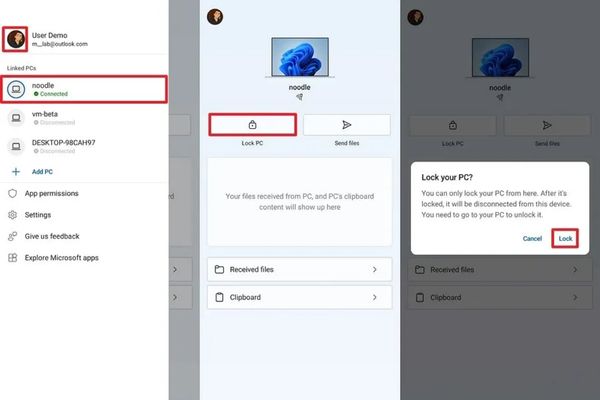
Steps to lock computer with Android phone

Immediately, your Windows 11 computer will be locked. It should be noted that the only way to access the computer again is to unlock it directly on the device using the password, PIN or installed biometric methods.

Important note

Currently, this remote computer locking feature is only available for Android devices connected to Windows 11. Users of iOS devices (iPhone) will not be able to use this utility.

Conclude

With the detailed instructions above, work Lock your computer with your Android phone is no longer a complicated procedure. This is an extremely useful feature that helps increase the security of your personal data, especially in unexpected situations. Try setting it up today!


Tags: AndroidcomputerLockphoneremotely
Previous Post

Turn on Ransomware anti-virus feature on Windows 10

Next Post

How many colors does the Samsung Galaxy S26 Series come in and what are the shades that will cause a stir in 2026?

AnonyViet

AnonyViet

Related Posts

Instructions for receiving 3 months of MultCloud Premium for free with 200GB data
Software

Instructions for receiving 3 months of MultCloud Premium for free with 200GB data

October 17, 2026
Instructions for receiving pension through VNeID without going to the ward
Software

Instructions for receiving pension through VNeID without going to the ward

October 16, 2026
Record first, choose focus later: how to use 4K 60 fps Cinema mode on iPhone 18 Pro
Software

Record first, choose focus later: how to use 4K 60 fps Cinema mode on iPhone 18 Pro

October 15, 2026
How to receive 22k from Viettel Tammi on the occasion of 22nd birthday
Software

How to receive 22k from Viettel Tammi on the occasion of 22nd birthday

October 15, 2026
3 valuable upgrades on Samsung Galaxy A08 compared to its predecessor A07
Software

3 valuable upgrades on Samsung Galaxy A08 compared to its predecessor A07

October 12, 2026
Ambient light for YouTube: Change video background color extremely magically
Software

Ambient light for YouTube: Change video background color extremely magically

October 12, 2026
Next Post
How many colors does the Samsung Galaxy S26 Series come in and what are the shades that will cause a stir in 2026?

How many colors does the Samsung Galaxy S26 Series come in and what are the shades that will cause a stir in 2026?

0 0 votes
Article Rating
Subscribe
Login
Notify of
guest

guest

0 Comments
Oldest
Newest Most Voted

Recent News

How to view Facebook stories without others knowing

How to view Facebook stories without others knowing

October 18, 2026
Instructions for registering a .tech domain name for free for 1 year

Instructions for registering a .tech domain name for free for 1 year

October 18, 2026
Instructions on how to enter promotional codes on the App Store most accurately

Instructions on how to enter promotional codes on the App Store most accurately

October 18, 2026
How to open “This PC” instead of “Quick Access” in File Explorer by default

How to open “This PC” instead of “Quick Access” in File Explorer by default

October 17, 2026
How to view Facebook stories without others knowing

How to view Facebook stories without others knowing

October 18, 2026
Instructions for registering a .tech domain name for free for 1 year

Instructions for registering a .tech domain name for free for 1 year

October 18, 2026
Instructions on how to enter promotional codes on the App Store most accurately

Instructions on how to enter promotional codes on the App Store most accurately

October 18, 2026
AnonyViet - English Version

AnonyViet

AnonyViet is a website share knowledge that you have never learned in school!

We are ready to welcome your comments, as well as your articles sent to AnonyViet.

Follow Us

Contact:

Email: anonyviet.com[@]gmail.com

Main Website: https://anonyviet.com

Recent News

How to view Facebook stories without others knowing

How to view Facebook stories without others knowing

October 18, 2026
Instructions for registering a .tech domain name for free for 1 year

Instructions for registering a .tech domain name for free for 1 year

October 18, 2026
  • Home
  • Home 2
  • Home 3
  • Home 4
  • Home 5
  • Home 6
  • Next Dest Page
  • Sample Page

say88 tỷ lệ kèo nhà cái kèo nhà cái 5 febet

No Result
View All Result
  • Home
  • News
  • Software
  • Knowledge
  • MMO
  • Tips
  • Security
  • Network
  • Office

say88 tỷ lệ kèo nhà cái kèo nhà cái 5 febet

wpDiscuz
0
0
Would love your thoughts, please comment.x
()
x
| Reply