• Home
  • News
  • Software
  • Knowledge
  • MMO
  • Tips
  • Security
  • Network
  • Office
AnonyViet - English Version
  • Home
  • News
  • Software
  • Knowledge
  • MMO
  • Tips
  • Security
  • Network
  • Office
No Result
View All Result
  • Home
  • News
  • Software
  • Knowledge
  • MMO
  • Tips
  • Security
  • Network
  • Office
No Result
View All Result
AnonyViet - English Version
No Result
View All Result

How to convert images to PDF on Windows 10/11

AnonyViet by AnonyViet
January 26, 2023
in Tips
0

Do you have a PNG image file to convert to PDF? If so, you can simply use the built-in PDF printer in Windows 10 or 11 to convert PNG to PDF. I will show you how to do that in this article.

Join the channel Telegram of the AnonyViet 👉 Link 👈

How to convert images to PDF on Windows 10/11

How to convert images to PDF on Windows 10/11

Both Windows 10 and 11 have virtual PDF printer. When you print something with this printer, it turns it into a PDF file. You can then save the PDF anywhere on your computer.

The steps to convert PNG images to PDF on both Windows 10 and 11 are quite similar.

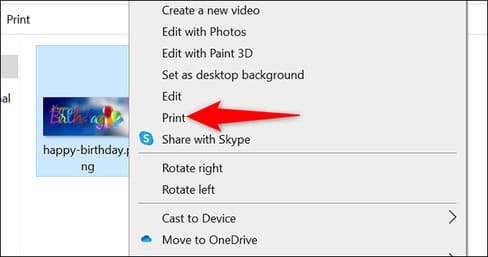
If you are using Windows 10, right-click the photo and select “Print”. If you’re using Windows 11, right-click the picture and choose Show More Options > Print.
How to convert images to PDF on Windows 10/11 9

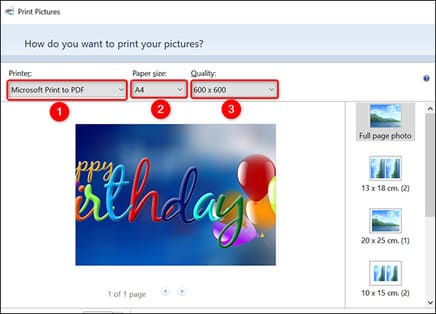
The “Print Pictures” window will open. In this window, select the virtual PDF printer by clicking the “Printer” menu and selecting “Microsoft Print to PDF.” Specify the paper size by clicking the “Paper Size” menu.

To change the quality of the output PDF, click the “Quality” menu and choose the size you want.
How to convert images to PDF on Windows 10/11 10

On the right menu of the “Print Pictures” window, you have options to change how PNG images appear in the PDF. Click an option to see a preview on the left.
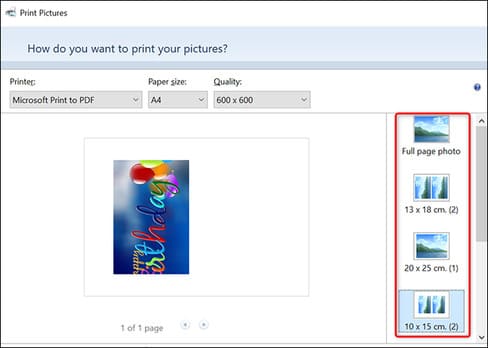
How to convert images to PDF on Windows 10/11 11

At the bottom of the “Print Pictures” window, specify how many pages you want in your PDF file using the “Copies of Each” option. To make your picture fit the PDF, enable the “Fit Picture to Frame” option.

Finally, at the bottom of the window, click “Print” to start creating your PDF.
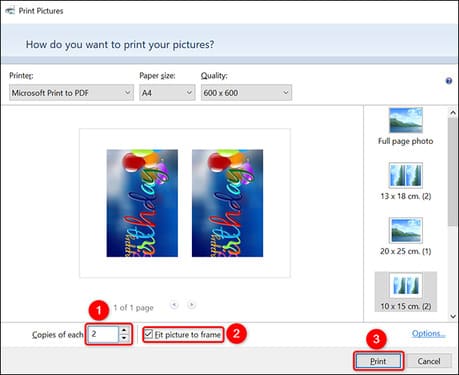
How to convert images to PDF on Windows 10/11 12

Windows will open the “Save Print Output As” window. Here, choose a folder to save your PDF file. Click in the “File Name” field and enter a name for your PDF file. Then click “Save”.
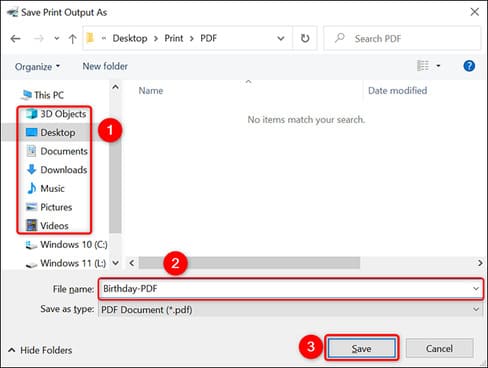
How to convert images to PDF on Windows 10/11 13To access your newly created PDF file, open the folder where you saved it and you will see a PDF file of the PNG image, with the extension “.pdf”.
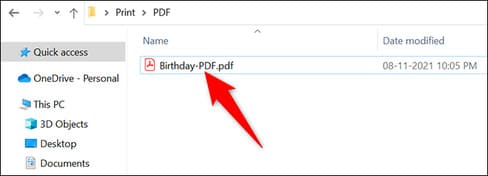
How to convert images to PDF on Windows 10/11 14

That’s all you need to do to convert images to PDF. In addition, you can also see the easiest way to convert Word files to Powerpoint files here.


The article achieved: 5/5 – (100 votes)

Tags: convertimagesPDFWindows
Previous Post

Instructions for installing Windows Games on Linux using PlayOnLinux

Next Post

Lesson 14: Subtraction in Excel – Basic Excel

AnonyViet

AnonyViet

Related Posts

Collection of Windows 11 wallpapers for computers and phones
Tips

Collection of Windows 11 wallpapers for computers and phones

July 26, 2026
Don’t install leaked Windows 11
Tips

Don’t install leaked Windows 11

July 25, 2026
Microsoft announced the end of support date for Windows 10
Tips

Microsoft announced the end of support date for Windows 10

July 24, 2026
Microsoft confirms leaked Windows 11 is real
Tips

Microsoft confirms leaked Windows 11 is real

July 22, 2026
HeroSMS là gì? Cách thuê số điện thoại ảo nhận SMS OTP online không cần SIM
Tips

HeroSMS là gì? Cách thuê số điện thoại ảo nhận SMS OTP online không cần SIM

July 22, 2026
How to download documents on 123doc for free
Tips

How to download documents on 123doc for free

July 21, 2026
Next Post
Lesson 14: Subtraction in Excel – Basic Excel

Lesson 14: Subtraction in Excel - Basic Excel

0 0 votes
Article Rating
Subscribe
Login
Notify of
guest

guest

0 Comments
Oldest
Newest Most Voted

Recent News

Collection of Windows 11 wallpapers for computers and phones

Collection of Windows 11 wallpapers for computers and phones

July 26, 2026
Don’t install leaked Windows 11

Don’t install leaked Windows 11

July 25, 2026
Instructions on how to get 1 year of VIP Hidely VPN for free

Instructions on how to get 1 year of VIP Hidely VPN for free

July 25, 2026
Instructions on how to block strange devices from accessing your home Wifi

Instructions on how to block strange devices from accessing your home Wifi

July 25, 2026
Collection of Windows 11 wallpapers for computers and phones

Collection of Windows 11 wallpapers for computers and phones

July 26, 2026
Don’t install leaked Windows 11

Don’t install leaked Windows 11

July 25, 2026
Instructions on how to get 1 year of VIP Hidely VPN for free

Instructions on how to get 1 year of VIP Hidely VPN for free

July 25, 2026
AnonyViet - English Version

AnonyViet

AnonyViet is a website share knowledge that you have never learned in school!

We are ready to welcome your comments, as well as your articles sent to AnonyViet.

Follow Us

Contact:

Email: anonyviet.com[@]gmail.com

Main Website: https://anonyviet.com

Recent News

Collection of Windows 11 wallpapers for computers and phones

Collection of Windows 11 wallpapers for computers and phones

July 26, 2026
Don’t install leaked Windows 11

Don’t install leaked Windows 11

July 25, 2026
  • Home
  • Home 2
  • Home 3
  • Home 4
  • Home 5
  • Home 6
  • Next Dest Page
  • Sample Page

say88 tỷ lệ kèo nhà cái kèo nhà cái 5 febet

No Result
View All Result
  • Home
  • News
  • Software
  • Knowledge
  • MMO
  • Tips
  • Security
  • Network
  • Office

say88 tỷ lệ kèo nhà cái kèo nhà cái 5 febet

wpDiscuz
0
0
Would love your thoughts, please comment.x
()
x
| Reply