Hello friends! Welcome back to the Basic Excel Series for beginners. Today I will guide you on subtraction in Excel
| Join the channel Telegram of the AnonyViet 👉 Link 👈 |
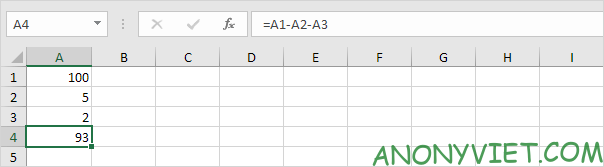
Subtract – Normal Subtract
Step 1: Mark = to let Excel recognize it as a calculation
Step 2: Enter the subtraction calculation in

Can calculate Subtract – subtraction with cells
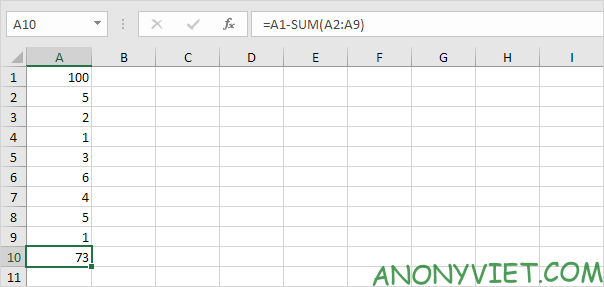
Using the SUM function to calculate subtraction – Subtract
Step 1: Mark =
Step 2: Record the calculation as follows to be more convenient in subtracting many cells
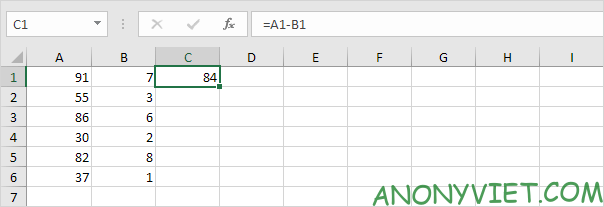
Using AutoFill for subtraction – Subtract
Step 1: Write down the calculation
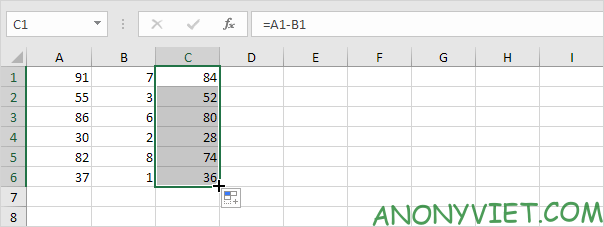
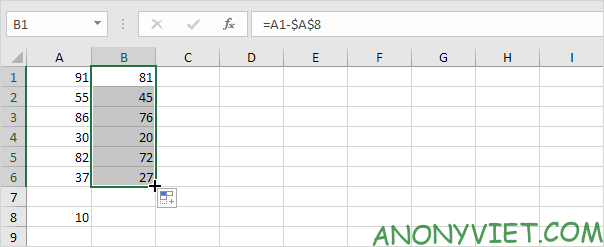
Step 2: Use AutoFill to automatically calculate the remaining lines
Use the $ sign to subtract with 1 fixed cell
Step 1: Enter the subtraction with that cell
Step 2: Add a $ sign before and after the text of that cell (eg $A$8)
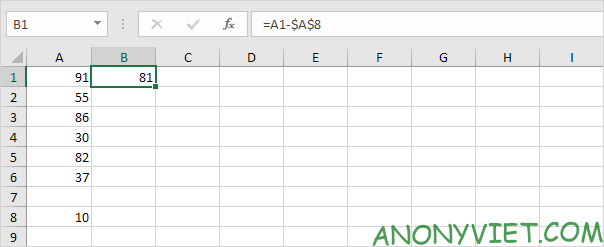
Step 3: Using AutoFill
Using Paste Special
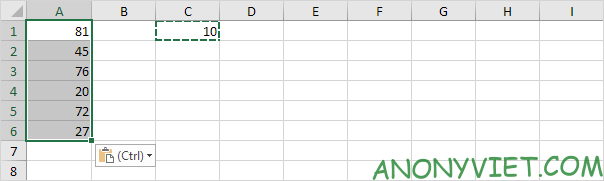
Step 1: Select the cell whose value is a minus
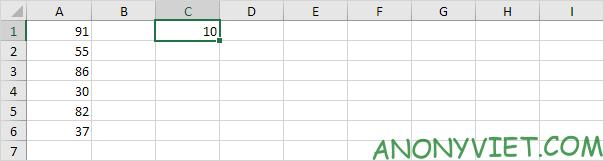
Step 2: Right click and select Copy (can use CTRL + C)
Step 3: Select the range as the number to be subtracted
Step 4: Right-click and select Paste Special
Step 5: Select Subtract
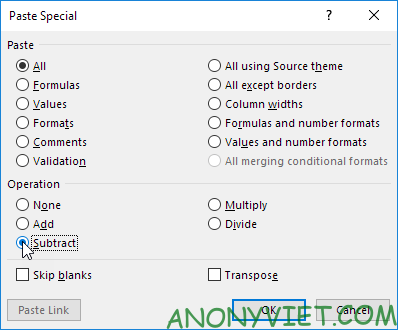
Step 6: Click OK
So I just guided you about subtraction in Excel. If you have any questions, please leave a comment to let me know.