• Home
  • News
  • Software
  • Knowledge
  • MMO
  • Tips
  • Security
  • Network
  • Office
AnonyViet - English Version
  • Home
  • News
  • Software
  • Knowledge
  • MMO
  • Tips
  • Security
  • Network
  • Office
No Result
View All Result
  • Home
  • News
  • Software
  • Knowledge
  • MMO
  • Tips
  • Security
  • Network
  • Office
No Result
View All Result
AnonyViet - English Version
No Result
View All Result

How to quickly transfer photos from iPhone to Windows 11

AnonyViet by AnonyViet
January 26, 2023
in Software
0

If you want to transfer photos and videos from iPhone to PC running Windows 11, the fastest and easiest way is to plug your phone into your computer for automatic file transfer. And here’s how.

Join the channel Telegram of the AnonyViet 👉 Link 👈

How to quickly transfer photos from iPhone to Windows 11

How to quickly transfer photos from iPhone to Windows 11

If you plug your iPhone into a Windows PC with a USB cable, Windows 11 can connect to the iPhone like a digital camera and read the “DCIM” folder. It can copy photos and videos from your iPhone without additional software.

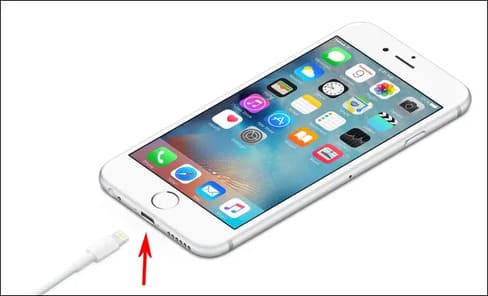
First, locate the appropriate Lightning to USB cable for your iPhone. Usually, this is the type of cable you can use to charge your iPhone. One end will have a port that plugs into your iPhone (the Lightning end) and the other end will be a USB-A or USB-C connector.

Plug the charging cord into your iPhone, then plug the other end into a USB port on your Windows 11 PC.
How to quickly transfer photos from iPhone to Windows 11 13

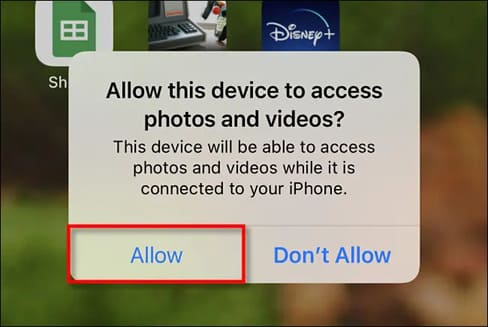
When you plug your iPhone in, it asks you if you want to allow your PC to access the photos and videos on the device. Click “Allow”. This will make the iPhone’s “DCIM” photo and video folder show up on Windows 11.
How to quickly transfer photos from iPhone to Windows 11 14

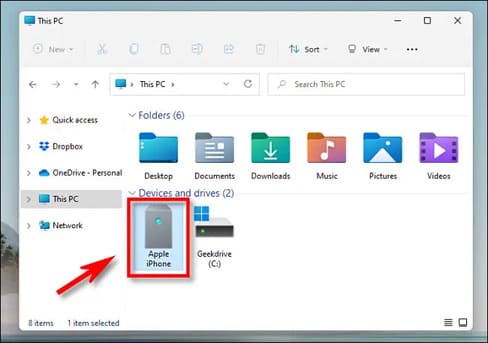
Back on your Windows PC, open File Explorer and go to “This PC”. If iPhone is properly recognized by your PC (and allowed to connect), it will show up as a removable drive in the “Devices and Drives” section.
How to quickly transfer photos from iPhone to Windows 11 15

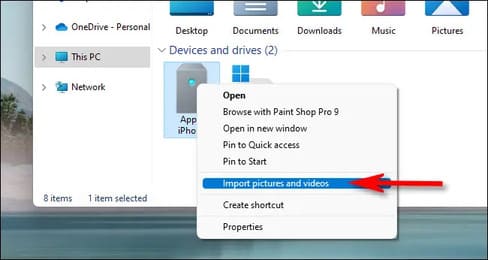
Right-click the iPhone icon in File Explorer and select “Import Pictures and Videos” in the menu.
How to quickly transfer photos from iPhone to Windows 11 16

The “Import Pictures and Videos” window will appear. Windows will scan the photos folder in your iPhone for photos and videos that Windows can copy to your PC.
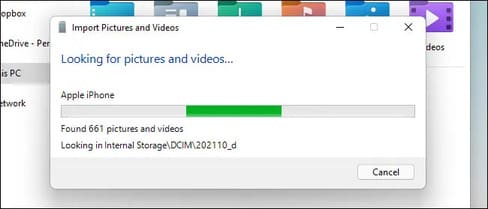
How to quickly transfer photos from iPhone to Windows 11 17

After Windows has found all the new photos and videos it hasn’t imported before, it will show you how many files it can import into Windows.

Select “Import all new items now” and then click the “Import” button.
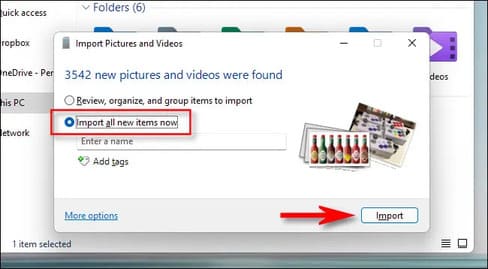
How to quickly transfer photos from iPhone to Windows 11 18

During the import process, Windows copies the photos and videos to a new folder in your Pictures folder by default. If you want to delete all photos and videos from your iPhone after the import is complete, select “Erase After Importing”.

Warning: If you select “Erase After Importing” during the import process, Windows will delete all the photos and videos it imported from your iPhone when it’s done. If you want to leave a copy of your imported photos and videos on your phone, uncheck “Erase After Importing”.
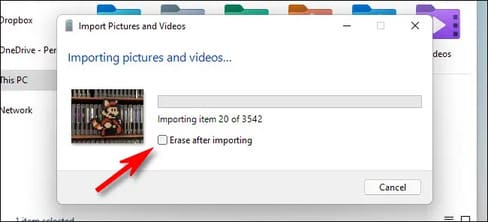
How to quickly transfer photos from iPhone to Windows 11 19

Once the import is complete, open a File Explorer window and go to your Pictures folder. In that folder you will find a folder named date that contains all the photos and videos you just imported. Double click on the folder and you will see the pictures inside.
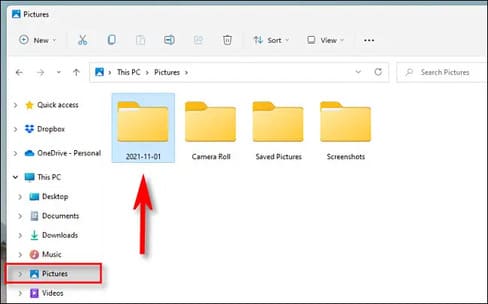
How to quickly transfer photos from iPhone to Windows 11 20

If you notice a bunch of files AAE in the folder, don’t worry. Those are special metadata files that Apple uses to store photo editing information. They’re useless on Windows, so you can delete any .AAE files you see.

Then, unplug your iPhone. You can plug it back in to import photos or videos any time you want. If you don’t select “Erase After Importing” on your last import, Windows will remember which photos were previously imported and you won’t get any duplicates on your next import. Pretty good!

Email photos to yourself

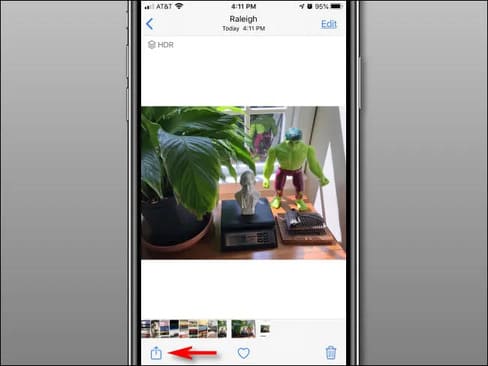
If you just have a few iPhone photos or videos you want to transfer to your Windows 11 PC — or if you can’t find a Lightning cable — you can email photos from your device. To do that, open the Photos app on your iPhone, select the photo you want to email, then tap the share button (the square with the arrow pointing up).
How to quickly transfer photos from iPhone to Windows 11 21

In the menu that appears, tap the Mail app icon, then you can compose an email in the Mail app. You can only submit a limited number of photos this way.

Another way is to send it via Zalo Cloud or Messenger, then download it again.

The article achieved: 5/5 – (100 votes)

Tags: iPhonephotosQuicklyTransferWindows
Previous Post

Lesson 14: Subtraction in Excel – Basic Excel

Next Post

Lesson 15: Multiplication in Excel – Basic Excel

AnonyViet

AnonyViet

Related Posts

How to authenticate the owner’s SIM on VNeID from April 15
Software

How to authenticate the owner’s SIM on VNeID from April 15

April 15, 2026
Review of Galaxy A57 and A37: Some are eight ounces, some are half a pound
Software

Review of Galaxy A57 and A37: Some are eight ounces, some are half a pound

April 14, 2026
JOPDF: Versatile PDF editing software for Windows and Mac
Software

JOPDF: Versatile PDF editing software for Windows and Mac

April 10, 2026
MyVehicle: Convenient and secure motorcycle maintenance reminder app
Software

MyVehicle: Convenient and secure motorcycle maintenance reminder app

April 10, 2026
How to turn off AI on Gmail to absolutely protect personal data
Software

How to turn off AI on Gmail to absolutely protect personal data

April 8, 2026
How to add Settings to Control Center using Shortcuts
Software

How to add Settings to Control Center using Shortcuts

April 7, 2026
Next Post
Lesson 15: Multiplication in Excel – Basic Excel

Lesson 15: Multiplication in Excel - Basic Excel

0 0 votes
Article Rating
Subscribe
Login
Notify of
guest

guest

0 Comments
Oldest
Newest Most Voted
Inline Feedbacks
View all comments

Recent News

How to add Watermark to Google Docs to protect copyright

How to add Watermark to Google Docs to protect copyright

April 19, 2026
How to intercept traffic using Burp Suite to analyze HTTP/HTTPS

How to intercept traffic using Burp Suite to analyze HTTP/HTTPS

April 18, 2026
How to avoid Adblock detection on Youtube with 4 good tips

How to avoid Adblock detection on Youtube with 4 good tips

April 17, 2026
How to transfer ChatGPT data to Claude is extremely simple

How to transfer ChatGPT data to Claude is extremely simple

April 16, 2026
How to add Watermark to Google Docs to protect copyright

How to add Watermark to Google Docs to protect copyright

April 19, 2026
How to intercept traffic using Burp Suite to analyze HTTP/HTTPS

How to intercept traffic using Burp Suite to analyze HTTP/HTTPS

April 18, 2026
How to avoid Adblock detection on Youtube with 4 good tips

How to avoid Adblock detection on Youtube with 4 good tips

April 17, 2026
AnonyViet - English Version

AnonyViet

AnonyViet is a website share knowledge that you have never learned in school!

We are ready to welcome your comments, as well as your articles sent to AnonyViet.

Follow Us

Contact:

Email: anonyviet.com[@]gmail.com

Main Website: https://anonyviet.com

Recent News

How to add Watermark to Google Docs to protect copyright

How to add Watermark to Google Docs to protect copyright

April 19, 2026
How to intercept traffic using Burp Suite to analyze HTTP/HTTPS

How to intercept traffic using Burp Suite to analyze HTTP/HTTPS

April 18, 2026
No Result
View All Result
  • Home
  • News
  • Software
  • Knowledge
  • MMO
  • Tips
  • Security
  • Network
  • Office

wpDiscuz
0
0
Would love your thoughts, please comment.x
()
x
| Reply