• Home
  • News
  • Software
  • Knowledge
  • MMO
  • Tips
  • Security
  • Network
  • Office
AnonyViet - English Version
  • Home
  • News
  • Software
  • Knowledge
  • MMO
  • Tips
  • Security
  • Network
  • Office
No Result
View All Result
  • Home
  • News
  • Software
  • Knowledge
  • MMO
  • Tips
  • Security
  • Network
  • Office
No Result
View All Result
AnonyViet - English Version
No Result
View All Result

How to add Watermark to Google Docs to protect copyright

AnonyViet by AnonyViet
April 19, 2026
in Office
0

How to add watermark to Google Docs is one of the essential office tips to help users assert their sovereignty and protect their intelligence in the online environment. This copyright stamp not only limits unauthorized copying but also increases the professionalism of the document when shared. The article below will provide detailed instructions on the two quickest and easiest methods of inserting watermarks right on your computer.

📢 Join the channel Telegram belong to AnonyViet


👉 Go to Telegram AnonyViet

Update new articles, cool tools and IT tips fastest

In the process of drafting documents, preserving content copyright is extremely important. Google Docs provides tools to assist users in doing this through the Watermark insertion feature.

1. How to insert watermark with images in Google Docs

Using a logo or brand image as a watermark is a common method for identifying documents, which includes the following steps:

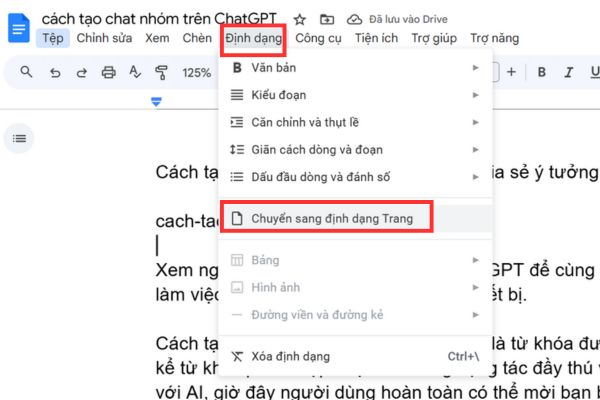
Step 1: At the text editing interface, move your mouse to the menu bar and select the item Format and choose Switch to page format.
How to add Watermark to Google Docs to protect copyright
Select Convert to page format

Step 2: Click tab Insertthen press select Page element and look for tools Watermark is on the list.
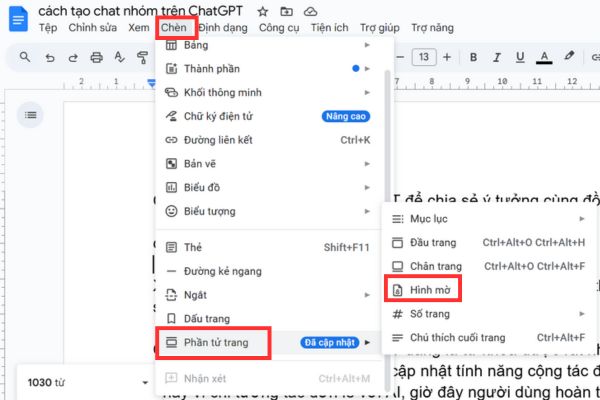
Find the Watermark tool

Step 3: A panel will appear on the right side of the screen, here click on the tab Image and keep pressing the button Select image to open the file download window.

Step 4: The user proceeds to click Browse to find and upload photos from your computer, or more simply drag and drop the desired image file directly into the recognition area for the system to process.
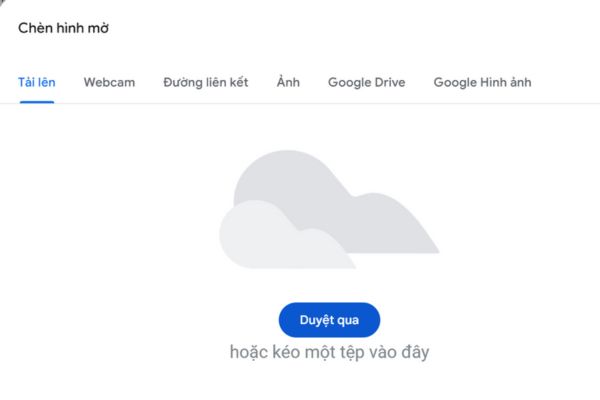
Click Browse
Click Browse

Step 5: After the photo has been uploaded, the settings panel allows you to customize parameters such as size ratio or check the box to dim the watermark so the image sinks into the background, then press Finished to complete the operation.
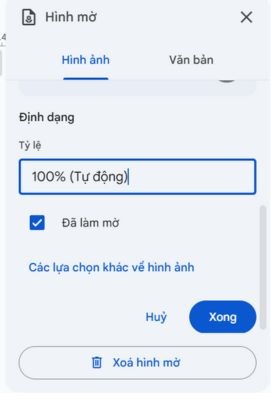
Customize parameters

Step 6: Immediately, the selected image will be applied as a watermark under the text content and automatically appear synchronously on all pages of the current document.
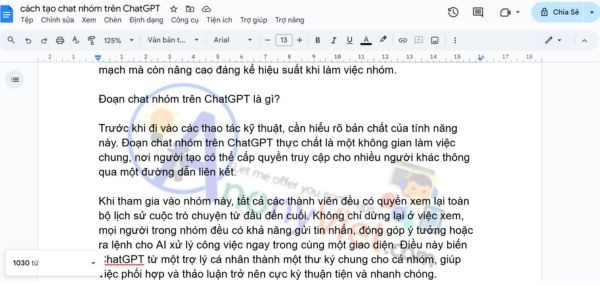
How to add watermark to Google Docs

2. How to insert text watermark in Google Docs

If you do not want to use images, you can completely do so How to add watermark to Google Docs in the form of text such as “Copyright”, “Confidential” or the author’s name as a watermark.

Step 1: Similar to the above method, the user accesses the document’s Menu bar and clicks on the item Insert and feature selection Page element > Watermark to start setup.

Step 2: In the tools panel on the right, switch to selecting tabs Documentthen enter the content you want to display in the empty box and press the button Finished for the system to record.

Step 3: The result is that the entered text will be displayed as a watermark diagonally or horizontally on the page and this feature will also automatically apply to all pages in that document.
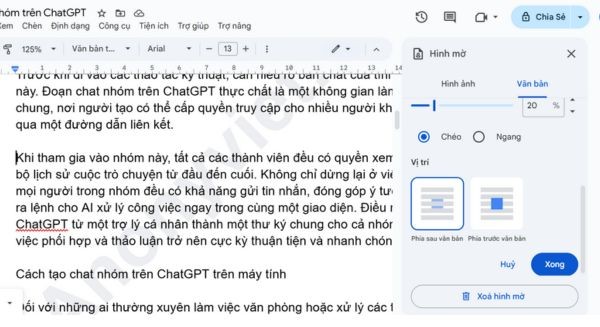
How to insert text watermark in Google Docs

Conclusion

The mastery How to add watermark Google Docs will help your documents become more professional and safer from the risk of content being copied. With just a few simple steps, whether using images or text, editors can share their data with peace of mind.

Tags: AddCopyrightDocsGoogleProtectWatermark
Previous Post

How to intercept traffic using Burp Suite to analyze HTTP/HTTPS

Next Post

4K Video Downloader Plus – Tool to download YouTube videos on macOS

AnonyViet

AnonyViet

Related Posts

Instructions on how to convert text into QR codes in Word
Office

Instructions on how to convert text into QR codes in Word

October 5, 2026
Tool to adjust the format of administrative documents according to Decree 30
Office

Tool to adjust the format of administrative documents according to Decree 30

October 1, 2026
Instructions on how to hide formulas in Excel to secure data
Office

Instructions on how to hide formulas in Excel to secure data

February 6, 2026
Top who creates the most beautiful presentation slide today
Office

Top who creates the most beautiful presentation slide today

September 23, 2025
Automatically check and correct spelling errors on Google Docs
Office

Automatically check and correct spelling errors on Google Docs

February 23, 2025
Instructions for downloading Google Docs files easily on any device
Office

Instructions for downloading Google Docs files easily on any device

December 18, 2024
Next Post
4K Video Downloader Plus – Tool to download YouTube videos on macOS

4K Video Downloader Plus - Tool to download YouTube videos on macOS

0 0 votes
Article Rating
Subscribe
Login
Notify of
guest

guest

0 Comments
Oldest
Newest Most Voted

Recent News

Instructions for receiving pension through VNeID without going to the ward

Instructions for receiving pension through VNeID without going to the ward

October 16, 2026
MBTI, Big Five, DISC or Holland: which personality test should you choose?

MBTI, Big Five, DISC or Holland: which personality test should you choose?

October 15, 2026
How to create a virtual Pet, a virtual character running around on the Desktop to relax

How to create a virtual Pet, a virtual character running around on the Desktop to relax

October 15, 2026
Record first, choose focus later: how to use 4K 60 fps Cinema mode on iPhone 18 Pro

Record first, choose focus later: how to use 4K 60 fps Cinema mode on iPhone 18 Pro

October 15, 2026
Instructions for receiving pension through VNeID without going to the ward

Instructions for receiving pension through VNeID without going to the ward

October 16, 2026
MBTI, Big Five, DISC or Holland: which personality test should you choose?

MBTI, Big Five, DISC or Holland: which personality test should you choose?

October 15, 2026
How to create a virtual Pet, a virtual character running around on the Desktop to relax

How to create a virtual Pet, a virtual character running around on the Desktop to relax

October 15, 2026
AnonyViet - English Version

AnonyViet

AnonyViet is a website share knowledge that you have never learned in school!

We are ready to welcome your comments, as well as your articles sent to AnonyViet.

Follow Us

Contact:

Email: anonyviet.com[@]gmail.com

Main Website: https://anonyviet.com

Recent News

Instructions for receiving pension through VNeID without going to the ward

Instructions for receiving pension through VNeID without going to the ward

October 16, 2026
MBTI, Big Five, DISC or Holland: which personality test should you choose?

MBTI, Big Five, DISC or Holland: which personality test should you choose?

October 15, 2026
  • Home
  • Home 2
  • Home 3
  • Home 4
  • Home 5
  • Home 6
  • Next Dest Page
  • Sample Page

say88 tỷ lệ kèo nhà cái kèo nhà cái 5 febet

No Result
View All Result
  • Home
  • News
  • Software
  • Knowledge
  • MMO
  • Tips
  • Security
  • Network
  • Office

say88 tỷ lệ kèo nhà cái kèo nhà cái 5 febet

wpDiscuz
0
0
Would love your thoughts, please comment.x
()
x
| Reply