• Home
  • News
  • Software
  • Knowledge
  • MMO
  • Tips
  • Security
  • Network
  • Office
AnonyViet - English Version
  • Home
  • News
  • Software
  • Knowledge
  • MMO
  • Tips
  • Security
  • Network
  • Office
No Result
View All Result
  • Home
  • News
  • Software
  • Knowledge
  • MMO
  • Tips
  • Security
  • Network
  • Office
No Result
View All Result
AnonyViet - English Version
No Result
View All Result

How to convert images to PDF on Windows 10/11

AnonyViet by AnonyViet
January 26, 2023
in Tips
0

Do you have a PNG image file to convert to PDF? If so, you can simply use the built-in PDF printer in Windows 10 or 11 to convert PNG to PDF. I will show you how to do that in this article.

Join the channel Telegram of the AnonyViet 👉 Link 👈

How to convert images to PDF on Windows 10/11

How to convert images to PDF on Windows 10/11

Both Windows 10 and 11 have virtual PDF printer. When you print something with this printer, it turns it into a PDF file. You can then save the PDF anywhere on your computer.

The steps to convert PNG images to PDF on both Windows 10 and 11 are quite similar.

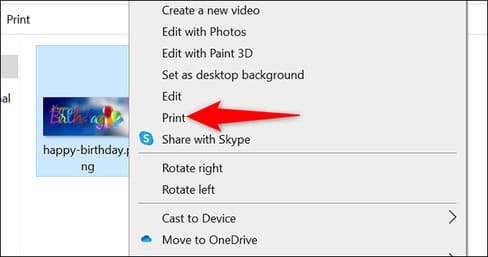
If you are using Windows 10, right-click the photo and select “Print”. If you’re using Windows 11, right-click the picture and choose Show More Options > Print.
How to convert images to PDF on Windows 10/11 9

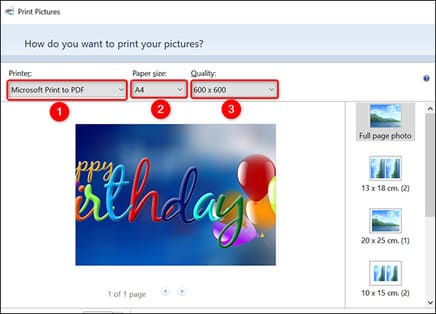
The “Print Pictures” window will open. In this window, select the virtual PDF printer by clicking the “Printer” menu and selecting “Microsoft Print to PDF.” Specify the paper size by clicking the “Paper Size” menu.

To change the quality of the output PDF, click the “Quality” menu and choose the size you want.
How to convert images to PDF on Windows 10/11 10

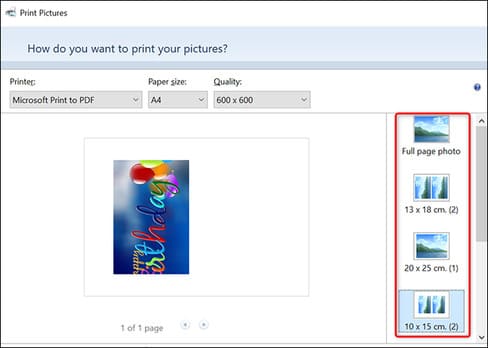
On the right menu of the “Print Pictures” window, you have options to change how PNG images appear in the PDF. Click an option to see a preview on the left.
How to convert images to PDF on Windows 10/11 11

At the bottom of the “Print Pictures” window, specify how many pages you want in your PDF file using the “Copies of Each” option. To make your picture fit the PDF, enable the “Fit Picture to Frame” option.

Finally, at the bottom of the window, click “Print” to start creating your PDF.
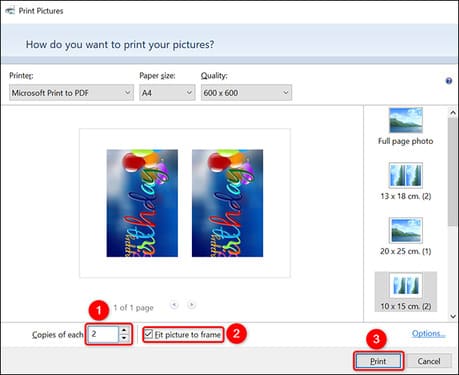
How to convert images to PDF on Windows 10/11 12

Windows will open the “Save Print Output As” window. Here, choose a folder to save your PDF file. Click in the “File Name” field and enter a name for your PDF file. Then click “Save”.
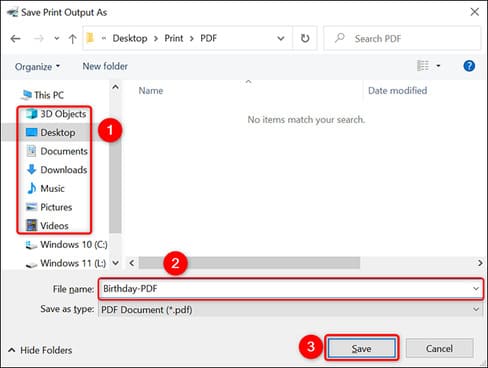
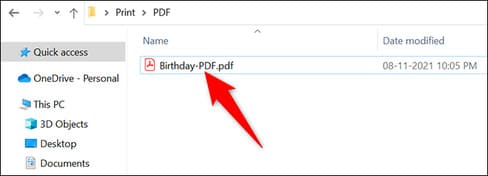
How to convert images to PDF on Windows 10/11 13To access your newly created PDF file, open the folder where you saved it and you will see a PDF file of the PNG image, with the extension “.pdf”.
How to convert images to PDF on Windows 10/11 14

That’s all you need to do to convert images to PDF. In addition, you can also see the easiest way to convert Word files to Powerpoint files here.


The article achieved: 5/5 – (100 votes)

Tags: convertimagesPDFWindows
Previous Post

Instructions for installing Windows Games on Linux using PlayOnLinux

Next Post

Lesson 14: Subtraction in Excel – Basic Excel

AnonyViet

AnonyViet

Related Posts

Get free Cambridge courses to prepare for IELTS, Starters, Movers
Tips

Get free Cambridge courses to prepare for IELTS, Starters, Movers

June 4, 2026
How to record reaction videos with Android phones, no app needed
Tips

How to record reaction videos with Android phones, no app needed

June 1, 2026
Instructions on how to get Google AI Pro 1 year for free for new accounts
Tips

Instructions on how to get Google AI Pro 1 year for free for new accounts

June 1, 2026
Top free AI tools to help write, test and optimize content
Tips

Top free AI tools to help write, test and optimize content

June 1, 2026
Instructions for receiving Lovable Pro 12 months for free
Tips

Instructions for receiving Lovable Pro 12 months for free

May 29, 2026
Instructions for receiving 1 month of ElevenLabs Creator for free worth
Tips

Instructions for receiving 1 month of ElevenLabs Creator for free worth $22

May 25, 2026
Next Post
Lesson 14: Subtraction in Excel – Basic Excel

Lesson 14: Subtraction in Excel - Basic Excel

0 0 votes
Article Rating
Subscribe
Login
Notify of
guest

guest

0 Comments
Oldest
Newest Most Voted
Inline Feedbacks
View all comments

Recent News

How to buy in-game items for free on iPhone

How to buy in-game items for free on iPhone

June 8, 2026
Practical use of Xiaomi 17T Pro: This is a good phone in 2026

Practical use of Xiaomi 17T Pro: This is a good phone in 2026

June 8, 2026
Instructions to receive 6 months of IObit Malware Fighter 13 Pro for free

Instructions to receive 6 months of IObit Malware Fighter 13 Pro for free

June 7, 2026
How to use free online textbooks from grades 1 to 12

How to use free online textbooks from grades 1 to 12

June 6, 2026
How to buy in-game items for free on iPhone

How to buy in-game items for free on iPhone

June 8, 2026
Practical use of Xiaomi 17T Pro: This is a good phone in 2026

Practical use of Xiaomi 17T Pro: This is a good phone in 2026

June 8, 2026
Instructions to receive 6 months of IObit Malware Fighter 13 Pro for free

Instructions to receive 6 months of IObit Malware Fighter 13 Pro for free

June 7, 2026
AnonyViet - English Version

AnonyViet

AnonyViet is a website share knowledge that you have never learned in school!

We are ready to welcome your comments, as well as your articles sent to AnonyViet.

Follow Us

Contact:

Email: anonyviet.com[@]gmail.com

Main Website: https://anonyviet.com

Recent News

How to buy in-game items for free on iPhone

How to buy in-game items for free on iPhone

June 8, 2026
Practical use of Xiaomi 17T Pro: This is a good phone in 2026

Practical use of Xiaomi 17T Pro: This is a good phone in 2026

June 8, 2026
  • Home
  • Home 2
  • Home 3
  • Home 4
  • Home 5
  • Home 6
  • Next Dest Page
  • Sample Page

6789 kv999

No Result
View All Result
  • Home
  • News
  • Software
  • Knowledge
  • MMO
  • Tips
  • Security
  • Network
  • Office

6789 kv999

wpDiscuz
0
0
Would love your thoughts, please comment.x
()
x
| Reply