• Home
  • News
  • Software
  • Knowledge
  • MMO
  • Tips
  • Security
  • Network
  • Office
AnonyViet - English Version
  • Home
  • News
  • Software
  • Knowledge
  • MMO
  • Tips
  • Security
  • Network
  • Office
No Result
View All Result
  • Home
  • News
  • Software
  • Knowledge
  • MMO
  • Tips
  • Security
  • Network
  • Office
No Result
View All Result
AnonyViet - English Version
No Result
View All Result

How to add WiFi Bluetooth button to iPhone home screen

AnonyViet by AnonyViet
April 13, 2026
in Knowledge
0

How to add WiFi Bluetooth button to home screen iPhone is a great solution for those who find it annoying when Control Center doesn’t completely disconnect. Instead of having to dig deep into Settings or ask Siri, an icon right outside is much more convenient. Let’s discover how to do it!

📢 Join the channel Telegram belong to AnonyViet


👉 Go to Telegram AnonyViet

Update new articles, cool tools and IT tips fastest

How to add WiFi Bluetooth button to home screen

To do this trick, you need to use the app Shortcuts (Shortcuts) is available on iOS. Below are detailed steps to create toggle buttons quickly and effectively.

How to add a quick Wi-Fi toggle button

Creating a single button to toggle Wi-Fi status is simple and convenient.

Step 1: Open the application Shortcuts On the device, in the Library section, click the plus sign (+) to create a new shortcut.
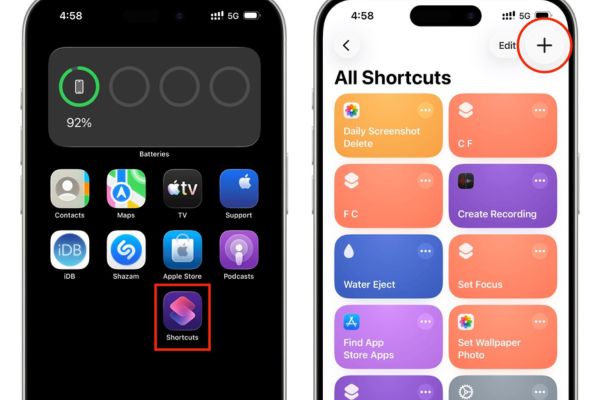
How to add WiFi Bluetooth button to iPhone home screen
Click the plus sign (+)

Step 2: Type keywords Set WiFi go to the action search bar and select it to add to the process.
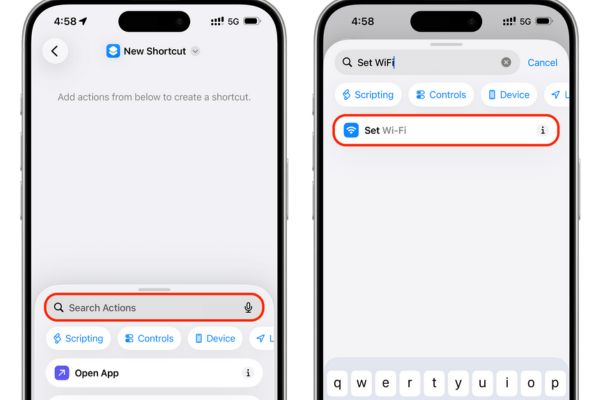
Type the keyword Set WiFi

Step 3: Click on the letter Turn and change to Toggle. This setting makes the shortcut automatically turn on if Wi-Fi is off and vice versa.
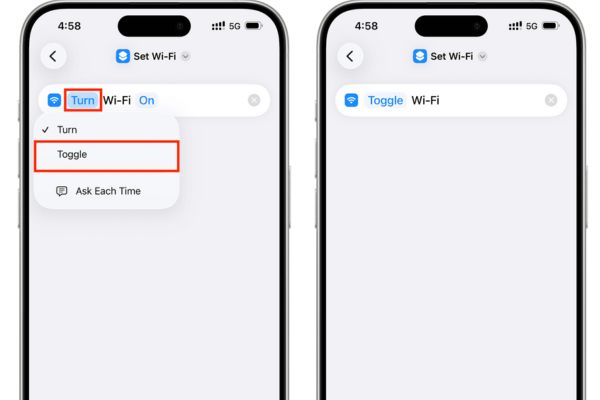
Click on the word Turn and change it to Toggle

Step 4: Touch the shortcut name at the top, select Add to Home Screen {Add to home screen). Here, you can customize the name and icon to make it beautiful and then click Add.
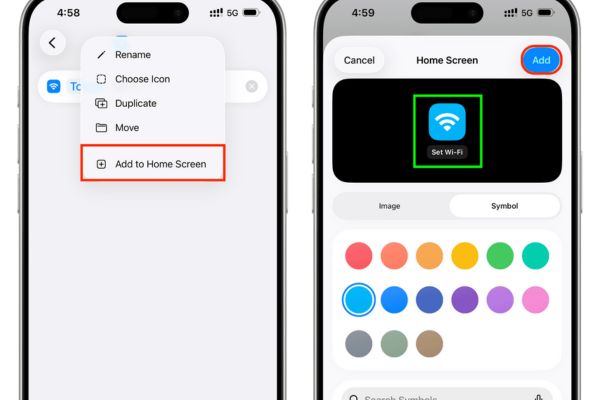
Select Add to Home Screen

Step 5: At this point, the Wi-Fi icon will appear on the screen, just touch it to turn the connection on or off completely.
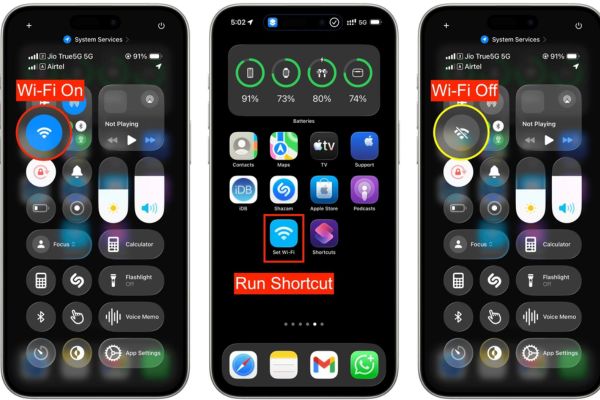
How to add WiFi Bluetooth button to home screen

How to add Bluetooth toggle button

Different from Wi-Fi has an icon displayed in the status bar, Bluetooth does not clearly signal whether it is on or off on the home screen. Therefore, if you use a “Toggle” button like Wi-Fi, it will be difficult for you to know the current status of Bluetooth. So the best solution is to create two separate buttons: one for On and one for Off.

Step 1: Go to the Shortcuts app and create new, search for action Set Bluetooth.

Step 2: Keep the status as “Turn Bluetooth On“, rename to “Turn on Bluetooth” and added to the home screen.
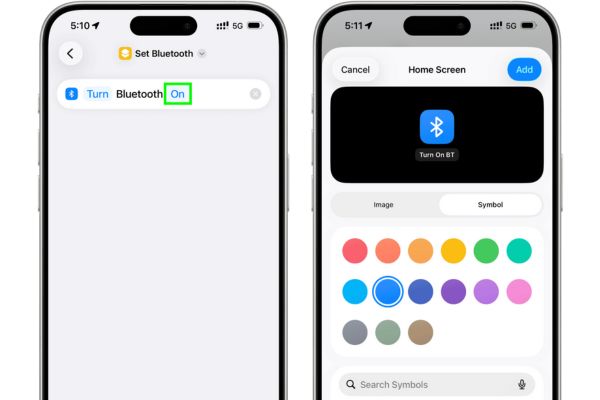
Maintain the status quo "Turn Bluetooth On"
Keep the status as “Turn Bluetooth On”

Step 3: Repeat the new creation process, but this time tap the word “On” to change to “Off“. Name it “Turn off Bluetooth” and brought to the home screen.
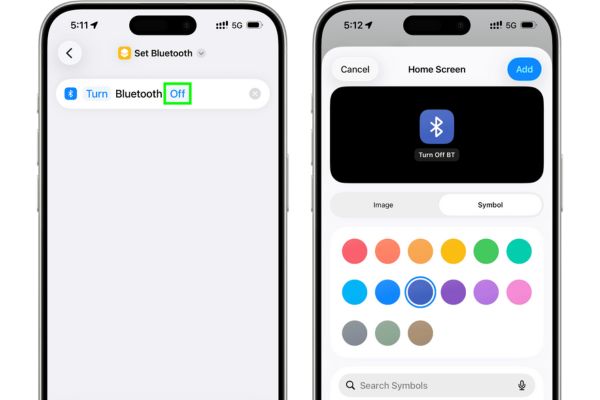
Click on the letter "On" to change to “Off”
Click on the word “On” to change it to “Off”

Step 4: The result is two separate buttons, giving you precise control over Bluetooth status without any guesswork.

How to add unique keyboard shortcuts for Bluetooth

If you don’t want to waste space on two icons, users can still combine them into one multi-function button.

Step 1: In the “Set Bluetooth” action setup, instead of selecting Turnplease choose Ask Each Time.

Step 2: Add this shortcut to the home screen. When you click to use, the system will display two options:

  • Toggle (Toggle): Automatically turn Bluetooth on or off depending on the current state (reverse state).
  • Turn: Displays a slider or menu at the top of the screen, allowing you to manually select On or Off.
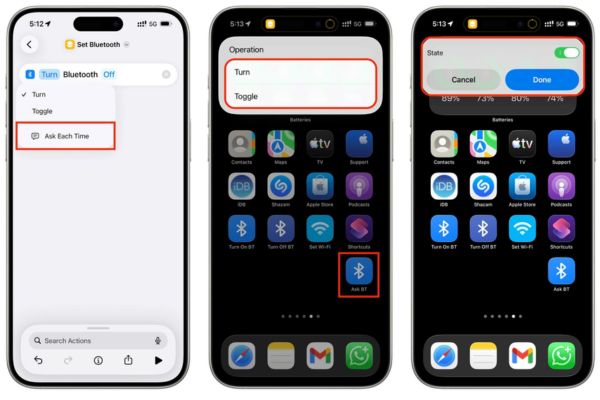
How to add unique keyboard shortcuts for Bluetooth

Conclusion

Application how to add WiFi Bluetooth button to home screen Not only does it help completely turn off the connection, but it also makes the device interface look more professional. Depending on your needs, you can choose to make a single or double button accordingly. Wishing you success in performing this interesting trick.

Tags: AddBluetoothbuttonhomeiPhonescreenWiFi
Previous Post

Instructions on how to activate 120Hz for smooth Safari browsing

Next Post

5 tips for using a Browser to replace an App (helps save RAM, time and money)

AnonyViet

AnonyViet

Related Posts

How to check network speed on Apple TV when the image is jerky or lagging
Knowledge

How to check network speed on Apple TV when the image is jerky or lagging

June 3, 2026
How to turn off Gemini Nano on Chrome to free up 4GB of memory
Knowledge

How to turn off Gemini Nano on Chrome to free up 4GB of memory

May 30, 2026
How to turn on Voice Isolation, which helps eliminate noise when calling on iPhone
Knowledge

How to turn on Voice Isolation, which helps eliminate noise when calling on iPhone

May 27, 2026
How to transfer files between Windows and Mac over LAN
Knowledge

How to transfer files between Windows and Mac over LAN

May 26, 2026
Snapvie: Tool to download 8K YouTube videos, no installation required
Knowledge

Snapvie: Tool to download 8K YouTube videos, no installation required

May 24, 2026
How to create your own Video AI App to use Omni, Nano Banana without API Key
Knowledge

How to create your own Video AI App to use Omni, Nano Banana without API Key

May 23, 2026
Next Post
5 tips for using a Browser to replace an App (helps save RAM, time and money)

5 tips for using a Browser to replace an App (helps save RAM, time and money)

0 0 votes
Article Rating
Subscribe
Login
Notify of
guest

guest

0 Comments
Oldest
Newest Most Voted
Inline Feedbacks
View all comments

Recent News

How to check network speed on Apple TV when the image is jerky or lagging

How to check network speed on Apple TV when the image is jerky or lagging

June 3, 2026
Instructions on how to prevent acquaintances from seeing your Tiktok

Instructions on how to prevent acquaintances from seeing your Tiktok

June 2, 2026
How to record reaction videos with Android phones, no app needed

How to record reaction videos with Android phones, no app needed

June 1, 2026
Instructions on how to get Google AI Pro 1 year for free for new accounts

Instructions on how to get Google AI Pro 1 year for free for new accounts

June 1, 2026
How to check network speed on Apple TV when the image is jerky or lagging

How to check network speed on Apple TV when the image is jerky or lagging

June 3, 2026
Instructions on how to prevent acquaintances from seeing your Tiktok

Instructions on how to prevent acquaintances from seeing your Tiktok

June 2, 2026
How to record reaction videos with Android phones, no app needed

How to record reaction videos with Android phones, no app needed

June 1, 2026
AnonyViet - English Version

AnonyViet

AnonyViet is a website share knowledge that you have never learned in school!

We are ready to welcome your comments, as well as your articles sent to AnonyViet.

Follow Us

Contact:

Email: anonyviet.com[@]gmail.com

Main Website: https://anonyviet.com

Recent News

How to check network speed on Apple TV when the image is jerky or lagging

How to check network speed on Apple TV when the image is jerky or lagging

June 3, 2026
Instructions on how to prevent acquaintances from seeing your Tiktok

Instructions on how to prevent acquaintances from seeing your Tiktok

June 2, 2026
No Result
View All Result
  • Home
  • News
  • Software
  • Knowledge
  • MMO
  • Tips
  • Security
  • Network
  • Office

wpDiscuz
0
0
Would love your thoughts, please comment.x
()
x
| Reply