• Home
  • News
  • Software
  • Knowledge
  • MMO
  • Tips
  • Security
  • Network
  • Office
AnonyViet - English Version
  • Home
  • News
  • Software
  • Knowledge
  • MMO
  • Tips
  • Security
  • Network
  • Office
No Result
View All Result
  • Home
  • News
  • Software
  • Knowledge
  • MMO
  • Tips
  • Security
  • Network
  • Office
No Result
View All Result
AnonyViet - English Version
No Result
View All Result

How to record reaction videos with Android phones, no app needed

AnonyViet by AnonyViet
June 1, 2026
in Tips
0

How to record reaction videos with your phone is a trick that many content creators are looking for today. Instead of having to use professional cameras and complicated video editing software, you can record both front and rear cameras with just one smartphone. Let’s explore the detailed steps with AnonyViet in the article below!

📢 Join the channel Telegram belong to AnonyViet


👉 Go to Telegram AnonyViet

Update new articles, cool tools and IT tips fastest

What exactly is dual video recording?

Before diving into the practical steps, we need to clearly understand the nature of this feature. Dual video recording (aka Dual VideoDirector’s View) is a smart mode built into the camera application of many modern Android phones. Instead of only activating a single lens like the traditional recording method, this mode forces the phone’s processor to receive images from both the front camera (selfie) and the rear camera at the same time.

As a result, you will have a beautiful integrated frame, fully displaying both the person filming and the objects and events happening in front. This is a “true” tool for Vloggers, Streamers or those who like to make actual product review videos.
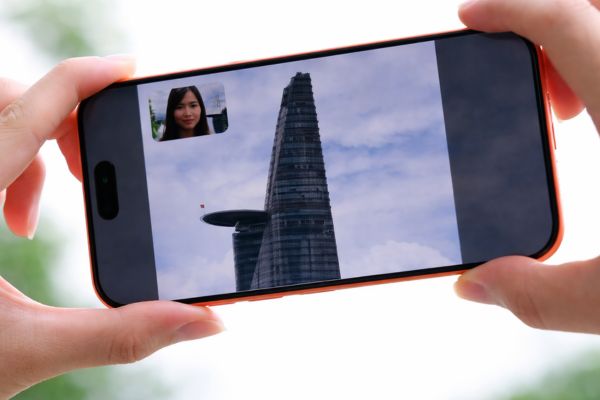
What exactly is dual video recording?

Instructions on how to record reaction videos with your phone

(Note: The instructions below are carried out mainly on the interface of Samsung phones. However, the operating principle on other Android models is completely similar).

Step 1: Open the default Camera app on your phone’s home screen. Then, you swipe the toolbar below to switch to mode Video. Continue clicking on Other (or 4 dots icon) to expand the menu of advanced shooting features.
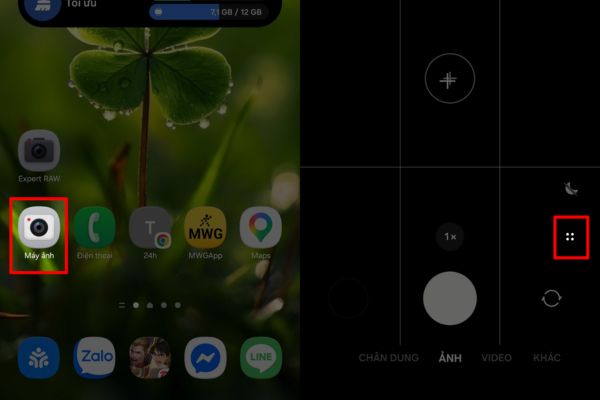
Select the 4 dots icon

Step 2: Find and click on the icon Settingthen select Dual filming.
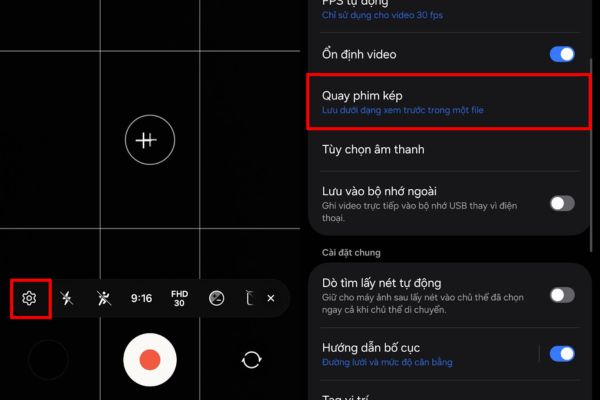
Instructions on how to record reaction videos with your phone

Here, the system allows you to choose the file export format: Save both recording angles into a single video (convenient for posting immediately) or save as 2 separate video files (very useful if you want to freely cut and combine in post-production).
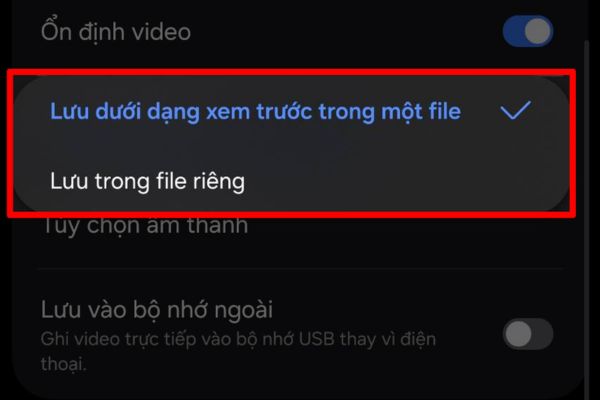
Choose the file export format

Step 3: After you have set up the layout and saving method, click select squares iconthen adjust the face angle and lighting to make it beautiful. Finally, click the record button to start recording. When you want to end, just press the stop button and the video will automatically save to your photo library.
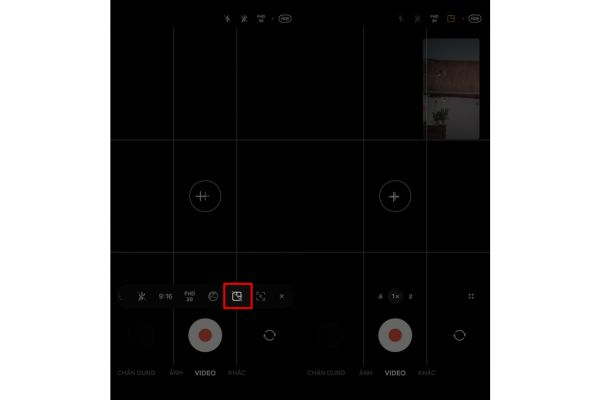
Click to select the squares icon

Good tips to optimize video quality

To successfully apply how to record reaction videos with your phone, you need to pay attention to a few external factors.

  • Make sure both your face (front camera) and the subject (rear camera) are adequately lit, to avoid backlighting causing the video to go dark.
  • Use a tripod or gimbal if you have to move a lot. Recording two cameras at the same time requires the camera to process a large amount of data. If your hand shakes too much, the frame will be blurred, causing dizziness for the viewer.
  • Please check the memory and battery capacity before shooting, because this mode consumes energy and storage space much faster than usual.
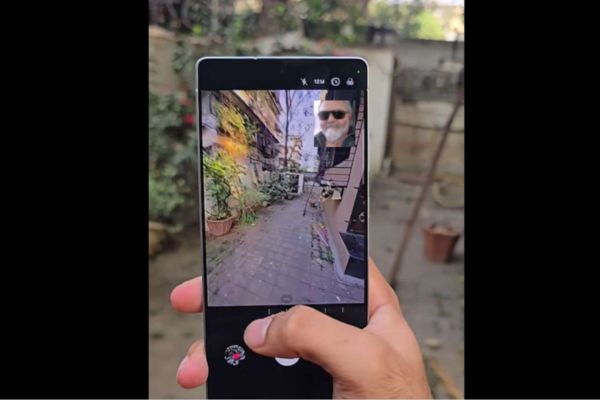
Good tips to optimize video quality

Conclusion

In short, How to record reaction video with phone is an extremely useful trick that anyone passionate about content creation should know. With just a few touches on the screen, you can create unique visual products. Wishing you success and don’t forget to follow AnonyViet to update more great technology tips.

Frequently Asked Questions (Q&A)

1. My old phone doesn’t have this feature, what should I do?

You can absolutely download applications that support dual video recording from the CH Play store such as Double Side Camera or Dual Camera Recording to experience this feature without needing to change to a new phone.

2. Does recording video with two cameras at the same time cause the battery to drain quickly?

Have. Because the device’s processor must operate at full capacity to process images from two lenses simultaneously, the device will drain the battery faster and experience warming compared to normal video recording.

3. Can I edit each video separately after recording?

Yes, as long as in the settings (Step 4 in the tutorial), you choose to save as 2 separate video files instead of saving them into a single file.


Tags: AndroidAppneededphonesreactionrecordvideos
Previous Post

Instructions on how to get Google AI Pro 1 year for free for new accounts

AnonyViet

AnonyViet

Related Posts

Instructions on how to get Google AI Pro 1 year for free for new accounts
Tips

Instructions on how to get Google AI Pro 1 year for free for new accounts

June 1, 2026
Top free AI tools to help write, test and optimize content
Tips

Top free AI tools to help write, test and optimize content

June 1, 2026
Instructions for receiving Lovable Pro 12 months for free
Tips

Instructions for receiving Lovable Pro 12 months for free

May 29, 2026
Instructions for receiving 1 month of ElevenLabs Creator for free worth
Tips

Instructions for receiving 1 month of ElevenLabs Creator for free worth $22

May 25, 2026
How to create beautiful studio-like preschool graduation photos for your child
Tips

How to create beautiful studio-like preschool graduation photos for your child

May 21, 2026
Instructions on how to change iPhone fonts beautifully with Lara
Tips

Instructions on how to change iPhone fonts beautifully with Lara

May 20, 2026
0 0 votes
Article Rating
Subscribe
Login
Notify of
guest

guest

0 Comments
Oldest
Newest Most Voted
Inline Feedbacks
View all comments

Recent News

How to record reaction videos with Android phones, no app needed

How to record reaction videos with Android phones, no app needed

June 1, 2026
Instructions on how to get Google AI Pro 1 year for free for new accounts

Instructions on how to get Google AI Pro 1 year for free for new accounts

June 1, 2026
Top free AI tools to help write, test and optimize content

Top free AI tools to help write, test and optimize content

June 1, 2026
TruyenDrive: Turn Google Drive into a professional manga reader

TruyenDrive: Turn Google Drive into a professional manga reader

May 31, 2026
How to record reaction videos with Android phones, no app needed

How to record reaction videos with Android phones, no app needed

June 1, 2026
Instructions on how to get Google AI Pro 1 year for free for new accounts

Instructions on how to get Google AI Pro 1 year for free for new accounts

June 1, 2026
Top free AI tools to help write, test and optimize content

Top free AI tools to help write, test and optimize content

June 1, 2026
AnonyViet - English Version

AnonyViet

AnonyViet is a website share knowledge that you have never learned in school!

We are ready to welcome your comments, as well as your articles sent to AnonyViet.

Follow Us

Contact:

Email: anonyviet.com[@]gmail.com

Main Website: https://anonyviet.com

Recent News

How to record reaction videos with Android phones, no app needed

How to record reaction videos with Android phones, no app needed

June 1, 2026
Instructions on how to get Google AI Pro 1 year for free for new accounts

Instructions on how to get Google AI Pro 1 year for free for new accounts

June 1, 2026
No Result
View All Result
  • Home
  • News
  • Software
  • Knowledge
  • MMO
  • Tips
  • Security
  • Network
  • Office

wpDiscuz
0
0
Would love your thoughts, please comment.x
()
x
| Reply