• Home
  • News
  • Software
  • Knowledge
  • MMO
  • Tips
  • Security
  • Network
  • Office
AnonyViet - English Version
  • Home
  • News
  • Software
  • Knowledge
  • MMO
  • Tips
  • Security
  • Network
  • Office
No Result
View All Result
  • Home
  • News
  • Software
  • Knowledge
  • MMO
  • Tips
  • Security
  • Network
  • Office
No Result
View All Result
AnonyViet - English Version
No Result
View All Result

How to turn off Gemini Nano on Chrome to free up 4GB of memory

AnonyViet by AnonyViet
May 30, 2026
in Knowledge
0

How to turn off Gemini Nano on Chrome is becoming a topic of interest to many users as Google continuously integrates AI features running in the background. For devices with limited memory, removing the “weights.bin” file is highly recommended to optimize device performance. Join AnonyViet to learn the detailed process below.

📢 Join the channel Telegram belong to AnonyViet


👉 Go to Telegram AnonyViet

Update new articles, cool tools and IT tips fastest

Why should you consider turning off AI features on Chrome?

Google Chrome has long been more than just a pure web browser but is gradually integrating many powerful artificial intelligence (AI) features. One of them is the appearance of the Gemini Nano model through the file weights.bin. Although it brings convenience to some users, for those who own a limited hard drive, the fact that this file “consumes” hundreds of MB to GB of space is a big minus.

Using on-device AI features provides high privacy because all data processed stays on the personal computer. However, if you don’t use tools like “Help me write” or tab organizer, storing this model is a waste of memory.

How to turn off Gemini Nano on Chrome to free up 4GB of memory
Why should you consider turning off AI features on Chrome?

Instructions on how to turn off Gemini Nano on Chrome

If you have decided to free up storage space, follow the steps below. Note that turning off Gemini Nano on Chrome can be done through system settings or customizing browser flags.

Method 1: Disable in system settings

  • First, check if your browser has a direct on/off option.
  • Open Chrome on your computer. Visit Settings. Select item System.
  • Find and flip the switch On-device AI to status Off.
Disable in system settings

Method 2: Customize through Chrome Flags

Step 1: If your browser does not have the above option, we will need to intervene further.

  • Enter chrome://flags go to the address bar and press Enter.
  • In the search bar, type keywords optimization-guide. Find the flag #optimization-guide-on-device-model and switch Disabled.
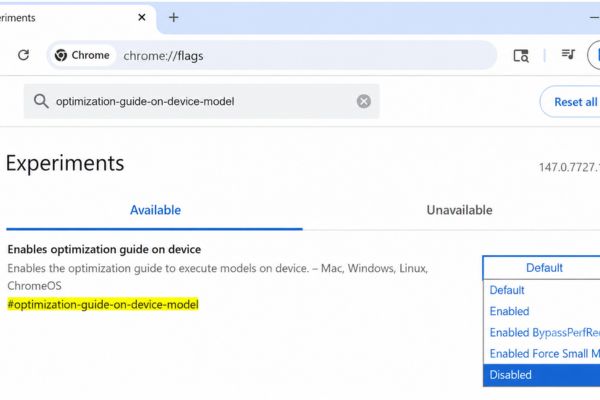
Instructions on how to turn off Gemini Nano on Chrome
  • Keep looking #prompt-api-for-gemini-nano and choose Disabled.
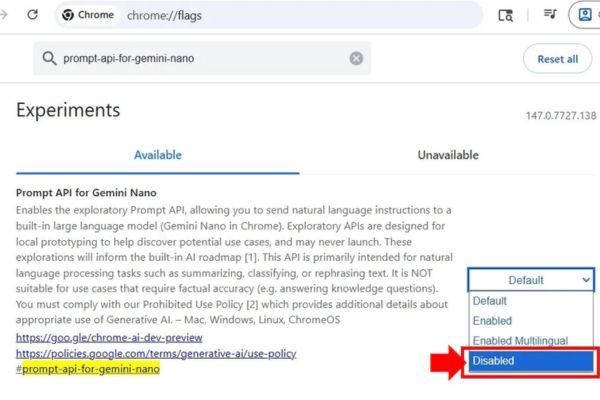
Select Disabled
Select Disabled
  • Press the button Relaunch in the bottom corner of the screen to apply the changes.

Step 2: Manually delete the folder containing the files

Once you’ve stopped Chrome from automatically loading the model, you’ll need to delete the existing file to reclaim hard drive space. Make sure you have completely turned off your browser before doing so.

For Windows:

  • Press the key combination Win + Renter %LOCALAPPDATA%\Google\Chrome\User Data\ then press Enter.
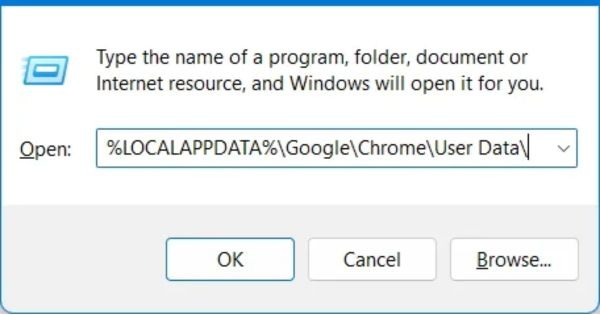
Enter %LOCALAPPDATA%\Google\Chrome\User Data
Enter %LOCALAPPDATA%\Google\Chrome\User Data\
  • Access the folder Default (or the profile you are using).
  • Find folder OptGuideOnDeviceModel and delete it.
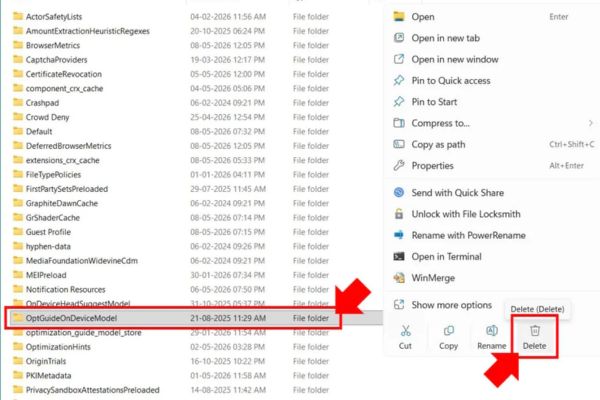
Delete the OptGuideOnDeviceModel folder

For macOS:

  • Press Cmd + Shift + G.
  • Access the link ~/Library/Application Support/Google/Chrome/
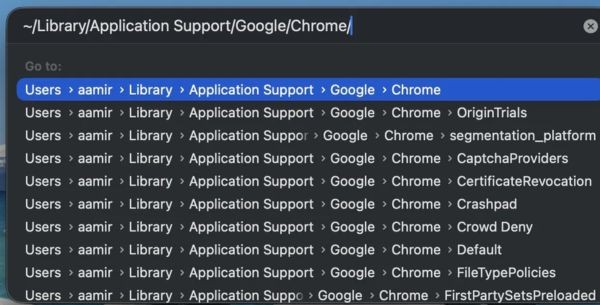
Access the link
Access the link
  • Find and put folder OptGuideOnDeviceModel into the trash.
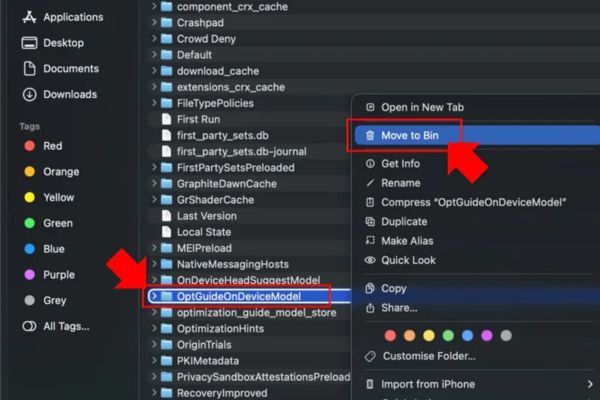
Delete OptGuideOnDeviceModel

Important notes after implementation

After applying the above method to turn off Gemini Nano Chromeyour browsing will become smoother. However, remember that every time Google updates Chrome, the settings in chrome://flags may be reset to their original state. You should check periodically if you see that your hard drive space is suddenly used up again. In addition, deleting this file does not affect the ability to browse the web normally or use Google online services.

Conclusion

How to turn off Gemini Nano on Chrome is a smart choice for those who prioritize system performance over today’s built-in AI features. With just a few minutes of setup following the instructions, you can clean up your browser and make it much cleaner and smoother.

Frequently Asked Questions (Q&A)

1. Does deleting the weights.bin file damage the browser?

No, this is completely safe. It only removes the local AI model, Chrome still works normally for web browsing needs.

2. Why don’t I see the “On-device AI” option in settings?

This is because Google updates each region or version of Chrome gradually. If you don’t see it, use the “Flags” method as instructed above.

3. Will Chrome automatically redownload this file in the future?

Capable. If Chrome updates to a new version, the flags may be reset, you just need to repeat the steps to disable them.


Tags: 4GbChromefreeGeminimemoryNanoturn
Previous Post

Instructions for receiving Lovable Pro 12 months for free

AnonyViet

AnonyViet

Related Posts

How to turn on Voice Isolation, which helps eliminate noise when calling on iPhone
Knowledge

How to turn on Voice Isolation, which helps eliminate noise when calling on iPhone

May 27, 2026
How to transfer files between Windows and Mac over LAN
Knowledge

How to transfer files between Windows and Mac over LAN

May 26, 2026
Snapvie: Tool to download 8K YouTube videos, no installation required
Knowledge

Snapvie: Tool to download 8K YouTube videos, no installation required

May 24, 2026
How to create your own Video AI App to use Omni, Nano Banana without API Key
Knowledge

How to create your own Video AI App to use Omni, Nano Banana without API Key

May 23, 2026
Top 6 websites for 2026 high school graduation mock test, close to real questions, standard with Ministry of Education
Knowledge

Top 6 websites for 2026 high school graduation mock test, close to real questions, standard with Ministry of Education

May 16, 2026
How to block pop-up ads on Safari without installing an app
Knowledge

How to block pop-up ads on Safari without installing an app

May 6, 2026
0 0 votes
Article Rating
Subscribe
Login
Notify of
guest

guest

0 Comments
Oldest
Newest Most Voted
Inline Feedbacks
View all comments

Recent News

How to turn off Gemini Nano on Chrome to free up 4GB of memory

How to turn off Gemini Nano on Chrome to free up 4GB of memory

May 30, 2026
Instructions for receiving Lovable Pro 12 months for free

Instructions for receiving Lovable Pro 12 months for free

May 29, 2026
How to extract text from photos using Zalo is super simple

How to extract text from photos using Zalo is super simple

May 29, 2026
HONOR 600 in hand – High-end design, 200MP camera, not cheap price

HONOR 600 in hand – High-end design, 200MP camera, not cheap price

May 28, 2026
How to turn off Gemini Nano on Chrome to free up 4GB of memory

How to turn off Gemini Nano on Chrome to free up 4GB of memory

May 30, 2026
Instructions for receiving Lovable Pro 12 months for free

Instructions for receiving Lovable Pro 12 months for free

May 29, 2026
How to extract text from photos using Zalo is super simple

How to extract text from photos using Zalo is super simple

May 29, 2026
AnonyViet - English Version

AnonyViet

AnonyViet is a website share knowledge that you have never learned in school!

We are ready to welcome your comments, as well as your articles sent to AnonyViet.

Follow Us

Contact:

Email: anonyviet.com[@]gmail.com

Main Website: https://anonyviet.com

Recent News

How to turn off Gemini Nano on Chrome to free up 4GB of memory

How to turn off Gemini Nano on Chrome to free up 4GB of memory

May 30, 2026
Instructions for receiving Lovable Pro 12 months for free

Instructions for receiving Lovable Pro 12 months for free

May 29, 2026
No Result
View All Result
  • Home
  • News
  • Software
  • Knowledge
  • MMO
  • Tips
  • Security
  • Network
  • Office

wpDiscuz
0
0
Would love your thoughts, please comment.x
()
x
| Reply