Features Lock your computer with your Android phone remote is an exciting new update on Windows 11, helping you protect your device with just a few simple steps. Have you ever stepped away from your desk and suddenly realized you forgot to lock your computer? With the combination of Phone Link and Link to Windows, that worry will completely disappear. Let’s learn how to set up and use this useful feature right below.
📢 Join the channel Telegram belong to AnonyViet
Update new articles, cool tools and IT tips fastest
Necessary conditions to remotely lock a computer
Before you get started, you need to make sure your system meets a few basic requirements for this feature to work smoothly.
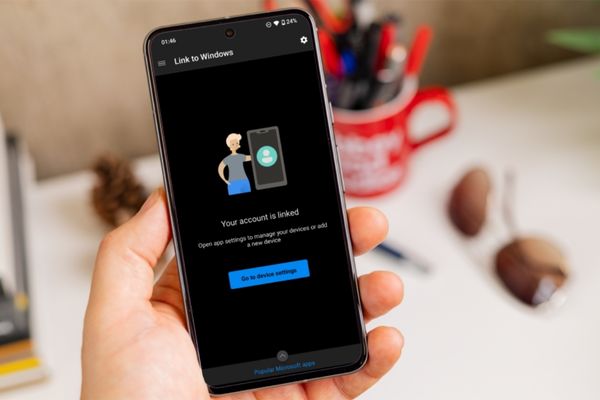
- About application version: You need to install the application Phone Link on Windows 11 from version 1.25062.83.0 or later and Link to Windows app (beta) on Android phones from version 1.25071.155 or later.
- About the operating system: This feature is designed to work between Windows 11 computers and Android smartphones.
- About account: Both of your devices need to be signed in to the same Microsoft account to be able to sync and link with each other.
Note: This feature is being implemented by Microsoft through the program Windows Insider.
How to enable remote computer control feature
To be able to lock your PC from your phone, you first need to grant remote control permissions on your Windows 11 computer.
- First, open it Settings on Windows 11 computers.
- Next, you click on the item Bluetooth & devices in the left menu bar.
- Then you choose the item Mobile devices (Mobile devices).
- Here, you need to turn on the switch at item Phone Link and follow the onscreen instructions to link your phone to your computer if you haven’t done so before.
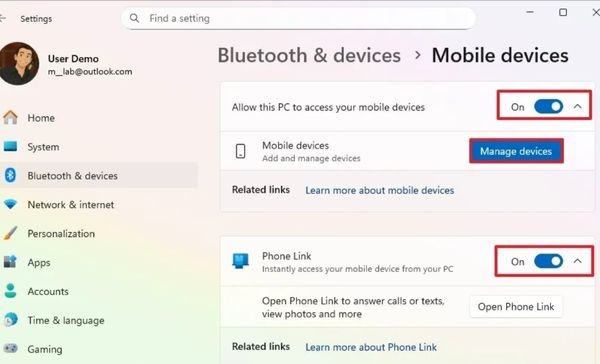
- Turn on “Allow this PC to access your mobile devices“
- After the connection is successful, click the button Manage devices.
- Turn on the switch in “Remote PC controls” to enable the feature.
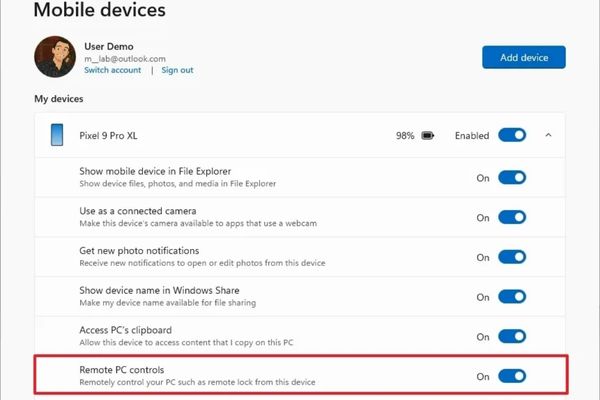
After completing the above steps, your computer is ready to be controlled remotely.
Steps to lock computer with Android phone
Once set up, locking your computer remotely becomes extremely simple and fast.
- Unlock your Android phone and launch the application Link to Windows.
- If you have multiple computers linked, tap the profile menu and select the correct computer you want to lock. On the main interface of the application, you will see a button called Lock PCtap it.
- A confirmation dialog will appear, just click the button Lock again to complete.
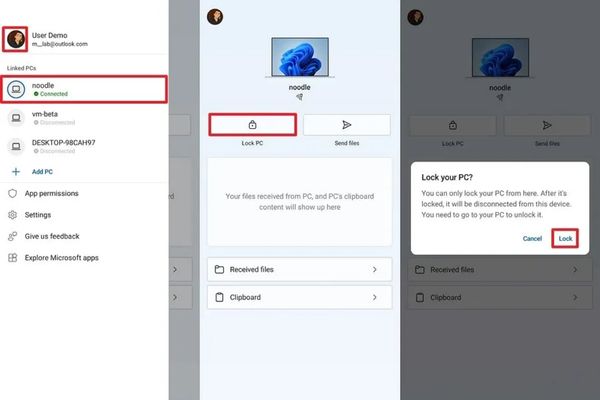
Immediately, your Windows 11 computer will be locked. It should be noted that the only way to access the computer again is to unlock it directly on the device using the password, PIN or installed biometric methods.
Important note
Currently, this remote computer locking feature is only available for Android devices connected to Windows 11. Users of iOS devices (iPhone) will not be able to use this utility.
Conclude
With the detailed instructions above, work Lock your computer with your Android phone is no longer a complicated procedure. This is an extremely useful feature that helps increase the security of your personal data, especially in unexpected situations. Try setting it up today!