• Home
  • News
  • Software
  • Knowledge
  • MMO
  • Tips
  • Security
  • Network
  • Office
AnonyViet - English Version
  • Home
  • News
  • Software
  • Knowledge
  • MMO
  • Tips
  • Security
  • Network
  • Office
No Result
View All Result
  • Home
  • News
  • Software
  • Knowledge
  • MMO
  • Tips
  • Security
  • Network
  • Office
No Result
View All Result
AnonyViet - English Version
No Result
View All Result

4 ways to enlarge the iPhone keyboard to easily operate on the screen

AnonyViet by AnonyViet
April 17, 2024
in Software
0

How to enlarge iPhone keyboard is one of the useful tips you should know when using Apple devices. By enlarging the keyboard, you can type faster, more accurately, and more comfortably on the touch screen.

Join the channel Telegram belong to AnonyViet 👉 Link 👈

4 ways to enlarge the iPhone keyboard that anyone can do

Method 1: Use zoomed view

A simple way to make the iPhone keyboard larger is to enable zoomed view in iOS display settings. This view magnifies the size of elements on the screen, including the keyboard. Here's how:

Step 1: Open Settings app on iPhone > Select 'Display & Brightness'.
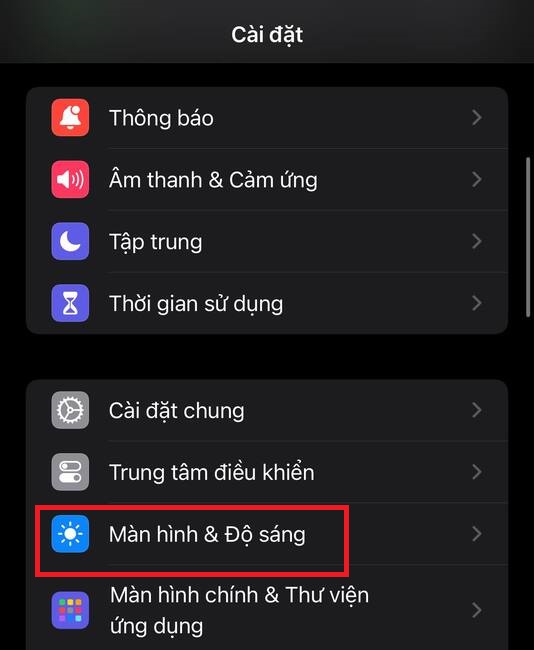
How to enlarge iPhone keyboard
Select 'Display & Brightness'

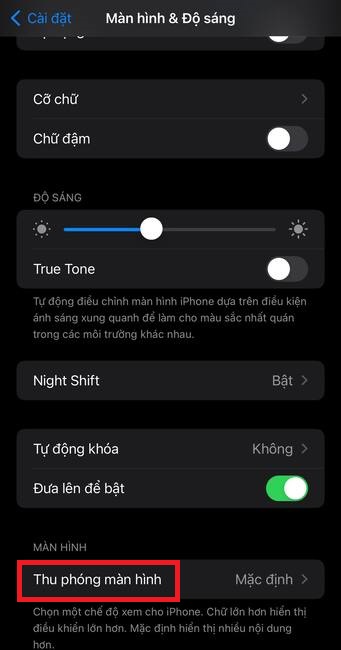
Step 2: Select 'Screen zoom'.

How to enlarge iPhone keyboard
Select 'Screen zoom'

Step 3: Select 'Larger text' to enable zoomed view > Done
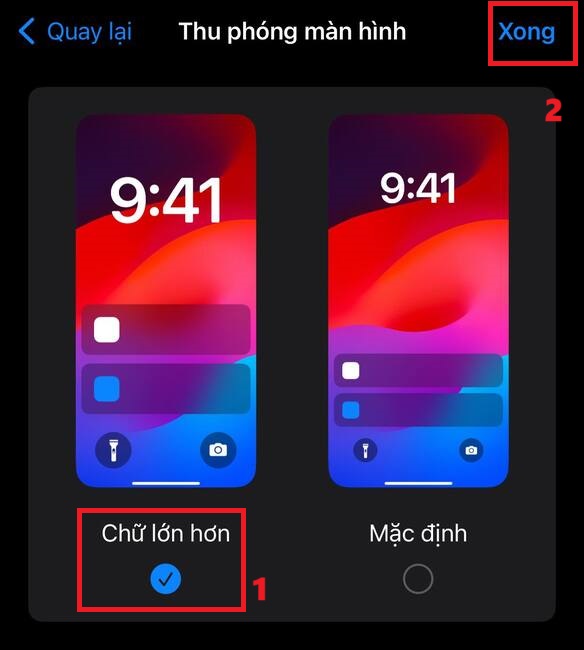
How to enlarge iPhone keyboard
Select 'Larger text'

Step 4: Confirm the changes by tapping 'Use zoom'. You will then see your iPhone keyboard larger than before.
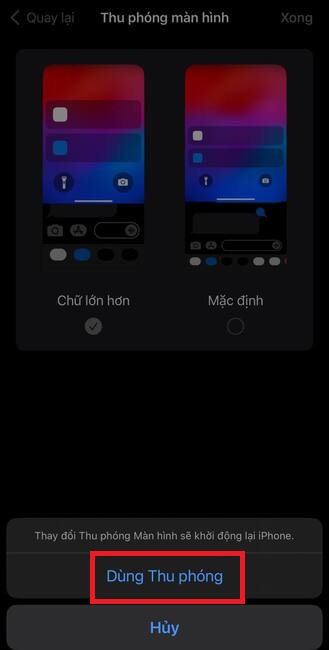
How to enlarge iPhone keyboard
Tap 'Use zoom'

Method 2: Activate bold text mode

Another way to make the iPhone keyboard larger is to enable bold text in iOS accessibility settings. Bold text will make the letters on the keyboard denser and easier to see. To enable bold text, follow these steps:

Step 1: Open the Settings app > Select Accessibility.
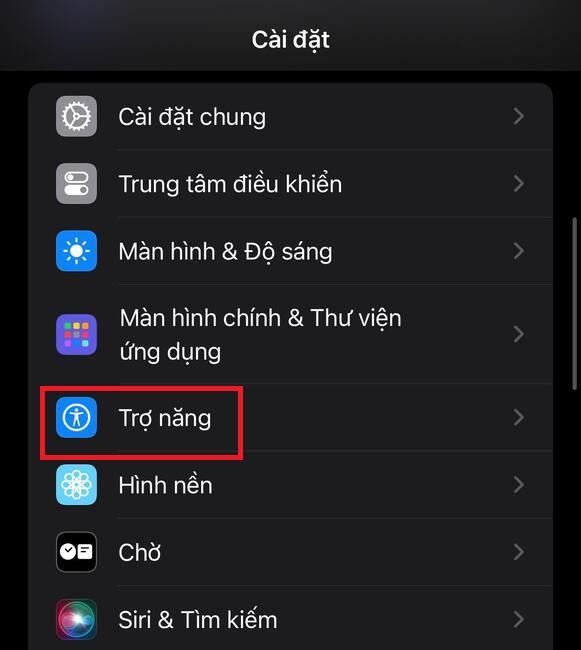
How to enlarge iPhone keyboard
Select Accessibility.

Step 2: Tap on 'Screen & Font Size'
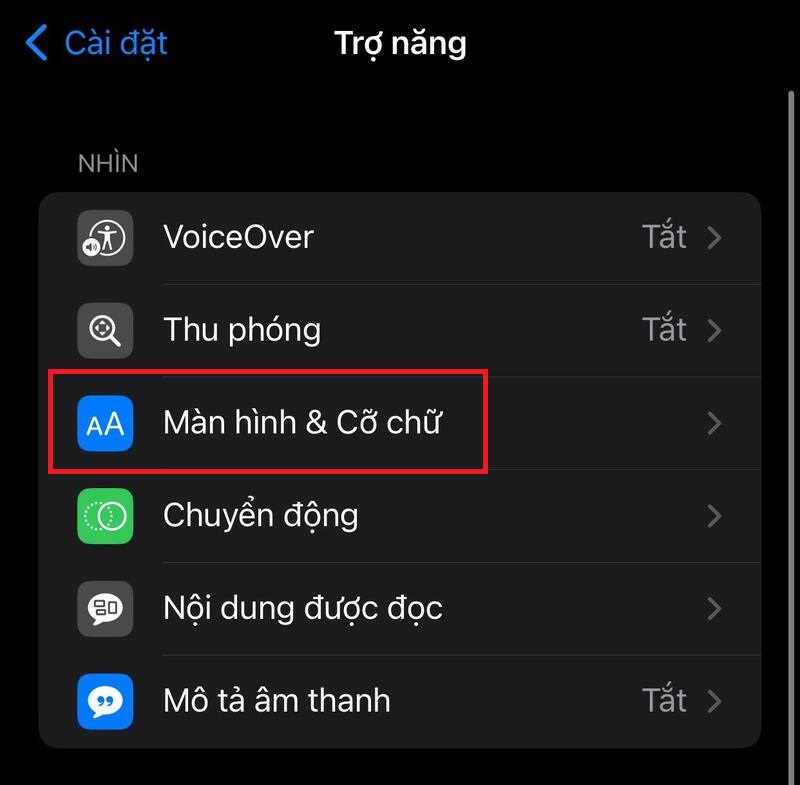
How to enlarge iPhone keyboard
Tap on 'Screen & Font Size'

Step 3: Turn on the Bold text switch at the top.
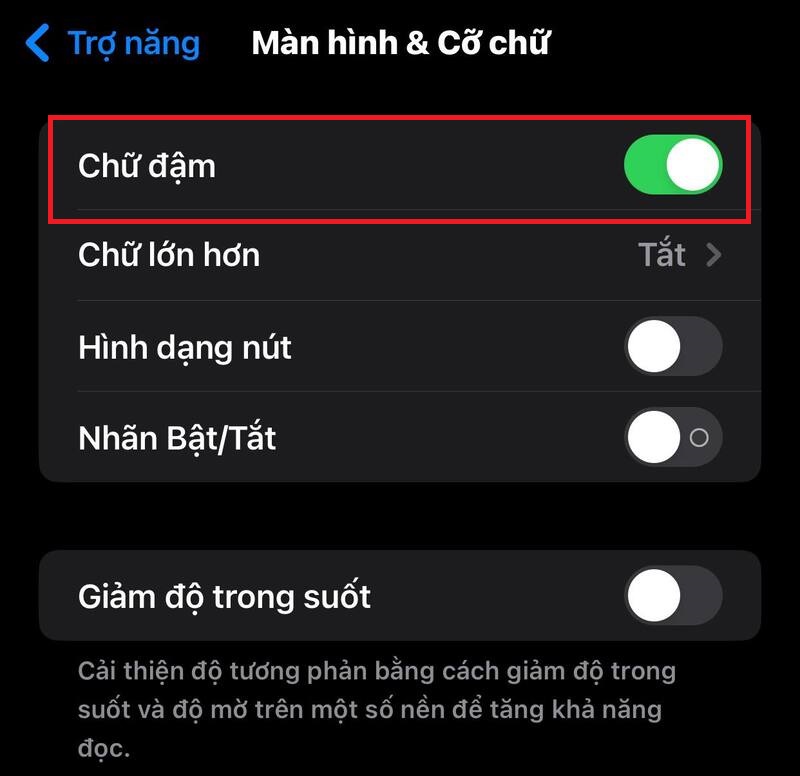
How to enlarge iPhone keyboard
Turn on the Bold text switch

Once turned on, you will see that the letters on the iPhone keyboard are thicker and clearer.

Method 3: Turn off lowercase keys

Another way to make the iPhone keyboard larger is to disable lowercase keys in iOS accessibility settings. If you turn them off, the keyboard will only display uppercase keys, even if you press the Shift key to switch between uppercase and lowercase letters.

Step 1: Go to Settings on iPhone > Select Accessibility.
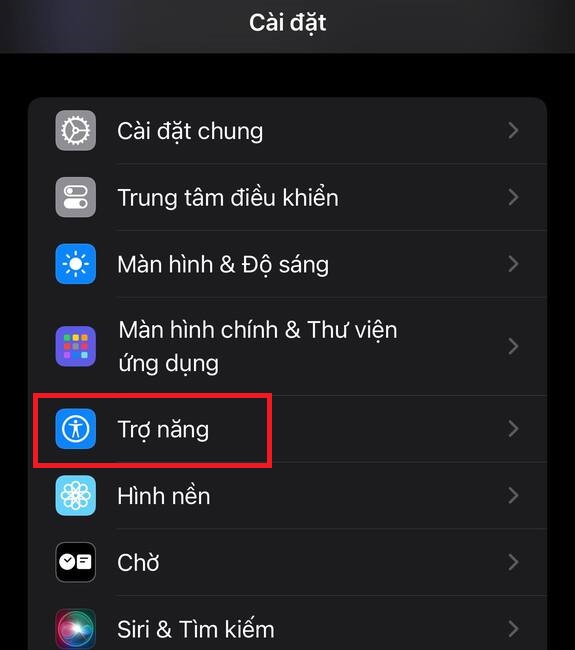
How to enlarge iPhone keyboard
Select Accessibility

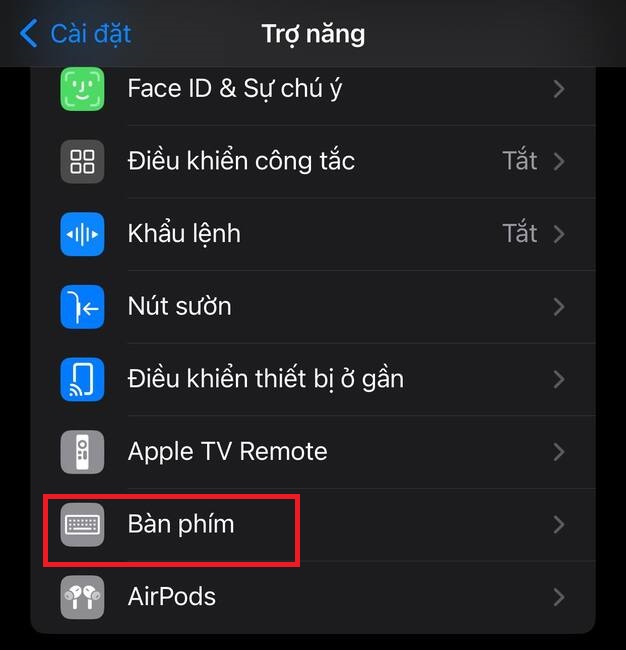
Step 2: Tap 'Keyboard'.

How to enlarge iPhone keyboard
Tap 'Keyboard'.

Step 3: Deactivate the 'Show lowercase keys' button in the On-Screen Keyboard section.
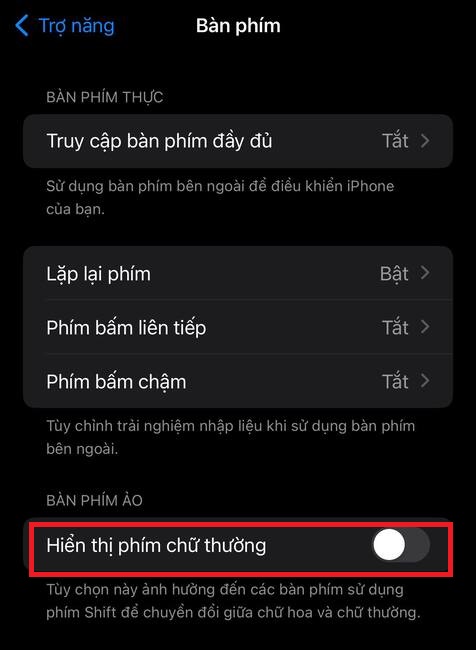
How to enlarge iPhone keyboard
Deactivate the 'Show lowercase keys' button

Once turned off, you will find your iPhone keyboard larger and more uniform.

Method 4: Use landscape mode

One final way to make the iPhone keyboard larger is to use landscape mode. When you use it, your keyboard takes up more space in the bottom half of the screen and has wider keys. Here's how:

Step 1: Launch Control Center on your iPhone by swiping from the top right corner downwards.

Step 2: Tap the lock icon to turn it off. The lock icon will no longer be highlighted with a white background.
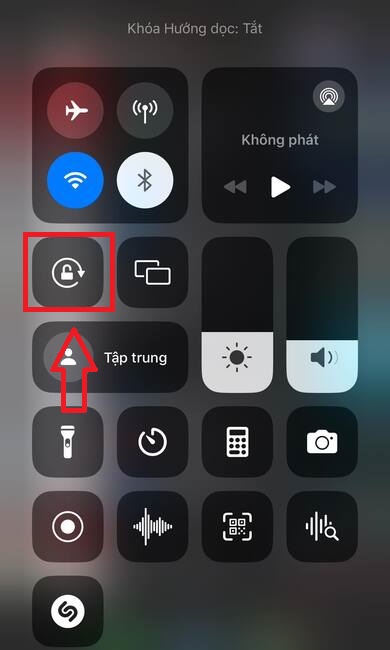
How to enlarge iPhone keyboard
Tap the lock icon

Step 3: Now you can return to the app or screen where you wanted to enter text. On this screen, rotate Iphone Swipe horizontally to view the keyboard in landscape mode.

Epilogue

How to enlarge iPhone keyboard is a simple way to improve your device usage experience. You just need to do a few simple steps to increase the iPhone keyboard size and change the font size as desired. Hope you are succesful.


The article scored: 5/5 – (100 votes)

Tags: easilyenlargeiPhoneKeyboardoperatescreenways
Previous Post

3 ways to check if your laptop has a discrete graphics card or not

Next Post

How to buy Vietlott tickets easily with just a few simple steps!

AnonyViet

AnonyViet

Related Posts

Compact design, durable battery, excellent camera: Review of OPPO Reno 16 Pro 5G
Software

Compact design, durable battery, excellent camera: Review of OPPO Reno 16 Pro 5G

July 12, 2026
Download the free 3D Pinball Space Cadet game on the App Store now
Software

Download the free 3D Pinball Space Cadet game on the App Store now

July 12, 2026
Learn new skills with iPad 11 (A16) 128GB: when is enough, when should you upgrade to a higher level?
Software

Learn new skills with iPad 11 (A16) 128GB: when is enough, when should you upgrade to a higher level?

July 10, 2026
Instructions for taking free buses in Ho Chi Minh City from July 2026
Software

Instructions for taking free buses in Ho Chi Minh City from July 2026

July 9, 2026
3 steps to change Zalo number when sim is revoked
Software

3 steps to change Zalo number when sim is revoked

July 8, 2026
The simplest way to log out of Gmail on Huawei phones
Software

The simplest way to log out of Gmail on Huawei phones

July 5, 2026
Next Post
How to buy Vietlott tickets easily with just a few simple steps!

How to buy Vietlott tickets easily with just a few simple steps!

0 0 votes
Article Rating
Subscribe
Login
Notify of
guest

guest

0 Comments
Oldest
Newest Most Voted

Recent News

Instructions on how to create POV product review videos using Flow

Instructions on how to create POV product review videos using Flow

July 13, 2026
How to fix “This PC can’t run Windows 11” error This PC doesn’t meet the minimum system requirements

How to fix “This PC can’t run Windows 11” error This PC doesn’t meet the minimum system requirements

July 13, 2026
Compact design, durable battery, excellent camera: Review of OPPO Reno 16 Pro 5G

Compact design, durable battery, excellent camera: Review of OPPO Reno 16 Pro 5G

July 12, 2026
Download the free 3D Pinball Space Cadet game on the App Store now

Download the free 3D Pinball Space Cadet game on the App Store now

July 12, 2026
Instructions on how to create POV product review videos using Flow

Instructions on how to create POV product review videos using Flow

July 13, 2026
How to fix “This PC can’t run Windows 11” error This PC doesn’t meet the minimum system requirements

How to fix “This PC can’t run Windows 11” error This PC doesn’t meet the minimum system requirements

July 13, 2026
Compact design, durable battery, excellent camera: Review of OPPO Reno 16 Pro 5G

Compact design, durable battery, excellent camera: Review of OPPO Reno 16 Pro 5G

July 12, 2026
AnonyViet - English Version

AnonyViet

AnonyViet is a website share knowledge that you have never learned in school!

We are ready to welcome your comments, as well as your articles sent to AnonyViet.

Follow Us

Contact:

Email: anonyviet.com[@]gmail.com

Main Website: https://anonyviet.com

Recent News

Instructions on how to create POV product review videos using Flow

Instructions on how to create POV product review videos using Flow

July 13, 2026
How to fix “This PC can’t run Windows 11” error This PC doesn’t meet the minimum system requirements

How to fix “This PC can’t run Windows 11” error This PC doesn’t meet the minimum system requirements

July 13, 2026
  • Home
  • Home 2
  • Home 3
  • Home 4
  • Home 5
  • Home 6
  • Next Dest Page
  • Sample Page

say88 tỷ lệ kèo nhà cái kèo nhà cái 5 febet

No Result
View All Result
  • Home
  • News
  • Software
  • Knowledge
  • MMO
  • Tips
  • Security
  • Network
  • Office

say88 tỷ lệ kèo nhà cái kèo nhà cái 5 febet

wpDiscuz
0
0
Would love your thoughts, please comment.x
()
x
| Reply