• Home
  • News
  • Software
  • Knowledge
  • MMO
  • Tips
  • Security
  • Network
  • Office
AnonyViet - English Version
  • Home
  • News
  • Software
  • Knowledge
  • MMO
  • Tips
  • Security
  • Network
  • Office
No Result
View All Result
  • Home
  • News
  • Software
  • Knowledge
  • MMO
  • Tips
  • Security
  • Network
  • Office
No Result
View All Result
AnonyViet - English Version
No Result
View All Result

5 things you need to do after installing Android 12

AnonyViet by AnonyViet
January 26, 2023
in Software
0

There is no denying that Android 12 is one of the biggest updates in the history of the Android operating system. The addition of features like Material You, Screen Capture Scrolling and new Privacy Features will make the user experience much richer and better. If you have a phone updated to Android 12, here’s what to do after installing Android 12.

Join the channel Telegram of the AnonyViet 👉 Link 👈

5 things you need to do after installing Android 12

1. Try Material You

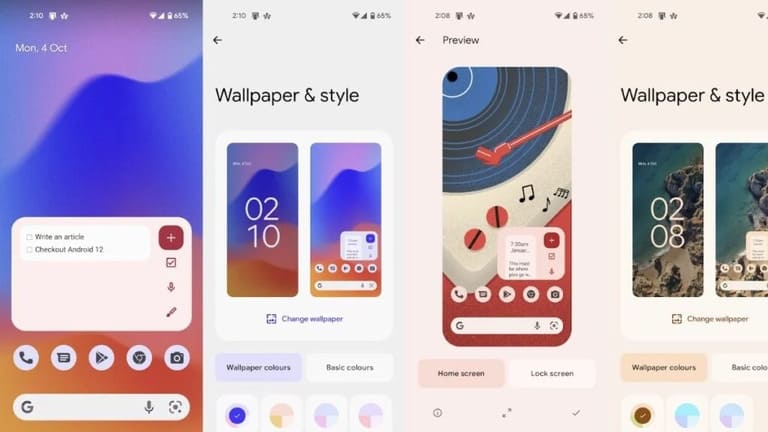
One of the best features of Android 12 is Material You. For starters, it’s a built-in theme engine that extracts colors from your device’s wallpaper and applies it to the Android UI and it works great. There are also themed icons that also enhance the look of your home screen.
5 things you need to do after installing Android 12

You can enable this in Settings > Wallpaper and Style > choose a background color you like.

2. Try new widgets

Widgets have existed in Android for a long time, and most of them are boring. However, this time, Google has focused on developing them, making them look better. For example, we have new clock widgets that change color depending on the area of ​​the wallpaper.

5 things you need to do after installing Android 12 6

Many of the widgets that Google showed us during I/O 2020 are not yet available, but it won’t be long until Google adds them in upcoming updates.

3. Detach Wi-Fi from the Internet tile in Quick Settings

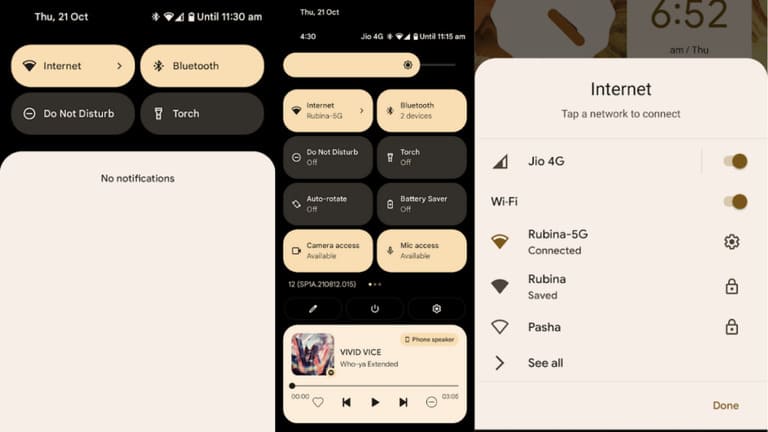
Not everyone likes Android 12. We’ve seen a lot of people complain about the Internet tile in quick settings that it increases the steps required to turn Wi-Fi and mobile data on or off. Although I don’t completely agree with this, I think the Internet umbrella has its own benefits. For example, in countries where Wi-Fi is not common, many people constantly have to switch between Wi-Fi and mobile data. Forgetting to do so will cause you to miss important notifications.
5 things you need to do after installing Android 12 7

By opening both Wi-Fi and mobile data in the Internet control panel, your device will automatically use mobile data when it is out of range of Wi-Fi. However, I agree that Google should let users choose between the internet box and the Wi-Fi tile.

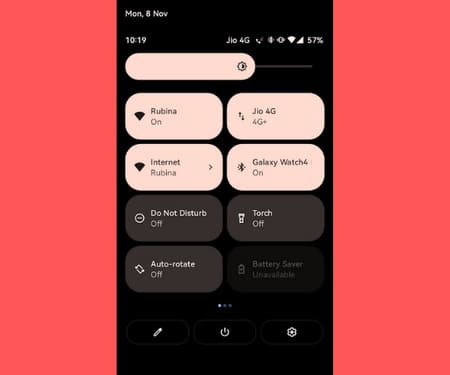
How to restore old mobile data (3G/4G) and Wi-Fi
5 things you need to do after installing Android 12 8

There is a way to get back old Wi-Fi and Cellular Data tiles is

1. Enable Developer Options and USB Debugging on your Android device.

2. Download the zip file Platform Tools for your platform and extract it to Desktop.

3. Open that file inside Terminal.

4. Connect the device to your computer using USB.

5. In Terminal, type adb devices and press enter.

6. A dialog box will appear on your device. Select “Always allow from this computer” and finally, click “Allow”.

7. Once done, type adb devices again in Terminal and check if your device is displayed.

8. If it appears under “List of devices attached”, type the following command and press enter.

adb shell settings put secure sysui_qs_tiles “wifi,cell,$(settings get secure sysui_qs_tiles)

9. You should now see both Wi-Fi and Cellular Data tiles in quick settings.

4. Turn on face detection to auto rotate

All of us phone users have, at some point, faced the auto-rotate screen problem. Android 12 solves this problem by detecting your face and rotating the screen based on its orientation. You can turn this feature on by going to the auto-rotate section and toggling the face detection feature on and off.

5. Try the extended screenshot

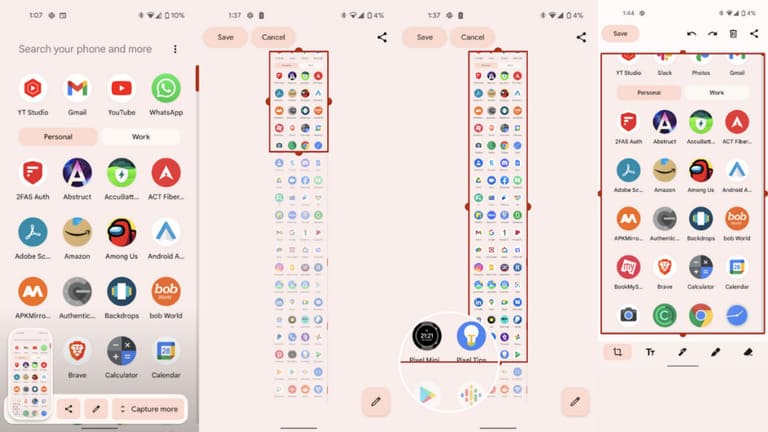
Screenshot scrolling was one of the most requested features in Android and it is finally here on Android 12. As the name suggests, it allows you to extend the length of your screenshot and record the content. content beyond what you can see on the screen. Google calls it “Expanded Screenshots”.
5 things you need to do after installing Android 12 9

However, the list of new features and improvements doesn’t end there. If you are curious about the new features on Android 12, please see this article.


The article achieved: 5/5 – (100 votes)

Tags: Androidinstalling
Previous Post

What can hackers do when they get your IP address?

Next Post

Lesson 39: How to reverse decimal places in Excel

AnonyViet

AnonyViet

Related Posts

Instructions for receiving 3 months of MultCloud Premium for free with 200GB data
Software

Instructions for receiving 3 months of MultCloud Premium for free with 200GB data

October 17, 2026
Instructions for receiving pension through VNeID without going to the ward
Software

Instructions for receiving pension through VNeID without going to the ward

October 16, 2026
Record first, choose focus later: how to use 4K 60 fps Cinema mode on iPhone 18 Pro
Software

Record first, choose focus later: how to use 4K 60 fps Cinema mode on iPhone 18 Pro

October 15, 2026
How to receive 22k from Viettel Tammi on the occasion of 22nd birthday
Software

How to receive 22k from Viettel Tammi on the occasion of 22nd birthday

October 15, 2026
3 valuable upgrades on Samsung Galaxy A08 compared to its predecessor A07
Software

3 valuable upgrades on Samsung Galaxy A08 compared to its predecessor A07

October 12, 2026
Ambient light for YouTube: Change video background color extremely magically
Software

Ambient light for YouTube: Change video background color extremely magically

October 12, 2026
Next Post
Lesson 39: How to reverse decimal places in Excel

Lesson 39: How to reverse decimal places in Excel

0 0 votes
Article Rating
Subscribe
Login
Notify of
guest

guest

0 Comments
Oldest
Newest Most Voted

Recent News

How to view Facebook stories without others knowing

How to view Facebook stories without others knowing

October 18, 2026
Instructions for registering a .tech domain name for free for 1 year

Instructions for registering a .tech domain name for free for 1 year

October 18, 2026
Instructions on how to enter promotional codes on the App Store most accurately

Instructions on how to enter promotional codes on the App Store most accurately

October 18, 2026
How to open “This PC” instead of “Quick Access” in File Explorer by default

How to open “This PC” instead of “Quick Access” in File Explorer by default

October 17, 2026
How to view Facebook stories without others knowing

How to view Facebook stories without others knowing

October 18, 2026
Instructions for registering a .tech domain name for free for 1 year

Instructions for registering a .tech domain name for free for 1 year

October 18, 2026
Instructions on how to enter promotional codes on the App Store most accurately

Instructions on how to enter promotional codes on the App Store most accurately

October 18, 2026
AnonyViet - English Version

AnonyViet

AnonyViet is a website share knowledge that you have never learned in school!

We are ready to welcome your comments, as well as your articles sent to AnonyViet.

Follow Us

Contact:

Email: anonyviet.com[@]gmail.com

Main Website: https://anonyviet.com

Recent News

How to view Facebook stories without others knowing

How to view Facebook stories without others knowing

October 18, 2026
Instructions for registering a .tech domain name for free for 1 year

Instructions for registering a .tech domain name for free for 1 year

October 18, 2026
  • Home
  • Home 2
  • Home 3
  • Home 4
  • Home 5
  • Home 6
  • Next Dest Page
  • Sample Page

say88 tỷ lệ kèo nhà cái kèo nhà cái 5 febet

No Result
View All Result
  • Home
  • News
  • Software
  • Knowledge
  • MMO
  • Tips
  • Security
  • Network
  • Office

say88 tỷ lệ kèo nhà cái kèo nhà cái 5 febet

wpDiscuz
0
0
Would love your thoughts, please comment.x
()
x
| Reply