How to protect private photos on Mac is a necessary solution when you have to share your computer with relatives or colleagues. Instead of worrying about personal moments being accidentally seen, setting a password will create a layer of safety. This article will guide you through the simplest methods to keep your data private.
📢 Join the channel Telegram belong to AnonyViet
Update new articles, cool tools and IT tips fastest
4 most effective ways to protect private photos on Mac
To help users easily choose the option that suits their needs, the content below will go into detail about each operation, from using available tools to third-party applications.
Method 1: Convert to PDF and lock the file
This is the right method if you need to quickly hide a few images and don’t want to install additional software. However, it should be noted that image quality may be slightly reduced, so this method is best suited for screenshots or documents.
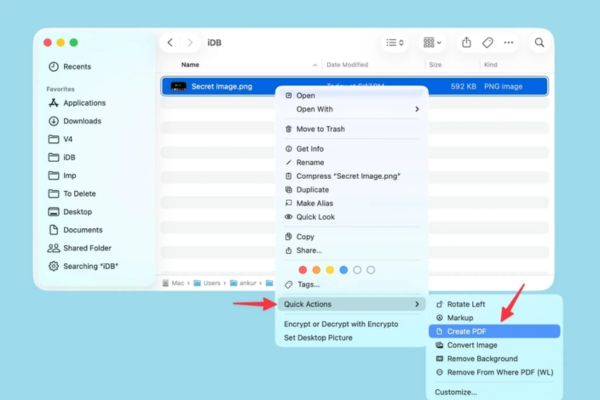
Step 1: In Finder or the desktop, select the images to protect. Right-click (Control-click) and select Quick Actions > Create PDF.
Step 2: Open the newly created PDF file using the default Preview application on Mac.
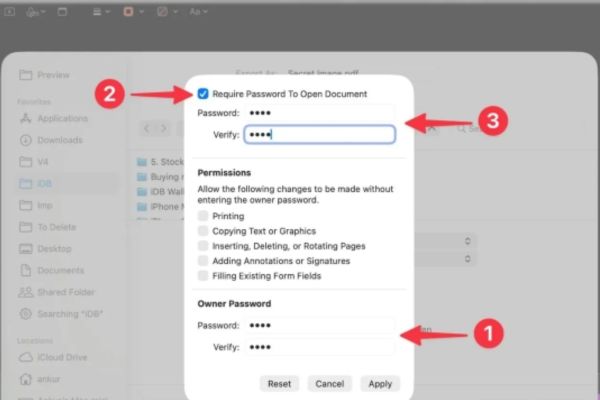
Step 3: On the menu bar, select File > Export. In the window that appears, click the button Permissions.
Step 4: Check the box “Require Password To Open Document“. Enter the desired password, press Apply and then select Save.
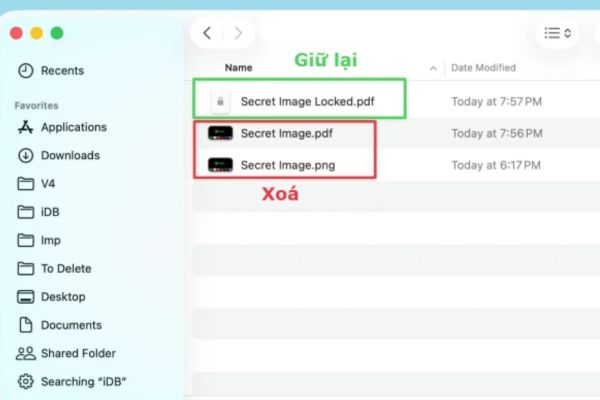
Step 5: Delete original image files and unlocked PDF files, keeping only the password-protected PDF.
Method 2: Compress images into a ZIP file and set a password
Similar to the above method, image compression helps group data more neatly, while also creating an additional layer of security.
Step 1: Select one or more images to protect in Finder.
Step 2: Right-click (Control-click) and select Compress to create a ZIP archive.
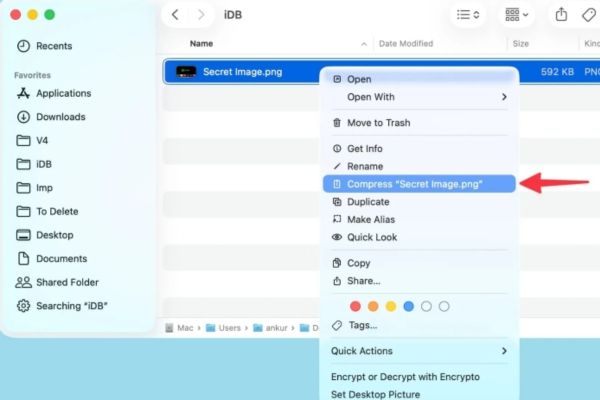
Step 3: Proceed to set a password for this ZIP file to prevent unauthorized access (Note: With new versions of macOS, it may be necessary to use Terminal or a specialized compression application to assign a password to the ZIP file).
Method 3: Create an encrypted disk image
This is a method used by many people Mac Popular for its high security and diverse storage capabilities. You will create an encrypted virtual drive to hold photos, videos, and documents.
Step 1: Open the app Disk Utility available on macOS.
Step 2: Select File > New Image > Blank Image.
Step 3: Name it, choose the capacity size (for example 2GB) and most importantly, choose the encryption standard (Encryption) to set the password.
Step 4: After creating, open this virtual drive and copy all the photos you need to hide inside. When finished using, please Eject (Eject) the drive to lock all data.
Method 4: Use Encrypto to encrypt photos
If you want maximum simplicity and a user-friendly interface, apply Encrypto from developer MacPaw is the perfect choice. This is the easiest method on the list.
Step 1: Download and install Encrypto application free from the Mac App Store.
Step 2: Open the application, drag and drop the images or files you want to protect into the program window.
Step 3: Enter the security password and password hint (if necessary), then tap Encrypt.
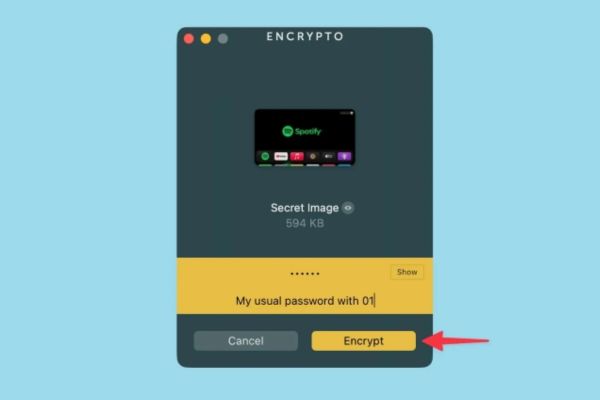
Step 4: Press Save As to save the encrypted file (with .crypto extension) to your computer.

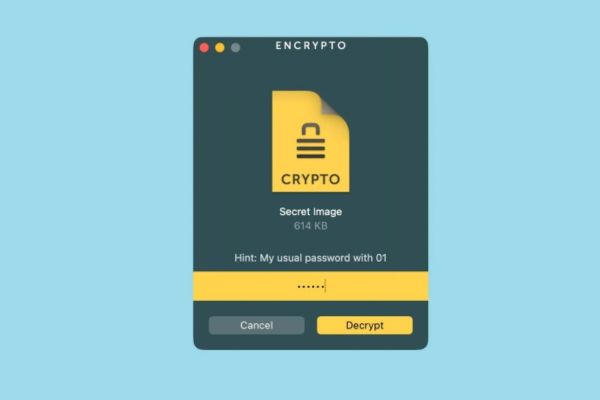
Step 5: Delete the original file. When you need to review it, just double-click the .crypto file, enter the password, and select Decrypt. You can view directly or save the original file to Finder.
Conclusion
Above is a summary of those How to protect private photos on Mac The simplest and most effective today. Depending on the number of photos and their importance, you can flexibly use different methods. Wishing you success and keeping your data safe.