How to export ChatGPT content Standard formatting saves hours of text editing after copying. Instead of trying to fix line errors in Word or Google Docs, immediately apply the smart tricks below. This article will summarize methods to thoroughly handle the above problem to make work run more smoothly.
📢 Join the channel Telegram belong to AnonyViet
Update new articles, cool tools and IT tips fastest
4 effective ways to export ChatGPT content
Copying data from AI to text editors often encounters countless errors that cause users to waste time editing. Below are carefully selected methods to help make this process simpler.
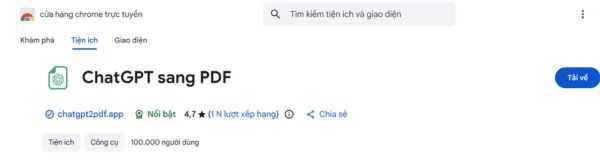
Method 1: Use Extension
This is the optimal solution for those who want to quickly export files to many formats such as PDF, Word or Notion while still maintaining the beautiful interface.
Step 1: Visit Chrome Web Store or Edge’s utility store.
Step 2: Search for keywords like “Export ChatGPT”, “ChatGPT to PDF” or “ChatGPT Exporter”.
Step 3: Choose utilities with a high user base and good reviews to install.
Step 4: After installation is complete, Export buttons will appear on the chat interface, just click and select the desired format.
Note: You should choose reputable Extensions to avoid risks to personal data security.
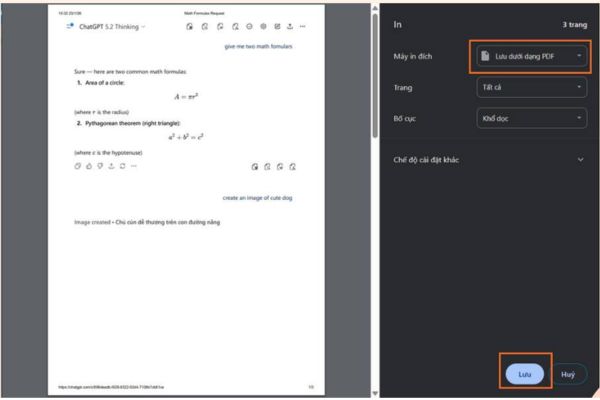
Method 2: Use the print command (Print to PDF)
If you’re afraid of installing additional software to trash your computer, the browser’s built-in printing feature is the fastest way to store information offline.
Step 1: Open the conversation that needs to be saved in the browser.
Step 2: Press the key combination Ctrl + P (Windows) or Cmd + P (Macbook).
Step 3: At section Printer (Printer), select mode “Save as PDF” (Save as PDF).
Step 4: Press Save to download files to your device.
This method has the disadvantage that the output file often has sidebars or page breaks that are not pretty, but it is very convenient to read again.
Method 3: Export Data feature from OpenAI
This is the solution for the need to backup all chat history up to now for safe storage.
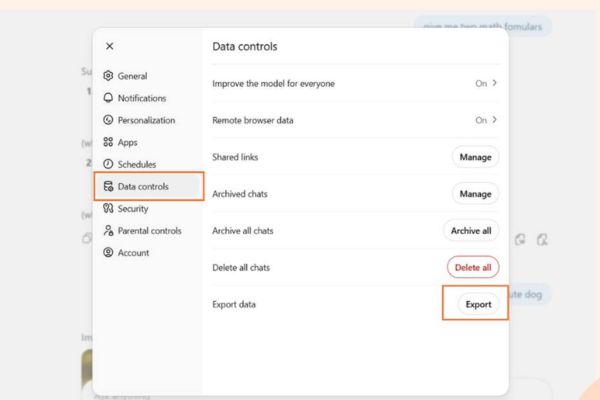
Step 1: At the ChatGPT interface, go to section Settings.
Step 2: Select item Data Controls.
Step 3: Click Export Data and confirm via email.
The returned data will be a .zip compressed file containing .json format. This file contains raw data, suitable for programmers or long-term storage, not for immediate reading.
Method 4: Share via Link
When you need to send content to colleagues to quickly view without downloading files, this is the fastest way.
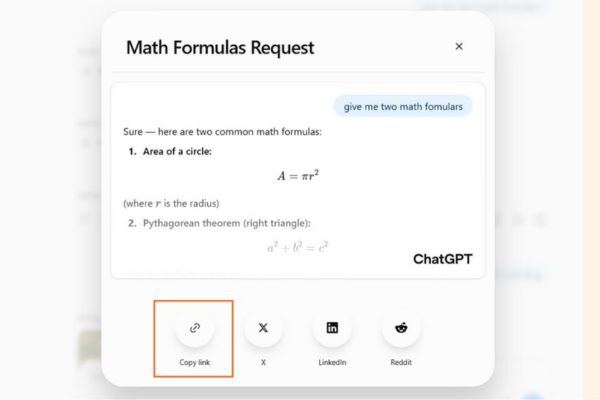
Step 1: Click on the arrow icon (Share) in the right corner of the chat.
Step 2: Select Copy Link.
Step 3: Send this link to someone who needs to see it.
Note that this is only an online viewing link, the recipient needs an internet connection to access it.
Conclusion
Above is a summary of those how to export ChatGPT content The most popular and effective today. Depending on the intended use of storage, reporting or sharing, you can choose the appropriate option. Hopefully these tips will help your workflow become more professional.