If your computer is shared with many people and you do not want others to install extensions to the browser. The purpose of this is to help prevent malicious extensions from being installed and affect the browser. In this article, I will show you how to use Chrome’s policy for administrators to turn off the extension installation feature.
📢 Join the channel Telegram belong to AnonyViet
Update new articles, cool tools and IT tips fastest
You may be annoyed when others install extensions, but for 11 Chrome extensions to increase study productivity for Students This is different.

You can use it Registry Editor or Local Group Policy Editor. Registry Editor can be accessed on all versions of Windows 10. Local Group Policy Editor only supports Windows 10 Pro and above, the Home version cannot use this feature.
Note: Using the Registry Editor or Local Group Policy Editor to block others from installing Chrome extensions will cause Google Chrome to show as “Managed by your organization” on screen Settings.
Use Registry Editor to block others from installing Extensions
If you are using Windows 10 Home, you can only use the Windows Registry to make this change. You can also do it this way if you use Windows 10 Pro or Enterprise but only if you are used to using the Registry instead of the Group Policy Editor. (However, if you use Pro or Enterprise, I recommend using Local Group Policy Editor because it is easier)
Must read warning: Registry Editor is a tool that deeply interferes with the system. If used incorrectly, Windows will become unstable or even inoperable. This is a pretty simple hack and you won’t have any problems as long as you follow the instructions exactly. If you have never worked with Registry Editor before, consider reading about how to use Registry Editor before you begin. And be sure to back up the Registry before doing so.
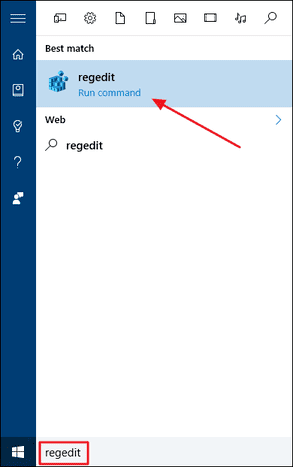
To open Registry Editor, click Start then enter “regedit” into the search box and press Enter.
In the Register Editor window, go in HKEY_LOCAL_MACHINE > SOFTWARE > WOW6432Node > Policies if you are using a 64-bit version of Windows.
If you’re using a 32-bit version of Windows, go to HKEY_LOCAL_MACHINE> SOFTWARE> Policies.
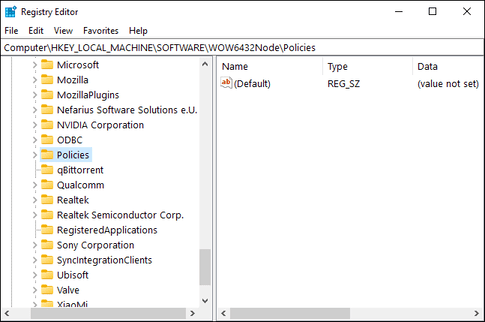
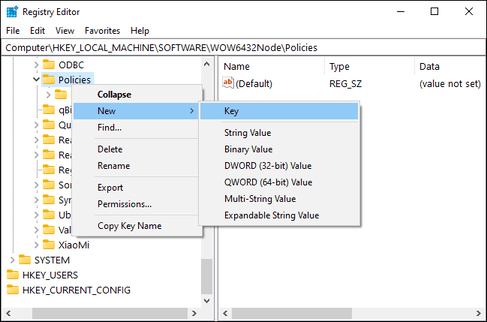
In the left Panel, right-click on the folder “Policies“. Select option “New“, then select “Key“. Name this new subkey “Google” without quotation marks.
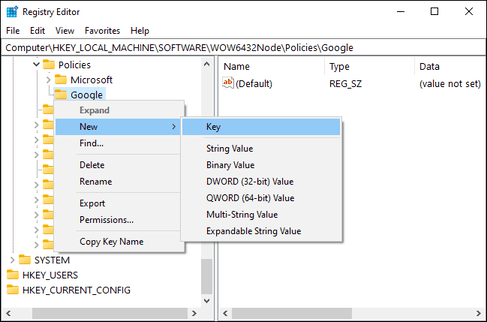
Next, right-click on the newly created “Google” subkey. Select the “New” option, then select “Key” to add a new subkey. Name it “Chrome” without quotes.
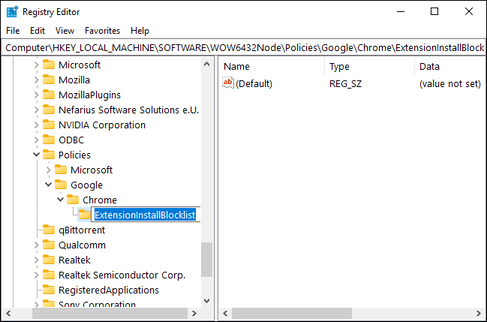
Right click on the subkey “Chrome” and choose New > Key once again. Name this key “ExtensionInstallBlocklist” without the quotes.
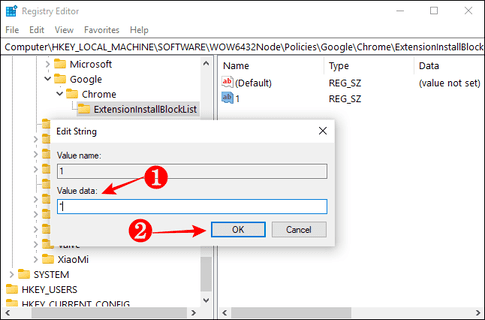
Right click on the “ExtensionInstallBlocklist” subkey, select New > String Value and record 1 in value name.

In the right pane, double click on the value name “1” to open its properties. In Value data, write “*” and press “OK“.
Next, right-click the “Chrome” subkey again and select New > Key. Name this key “BlockExternalExtensions” without quotation marks.
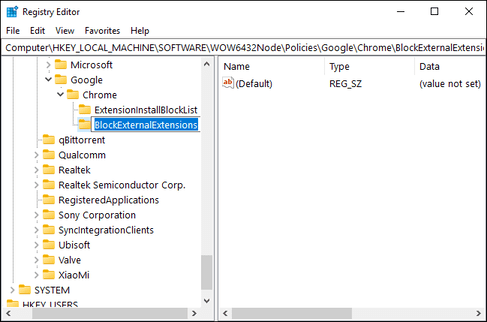
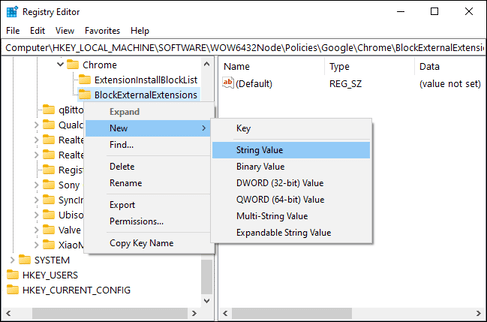
Right click on the subkey “BlockExternalExtensions“, select New > String Value and set value name as 1.
In the right pane, double click on the value name “1” to open the properties. In Value data, enter “*” then press “OK“.
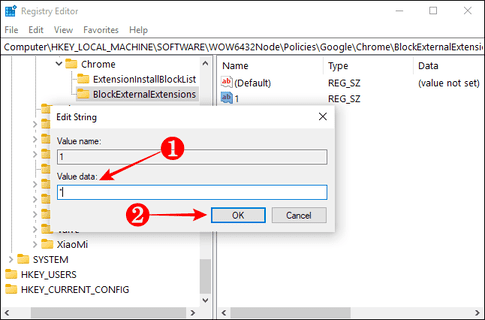
By adding these two keys, you can ensure that no other user can install the extension from the Chrome Web Store or any other online source. The only downside is that you have to remember the path for these new subkeys.
Use Group Policy on Windows 10 Pro
If your PC runs Windows 10 Professional or Enterprise edition, you can skip using the registry. Instead, you can use Local Group Policy Editor to prevent others from installing extensions on Chrome.
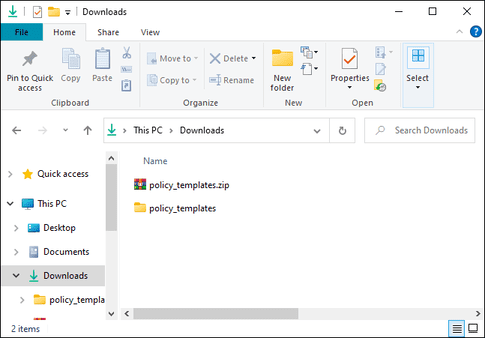
First, download Chrome policy file from Google and extract it on your computer.
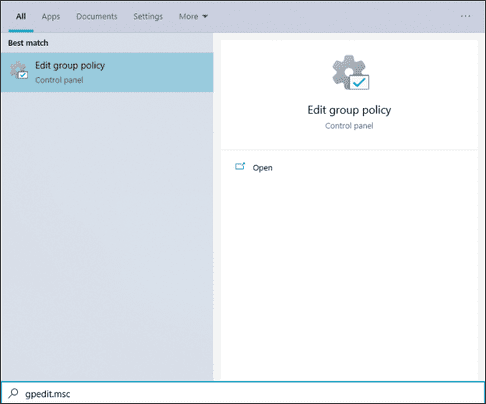
To open Group Policy Editor, press Start then enter “gpedit.msc” and press Enter.
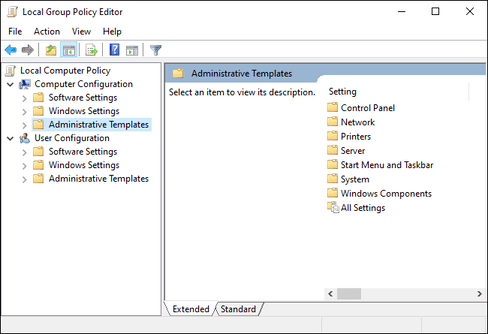
In the Local Group Policy Editor window, in the left pane, go in Computer Configuration > Administrative Templates.
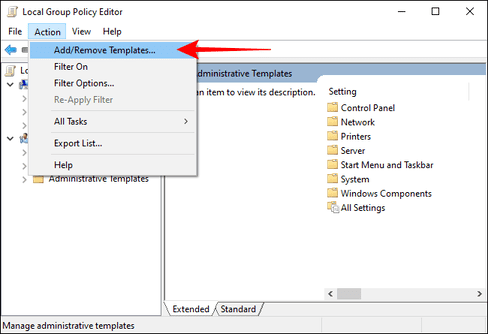
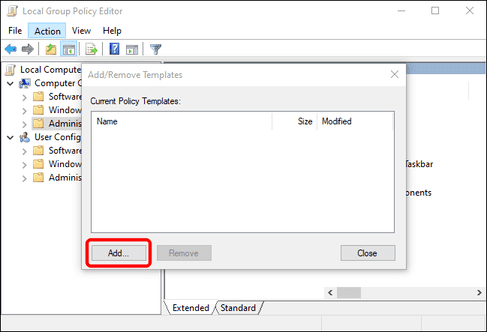
Click on the menu “Action” at the top and select options “Add/Remove Templates”.
From the new window that opens, click the “Add” button.
Select the folder where you extracted the Chrome sample policy and navigate to the folder policy_templates> windows> adm.
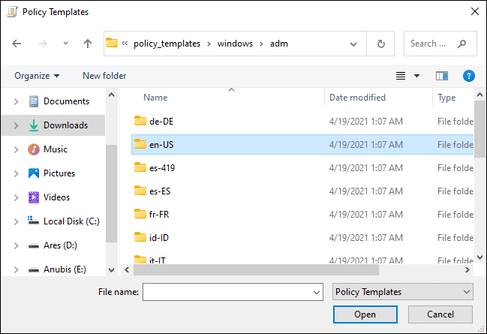
Double-click the “en-US” language folder, select the “chrome.adm” file and click the “Open” button. You can select a different language folder that matches your PC’s system language.
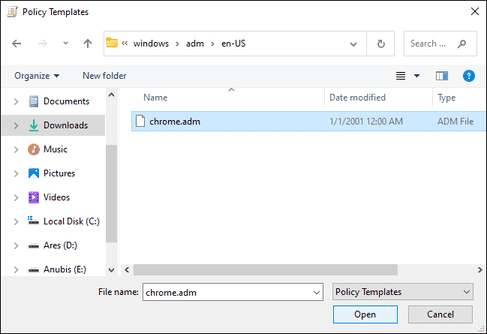
When the Chrome sample file appears in the list Current Policy Templatesclick the “Close”.

In the Left Panel of the Local Group Policy Editor window, go in Computer Configuration > Administrative Templates > Classic Administrative Templates (ADM) > Google > Google Chrome > Extensions.
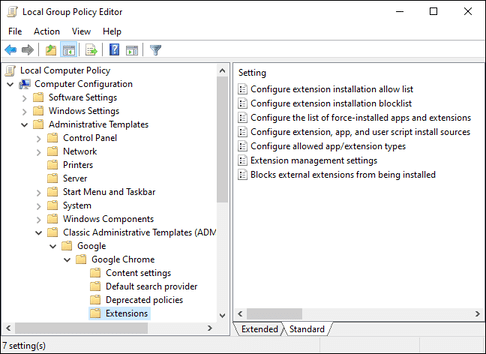
In the right pane, double-click the “Configure extension installation blocklist” setting. When the settings window opens, select the “Enabled” option and click the “Show” button.

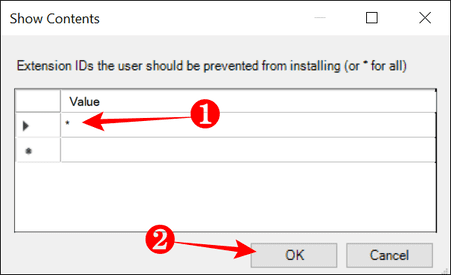
When the new Show Contents window opens, enter “*” in the first column Value and click on the button “OK”.
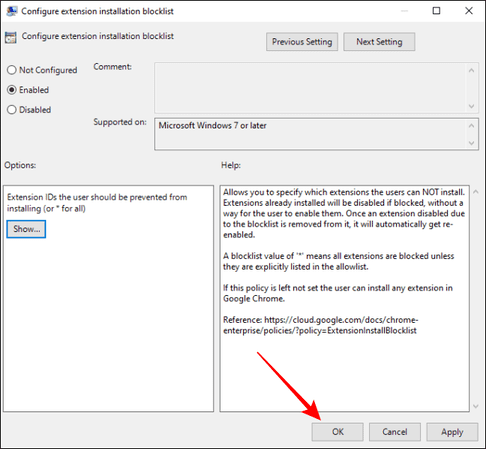
Click the “OK” button in the “Configure extension installation blocklist” window to close.
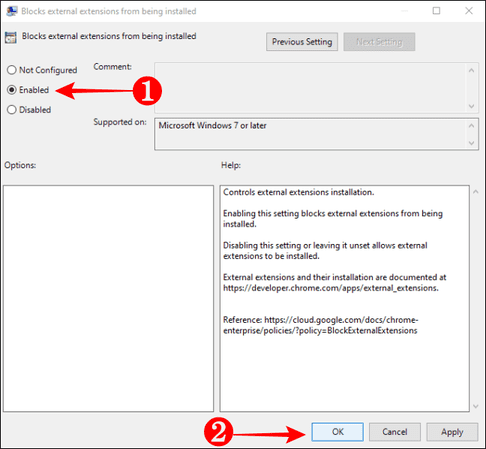
Now, use the same procedure to open the settings “Block external extensions for being installed” to prohibit others from installing extensions to Chrome. When the settings window opens, click on the “Enabled”, then click the “ buttonOK”.
After you make changes, no one can install any extensions from the Chrome Web Store or from computer. You can launch Chrome and try installing an extension to check if you have configured the policy properly.
Frequently asked questions
Can I block others from installing extensions on Chrome without using the Registry Editor or Group Policy Editor?
No, there is currently no other way to block others from installing extensions on Chrome without using Registry Editor (for Windows 10 Home) or Local Group Policy Editor (for Windows 10 Pro and above). These methods interfere with Chrome’s configuration to disable the ability to install extensions.
Does using Registry Editor or Group Policy Editor have any effect on my computer?
Using Registry Editor requires great care, incorrect operations can cause system problems. Local Group Policy Editor is more secure. Both methods will display a “Managed by your organization” message in Chrome settings.
If I use Windows 10 Home, what can I do to block extension installation?
Only Registry Editor can be used. Please follow the instructions carefully and back up the Registry before making any changes to avoid risks.