How to change iPhone font has long been the desire of many users who want to make a difference for their phone. Now, with the support of the Lara app, this is easier than ever on new iOS versions. Let’s explore with AnonyViet now.
📢 Join the channel Telegram belong to AnonyViet
Update new articles, cool tools and IT tips fastest
Instructions on how to change iPhone font
Customizing the interface on the iOS operating system is always strictly controlled by Apple. However, with the Lara tool, users can flexibly change iPhone fonts on iOS versions 17.0 to 17.6.1 and 18.0 to 18.1.
Step 1: Download and install Lara application on the device. Open the application, select Run Exploit to grant system access.
Step 2: Select method Hybrid in the main interface. Then you need to enable important options including: Disable log dividers, Keep Alive and Show File Manager in Tabs.
Step 3: In the RemoteCall section, turn on the option Allow >10 dock icons if you want to increase the number of applications displayed on your Dock.
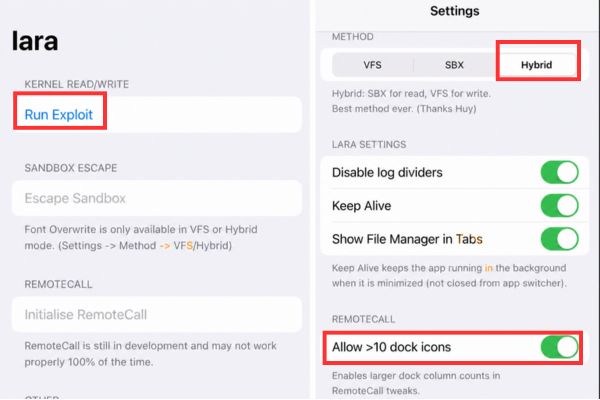 Turn on the Allow >10 dock icons option
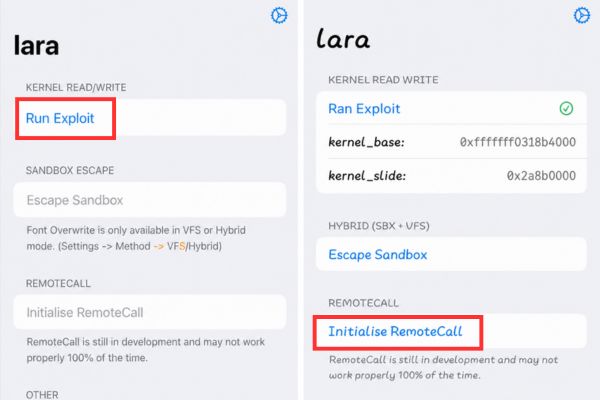
Step 4: Go back to the Lara app home screen and select it again Run Exploit to confirm final access. Click next Initialise RemoteCall.
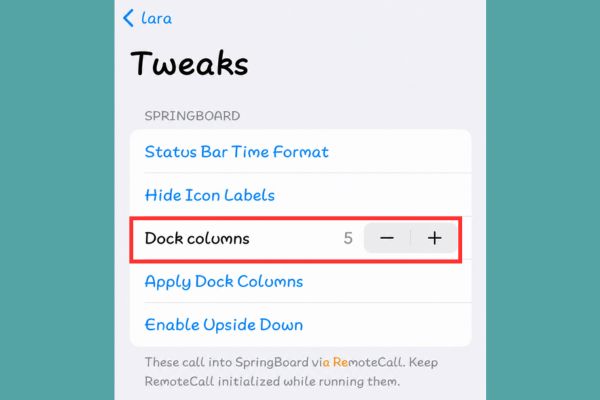
Step 5: Then, go to the Tweaks section to adjust the number of Dock columns as desired and click Apply Dock Columns.
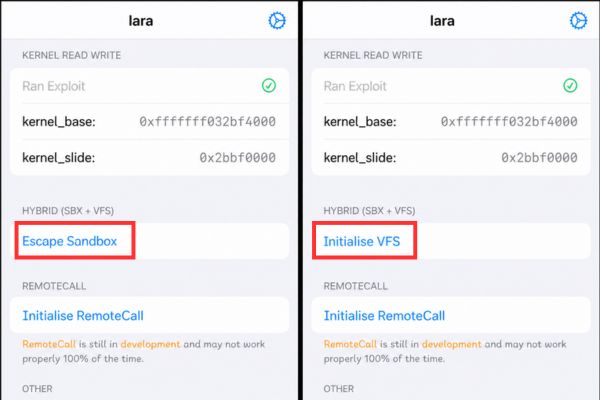
Step 6: In the Lara application, select Escape Sandbox then select next Initialize VFS to initialize the virtual file system.
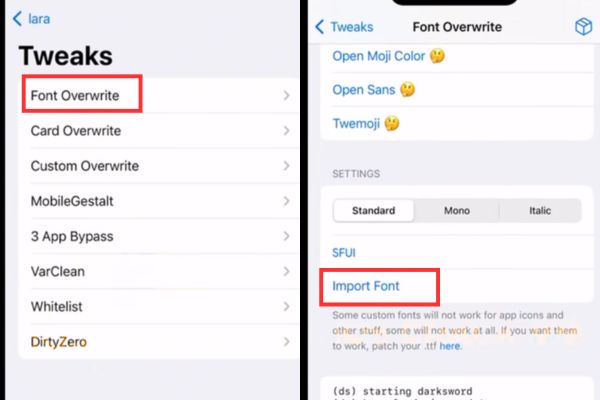
Step 7: Finally, go to Tweaks, select Font Overwrite. Here, you can select available fonts from the list or tap Import Fonts to select the font file (.ttf) downloaded to your device. After selecting, the application will automatically overwrite the font into the system.
Important note when changing iPhone font
When doing how to change the font iPhonealways make sure your device has backed up important data iCloud. Although this tool is quite stable, tampering with system files always poses small risks if the font file is not compatible.
If you encounter an application crashing when trying to change the iPhone font, restart the device and try again. Finally, changing iPhone fonts should only be done on iOS versions that are on the support list. Attempting to apply on other versions may result in unexpected display errors or crashes.
Conclusion
If you love something new, give it a try How to change iPhone font today. Don’t forget to follow AnonyViet’s next articles to update more great tips about technology!
Frequently Asked Questions (Q&A)
1. Does changing the iPhone font void the warranty?
No, because this is a method of using the Sandbox Escape vulnerability, which does not permanently interfere with the root system.
2. Can I use any font file to make changes?
You should use standard .ttf format files to avoid font display errors on the system.
3. What should I do if my computer has a font error after installing it?
You just need to go back to the Lara application, select Font Overwrite and click Restore Default to restore the original font.