Microsoft Word is one of the most used editing software. Taking the time to explore Word’s “Secrets” can make it easier for you to use. Now let’s take a look at 15 word tricks that everyone should know.
| Join the channel Telegram of the AnonyViet 👉 Link 👈 |
Use Microsoft Word’s “¶” button to display all carriage returns.
If you are formatting something more complex than basic paragraphs of text, such as a resume, the “¶” icon will make it easier for you. This shows you every line break in your document, which is a great way to make sure all spacing is correct and consistent.
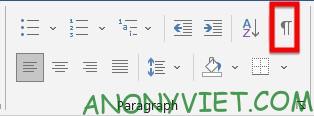
“ ¶” can be found in the “Paragraph Settings” toolbar, by default this button is located at the top of the screen in the “Home” tab.
Convert PDF into an editable Word document
When you open the PDF in Word, it automatically converts the form to the .docx format, allowing you to enter text into the document.

Sign on Word
When you make CVs or important documents, signatures are indispensable. So Word has a feature that can help you: Shape
Into the Insert -> Shape -> lines and in the right corner, there is a picture like the following
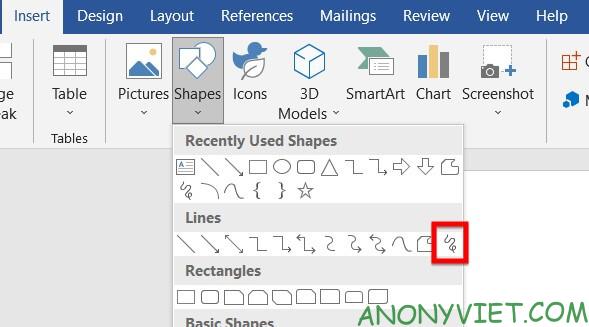
Your cursor will turn into a crosshair. Click and drag anywhere to write the signature . Once completed, it will be converted into a movable and resizable canvas.
Protect documents with Password
For added security, you can add password protection to documents. This will make it so that anyone opening the document will need to enter the password.
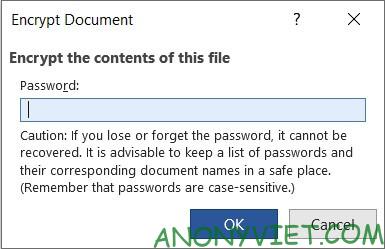
Into the File -> Protect Document -> Encrypt with Password -> enter password your
Enter text using voice
With the button “Dictate“, at the top right of the menu”Home, it can seamlessly translate its words into words. This is great for taking quick notes or recording interviews.
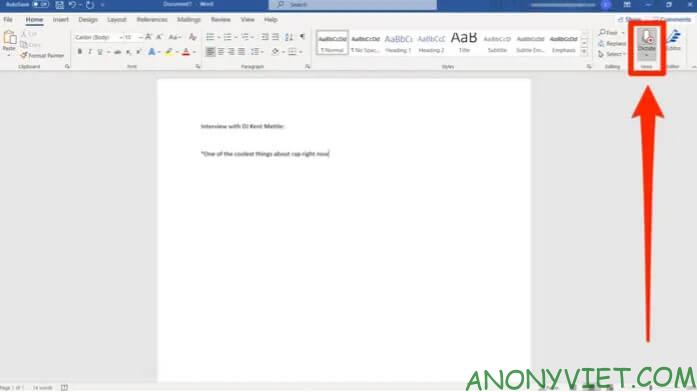
It may be necessary to go back and make edits – like any speech-to-text software – but the time saved will be more.
Concentration mode
Writing in Microsoft Word means writing on a computer, which means having access to the internet and all the factors that get in the way of completing a document. If you need to focus on your writing, check out Word’s “Focus” mode. It will remove all other function keys, leaving only the edited text. It will be of great help to writers who are easily misled.
To turn on Focus mode : Go to View -> Focus
Use Search without leaving Word
Speaking of distractions, Word offers a way to look up information without requiring you to navigate like Bing or Google.
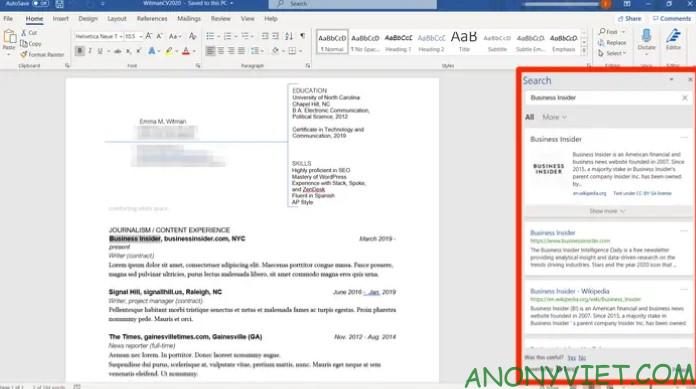
All you have to do to use the smart search feature is highlight the word or phrase you want to look up, right-click on it, and select “Search”. A sidebar will appear giving you the top search results.
Use simple keyboard shortcuts to write accented or special characters.
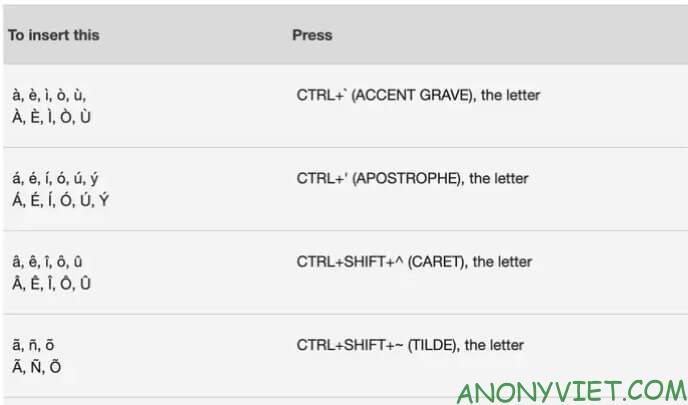
Typing accented letters can be a pain for bilingual users. Fortunately, Word has some keyboard shortcuts that make it easy to add accented characters. For example, if you wanted to type É, you could type Ctrl + ‘ + E.
Here is a table of each special character
Use Resume Assistance to get help from LinkedIn
Microsoft bought the job site LinkedIn, which created a great feature in Word – Resume Assistant.
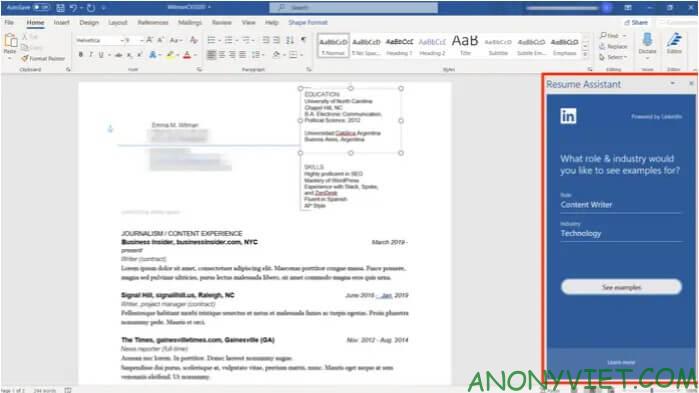
Navigate to “Review“, then select “Resume Assistant” to begin. Enter a role and industry for your field and you’ll be able to compare and contrast your resume with LinkedIn profiles.
Use sample text to check font
Let’s say you want to test what fonts look like or how certain pages are formatted, but don’t have any writing to test.
Lorem Ipsum is subtext – meaningless words and sentences structured exactly like actual words and sentences. If you just need text as a placeholder, Lorem Ipsum is the perfect choice for this job
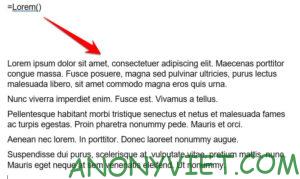
Select the blank to fill in the text and enter =Lorem() then press Enter. It will appear 5 short paragraphs and they are editable like regular text
Double-click to be able to write anywhere in the text
If you want to write text on a specific part of the page, you don’t need to use the Enter key and the spacebar to enter that section. Just Double-click on any part of a blank page to move the cursor there and start writing.
Use “Translate” to translate text on Word
To translate text into another language, all you have to do is select the text, right-click and tap “Translate” in Word. Translator will display the text, then select the language you want to translate. Then place the translated text in the document with “Insert”.
Use the CTRL key to select the sentence
Selection shortcuts give you quick access to editing sentences or lines of text in separate areas of your document.
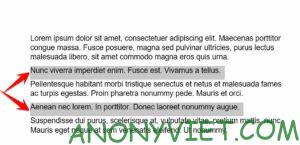
If you hold the . key Ctrl and clicking on a word, will highlight the entire sentence with that word. If you keep holding down the key, you can double-click other words or lines to select them, even if they aren’t seamless. This allows to edit all selected text at once, instead of one by one.
Using Templates
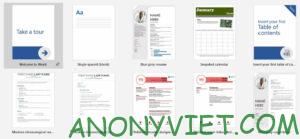
Instead of starting from scratch when building resumes, menus, brochures, or other projects, you can use Word’s built-in Templates. These templates are provided by Microsoft so you can start working right away. You’ll see templates appear whenever you create a new document. To use one, just click on it. You can also use the search bar to find new templates, in addition to the presets.
Create your own templates
If you find yourself frequently writing the same type of document — maybe you’re a student who needs to put a title on every sheet of paper — you can create a custom template that lets Word take care of the hectic work.
Create a new document and format it the way you want. Then go to “Save as” and change the file type to “Word Template (*.dotx).”
And just now, I have just guided 15 tips to use Word that everyone should know. Leave a comment to let me know what you think. See more how to download Office 2019 here.