• Home
  • News
  • Software
  • Knowledge
  • MMO
  • Tips
  • Security
  • Network
  • Office
AnonyViet - English Version
  • Home
  • News
  • Software
  • Knowledge
  • MMO
  • Tips
  • Security
  • Network
  • Office
No Result
View All Result
  • Home
  • News
  • Software
  • Knowledge
  • MMO
  • Tips
  • Security
  • Network
  • Office
No Result
View All Result
AnonyViet - English Version
No Result
View All Result

Using CapCut to separate audio from video is extremely easy

AnonyViet by AnonyViet
November 21, 2025
in Software
0

To make your video more professional and attractive, work Use CapCut to separate audio from video is the first and most important step. This allows you to remove background noise, add effects, or replace it with your favorite music. Let’s explore the detailed steps below to upgrade your videos.

Join the channel Telegram belong to AnonyViet 👉 Link 👈

Reasons you should separate audio from video

Below are the practical benefits that this skill brings:

  • Can freely edit audio without disturbing the image. When audio and video are on two separate layers, you can easily cut, merge, adjust the volume or add effects to the audio without fear of affecting the original frame.
  • Replacing background music is simpler than ever. You can easily remove the original audio and insert a popular song, a deep instrumental track or fun sound effects to make your video more engaging.
  • Video dubbing quality can be improved. This operation allows you to remove the noisy, stuttering original voice and re-record a new, clearer, more professional voiceover.
  • Store and reuse unique audio clips. If you have a favorite piece of music or sound effect, ripping it and saving it will save you time when you want to use it in other video projects in the future.

Reasons you should separate audio from video

Instructions on how to separate audio using CapCut

CapCut supports this feature on both mobile and computer platforms with an intuitive, easy-to-use interface.

How to do it on mobile phone

Step 1: Let’s start by opening CapCut applicationselect New project and upload the video you want to edit from your library.
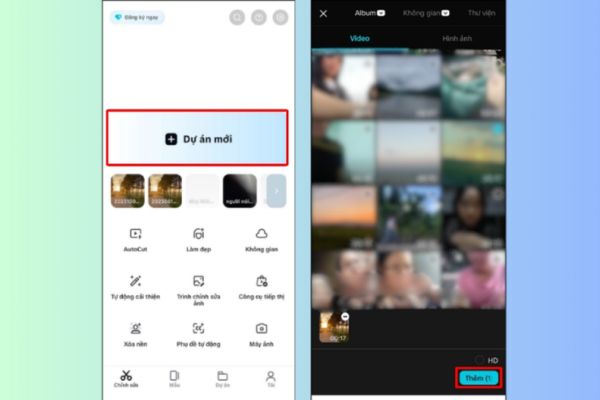
Select New Project
Select New Project

Step 2: Once the video has been added to the timeline, click on the video itself. On the toolbar at the bottom, scroll through and find the option Extract audio.
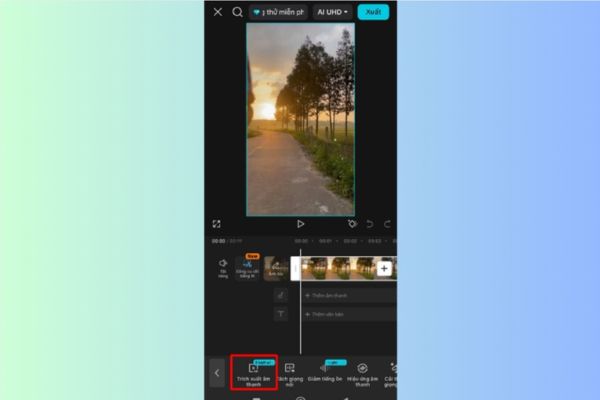
Select Extract Audio

Step 3: Immediately after pressing, CapCut will automatically create a separate audio layer right below the video. You can now edit these two components independently.
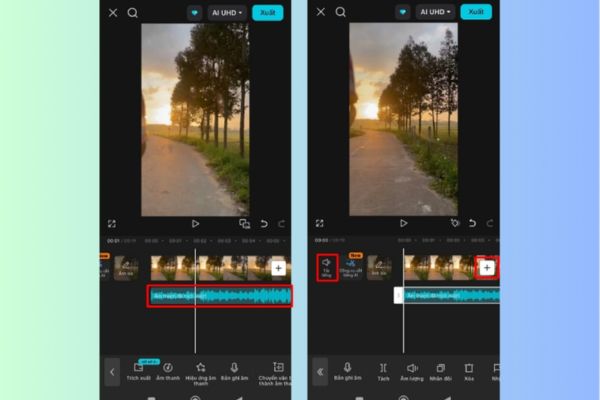
Using CapCut to separate audio from video is extremely easy

How to do it on computer

Step 1: Open CapCut software on your computer and click on the item New Project to start a new project.
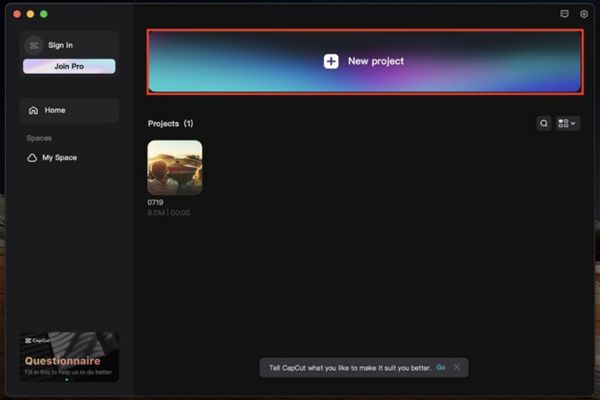
Click New Project
Click New Project

Step 2: Use the feature Import To add the video you need to edit to the project’s file management area.
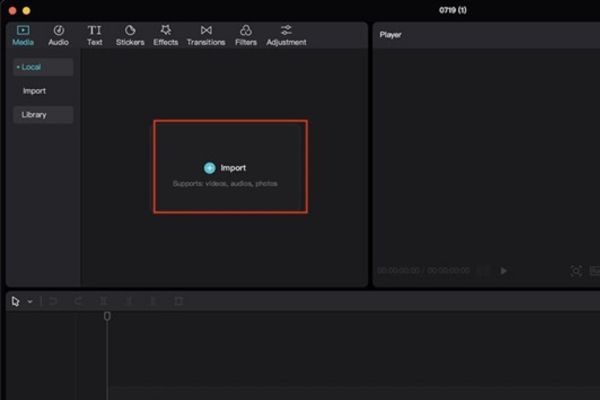
Use the Import feature

Step 3: Drag the video from the file management area and drop it to the timeline bar below to prepare it for editing.
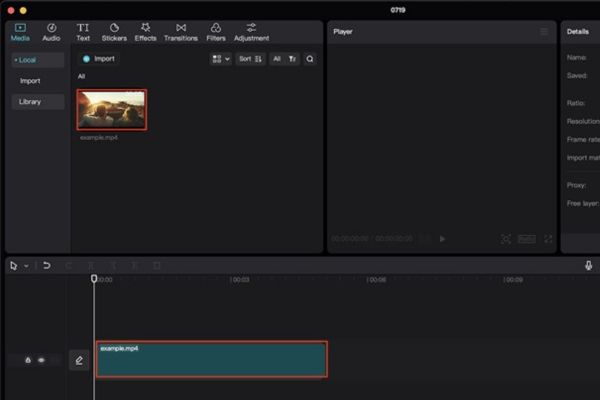
Drag and drop the video to the timeline bar

Step 4: Next, just right-click right on the video in the timeline. A context menu will appear, select it Extract Audio.
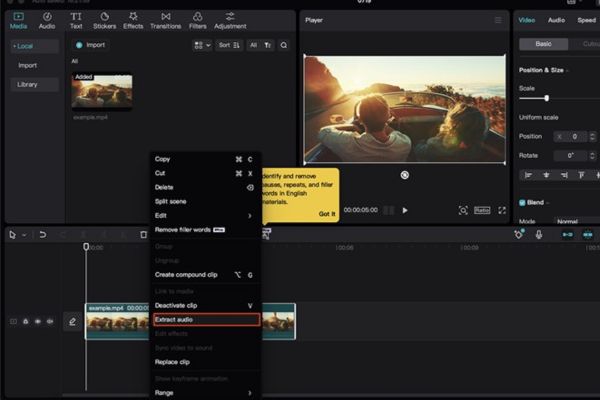
Select Extract Audio

Step 5: Immediately, an audio track will be separated and displayed right below the video track. The process of using CapCut to separate audio from video on your computer is complete, you can start editing.
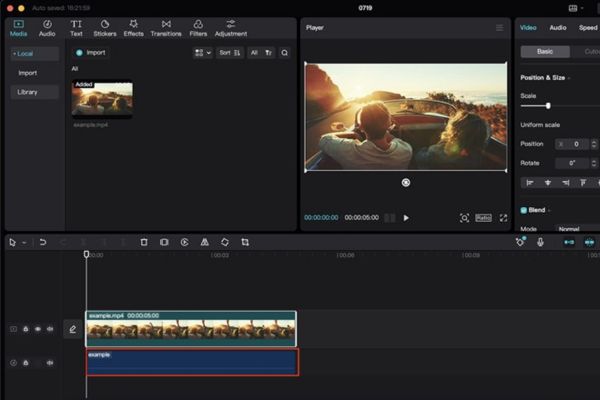
The audio track will be separated and displayed immediately below

Answers to frequently asked questions

If I delete a sound, can I get it back?

The answer is yes, but on condition that you have not exited the project. You can use the Undo button to restore the deleted audio. If you save and close the project, the audio is lost forever and you’ll need to re-add the original video to get the audio back.

Does video quality decrease after removing audio?

You can be completely assured because deleting or separating audio will not affect image quality. Video resolution, color and sharpness will remain the same as the original.

Is it possible to delete a small piece of audio instead of deleting the whole thing?

Definitely okay. CapCut allows you to use the Split tool to split an audio layer into multiple segments, then you can select and delete any segments you want. This provides maximum flexibility in the editing process.

Conclusion

Through the above instructions, it can be seen that separating audio in CapCut is not as complicated as many people think. This is an important skill that gives you more flexibility in the creative and video production process. Let’s start applying the method Use CapCut to separate audio from video today to create truly impressive products!


Tags: audioCapCuteasyextremelyseparatevideo
Previous Post

How to create a Lien Quan signature extremely quickly, in just 3 simple steps

Next Post

6 ways to check who is following you on the internet

AnonyViet

AnonyViet

Related Posts

How to authenticate the owner’s SIM on VNeID from April 15
Software

How to authenticate the owner’s SIM on VNeID from April 15

April 15, 2026
Review of Galaxy A57 and A37: Some are eight ounces, some are half a pound
Software

Review of Galaxy A57 and A37: Some are eight ounces, some are half a pound

April 14, 2026
JOPDF: Versatile PDF editing software for Windows and Mac
Software

JOPDF: Versatile PDF editing software for Windows and Mac

April 10, 2026
MyVehicle: Convenient and secure motorcycle maintenance reminder app
Software

MyVehicle: Convenient and secure motorcycle maintenance reminder app

April 10, 2026
How to turn off AI on Gmail to absolutely protect personal data
Software

How to turn off AI on Gmail to absolutely protect personal data

April 8, 2026
How to add Settings to Control Center using Shortcuts
Software

How to add Settings to Control Center using Shortcuts

April 7, 2026
Next Post
6 ways to check who is following you on the internet

6 ways to check who is following you on the internet

0 0 votes
Article Rating
Subscribe
Login
Notify of
guest

guest

0 Comments
Oldest
Newest Most Voted
Inline Feedbacks
View all comments

Recent News

How to intercept traffic using Burp Suite to analyze HTTP/HTTPS

How to intercept traffic using Burp Suite to analyze HTTP/HTTPS

April 18, 2026
How to avoid Adblock detection on Youtube with 4 good tips

How to avoid Adblock detection on Youtube with 4 good tips

April 17, 2026
How to transfer ChatGPT data to Claude is extremely simple

How to transfer ChatGPT data to Claude is extremely simple

April 16, 2026
How to authenticate the owner’s SIM on VNeID from April 15

How to authenticate the owner’s SIM on VNeID from April 15

April 15, 2026
How to intercept traffic using Burp Suite to analyze HTTP/HTTPS

How to intercept traffic using Burp Suite to analyze HTTP/HTTPS

April 18, 2026
How to avoid Adblock detection on Youtube with 4 good tips

How to avoid Adblock detection on Youtube with 4 good tips

April 17, 2026
How to transfer ChatGPT data to Claude is extremely simple

How to transfer ChatGPT data to Claude is extremely simple

April 16, 2026
AnonyViet - English Version

AnonyViet

AnonyViet is a website share knowledge that you have never learned in school!

We are ready to welcome your comments, as well as your articles sent to AnonyViet.

Follow Us

Contact:

Email: anonyviet.com[@]gmail.com

Main Website: https://anonyviet.com

Recent News

How to intercept traffic using Burp Suite to analyze HTTP/HTTPS

How to intercept traffic using Burp Suite to analyze HTTP/HTTPS

April 18, 2026
How to avoid Adblock detection on Youtube with 4 good tips

How to avoid Adblock detection on Youtube with 4 good tips

April 17, 2026
No Result
View All Result
  • Home
  • News
  • Software
  • Knowledge
  • MMO
  • Tips
  • Security
  • Network
  • Office

wpDiscuz
0
0
Would love your thoughts, please comment.x
()
x
| Reply