Windows 10 can capture or record screen without any third-party software. We will learn more about the features and usage of the Capture utility on Windows 10 in this article.
| Join the channel Telegram belong to AnonyViet 👉 Link 👈 |
Game Bar isn’t just for games
Windows 10’s screenshot tool is part of the Xbox Game Bar feature. Regardless of its name, Game Bar Not just for gaming. In this article, I will use it to capture/record screen.
This tool will record your screen in H.264 MP4 format.
Screen recording is part of the “Capture” widget, accessed through the Game Bar’s “Widget Menu”. To use the Widget menu, you will need to update Windows 10 from May 2019 or later.
How to enable Screen Capture feature on Windows 10
First, press Windows + G to launch Game Bar. Alternatively, you can open the Start menu and launch the “Xbox Game Bar” application.
(If the Game Bar doesn’t appear, go to Settings > Gaming > Xbox Game Bar. Make sure the T Game Bar is switched to “On”. You can also change the “Open Game Bar” shortcut to any key combination you like instead of Windows + G.)
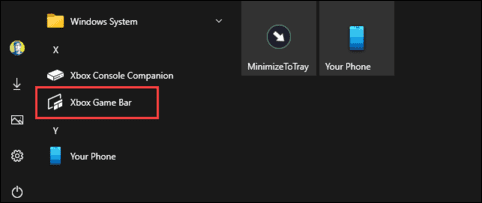
In the Game Bar, look for the “Capture” feature.
If you don’t see it, click the Widget menu icon on the left.
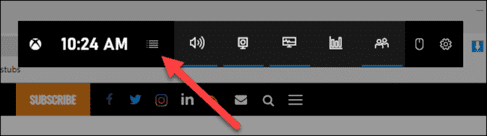
A drop-down list will appear, click “Capture”. The “Capture” shortcut can also be found in the Game Bar toolbar.
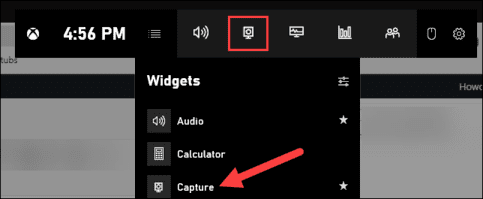
How to record screen using Game Bar
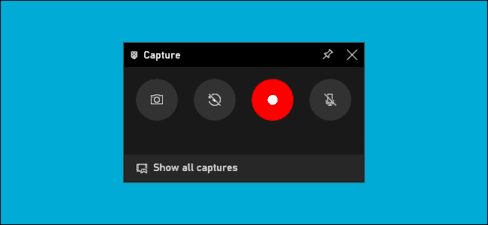
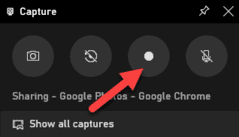
In the “Capture” window, there will be four feature buttons from left to right:
- Screenshots: Capture the active window.
- Record last 30 seconds: Start screen recording after 30 seconds.
- Start recording: Record the screen in the active window.
- Turn on mic while recording: If this option is enabled, Windows 10 will capture audio from your computer’s microphone and include it in the video.
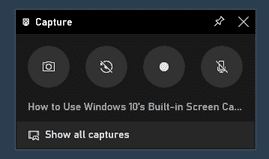
You will see text below the buttons. This is how you will know which window is active, aka what will be returned. For example, if you are browsing the web, it will display the titles of open tabs.
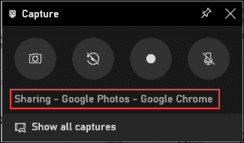
To start recording your screen, you must first decide whether or not you want to use a microphone, which is helpful if you’re trying to explain something on screen.
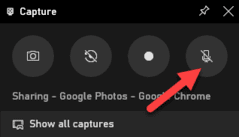
Then, click the button Start Recording.
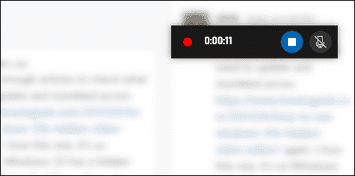
The screen recording process will start and you will see a small toolbar appear in the corner of the screen. It will display the video recording time and buttons to stop recording and switch microphones.
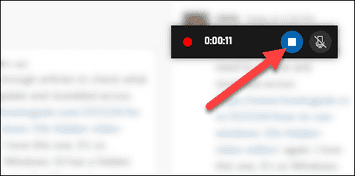
When you’re done, click the Stop icon to end the video recording process.
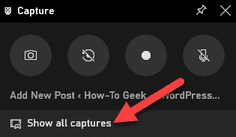
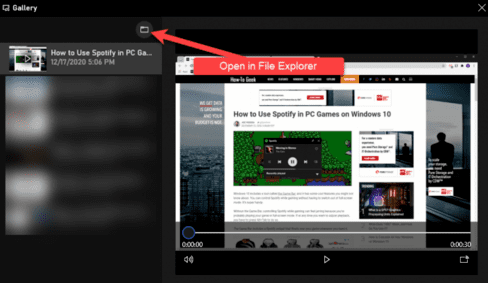
From the Capture widget, click “Show All Captures” to view your screen recording.
Your video recording will be at the top of the list. Click the folder icon to view all logs and screenshots in File Explorer.
These recordings are stored by default in your Windows user folder at C:\Users\User-name\Videos\Captures.
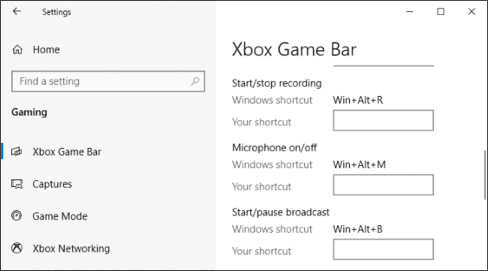
By the way, you can also start screen recording by pressing Windows + Alt + R. Go to Settings > Gaming > Xbox Game Bar to customize these shortcuts.
Above is the simplest and easiest way to record screen for Windows 10 without installing additional software.
Frequently asked questions
What software do I need to install to record screen on Windows 10?
No need to install any additional software. Windows 10 has a built-in screen recording feature through the Xbox Game Bar.
What is the keyboard shortcut to open Xbox Game Bar and start screen recording?
The default keyboard shortcut is Windows + G to open the Game Bar. You can then use the “Start recording” button in the Capture utility or use the Windows + Alt + R key combination to start recording.
Where are screen recorded videos saved?
By default, videos are saved in a folder C:\Users\User-name\Videos\Captures. (Replace “User-name” with your username).