How to connect 2 Bluetooth devices at the same time has now become a reality on Windows 11 thanks to a groundbreaking feature called “Shared Audio”. Instead of having to share one headset, you and your loved one can enjoy music or watch movies with two completely separate devices. Let’s go together AnonyViet Find out how this awesome feature works and how to enable it!
| Join the channel Telegram belong to AnonyViet 👉 Link 👈 |
Introducing the Shared Audio feature
Microsoft has officially introduced “Shared Audio“, a smart feature that allows a computer Windows 11 Play audio to two different output devices simultaneously.
Imagine you and a friend watch a movie on your laptop in a noisy coffee shop, each of you wearing your own headphones and enjoying the full sound. This feature opens up countless conveniences, from group study, presentations to general entertainment without disturbing people around you.

What technology is behind this magical feature?
Shared Audio’s breakthrough comes from technology Bluetooth LE (Low Energy) Audio. This is a new generation Bluetooth standard, not only more energy efficient but also possesses the ability to broadcast audio. This means that one source device (like the Copilot+ PC) can send a single audio stream to multiple receiving devices at the same time, creating a perfectly synchronized experience.
Instructions on how to connect 2 Bluetooth devices at the same time
To start sharing audio, you just need to follow a few simple steps after making sure your devices are compatible:
Step 1: First, you need to connect both Bluetooth audio devices (headphones, speakers, etc.) to your Windows 11 computer as usual.
Step 2: Next, open the menu Quick Settings by pressing a key combination Windows + A.
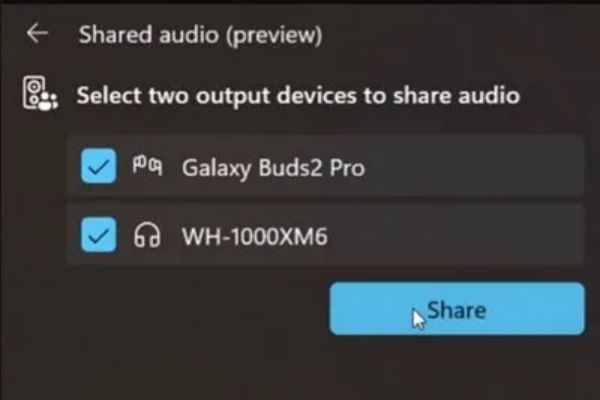
Step 3: In the menu that appears, find and select the page Shared audio (Shared audio).
Here, the system will display available audio devices, you just need to select the two devices you want to share.
Step 4: Finally, press the button Share (Share) and enjoy audio played simultaneously on both devices.
Who can experience this feature?
Currently, Shared Audio is in testing phase and is only available to Windows Insider users in the Dev and Beta channels. Specifically, your computer needs to be running one of the following two builds:
- Windows 11 version 25H2 (Build 26220.7051)
- Windows 11 version 24H2 (Build 26120.7051)
Most importantly, your device must be one Copilot+ PC Equipped with hardware and driver support Bluetooth LE Audio.
List of devices supported Shared Audio
Microsoft has announced the list of first and upcoming devices that will support this feature.
Devices currently supported:
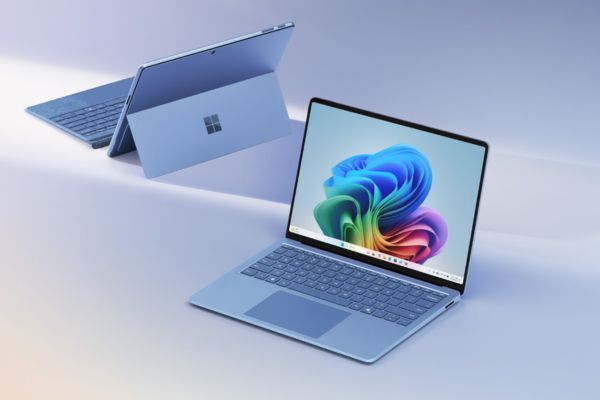
- The latest Surface Laptop line, including both 13.8-inch and 15-inch versions, uses the Qualcomm Snapdragon X chip.
- The new generation Surface Pro series is 13-inch in size, also equipped with Qualcomm Snapdragon X chip.
Devices that will be supported in the future:
- Samsung Galaxy Book4 Edge and Galaxy Book5 series models are coming soon.
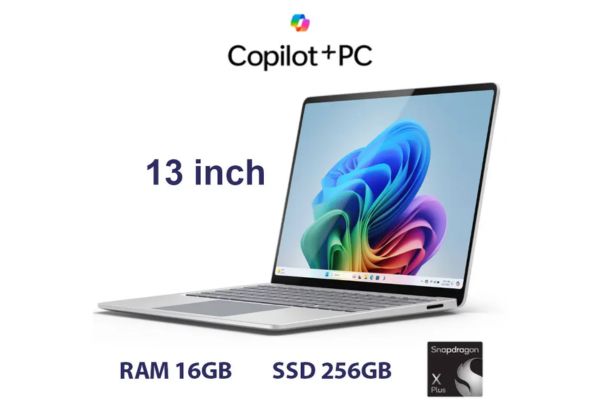
- Additional Surface Laptop and Surface Pro versions, including 12-inch and 13-inch models running the Qualcomm Snapdragon X chip.
Microsoft affirms that it will continue to expand this list so that more users can access this useful feature.
Conclusion
With Shared Audio, How to connect 2 Bluetooth devices at the same time on Windows 11 is no longer complicated. This is a great step forward, making the entertainment and teamwork experience more flexible and convenient than ever. Check to see if your device is on the support list and get ready to experience this exciting feature in the near future!