• Home
  • News
  • Software
  • Knowledge
  • MMO
  • Tips
  • Security
  • Network
  • Office
AnonyViet - English Version
  • Home
  • News
  • Software
  • Knowledge
  • MMO
  • Tips
  • Security
  • Network
  • Office
No Result
View All Result
  • Home
  • News
  • Software
  • Knowledge
  • MMO
  • Tips
  • Security
  • Network
  • Office
No Result
View All Result
AnonyViet - English Version
No Result
View All Result

Lesson 42: How to convert Letters to Numbers in Excel

AnonyViet by AnonyViet
January 26, 2023
in Office
0

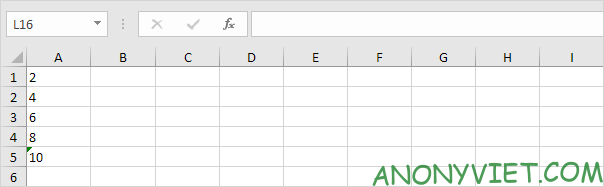
By default, text is left aligned and numbers are right aligned. So, this article will show you how to convert letters to numbers in Excel.

Join the channel Telegram of the AnonyViet 👉 Link 👈

Lesson 42: How to convert letters to numbers in Excel

How to convert letters to numbers in Excel

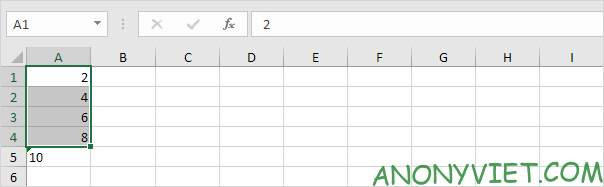
first. Select the area A1:A4 and change the format to General.
Lesson 42: How to convert Letters to Numbers in Excel 12

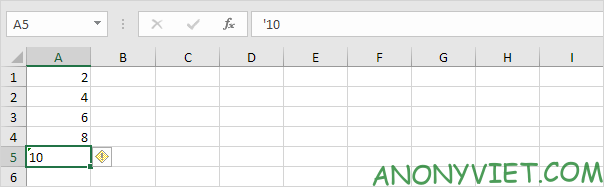
2. Numbers before the apostrophe are also treated as text. Select cell A5 and remove the apostrophe manually.
Lesson 42: How to convert Letters to Numbers in Excel 13

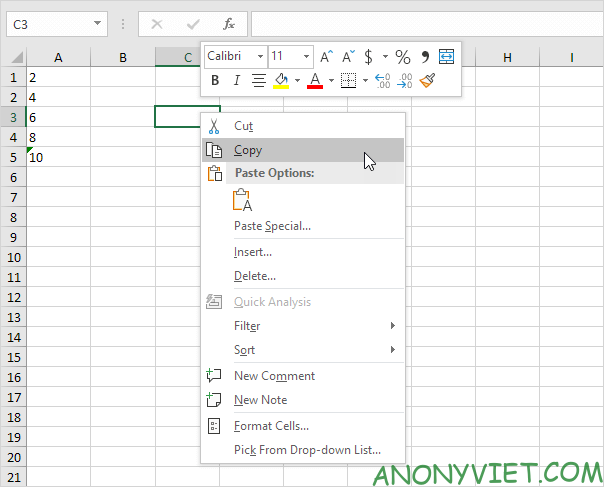
3a. You can also combine step 1 and step 2 by adding a blank cell to the range A1:A5. This way you tell Excel that these text strings are numbers. Copy a blank cell.
Lesson 42: How to convert Letters to Numbers in Excel 14

3b. Select the area A1:A5, right-click and select Paste Special.

3c. Click Add.
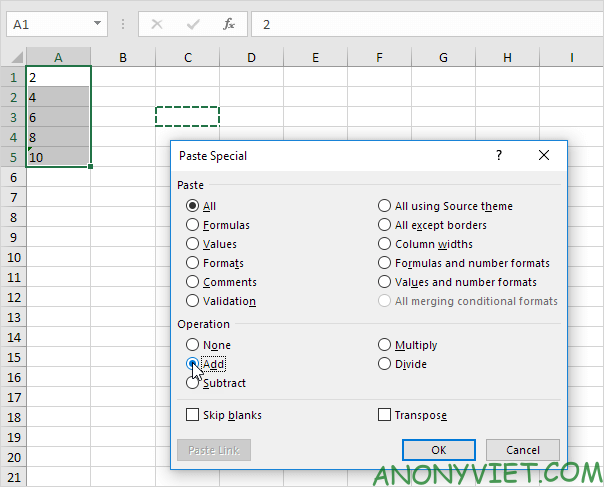
Lesson 42: How to convert Letters to Numbers in Excel 15

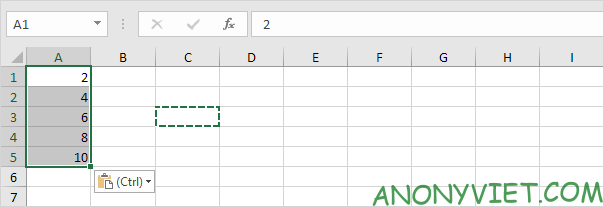
3d. Click OK.

Result: All data is right aligned and treated as numbers.
Lesson 42: How to convert Letters to Numbers in Excel 16

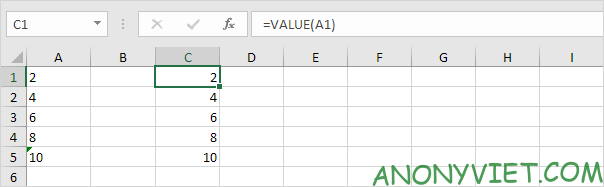
4a. You can also use the VALUE function.
Lesson 42: How to convert Letters to Numbers in Excel 17

4b. Here is another example. Use the RIGHT function (or any other text function) to extract characters from a text string, and then use the VALUE function to convert these characters to numbers.

Lesson 42: How to convert Letters to Numbers in Excel 18

In addition, you can also view many other excel articles here.

The article achieved: 5/5 – (100 votes)

Tags: convertExcelLessonlettersnumbers
Previous Post

How to use Spotlight on MacOS like a Pro

Next Post

How to Install Phishing Gophish on Windows and Linux

AnonyViet

AnonyViet

Related Posts

Top who creates the most beautiful presentation slide today
Office

Top who creates the most beautiful presentation slide today

September 23, 2025
Automatically check and correct spelling errors on Google Docs
Office

Automatically check and correct spelling errors on Google Docs

February 23, 2025
Instructions for downloading Google Docs files easily on any device
Office

Instructions for downloading Google Docs files easily on any device

December 18, 2024
Launching AI image creation feature on Google Docs
Office

Launching AI image creation feature on Google Docs

November 20, 2024
Instructions for using Google Docs without internet
Office

Instructions for using Google Docs without internet

November 2, 2024
Share the link to the sample file to create QR codes in Google Sheets
Office

Share the link to the sample file to create QR codes in Google Sheets

September 30, 2024
Next Post
How to Install Phishing Gophish on Windows and Linux

How to Install Phishing Gophish on Windows and Linux

0 0 votes
Article Rating
Subscribe
Login
Notify of
guest

guest

0 Comments
Oldest
Newest Most Voted
Inline Feedbacks
View all comments

Recent News

Instructions on how to edit Facebook scheduled posts

Instructions on how to edit Facebook scheduled posts

November 16, 2025
Suggested AI command to create a rustic and charming image of a Ban Lien girl

Suggested AI command to create a rustic and charming image of a Ban Lien girl

November 16, 2025
Windows 10 will have a new, simpler interface

Windows 10 will have a new, simpler interface

November 16, 2025
Share Key Active Visual Studio 2026

Share Key Active Visual Studio 2026

November 15, 2025
Instructions on how to edit Facebook scheduled posts

Instructions on how to edit Facebook scheduled posts

November 16, 2025
Suggested AI command to create a rustic and charming image of a Ban Lien girl

Suggested AI command to create a rustic and charming image of a Ban Lien girl

November 16, 2025
Windows 10 will have a new, simpler interface

Windows 10 will have a new, simpler interface

November 16, 2025
AnonyViet - English Version

AnonyViet

AnonyViet is a website share knowledge that you have never learned in school!

We are ready to welcome your comments, as well as your articles sent to AnonyViet.

Follow Us

Contact:

Email: anonyviet.com[@]gmail.com

Main Website: https://anonyviet.com

Recent News

Instructions on how to edit Facebook scheduled posts

Instructions on how to edit Facebook scheduled posts

November 16, 2025
Suggested AI command to create a rustic and charming image of a Ban Lien girl

Suggested AI command to create a rustic and charming image of a Ban Lien girl

November 16, 2025
  • Home
  • Home 2
  • Home 3
  • Home 4
  • Home 5
  • Home 6
  • Next Dest Page
  • Sample Page

new88 trang chủ shbet trang chủ f168 trang chủ qq88 nhà cái 78win

No Result
View All Result
  • Home
  • News
  • Software
  • Knowledge
  • MMO
  • Tips
  • Security
  • Network
  • Office

new88 trang chủ shbet trang chủ f168 trang chủ qq88 nhà cái 78win

wpDiscuz
0
0
Would love your thoughts, please comment.x
()
x
| Reply