• Home
  • News
  • Software
  • Knowledge
  • MMO
  • Tips
  • Security
  • Network
  • Office
AnonyViet - English Version
  • Home
  • News
  • Software
  • Knowledge
  • MMO
  • Tips
  • Security
  • Network
  • Office
No Result
View All Result
  • Home
  • News
  • Software
  • Knowledge
  • MMO
  • Tips
  • Security
  • Network
  • Office
No Result
View All Result
AnonyViet - English Version
No Result
View All Result

How to use Spotlight on MacOS like a Pro

AnonyViet by AnonyViet
January 26, 2023
in Tips
0

Spotlight is one of the most notable tools on macOS. You can navigate your Mac, perform calculations, search the web, and do just about anything using these Spotlight tips and tricks.

Join the channel Telegram of the AnonyViet 👉 Link 👈

How to use Spotlight on MacOS like a Pro

Spotlight Shortcut

1. Open Spotlight

How to use Spotlight on MacOS like a Pro 13

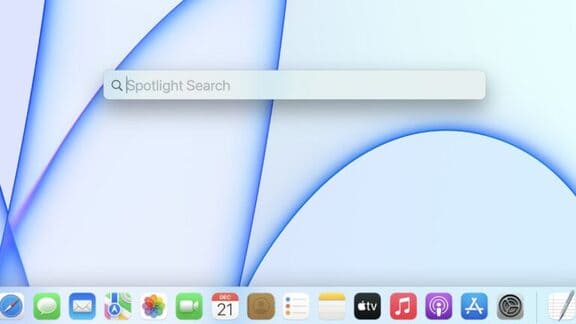
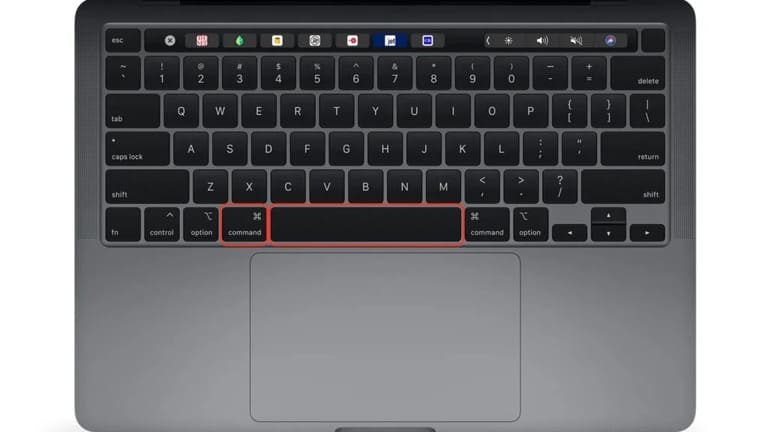
You can open Spotlight by using any of the two Spotlight shortcuts. Quickly press Command (⌘) + Space or click the magnifying glass icon from the menu bar.

2. Resize Spotlight

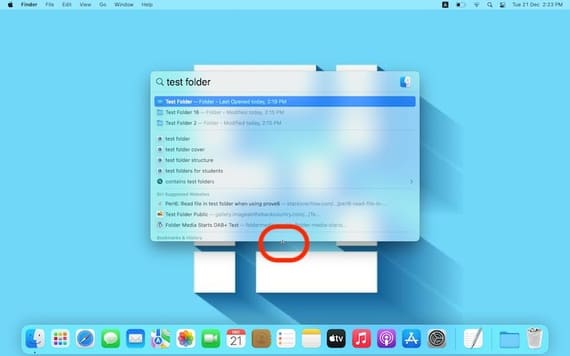
To resize the Spotlight search to your liking, hover your mouse over the bottom edge of the Spotlight window and drag it up or down. You can also keep the window on top and drag it where you want it on the screen.
How to use Spotlight on MacOS like a Pro 14

3. Restore size and position

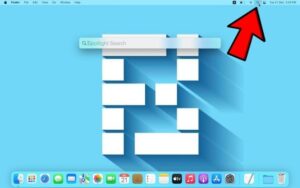
Just press and hold the magnifying glass icon in the menu bar and Spotlight will return to its original size and position.
How to use Spotlight on MacOS like a Pro 15

Spotlight tips

4. Open apps with Spotlight

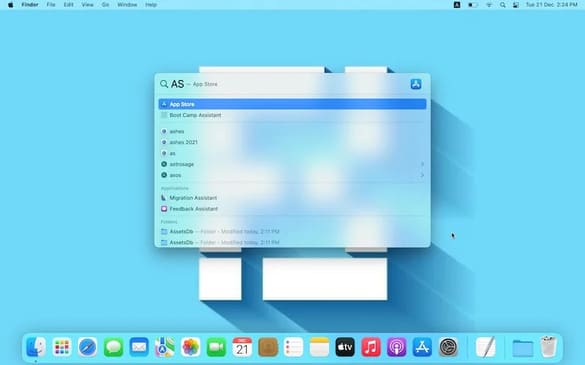
To open an app with Spotlight, just type the name of the app and press enter. If the app has a longer name, you can search for it by its initials.

For example, AS will show App Store and SP will show system preferences.
How to use Spotlight on MacOS like a Pro 16

Pro Tip: If you want to search something on the web, just type a query on Spotlight and press Command + B.

5. Check the location of the file

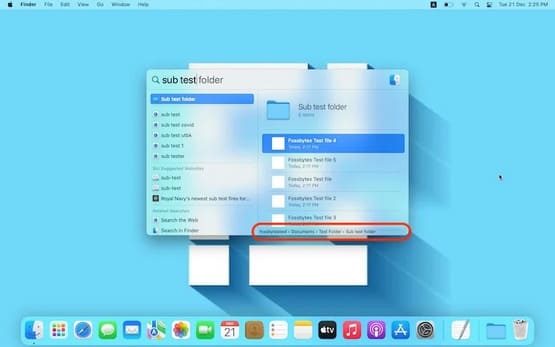
You can check the location of the file in Spotlight by holding down the command key and you will see the file/folder root path pop up in the preview on the right side.
How to use Spotlight on MacOS like a Pro 17

6. Switch between categories

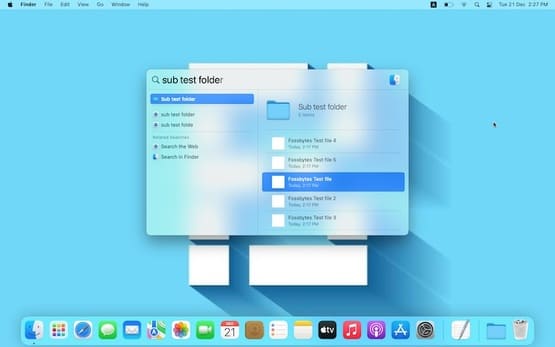
You can hold down the command key and use the arrow keys to switch categories instead of scrolling through all the results.
How to use Spotlight on MacOS like a Pro 18

7. Preview the contents of the folder

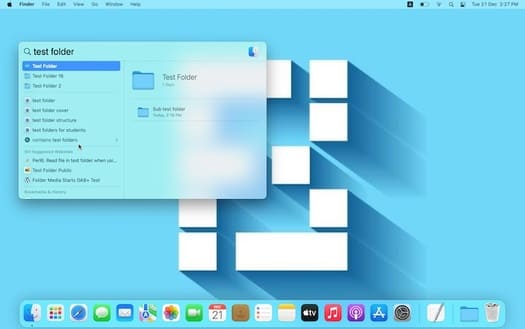
If your search shows you a folder, you’ll see its contents in a preview. Just press Tab to go to the preview and view the contents of the folder with the arrow keys.

Press Shift + Tab to return to the search results.
How to use Spotlight on MacOS like a Pro 19

Cool things you can do on your Mac with Spotlight

8. Search by type, name, date

To perform an accurate Spotlight search, open Spotlight and type “Kind:” followed by the file type you are looking for.

For example, write Kind: folder (the name of the folder). You can also search with dates or date ranges.
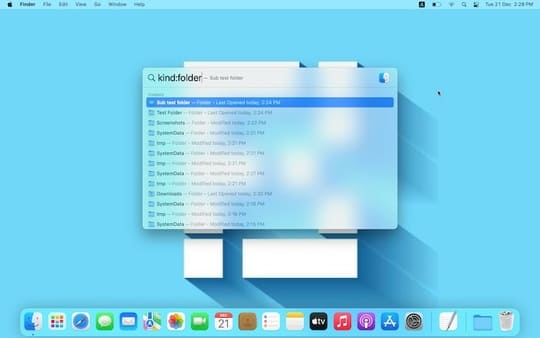
How to use Spotlight on MacOS like a Pro 20

9. Calculation and temperature

You can do simple calculations on Spotlight without having to use that calculator.
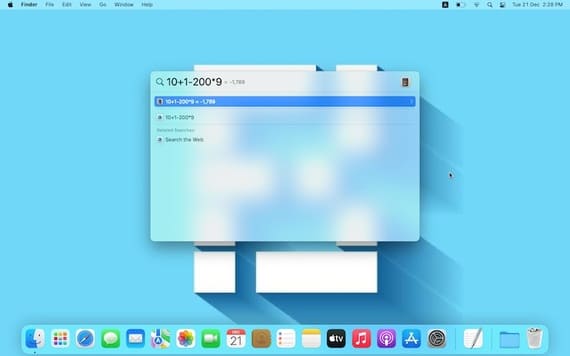
How to use Spotlight on MacOS like a Pro 21

To check the weather, simply enter the weather and you will probably have the results by the time you enter Wea…
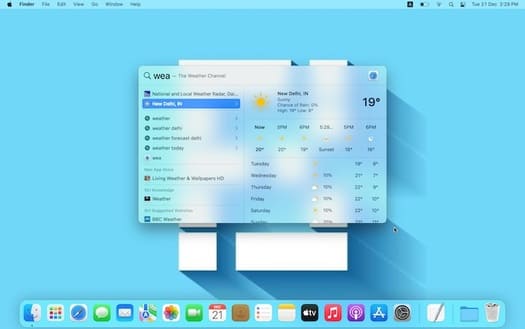
How to use Spotlight on MacOS like a Pro 22

To check the weather for some other location, enter “weather: name of the place”. For example, “weather: New york” to show the weather in New York.

10. Convert Currency/Unit/Weight, Stock

To convert currencies, weights or units, simply enter values ​​like “100 usd to euros” and the answer is 88 euros at the time of this writing.
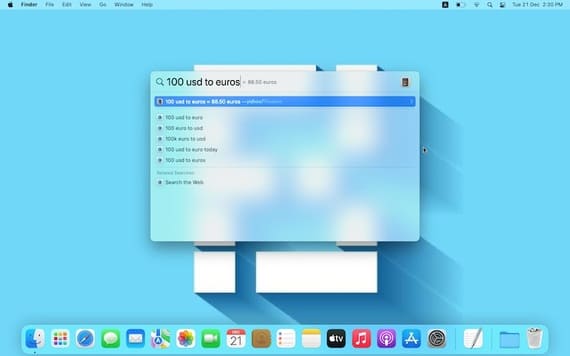
How to use Spotlight on MacOS like a Pro 23

You can quickly check stock value on Spotlight by entering the stock name.
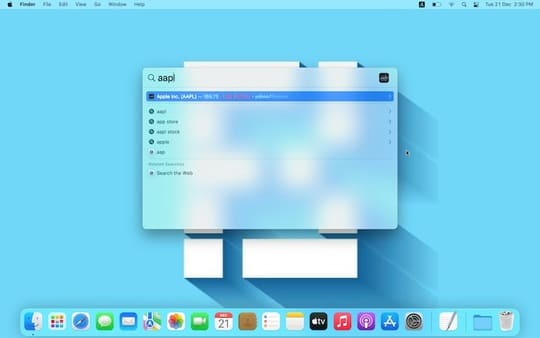
How to use Spotlight on MacOS like a Pro 24

Also, you can also watch this paragraph to know whether to buy a Macbook Pro to play games or not.


The article achieved: 5/5 – (100 votes)

Tags: MACOSProSpotlight
Previous Post

How to add a link to an Instagram Story

Next Post

Lesson 42: How to convert Letters to Numbers in Excel

AnonyViet

AnonyViet

Related Posts

New features of Windows 10 21H1 are coming soon
Tips

New features of Windows 10 21H1 are coming soon

March 16, 2026
How to convert normal music into 8D music with Audioalter
Tips

How to convert normal music into 8D music with Audioalter

March 14, 2026
How to prevent your family’s Security Camera from being hacked
Tips

How to prevent your family’s Security Camera from being hacked

March 13, 2026
Pixel Agents: Turn VS Code into a Pixel Art Office for AI
Tips

Pixel Agents: Turn VS Code into a Pixel Art Office for AI

March 12, 2026
English learning app Memrise is offering a lifetime discount of only 21,000 VND
Tips

English learning app Memrise is offering a lifetime discount of only 21,000 VND

March 11, 2026
Instructions for upgrading to Windows 10 Sun Valley (February 21)
Tips

Instructions for upgrading to Windows 10 Sun Valley (February 21)

March 11, 2026
Next Post
Lesson 42: How to convert Letters to Numbers in Excel

Lesson 42: How to convert Letters to Numbers in Excel

0 0 votes
Article Rating
Subscribe
Login
Notify of
guest

guest

0 Comments
Oldest
Newest Most Voted
Inline Feedbacks
View all comments

Recent News

Why are iPhones and MacBooks still the number 1 “weapons” of the technology world?

Why are iPhones and MacBooks still the number 1 “weapons” of the technology world?

March 16, 2026
New features of Windows 10 21H1 are coming soon

New features of Windows 10 21H1 are coming soon

March 16, 2026
Receive Advanced SystemCare 19 Pro key for free for 6 months

Receive Advanced SystemCare 19 Pro key for free for 6 months

March 16, 2026
How to install Siri to read application notifications on iPhone 17 is extremely simple

How to install Siri to read application notifications on iPhone 17 is extremely simple

March 16, 2026
Why are iPhones and MacBooks still the number 1 “weapons” of the technology world?

Why are iPhones and MacBooks still the number 1 “weapons” of the technology world?

March 16, 2026
New features of Windows 10 21H1 are coming soon

New features of Windows 10 21H1 are coming soon

March 16, 2026
Receive Advanced SystemCare 19 Pro key for free for 6 months

Receive Advanced SystemCare 19 Pro key for free for 6 months

March 16, 2026
AnonyViet - English Version

AnonyViet

AnonyViet is a website share knowledge that you have never learned in school!

We are ready to welcome your comments, as well as your articles sent to AnonyViet.

Follow Us

Contact:

Email: anonyviet.com[@]gmail.com

Main Website: https://anonyviet.com

Recent News

Why are iPhones and MacBooks still the number 1 “weapons” of the technology world?

Why are iPhones and MacBooks still the number 1 “weapons” of the technology world?

March 16, 2026
New features of Windows 10 21H1 are coming soon

New features of Windows 10 21H1 are coming soon

March 16, 2026
No Result
View All Result
  • Home
  • News
  • Software
  • Knowledge
  • MMO
  • Tips
  • Security
  • Network
  • Office

wpDiscuz
0
0
Would love your thoughts, please comment.x
()
x
| Reply