• Home
  • News
  • Software
  • Knowledge
  • MMO
  • Tips
  • Security
  • Network
  • Office
AnonyViet - English Version
  • Home
  • News
  • Software
  • Knowledge
  • MMO
  • Tips
  • Security
  • Network
  • Office
No Result
View All Result
  • Home
  • News
  • Software
  • Knowledge
  • MMO
  • Tips
  • Security
  • Network
  • Office
No Result
View All Result
AnonyViet - English Version
No Result
View All Result

Lesson 101: How to lock cells in Excel

AnonyViet by AnonyViet
January 25, 2023
in Office
0

You can lock cells in Excel if you want to protect the cell from being edited.

Join the channel Telegram of the AnonyViet 👉 Link 👈

How to lock all cells in Excel

By default, all cells are locked. However, cell locking has no effect until you protect the worksheet.

1. Select all cells.

Lesson 101: How to lock cells in Excel

2. Right-click, and then click Format Cells (or press CTRL + 1).

3. On the Protection tab, you can verify that all cells are locked by default.
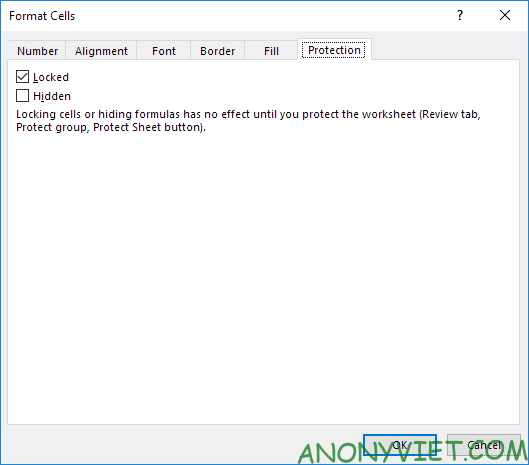
Lesson 101: How to lock cells in Excel 17

4. Click OK or Cancel.

5. Protect the sheet.

All cells are now locked. To unprotect a sheet, right-click the sheet and click Unprotect Sheet.

Lock specific cells

1. Select all cells.

Lesson 101: How to lock cells in Excel 18

2. Right-click, and then click Format Cells (or press CTRL + 1).

3. On the Protection tab, uncheck Locked and click OK.
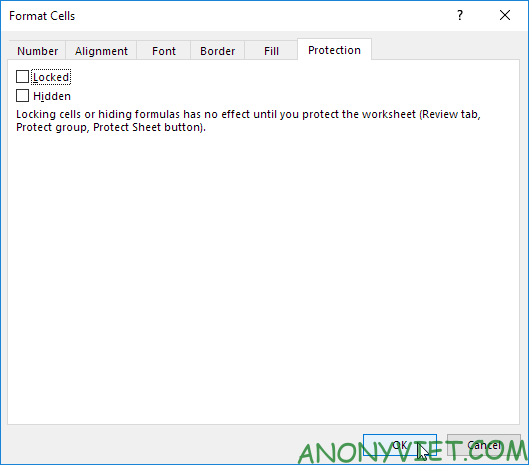
Lesson 101: How to lock cells in Excel 19

4. For example, select cell A1 and cell A2.

Lesson 101: How to lock cells in Excel 20

5. Right-click, and then click Format Cells (or press CTRL + 1).

6. On the Protection tab, select Locked and click OK.
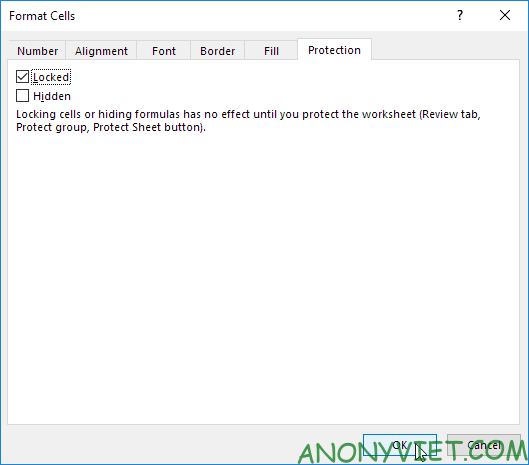
Lesson 101: How to lock cells in Excel 21

Again, cell locking has no effect until you protect the sheet.

7. Protect the sheet.

Cell A1 and cell A2 are now locked. To edit these cells, you must unprotect the worksheet.

Lock formula cells

1. Select all cells.
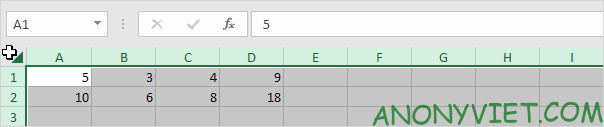
Lesson 101: How to lock cells in Excel 22

2. Right-click, and then click Format Cells (or press CTRL + 1).

3. On the Protection tab, uncheck Locked and click OK.
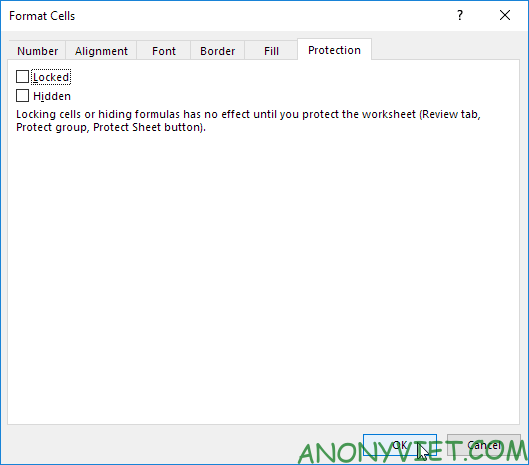
Lesson 101: How to lock cells in Excel 23

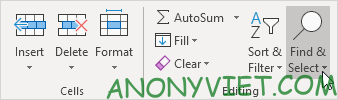
4. On the Home tab, in the Editing group, click Find & Select.
Lesson 101: How to lock cells in Excel 24

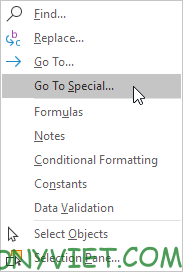
5. Click Go To Special.

Lesson 101: How to lock cells in Excel 25

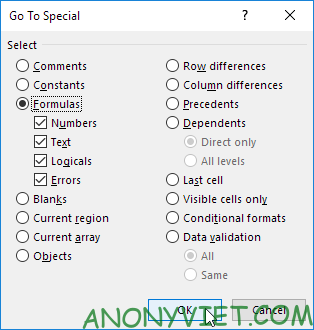
6. Select Formulas and click OK.

Lesson 101: How to lock cells in Excel 26

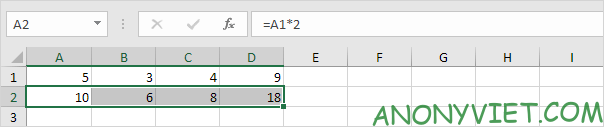
Excel will select all formula cells.

Lesson 101: How to lock cells in Excel 27

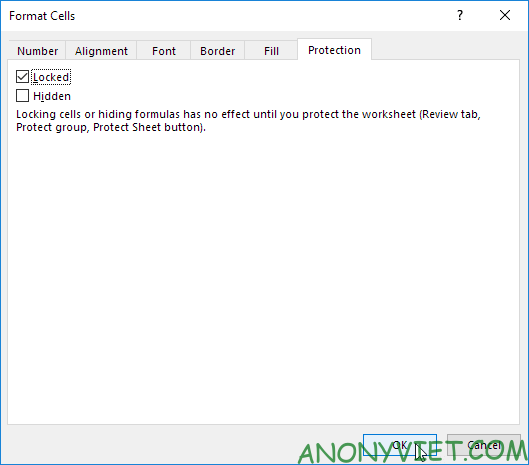
7. Press CTRL + 1.

8. On the Protection tab, select Locked and click OK.
Lesson 101: How to lock cells in Excel 28

Note: if you also select Hidden, users will not be able to see the formula in the formula bar when they select cell A2, B2, C2, or D2.

9. Protect the sheet.

In addition, you can also view many other excel articles here.

The article achieved: 5/5 – (100 votes)

Tags: cellsExcelLessonLock
Previous Post

Instructions for Hacking Kahoot Simple and Easy

Next Post

Lesson 106: How to count characters in Excel

AnonyViet

AnonyViet

Related Posts

Top who creates the most beautiful presentation slide today
Office

Top who creates the most beautiful presentation slide today

September 23, 2025
Automatically check and correct spelling errors on Google Docs
Office

Automatically check and correct spelling errors on Google Docs

February 23, 2025
Instructions for downloading Google Docs files easily on any device
Office

Instructions for downloading Google Docs files easily on any device

December 18, 2024
Launching AI image creation feature on Google Docs
Office

Launching AI image creation feature on Google Docs

November 20, 2024
Instructions for using Google Docs without internet
Office

Instructions for using Google Docs without internet

November 2, 2024
Share the link to the sample file to create QR codes in Google Sheets
Office

Share the link to the sample file to create QR codes in Google Sheets

September 30, 2024
Next Post
Lesson 106: How to count characters in Excel

Lesson 106: How to count characters in Excel

0 0 votes
Article Rating
Subscribe
Login
Notify of
guest

guest

0 Comments
Oldest
Newest Most Voted
Inline Feedbacks
View all comments

Recent News

How to use automatic verification bot to register for ChatGPT K12, Spotify Student,…

How to use automatic verification bot to register for ChatGPT K12, Spotify Student,…

January 18, 2026
Instructions on how to create head-grabbing photos – New trend causing TikTok storm

Instructions on how to create head-grabbing photos – New trend causing TikTok storm

January 18, 2026
How to use CMD environment variables in Windows

How to use CMD environment variables in Windows

January 18, 2026
Instructions for installing the application “Are you dead yet” – Demumu

Instructions for installing the application “Are you dead yet” – Demumu

January 17, 2026
How to use automatic verification bot to register for ChatGPT K12, Spotify Student,…

How to use automatic verification bot to register for ChatGPT K12, Spotify Student,…

January 18, 2026
Instructions on how to create head-grabbing photos – New trend causing TikTok storm

Instructions on how to create head-grabbing photos – New trend causing TikTok storm

January 18, 2026
How to use CMD environment variables in Windows

How to use CMD environment variables in Windows

January 18, 2026
AnonyViet - English Version

AnonyViet

AnonyViet is a website share knowledge that you have never learned in school!

We are ready to welcome your comments, as well as your articles sent to AnonyViet.

Follow Us

Contact:

Email: anonyviet.com[@]gmail.com

Main Website: https://anonyviet.com

Recent News

How to use automatic verification bot to register for ChatGPT K12, Spotify Student,…

How to use automatic verification bot to register for ChatGPT K12, Spotify Student,…

January 18, 2026
Instructions on how to create head-grabbing photos – New trend causing TikTok storm

Instructions on how to create head-grabbing photos – New trend causing TikTok storm

January 18, 2026
  • Home
  • Home 2
  • Home 3
  • Home 4
  • Home 5
  • Home 6
  • Next Dest Page
  • Sample Page

https://sun52.network

No Result
View All Result
  • Home
  • News
  • Software
  • Knowledge
  • MMO
  • Tips
  • Security
  • Network
  • Office

https://sun52.network

wpDiscuz
0
0
Would love your thoughts, please comment.x
()
x
| Reply