• Home
  • News
  • Software
  • Knowledge
  • MMO
  • Tips
  • Security
  • Network
  • Office
AnonyViet - English Version
  • Home
  • News
  • Software
  • Knowledge
  • MMO
  • Tips
  • Security
  • Network
  • Office
No Result
View All Result
  • Home
  • News
  • Software
  • Knowledge
  • MMO
  • Tips
  • Security
  • Network
  • Office
No Result
View All Result
AnonyViet - English Version
No Result
View All Result

Lesson 106: How to count characters in Excel

AnonyViet by AnonyViet
January 25, 2023
in Office
0

This article shows you how to count characters in a cell or a row and how to count the number of times a particular character appears in a cell or row in a row. Excel.

Join the channel Telegram of the AnonyViet 👉 Link 👈

Lesson 106: How to count characters in Excel

How to count characters in Excel

1. The LEN function in Excel is used to count the number of characters in a cell.
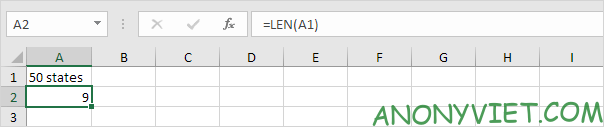
Lesson 106: How to count characters in Excel 11

Explanation: The LEN function will count 2 numbers, 1 space and 6 letters.

2. Use the SUM and LEN functions to count the number of characters in a range.Lesson 106: How to count characters in Excel 12
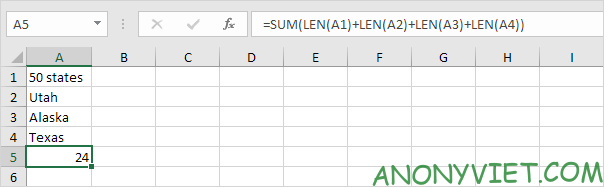
Note: as you can see, this recipe is quite lengthy.

3. The array formula below is much shorter.
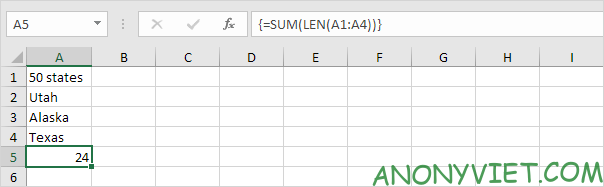
Lesson 106: How to count characters in Excel 13

4. Use the LEN and SUBSTITUTE functions to count the number of times a specific character (such as the character a) appears in a cell.
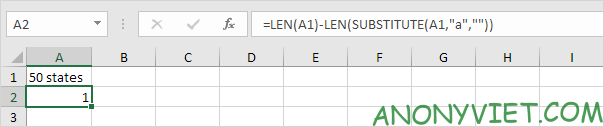
Lesson 106: How to count characters in Excel 14

Explanation: the SUBSTITUTE function replaces the character a (second parameter) with an empty string (third parameter). LEN(SUBSTITUTE(A1, “a”, “”)) is equal to 8 (length of string that does not contain the character a). If we subtract this number by 9 (total number of characters in cell A1), we get the number of occurrences of character a in cell A1.

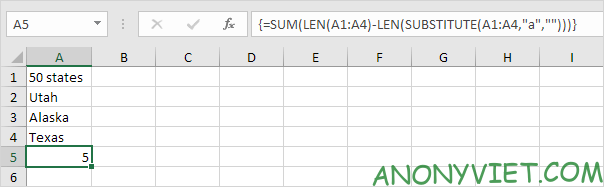
5. The array formula below will count the number of times a specific character (this example is still the character a) appears in a range of cells.
Lesson 106: How to count characters in Excel 15

Note: end the array formula by pressing CTRL + SHIFT + ENTER. Excel adds curly braces {}. Array constant {1; first; 2; 1} is used as a parameter to the SUM function, giving the result 5. The SUBSTITUTE function helps us distinguish between uppercase and lowercase letters. The letter A in Alaska will not count.

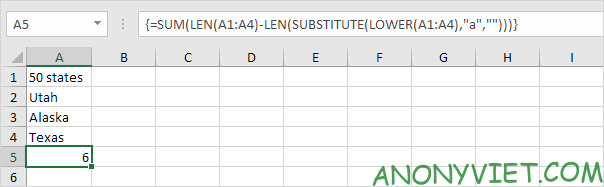
6. The array formula below will count the number of lowercase and uppercase occurrences of a particular character (also the character a, for example).
Lesson 106: How to count characters in Excel 16

In addition, you can also view many other excel articles here.

The article achieved: 5/5 – (100 votes)

Tags: characterscountExcelLesson
Previous Post

Lesson 101: How to lock cells in Excel

Next Post

Hướng dẫn lập trình PowerShell trên Windows

AnonyViet

AnonyViet

Related Posts

How to add Watermark to Google Docs to protect copyright
Office

How to add Watermark to Google Docs to protect copyright

April 19, 2026
Instructions on how to hide formulas in Excel to secure data
Office

Instructions on how to hide formulas in Excel to secure data

February 6, 2026
Top who creates the most beautiful presentation slide today
Office

Top who creates the most beautiful presentation slide today

September 23, 2025
Automatically check and correct spelling errors on Google Docs
Office

Automatically check and correct spelling errors on Google Docs

February 23, 2025
Instructions for downloading Google Docs files easily on any device
Office

Instructions for downloading Google Docs files easily on any device

December 18, 2024
Launching AI image creation feature on Google Docs
Office

Launching AI image creation feature on Google Docs

November 20, 2024
Next Post
Hướng dẫn lập trình PowerShell trên Windows

Hướng dẫn lập trình PowerShell trên Windows

0 0 votes
Article Rating
Subscribe
Login
Notify of
guest

guest

0 Comments
Oldest
Newest Most Voted
Inline Feedbacks
View all comments

Recent News

Tips for pinning the step counter to the iPhone screen to monitor your health

Tips for pinning the step counter to the iPhone screen to monitor your health

April 28, 2026
How to turn off password suggestions on iPhone: Prevent Safari from auto-filling passwords

How to turn off password suggestions on iPhone: Prevent Safari from auto-filling passwords

April 27, 2026
Instructions for looking up prescriptions on VNeID instead of paper medical books

Instructions for looking up prescriptions on VNeID instead of paper medical books

April 26, 2026
Tips to completely turn off CAPTCHA codes on iPhone and Mac are super simple

Tips to completely turn off CAPTCHA codes on iPhone and Mac are super simple

April 25, 2026
Tips for pinning the step counter to the iPhone screen to monitor your health

Tips for pinning the step counter to the iPhone screen to monitor your health

April 28, 2026
How to turn off password suggestions on iPhone: Prevent Safari from auto-filling passwords

How to turn off password suggestions on iPhone: Prevent Safari from auto-filling passwords

April 27, 2026
Instructions for looking up prescriptions on VNeID instead of paper medical books

Instructions for looking up prescriptions on VNeID instead of paper medical books

April 26, 2026
AnonyViet - English Version

AnonyViet

AnonyViet is a website share knowledge that you have never learned in school!

We are ready to welcome your comments, as well as your articles sent to AnonyViet.

Follow Us

Contact:

Email: anonyviet.com[@]gmail.com

Main Website: https://anonyviet.com

Recent News

Tips for pinning the step counter to the iPhone screen to monitor your health

Tips for pinning the step counter to the iPhone screen to monitor your health

April 28, 2026
How to turn off password suggestions on iPhone: Prevent Safari from auto-filling passwords

How to turn off password suggestions on iPhone: Prevent Safari from auto-filling passwords

April 27, 2026
No Result
View All Result
  • Home
  • News
  • Software
  • Knowledge
  • MMO
  • Tips
  • Security
  • Network
  • Office

wpDiscuz
0
0
Would love your thoughts, please comment.x
()
x
| Reply